
01Who this is for
- Agency owners who handle many client WordPress sites benefit from fast bulk updates after migrations.
- Ecommerce managers can quickly change product URLs or email addresses across the catalog.
- Real estate brokerages can replace outdated domain references when moving to a new brand.
02Search & Replace tool, explained
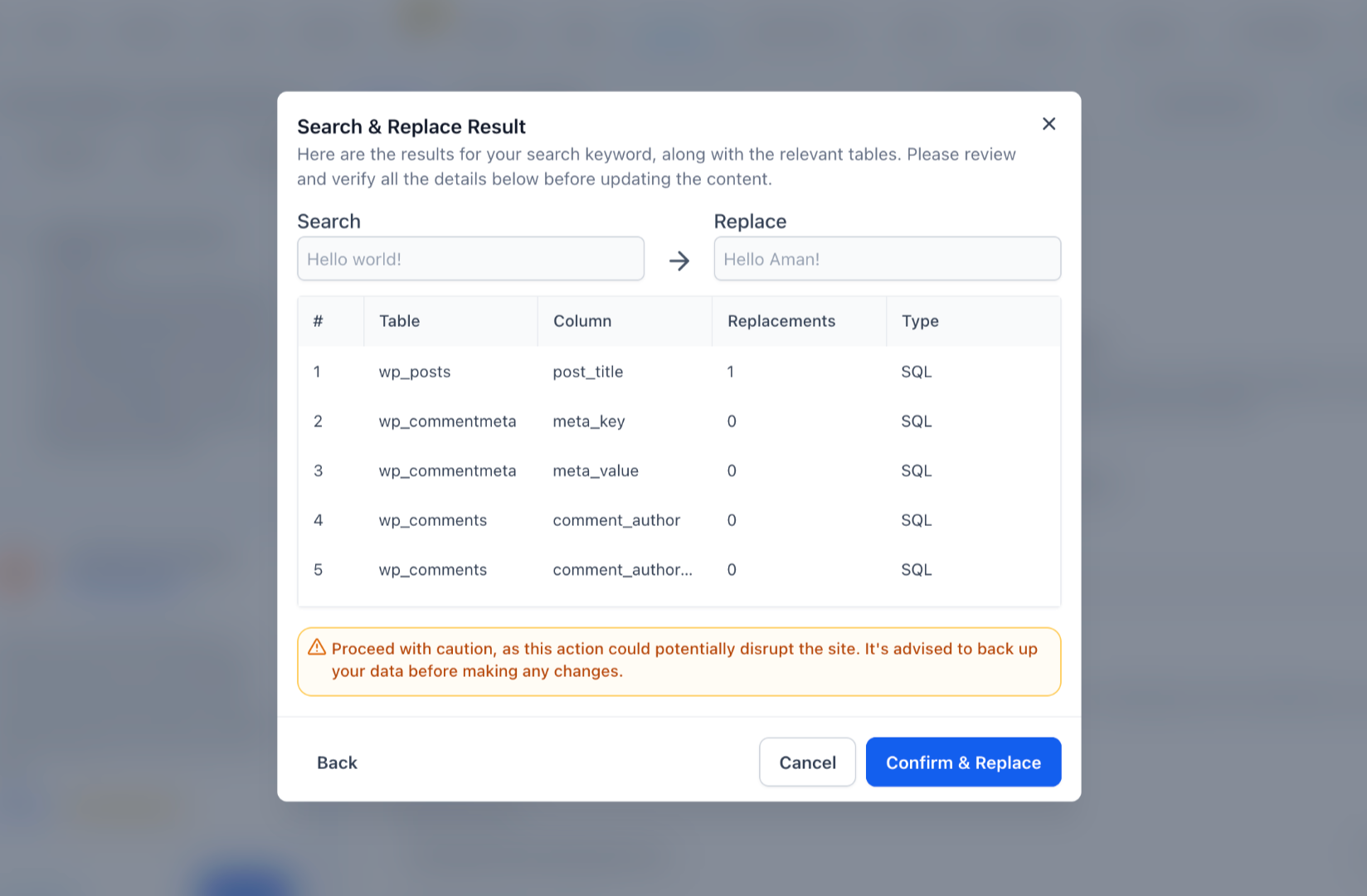
The Search & Replace tool lives inside the WordPress section of the Sites area. It lets you enter a text string, choose which database tables to scan, and optionally supply a replacement string. After you run a search only pass, the interface shows how many records match, letting you verify before any data changes.
When you proceed with a replace, the tool updates matching entries in supported tables on either the Live or Staging version of the site. The workflow includes backup reminders and a final confirmation screen, then provides a summary of the operation for spot checking.
03How businesses use search & replace tool
- Digital marketing agency. The agency selects a client’s WordPress site, runs a preview to see how many URLs still use the old domain, then replaces the domain string in one step. This keeps the client’s site consistent after a migration.
- Ecommerce store. Store staff enters the old HTTP prefix, previews the count, and then replaces it with HTTPS across post content and metadata. The change is applied in Staging first to verify product page links.
- Real estate brokerage. The brokerage updates bulk email placeholders by entering the old address, previewing matches, and applying the new address across the site’s database tables. After completion they spot check listings to confirm the update.
04The numbers and rules that matter
- Network wide replacements are not supported in one pass. Run per site.
05How to set up and use search & replace tool in HighLevel
Set up and run a Search & Replace operation
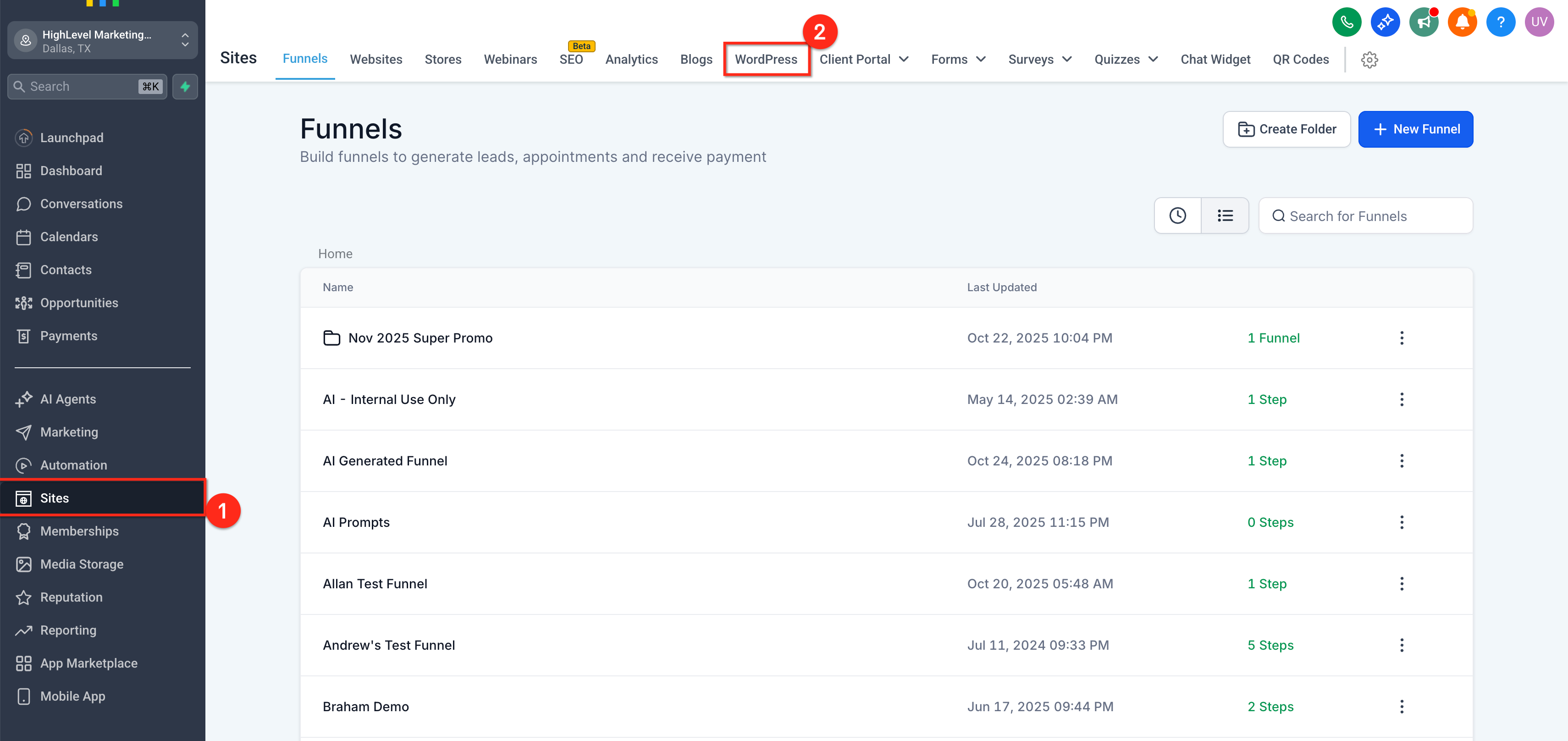
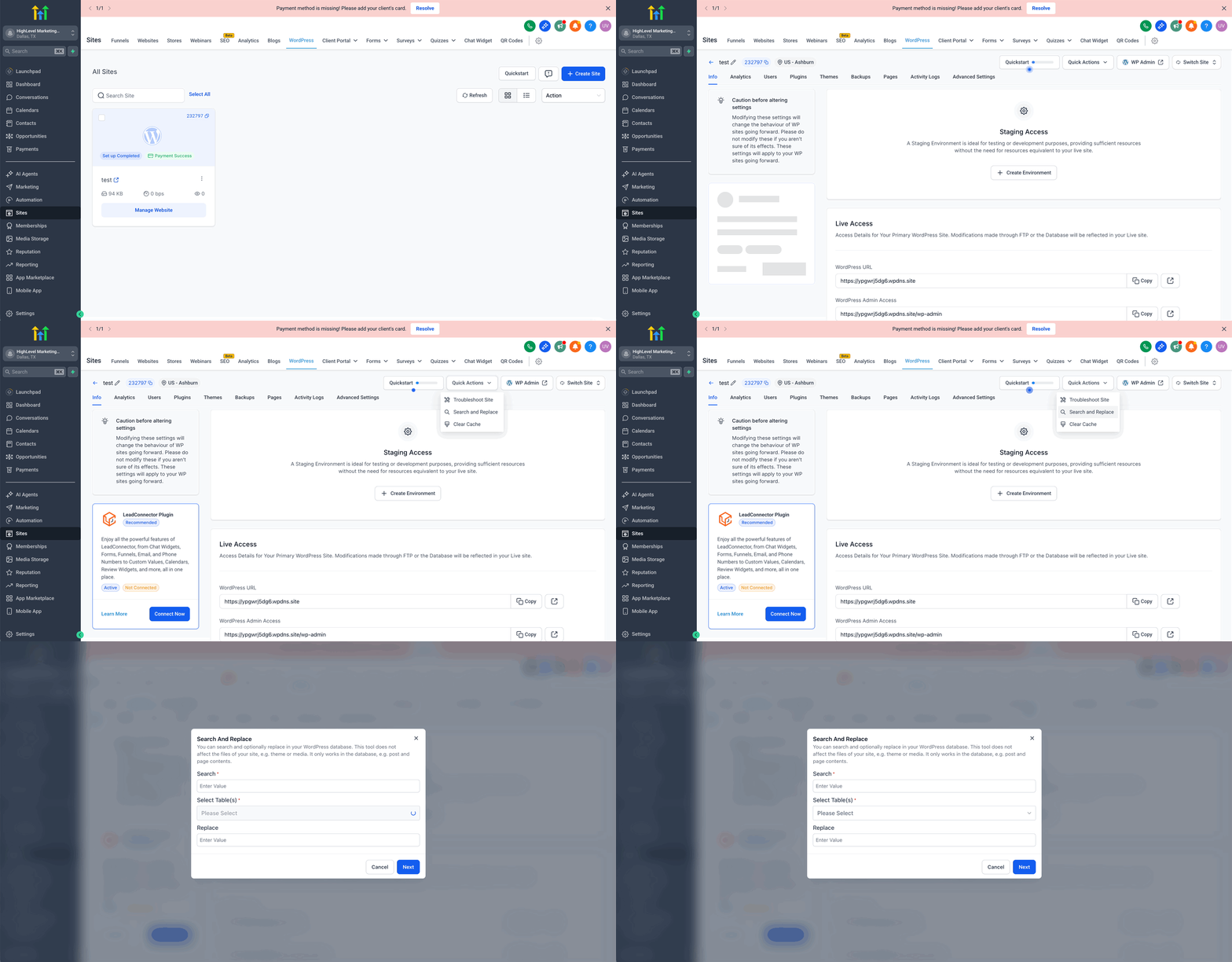
- Open Sites > WordPress and choose the site you want to edit.
- In the Quick Actions menu, click Search & Replace.
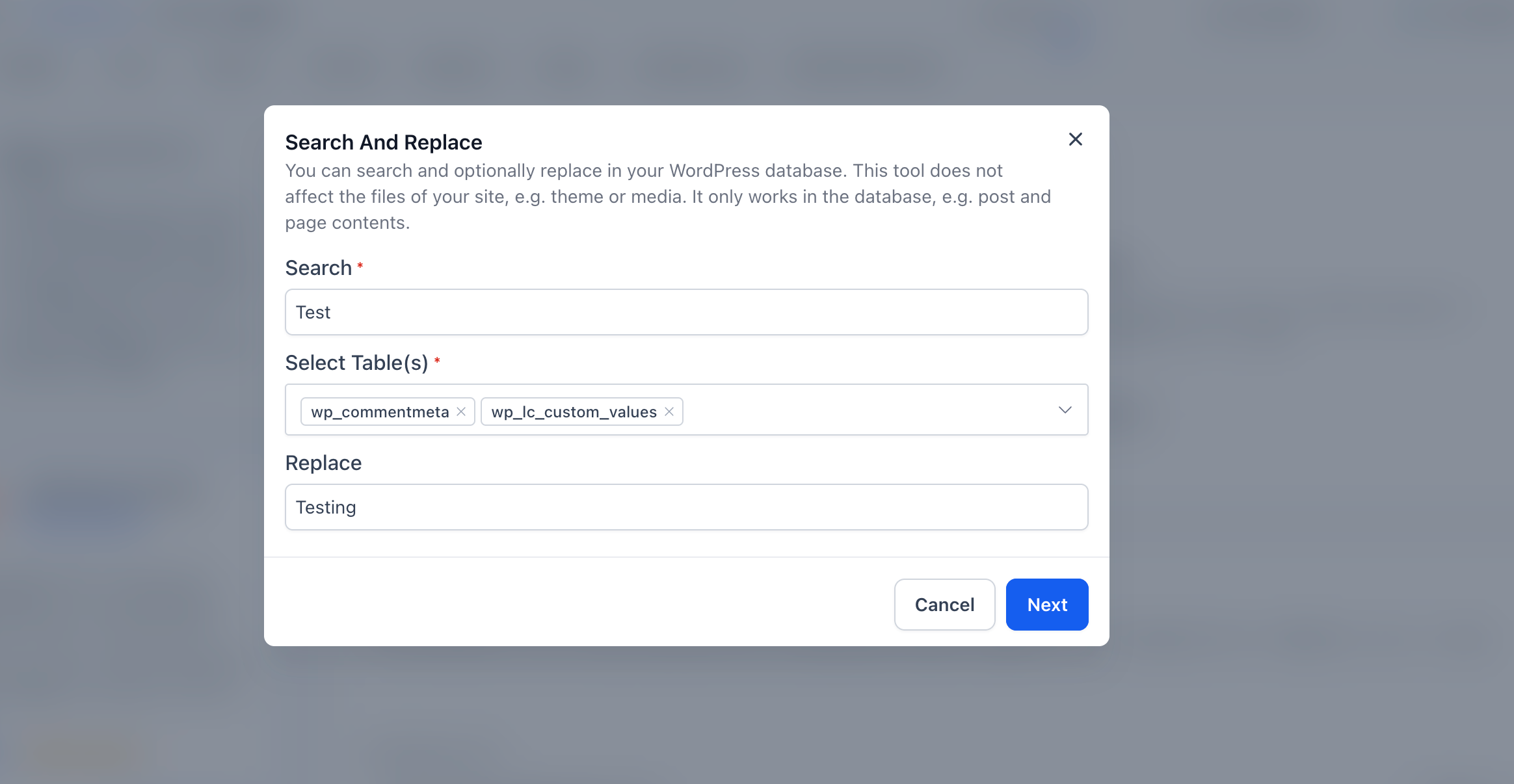
- Enter the Search Values, select the Tables, type the Replace Values, and press Next.
- Wait for the completion notice, then review the summary and spot check a few pages or posts.
06What it looks like in HighLevel
07Settings that matter
- Search Values. The literal text the tool will look for in the database.
- Tables. The database tables the tool will search and optionally replace text within.
- Replace Values. The text that will replace each instance of the Search Values when you run a replacement.
08Things to know before you rely on it
- The tool does not support regex or wildcard patterns; only exact literal strings are matched.
- You cannot limit the operation to specific tables beyond the preset list of supported tables.
- Multisite networks must be processed site by site; there is no single pass network wide replace.
- Matching respects case, so “HTTP” and “http” are treated as different strings.
- Extremely sensitive fields such as credentials should be avoided in the search.
09How it connects to the rest of HighLevel
- Learn how to create and manage WordPress sites in HighLevel. WordPress site setup
- Clone a site to a staging version for safe testing. Clone site for staging
- View HighLevel pricing and plan options. Pricing
Michael's take

The Search & Replace tool is a solid, native option for bulk database edits in HighLevel. Teams that rely on third party plugins for simple text swaps can skip it.