
01Who this is for
- Marketing teams can quickly adjust copy and images to match campaign messaging without waiting for a designer.
- Agency owners can update client sites efficiently, keeping turnaround times short while still offering full Elementor design options.
- Product managers can fine tune page tones to stay consistent with brand voice across all AI created pages.
02Universal content customization, explained
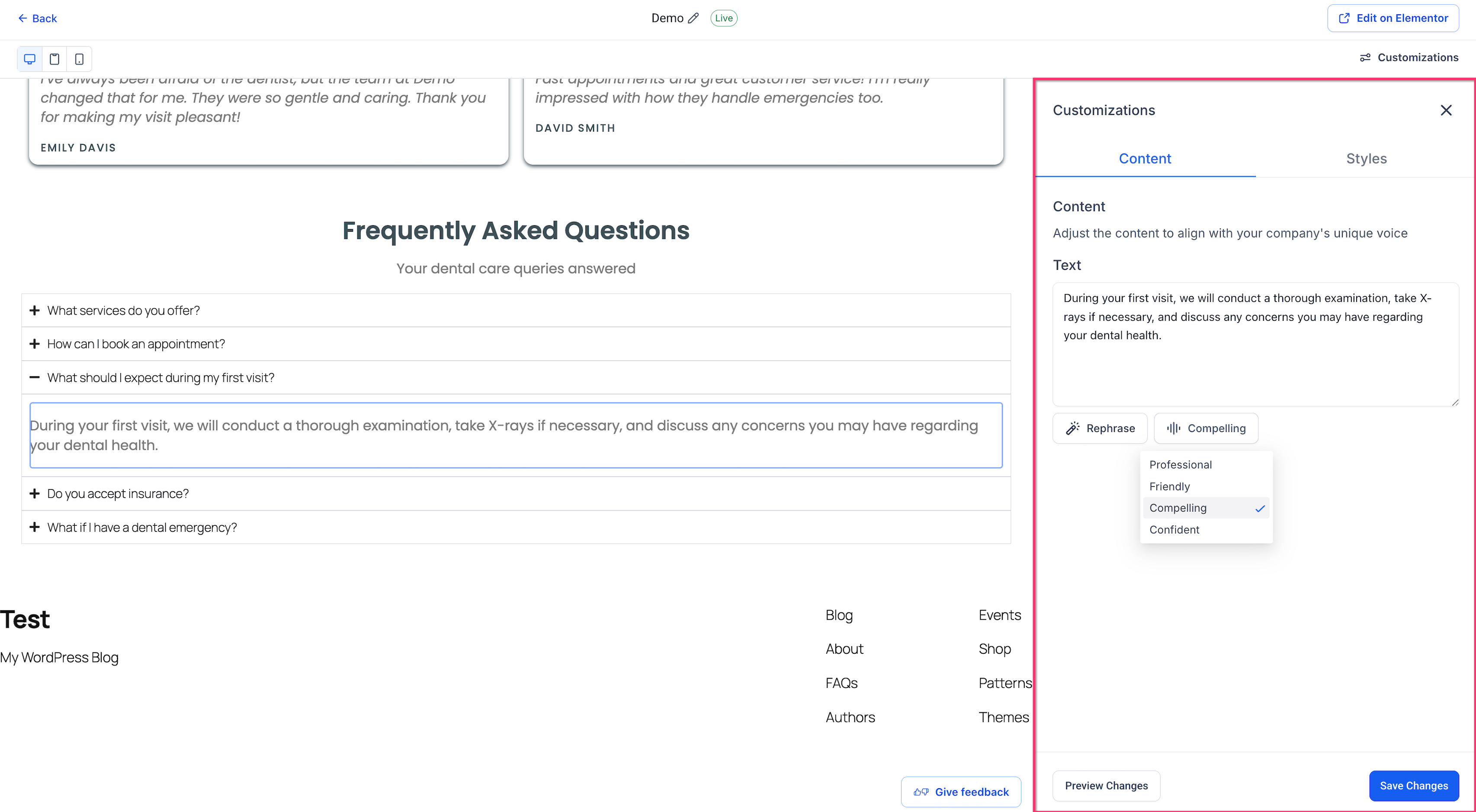
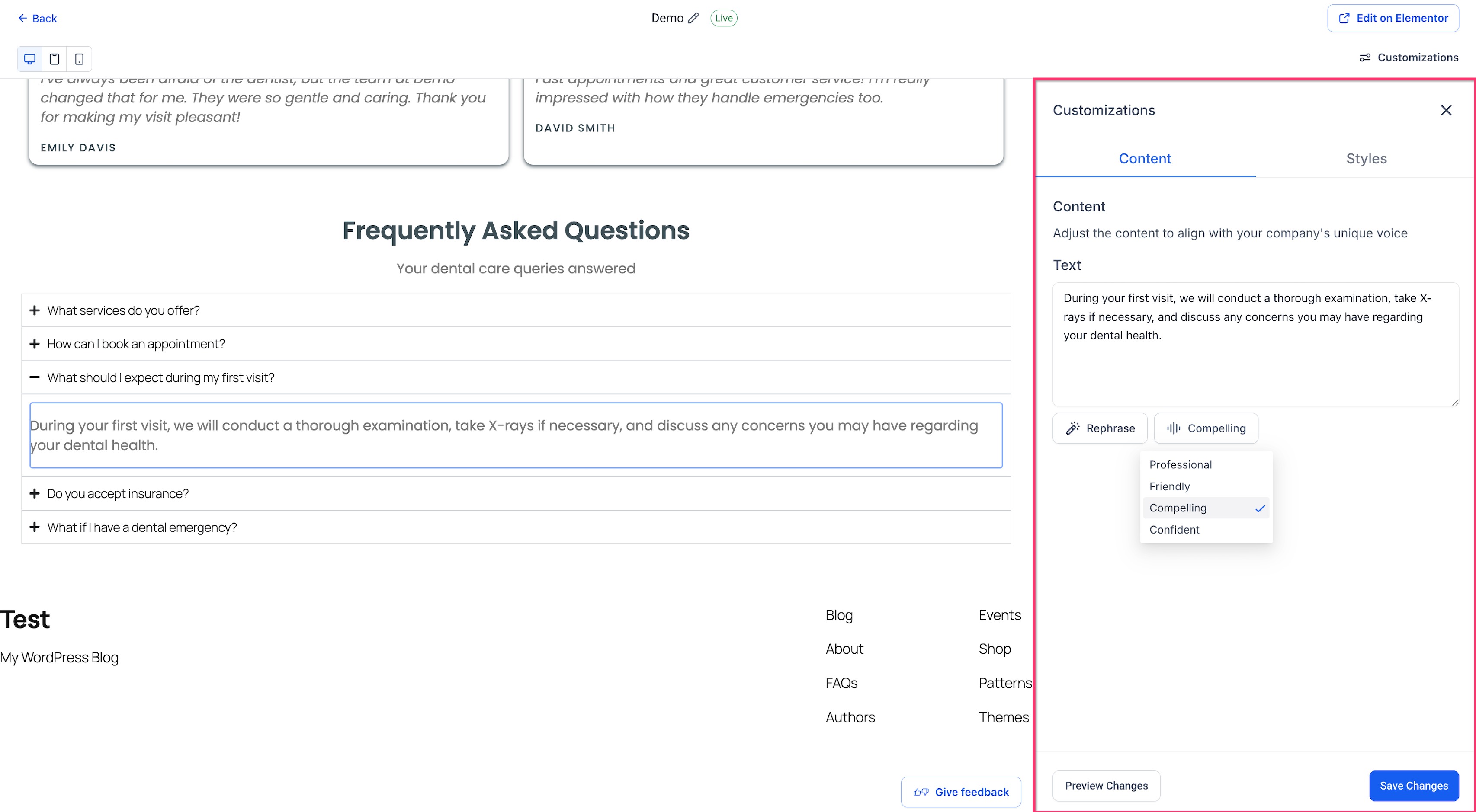
The feature adds a Customizations panel to the page preview. When a supported element, heading, paragraph, button, icon box title or description, or image, is clicked, its content appears in the panel for editing.
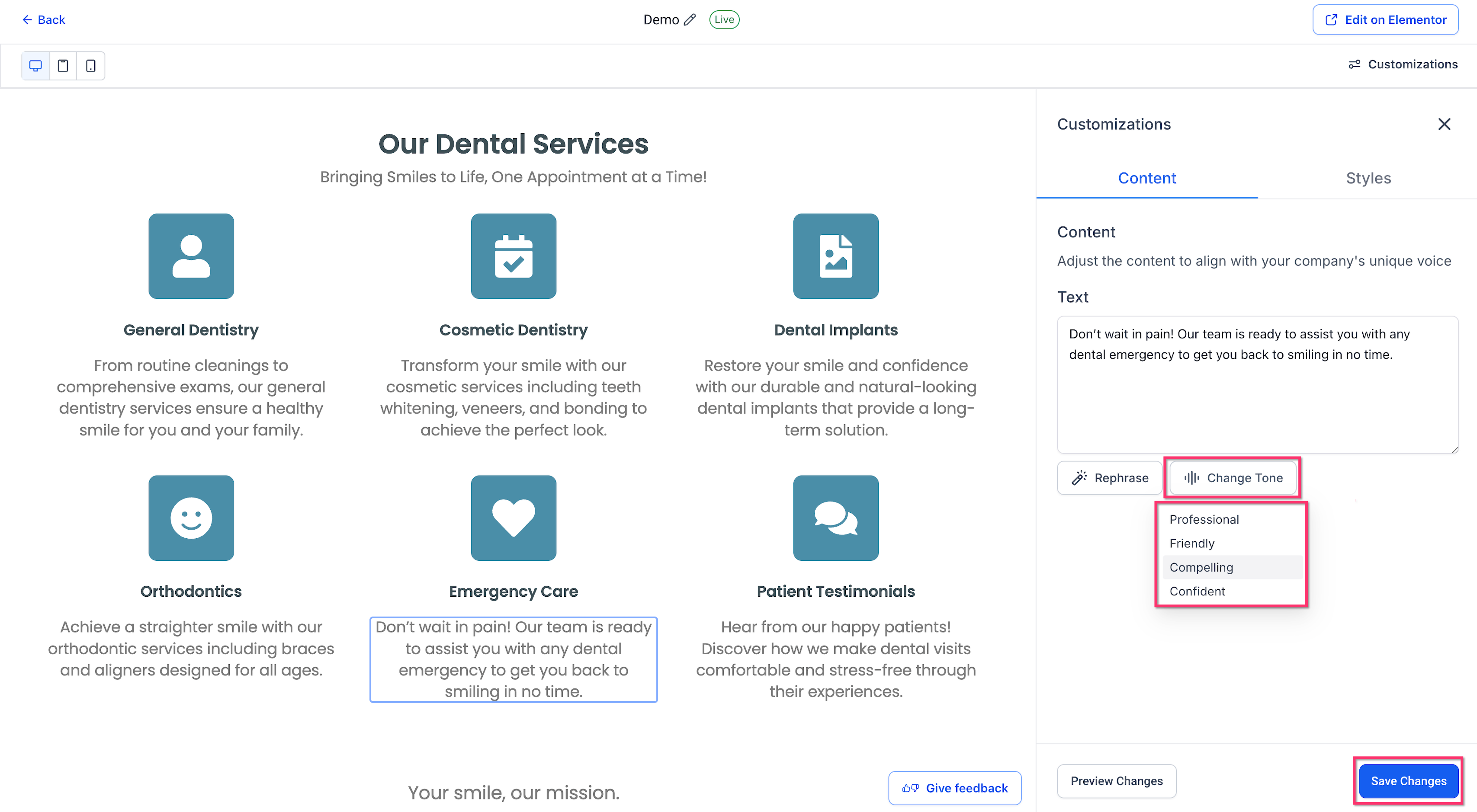
Text can be edited manually or altered with AI tools such as Rephrase, Shorten, Elaborate, or Change Tone. Tone choices include Professional, Friendly, Compelling and Confident. Image elements can be regenerated by AI or replaced with an uploaded file.
All changes are previewed in real time. Clicking Save Changes updates the WordPress page. Elements that are not supported remain editable in Elementor, which stays fully accessible.
03How businesses use universal content customization
- Online fitness studio. The studio updates class descriptions and call to action buttons directly from the preview to reflect new schedules. It also swaps promotional images with studio taken photos using the Regenerate Image workflow.
- Legal services firm. The firm changes paragraph wording to include the latest state regulations and selects a Professional tone for all client facing pages. When a logo image needs updating, it uploads the new file via the image panel.
- Restaurant chain. The chain quickly edits menu headings and button copy to promote seasonal dishes, using the Shorten option for tighter tagline text. It also generates fresh AI images for new menu items without leaving HighLevel.
04The numbers and rules that matter
- Requires LeadConnector WordPress Plugin v4.0.4 or later.
- Supported editable elements: Headings, Paragraphs, Buttons, Icon Box titles, Icon Box descriptions, Images.
- Uploaded image formats: JPEG, PNG, WebP, GIF up to 10 MB.
05Before you start
- An AI generated WordPress page must exist in the HighLevel account.
- The site must have LeadConnector WordPress Plugin version 4.0.4 or later installed.
06How to set up and use universal content customization in HighLevel
Open the AI generated page
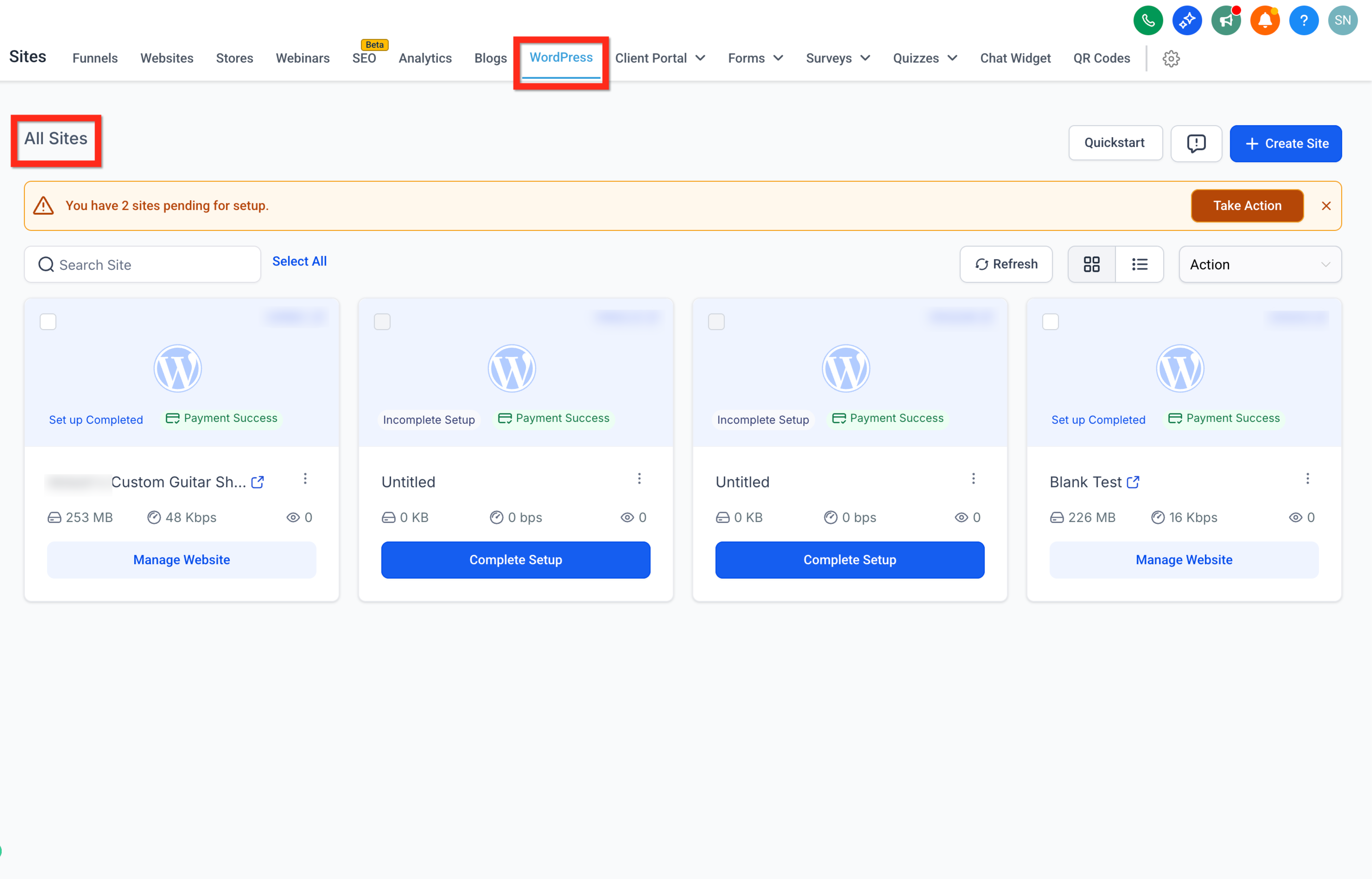
- Navigate to Sites > WordPress > All Sites.
- Select the WordPress site that holds the page.
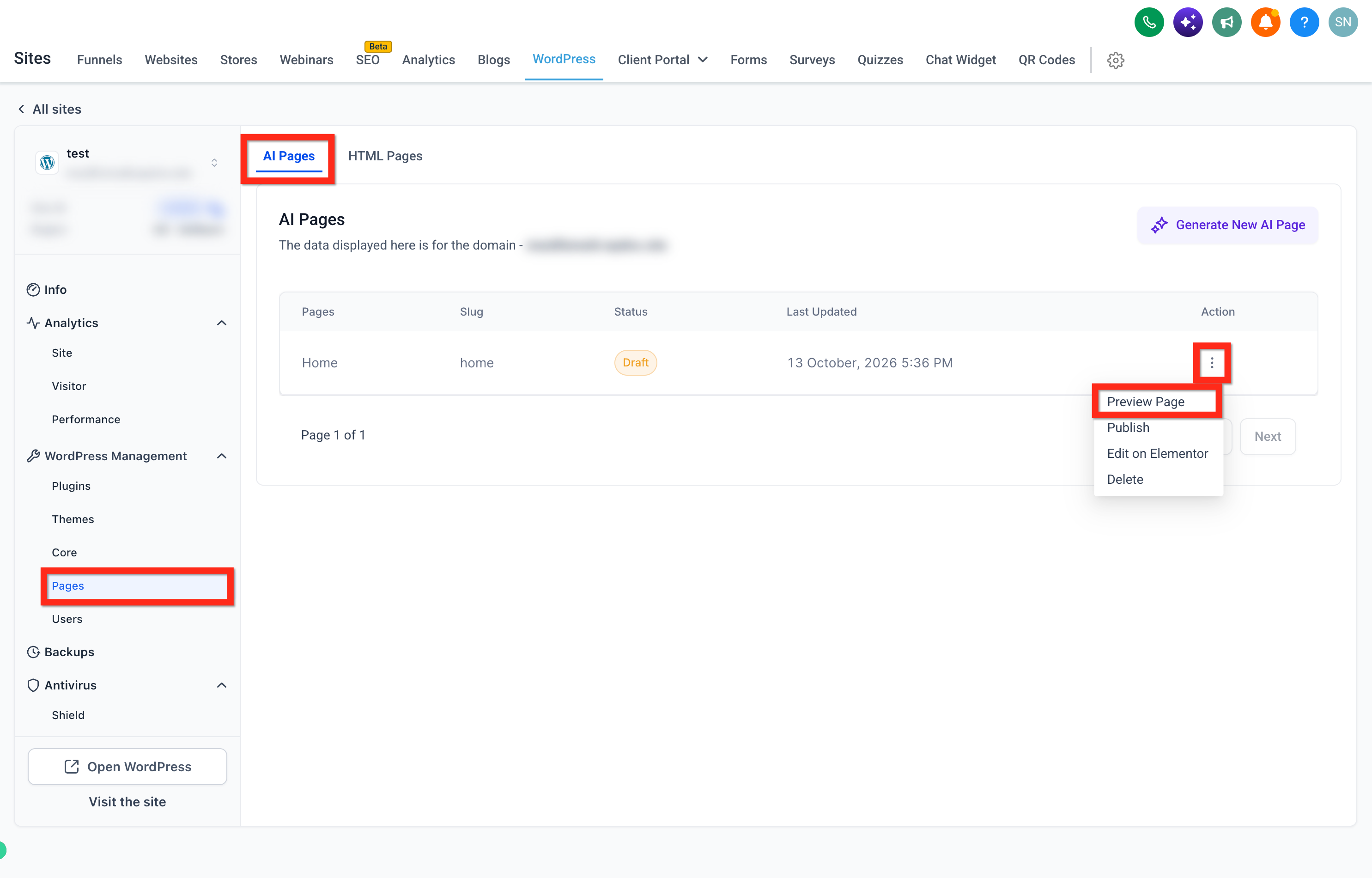
- Click the Pages tab within the site view.
- Open the specific AI generated page you wish to edit.
Select a supported element
- Move the cursor over the preview area of the page.
- Hover until the desired text or image highlights.
- Click the highlighted element.
- Watch the Customizations panel appear on the right side.
Edit the content
- Replace the text manually or choose an AI assisted option.
- Pick Rephrase, Shorten or Elaborate to have HighLevel rewrite the copy.
- Choose Change Tone to apply Professional, Friendly, Compelling or Confident style.
- Review the generated content in the panel.
Customize images if needed
- Hover over the image displayed in the preview.
- Click the Regenerate Image button.
- Select Generate with AI to create a new picture or Upload image to provide your own file.
- Complete the generation or upload process.
- Check the updated visual in the Live preview area.
- Click Insert image to apply the change to the page.
Save the changes
- Click Save Changes when the page looks correct.
- The updates are applied to the WordPress page.
Use Elementor for additional changes
- If an element cannot be selected or edited in the preview, click Edit on Elementor.
- Make the necessary design or layout adjustments in Elementor.
07What it looks like in HighLevel
08Settings that matter
- LeadConnector WordPress Plugin version. Controls whether the Customizations panel appears and which elements can be edited.
- Rephrase. Generates a new version of the selected text using different wording.
- Shorten. Creates a more concise version of the selected copy.
- Elaborate. Adds additional detail to the existing text.
- Change Tone. Rewrites the selected copy in Professional, Friendly, Compelling or Confident style.
- Regenerate Image. Allows replacement of a supported image either by AI generation or by uploading a file.
09Things to know before you rely on it
- Only headings, paragraphs, buttons, icon box titles, icon box descriptions and images are directly editable.
- Elements that cannot be selected must be edited with Elementor.
- Image uploads accept JPEG, PNG, WebP or GIF files up to 10 MB.
- Universal Content Customization works only when the LeadConnector plugin is version 4.0.4 or newer.
10If something goes wrong
- Customization controls do not appear. Verify the page is an AI generated WordPress page and that the LeadConnector WordPress Plugin is version 4.0.4 or later.
- Unable to select an element in the preview. Confirm the element is one of the supported types; otherwise, open the page in Elementor for editing.
11How it connects to the rest of HighLevel
- Manage WordPress plugins and themes in HighLevel Plugin management
- Guide to setting up WordPress sites for clients WordPress setup
- Learn how to clone WordPress sites for agencies Site cloning
Michael's take

Universal content customization feels like a convenient way to tweak AI generated WordPress pages without leaving the HighLevel preview.
A local service business with a promotions page could find it useful for adjusting headline wording, swapping a hero image, or changing the tone on the fly.