
01Who this is for
- Ecommerce owners who need curated seasonal promotions can use Manual Collections to pick exact items.
- Subscription or service businesses can rely on Smart Collections to auto group products by price or inventory.
- Marketing teams benefit from reusable collections that can be placed in email templates and automation.
02Manual and smart collections, explained
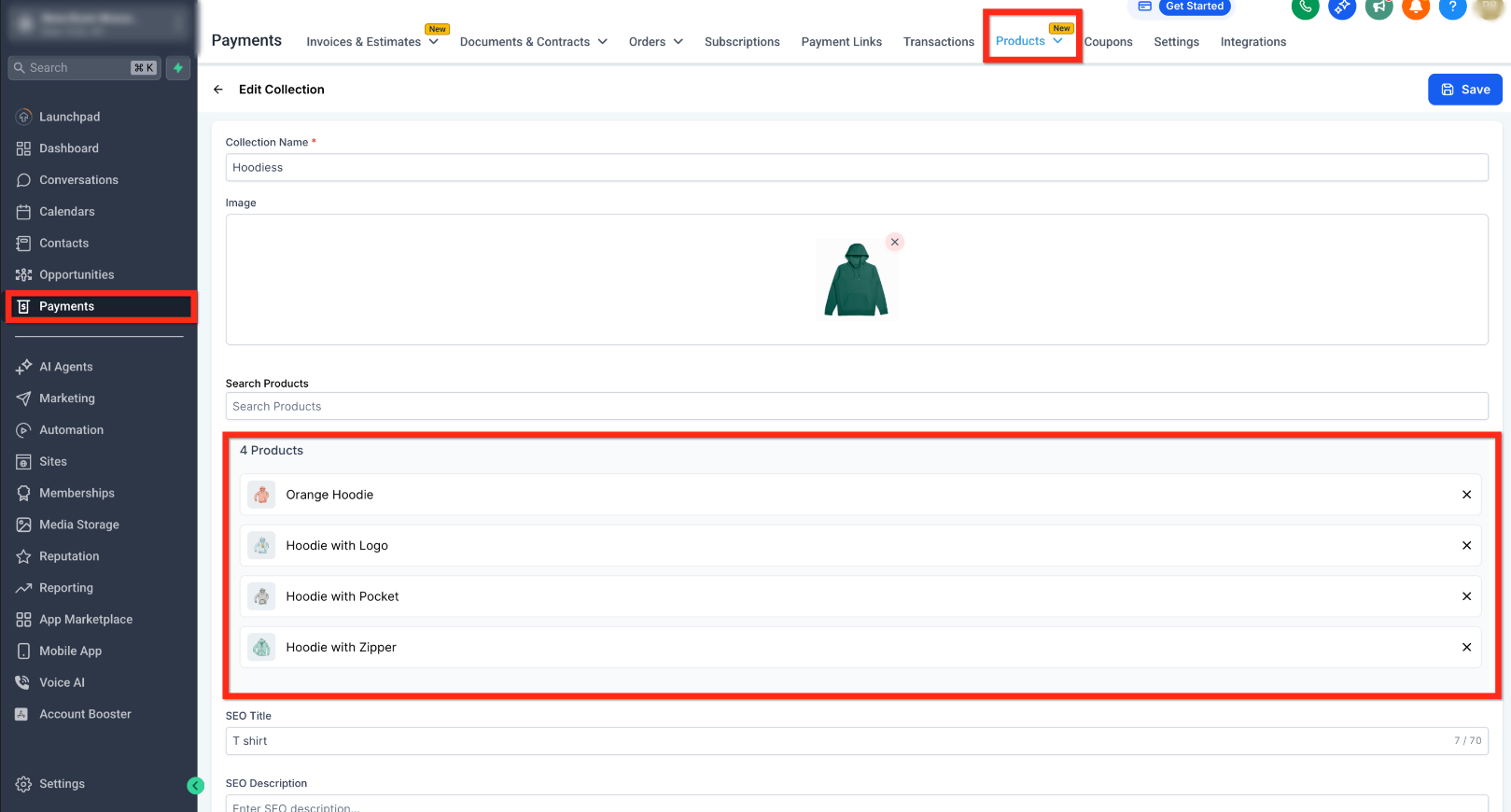
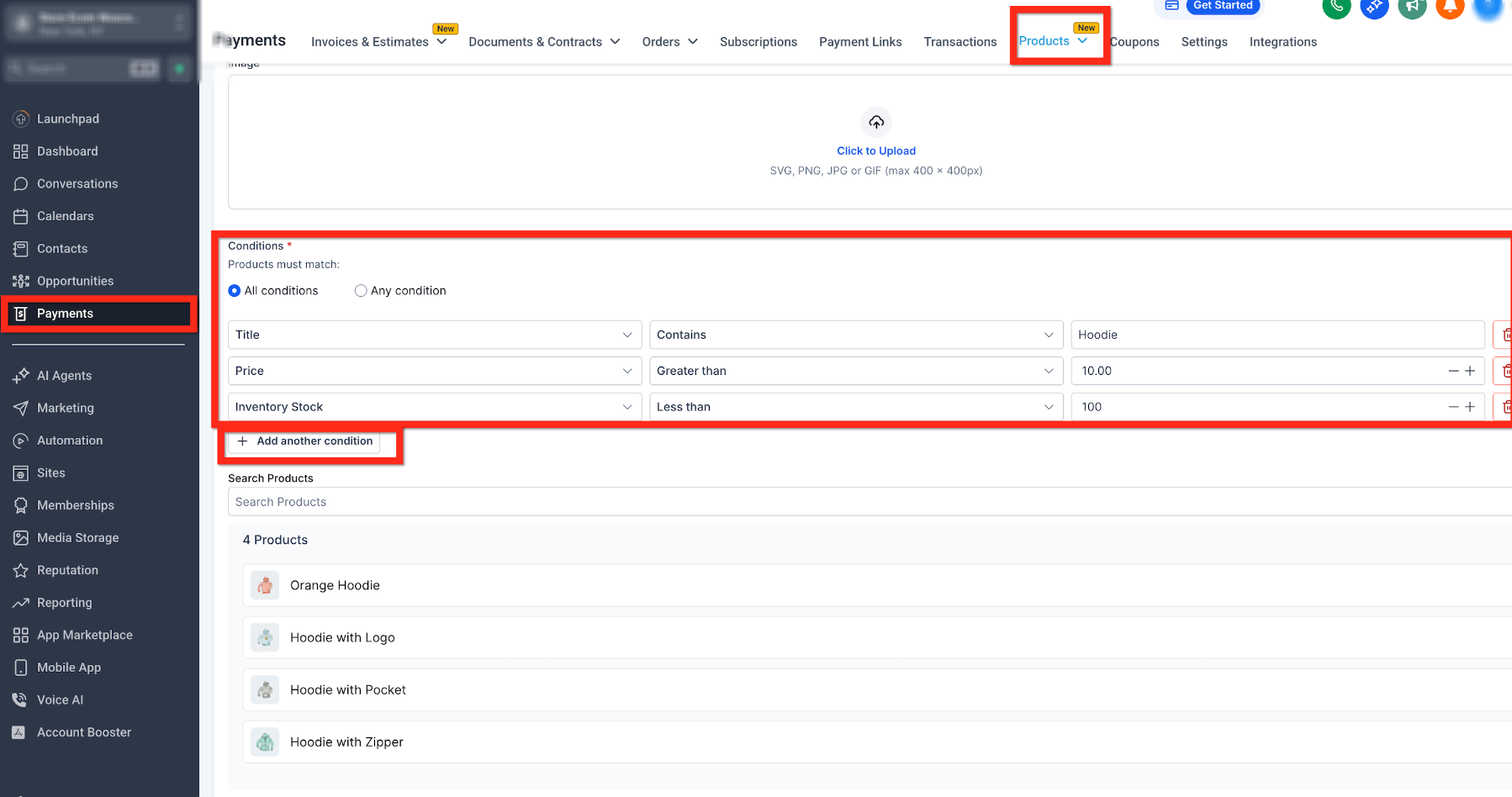
Manual and Smart Collections are found under Payments > Products > Collections. A Manual Collection is a list you assemble by searching for and selecting individual products. A Smart Collection is defined by one or more conditions, such as price, title, variant title, or inventory, and the platform adds matching products automatically.
When a Smart Collection is saved, the system evaluates the rules and updates the collection in the background every few minutes. Products that meet any rule (or all rules, depending on the chosen logic) are included. Manual edits to a Smart Collection are not allowed, while Manual Collections allow drag and drop reordering and direct additions or removals.
Both collection types can appear on Store Pages, in Email Templates, and within Workflows, enabling consistent product presentation across the storefront and marketing assets.
03How businesses use manual and smart collections
- Online boutique. Create a Manual Collection named "Summer Sale" and manually select the seasonal items. Add the collection to a store page and to a promotional email to showcase the curated lineup.
- Tech accessories retailer. Set up a Smart Collection with a rule "Price less than $50" and choose the "Any" condition. The collection automatically gathers low cost accessories, keeping the storefront updated as inventory changes (per HighLevel's help center, checked November 2026).
- Fitness membership service. Define a Smart Collection using the condition "Inventory greater than 0" for equipment rentals. The collection populates only available items, and the list can be used in workflow emails for members.
04The numbers and rules that matter
- Supported operators: Equals, Not Equals, Greater Than, Less Than, Contains, Does Not Contain.
05How to set up and use manual and smart collections in HighLevel
Create a collection
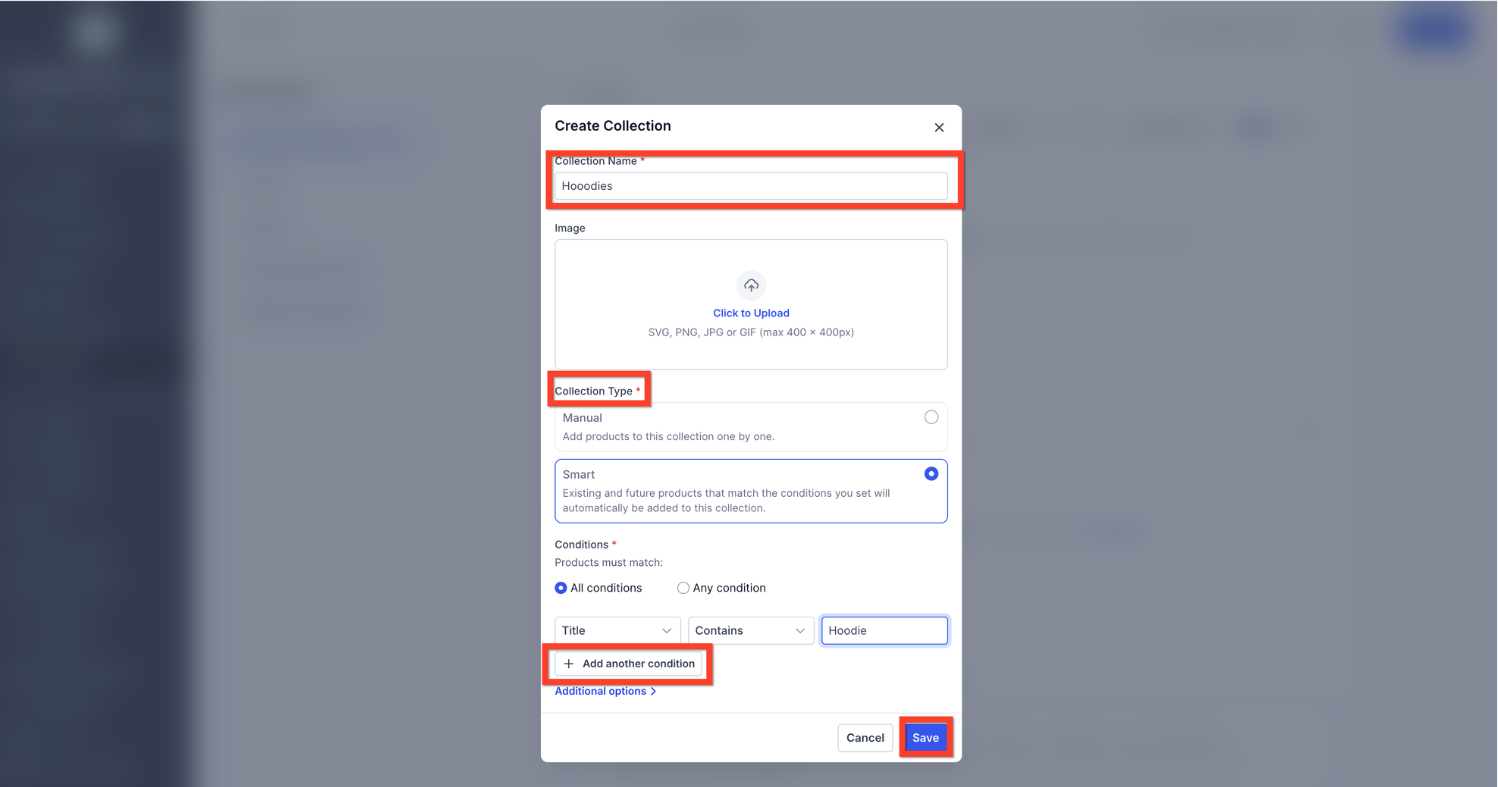
- Navigate to Payments > Products > Collections.
- Click the Create Collection button.
- Enter a name for the new collection.
- Optionally upload an image and fill in SEO title and description.
- Select the collection type: Manual or Smart.
- If Manual, search for products and add them to the list.
- If Smart, add one or more rules (e.g., Price less than $50) and pick All or Any logic (per HighLevel's help center, checked November 2026).
- Save the collection; Smart Collections will process automatically.
06What it looks like in HighLevel
07Settings that matter
- Name. The label that identifies the collection in the store and elsewhere.
- Image. Optional visual thumbnail that appears with the collection.
- SEO details. Title and description used by search engines to improve discoverability.
- Collection Type. Determines whether the collection is Manual (hand picked) or Smart (rule based).
- Rules. Conditions based on Title, Variant Title, Price, or Inventory that decide product inclusion for Smart Collections.
- Apply All or Any conditions. Specifies whether a product must meet every rule (All) or just one (Any) to be included.
08Things to know before you rely on it
- The collection type cannot be changed after the collection is created; a new collection must be made to switch types.
- Conflicting or invalid rule logic, such as "Price > 100 AND Price < 50," is blocked when saving a Smart Collection.
- Smart Collections update automatically in the background and finish within a few minutes.
- Manual additions or removals are disabled for Smart Collections to keep rule based accuracy.
- Products may belong to multiple collections at the same time.
09How it connects to the rest of HighLevel
- Import products in bulk before creating collections Bulk import guide
- Use bulk actions to edit products after they appear in a collection Bulk actions
- Add coupons to collections for promotional pricing Coupons
- View all payment related features, including collections Payments overview
- Check pricing plans if you need access to the Collections feature Pricing
Michael's take

Manual and smart collections are handy if you want automated product groupings, but they add another layer of setup. Skip them if your catalog is tiny and you never change product attributes.