
01Who this is for
- Ecommerce store owners can add their full catalog quickly, avoiding manual entry for each item.
- Service based businesses can import non physical offerings efficiently while leaving irrelevant fields blank.
- Agency owners managing multiple client product lists can speed up initial setup across accounts.
02Bulk import products, explained
The bulk import feature reads a CSV file and creates new product records in the platform. It does not alter existing products; only fresh entries are added based on the data supplied.
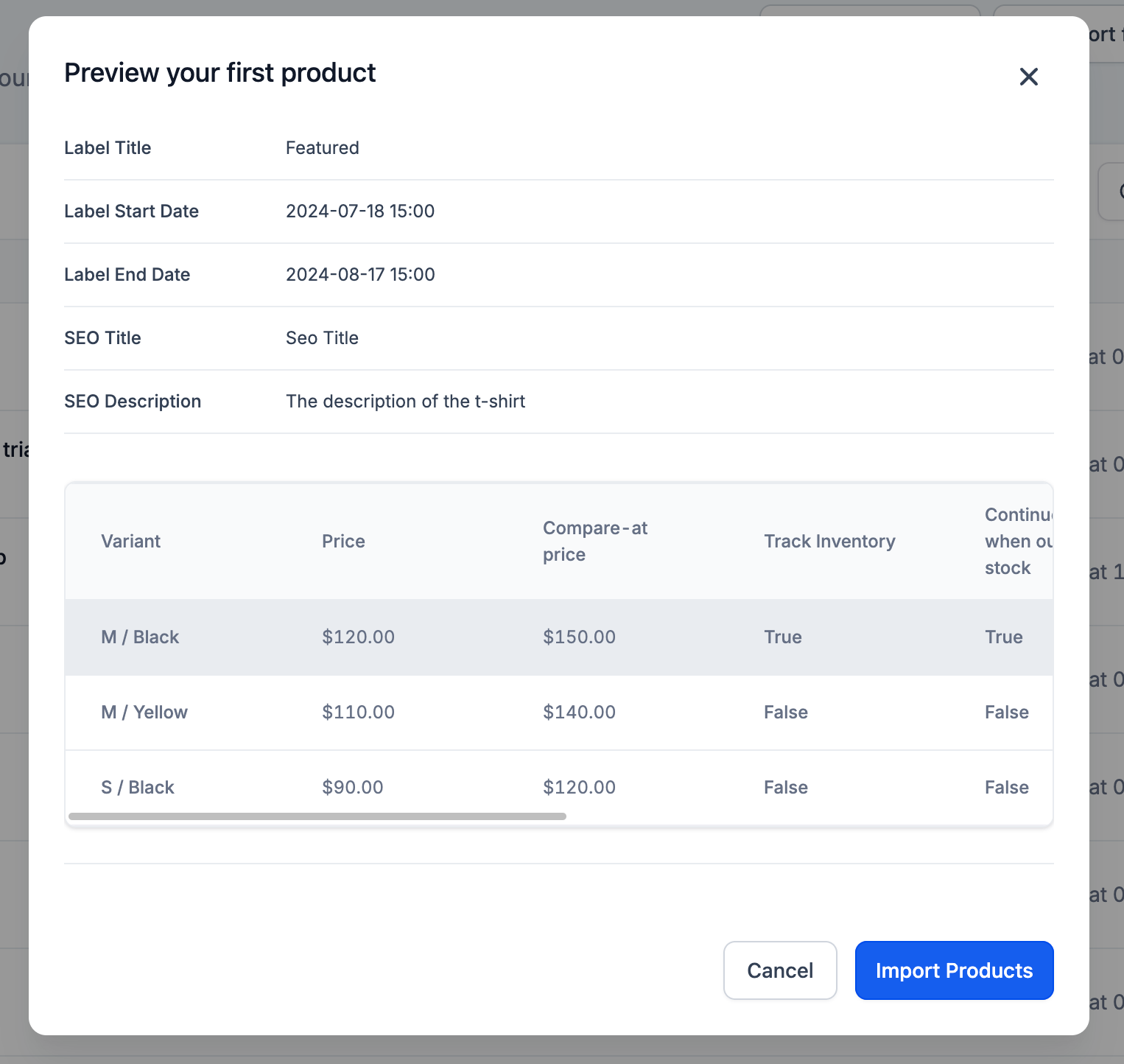
The function lives on the Payments > Products page. Users start by downloading a sample CSV, fill in required columns, then upload the completed file. HighLevel validates the file, shows a preview, and finalizes the import when confirmed.
03How businesses use bulk import products
- Online clothing retailer. The retailer downloads the sample CSV, enters SKUs, sizes, colors, and prices for each garment, saves the file as .csv, and uploads it through the Products page to populate the catalog in one operation.
- Fitness studio offering class packages. The studio lists each membership package in the CSV, includes the price and description, leaves weight and inventory columns blank, and imports the file to make the packages available for sale.
- Digital marketing agency selling subscription services. The agency prepares a CSV with service names, recurring fees, and SKU codes, uploads it via the Products interface, and immediately sees the new subscription options ready for client enrollment.
04The numbers and rules that matter
- Maximum CSV file size is 10MB.
05Before you start
- Access the Payments > Products page in HighLevel.
- Create a properly formatted CSV file that follows the sample layout.
- Download the sample CSV from HighLevel for reference.
06How to set up and use bulk import products in HighLevel
Bulk import products
- Log in to your HighLevel account.
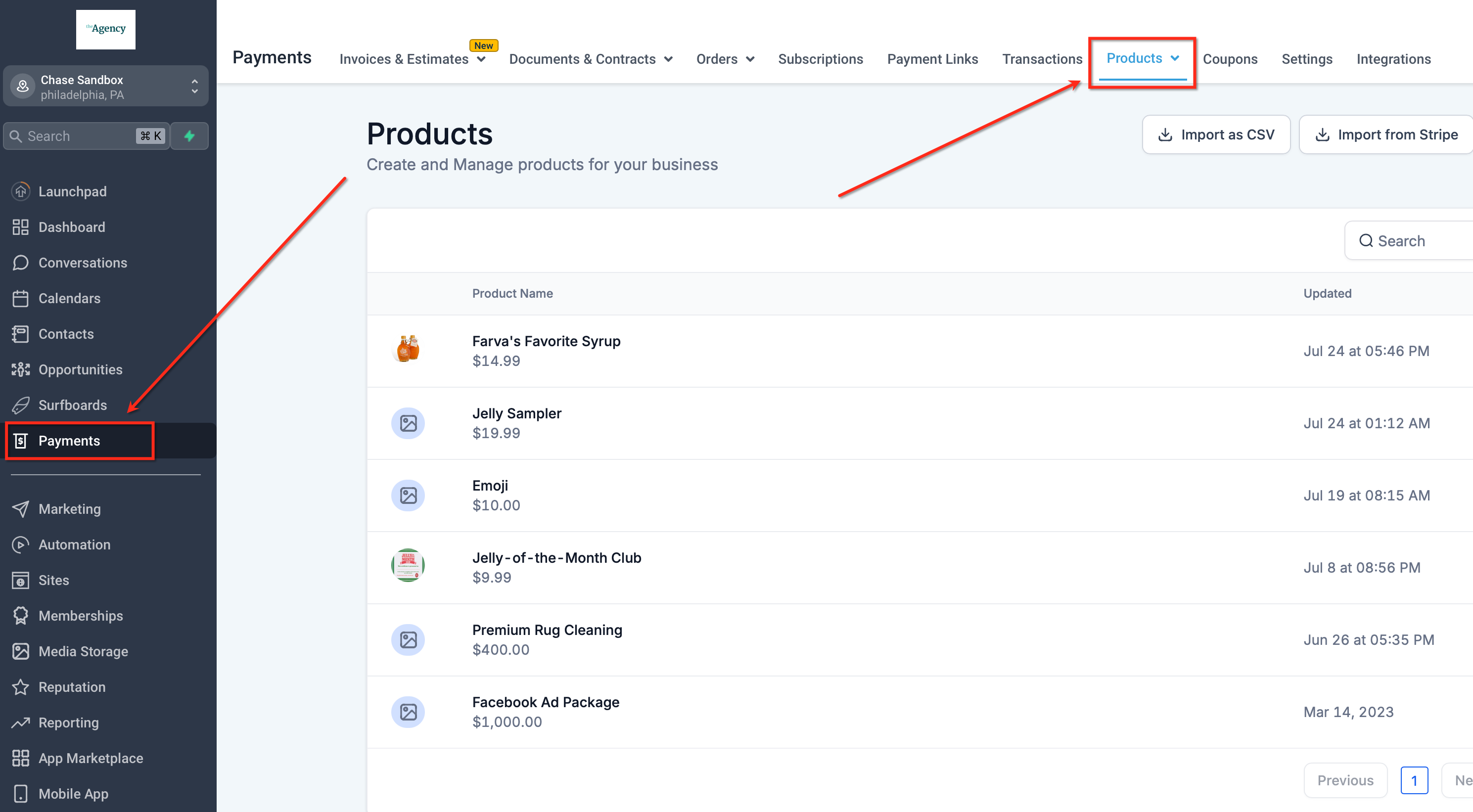
- Navigate to Payments > Products from the main dashboard.
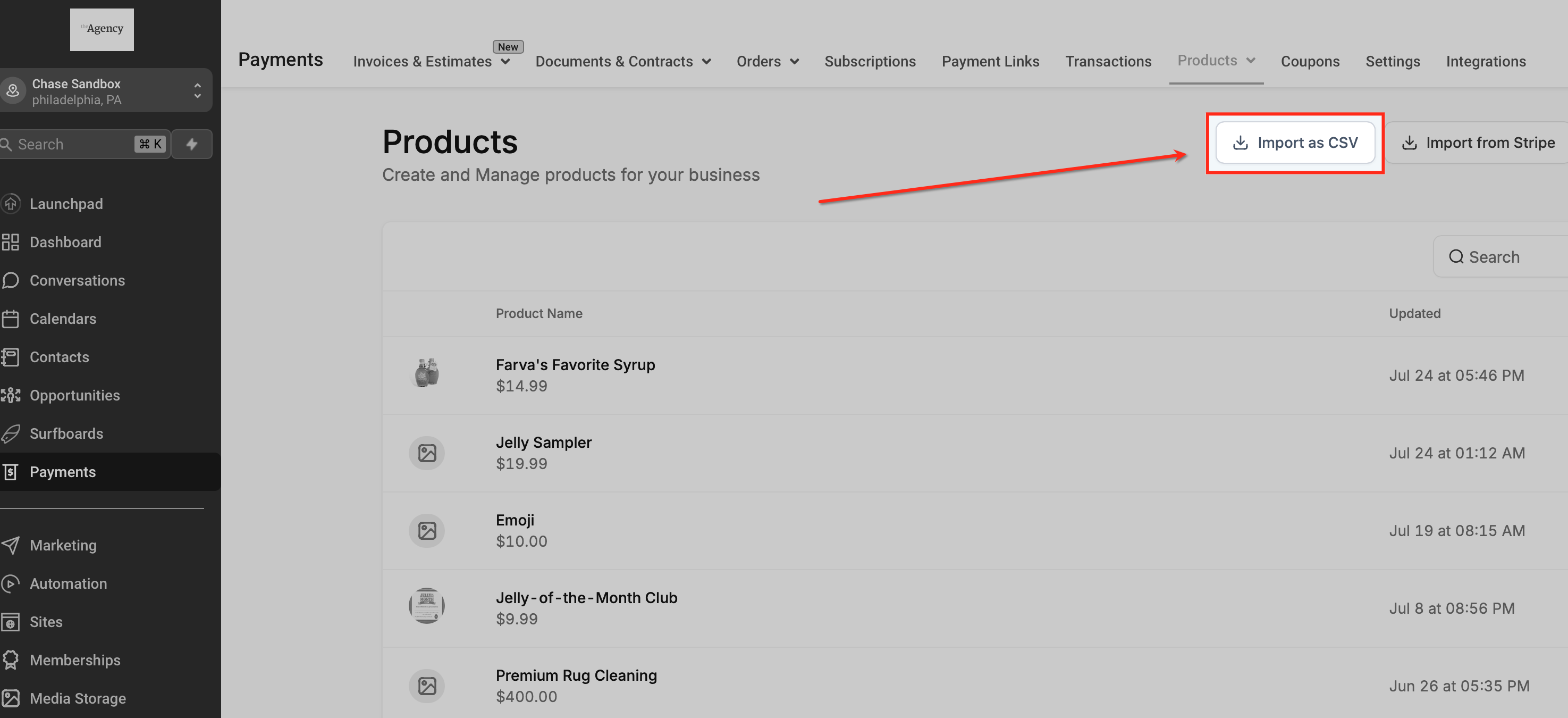
- Click the “Import as CSV” button on the Products page.
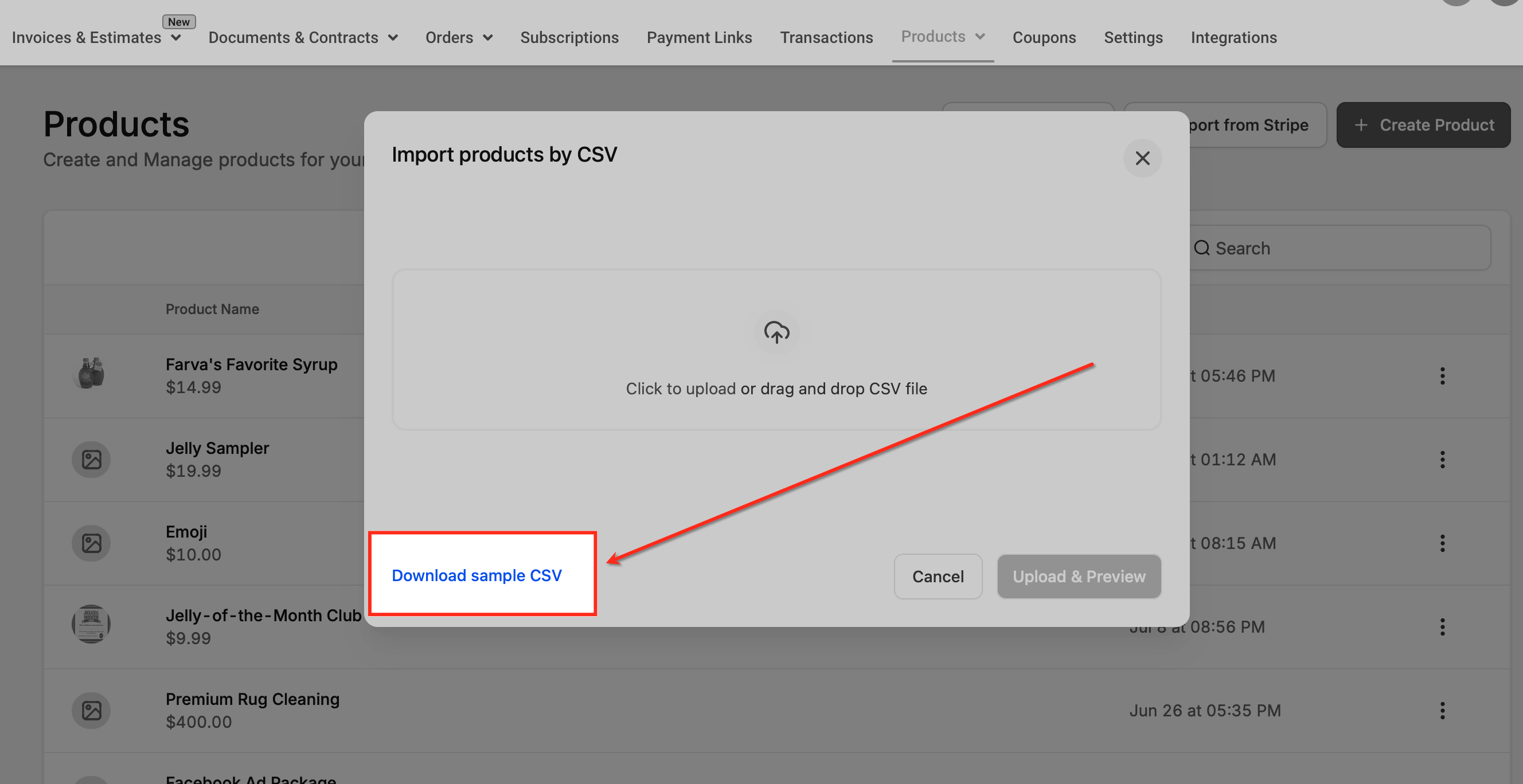
- In the pop up, select the option to download the sample CSV file.
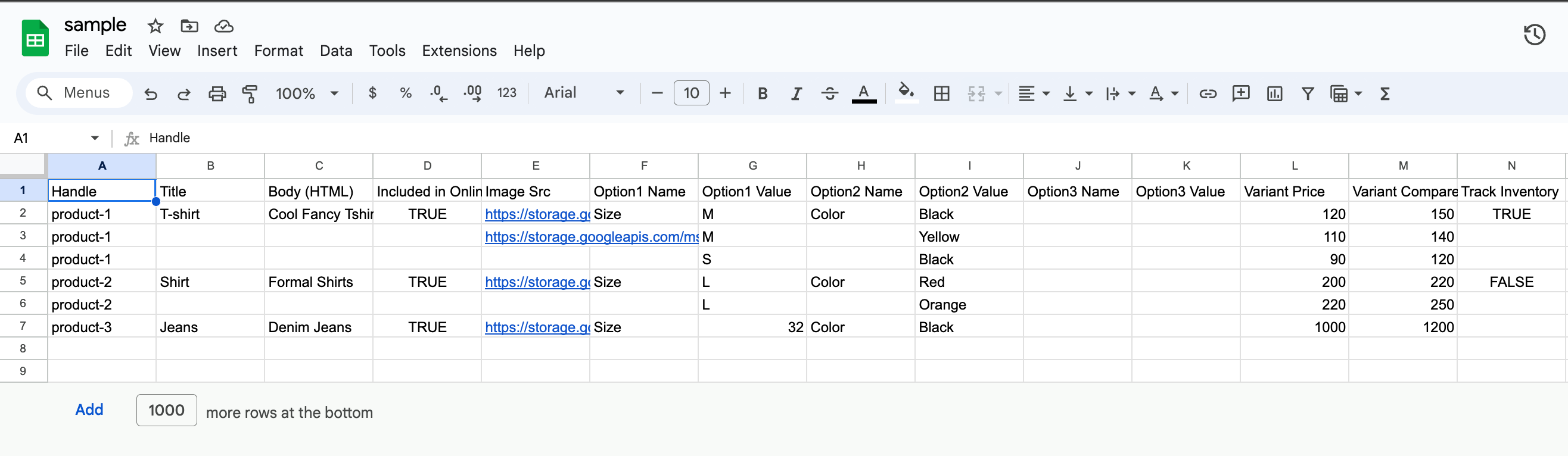
- Open the downloaded sample CSV in a spreadsheet program.
- Enter product details in the required columns, leaving non applicable columns empty but keeping the headers.
- Check for duplicate SKUs or special characters that could cause import errors.
- Save the completed spreadsheet as a .csv file.
- Return to Payments > Products and click “Import as CSV” again.
- Choose the saved CSV file from your computer.
- Review the preview screen to verify product information.
- If needed, edit the CSV file and re upload it.
- Confirm the preview looks correct.
- Click “Import Products” to complete the import.
07What it looks like in HighLevel
08Things to know before you rely on it
- CSV uploads are limited to a maximum file size of 10 MB.
- The import process cannot update existing products; it only creates new records.
09If something goes wrong
- File format errors. Ensure the file is saved as .csv and that each column follows the sample format.
- Missing required fields. Check that mandatory columns such as Product Name, SKU, and Price are filled for every row.
- Special characters causing import failures. Remove any special characters from the data before uploading.
10How it connects to the rest of HighLevel
- Import Stripe subscription products directly into HighLevel Stripe import
- Use bulk actions on the product page for faster management Bulk actions
- Organize imported items with manual and smart collections Product collections
- View pricing and plan options for HighLevel Pricing
- Start a 30 day trial to explore product import features Free trial
Michael's take

Michael ReimerFounder of CRM Pros, HighLevel Commander and Certified Admin
Bulk importing many SKUs can be a convenient way to add items to HighLevel.
If your catalog is tiny or you only add a few items a month, the overhead of maintaining a perfect CSV may not be worth it. In those cases, creating products one by one might be simpler.
Get More InformationOpens on HighLevelPublished November 2, 2026 · Updated November 16, 2026