
01Who this is for
- Ecommerce Founders with large product catalogs benefit from faster updates and fewer manual errors.
- Inventory managers can keep stock levels and store visibility aligned across all items with a single change.
- Founders selling both digital and physical goods can apply the same bulk changes without switching contexts.
02Bulk actions on the product page, explained
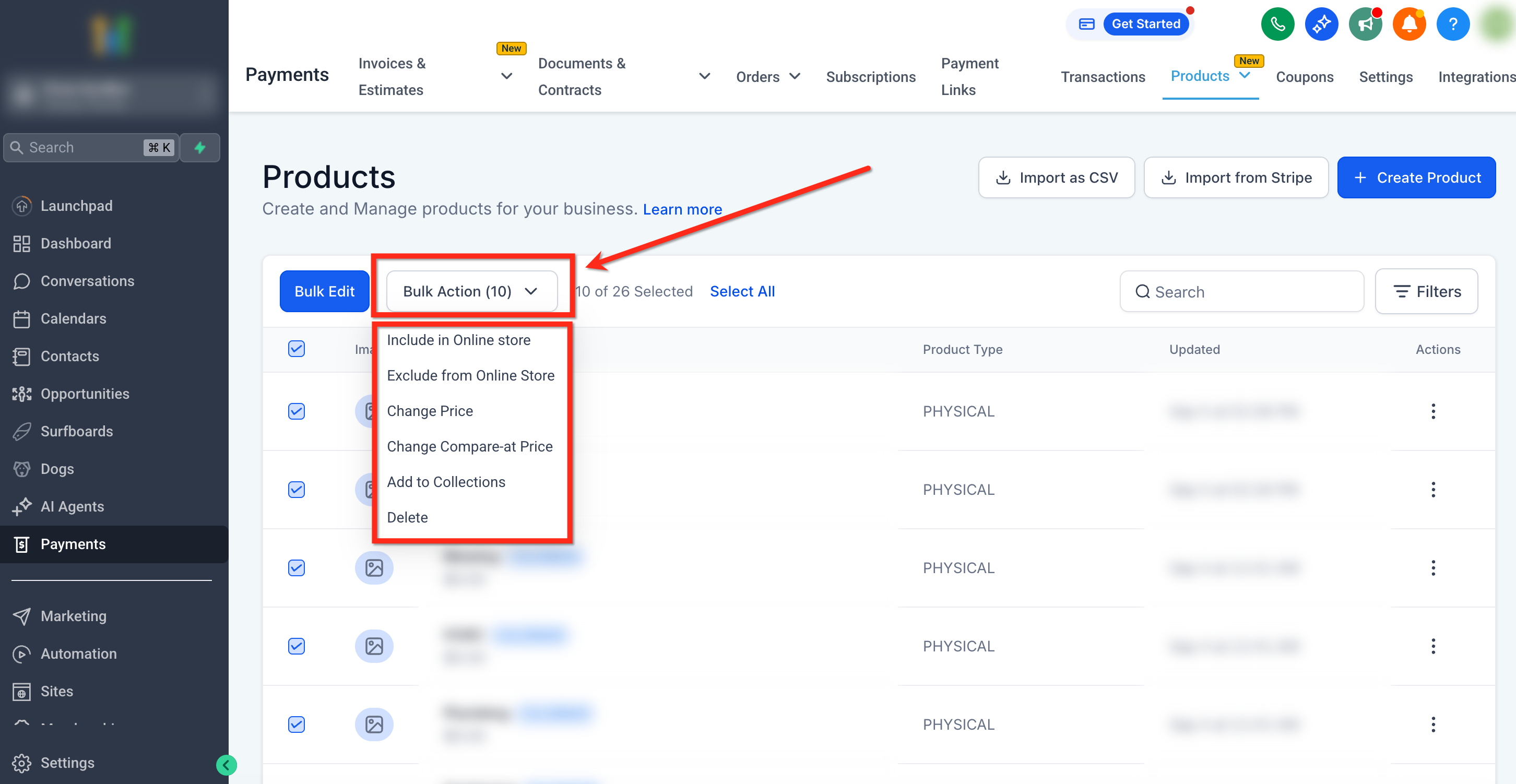
Bulk Actions are a feature on the Products page that lets you select multiple items and apply a single update to all of them. The changes can affect store visibility, pricing fields, collection membership, inventory quantity, status, or even delete the selected products.
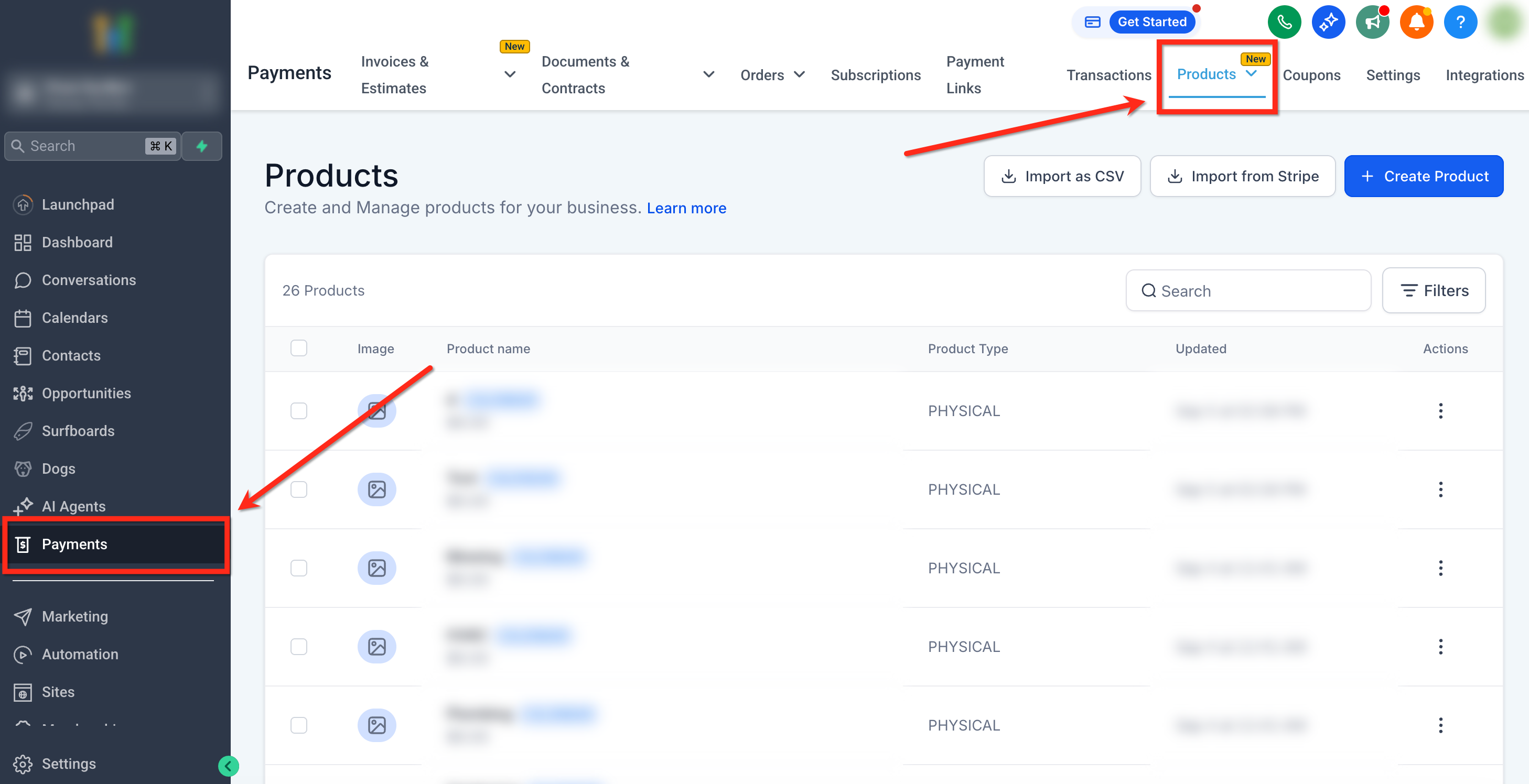
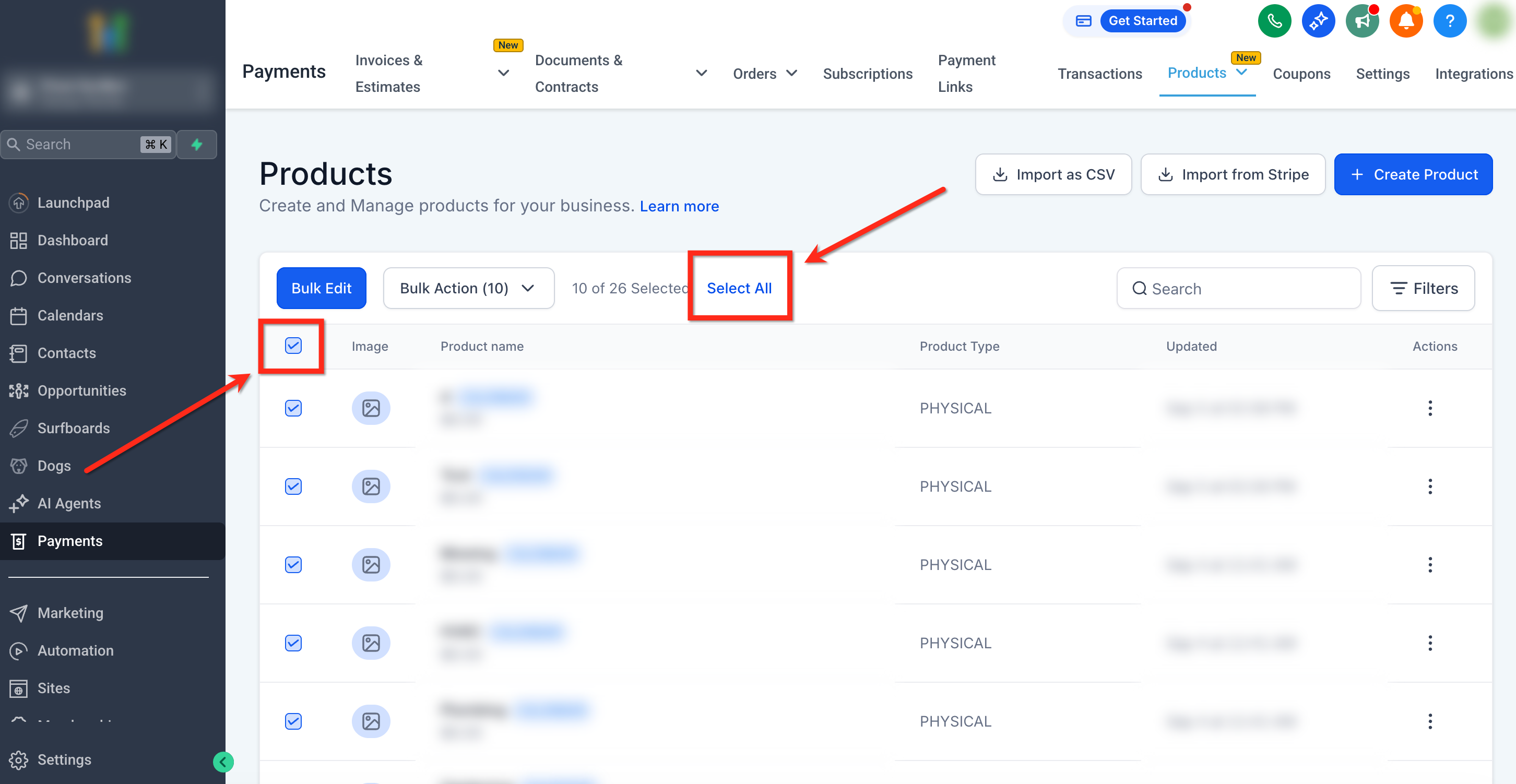
The tool lives under Payments > Products in the Ecommerce Store section of HighLevel. After opening the page you use checkboxes to pick items, optionally using the top row checkbox or the “Select All” prompt to target the whole subaccount. Once items are chosen, the Bulk Actions dropdown presents the available operations.
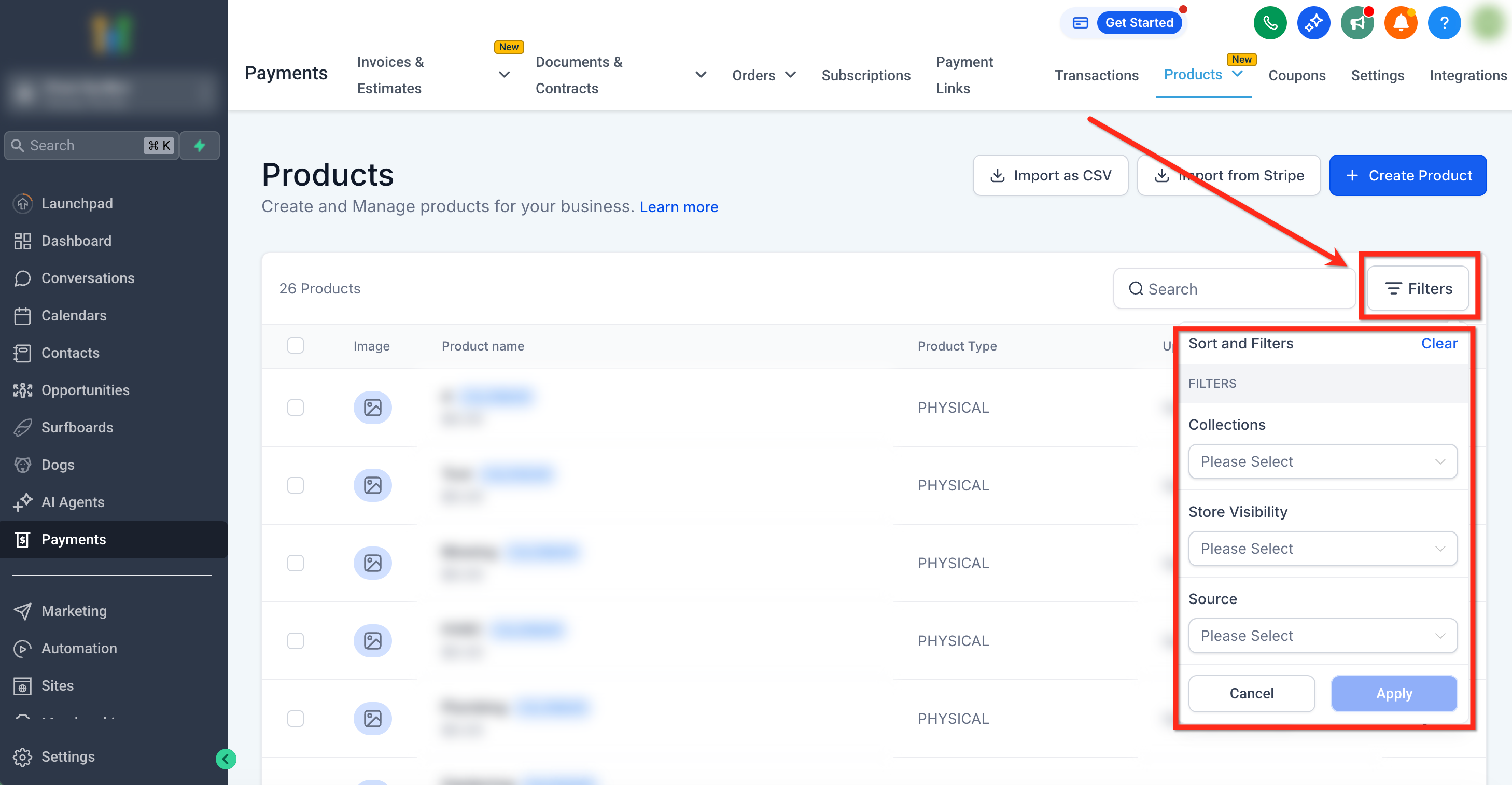
You can narrow the set of products before acting by opening the Filters panel, choosing criteria such as visibility, collection name, or source, and then applying the filter. This helps ensure only the intended products are modified.
03How businesses use bulk actions on the product page
- Clothing retailer. The retailer selects all summer season items, applies a price increase of 10 % through the Change Price bulk action, and then adds those items to a new "Summer Sale" collection. All variants receive the updated price automatically.
- SaaS subscription business. The business filters products that originate from the SaaS source, then uses the Include in Online Store bulk action to make the selected plans visible on the storefront. This updates visibility for every variant of each plan.
- Digital course provider. The provider filters products marked as hidden, selects them, and applies the Delete bulk action. After confirming the required typing of “Delete,” the courses are permanently removed from the catalog.
04The numbers and rules that matter
- Deletion confirmation for large sets. Deleting more than 50 products requires typing “Delete”.
05How to set up and use bulk actions on the product page in HighLevel
Access bulk actions
- Open the Payments > Products area inside your Ecommerce Store.
- Check the box beside a product row, or use the top checkbox to select all items on the current page.
- After selecting the page, click the “Select All” prompt that appears to mark every product in the subaccount.
- Open the Bulk Actions dropdown and pick the desired update.
- If the action is Delete and more than 50 products are selected, type the word “Delete” in the confirmation box before confirming.
Filter products for bulk actions
- Press the Filters button in the upper right corner of the product list.
- Choose filter options such as Store Visibility, Collections, or Source from the dropdown menus.
- Apply the filters, then use the selection controls to choose the filtered set for bulk actions.
06What it looks like in HighLevel
07Things to know before you rely on it
- Price changes that would result in a negative value are skipped for those products.
- Only one bulk operation can run at a time; you must wait for it to finish before starting another.
- Visibility updates affect all connected stores; to hide a product from a single store, use the Sites > Stores > Select a Store > Products path.
- Increase or Decrease price actions need an existing price; products without a base price stay unchanged.
- Deleting more than 50 products requires typing the word “Delete” in the confirmation box; deletions are permanent.
- Restricted products, such as calendar created items, memberships, communities, or SaaS products with active or past due subscriptions, are automatically skipped during bulk delete.
- Bulk changes on over 300 products may take a few moments to appear in the interface.
08How it connects to the rest of HighLevel
- Guide to bulk importing products into HighLevel Bulk import guide
- Understanding how product deletion works in HighLevel Deletion details
- Learn about manual and smart product collections Collections overview
Michael's take

Most people think bulk actions are only for price changes, but the biggest mistake is ignoring the filter step and ending up with unintended edits.
If I were setting up a large catalogue, I’d use bulk actions first to get all items into the right collections and visibility state, then run a price update. A quick test on a handful of items confirms everything works before I hit the full list.