
01Who this is for
- Store owners who want shoppers to see product texture and detail without leaving the product page.
- Ecommerce managers who need a simple way to make product images more engaging for desktop visitors.
02Image zoom on the product details page, explained
The feature adds a selectable interaction mode to each product image. Options include leaving the image unchanged, allowing a mouse driven zoom on click or hover, or launching a fullscreen overlay that supports zoom and thumbnail navigation.
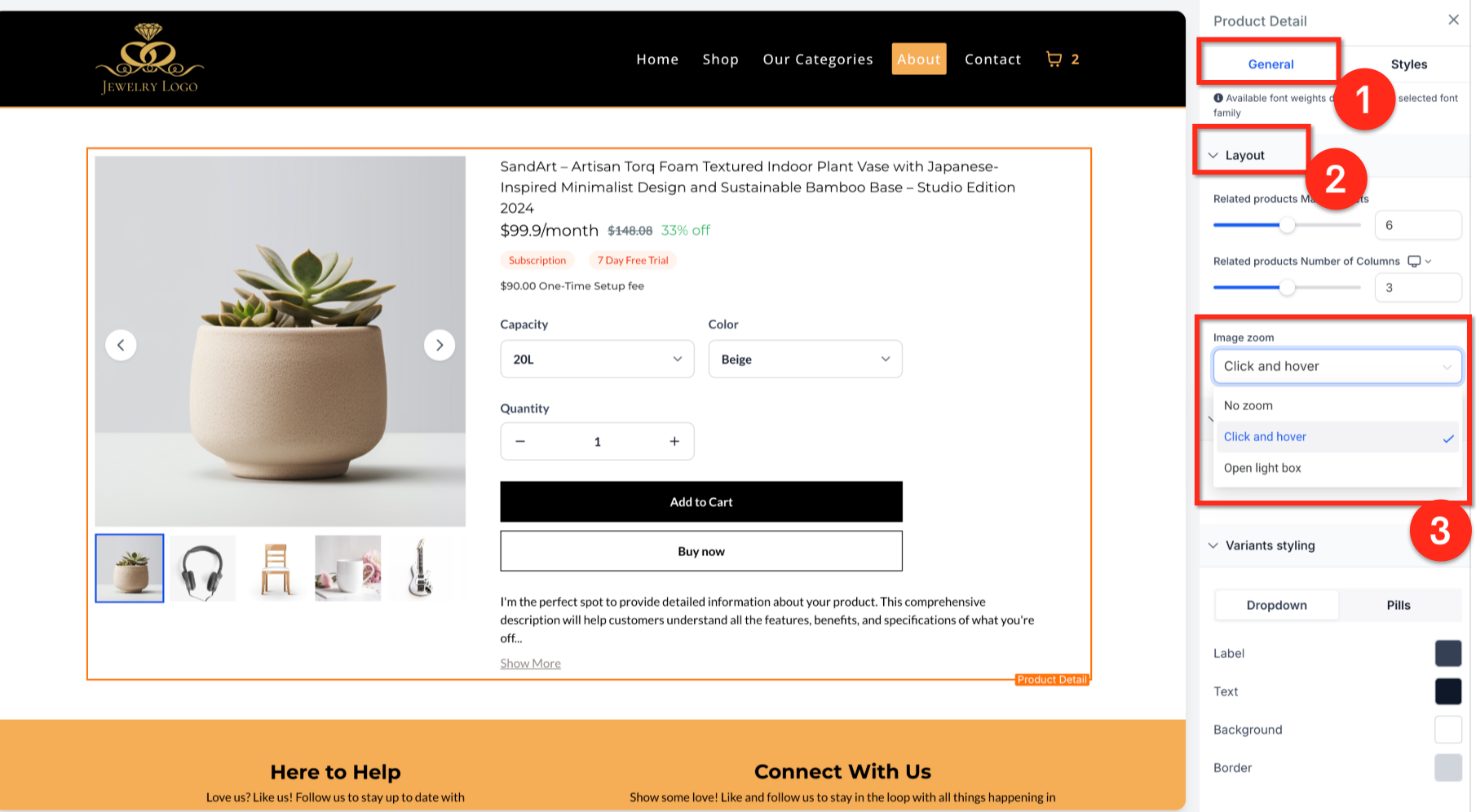
You find the control inside the Product Details element of the Product Details Page. After picking an option, the setting is saved and must be published for the change to appear on the live store. The behavior works with Stack Gallery, Stack Carousel and Two Column Layout image arrangements, but it does not affect product videos.
03How businesses use image zoom on the product details page
- Fashion boutique. Select the Click & Hover Zoom option so customers can examine stitching and fabric pattern directly on the page. This helps shoppers evaluate material quality before adding items to the cart.
- Electronics retailer. Choose Open Lightbox Zoom so buyers can view high resolution photos of device ports and screens in a fullscreen popup, with the ability to scroll through multiple images.
- Handmade crafts shop. Keep No Zoom when product photos already show the necessary detail, providing a clean browsing experience without extra interactions.
04The numbers and rules that matter
- Supported media layouts: Stack Gallery, Stack Carousel, Two Column Layout.
05How to set up and use image zoom on the product details page in HighLevel
Configure image zoom for a product page
- Open your HighLevel store.
- Edit the Product Details Page.
- Select the Product Details element.
- In the Layout Settings locate the Image Zoom option.
- Choose your preferred interaction mode, No Zoom, Click & Hover Zoom, or Open Lightbox Zoom.
- Save your changes.
- Publish the page to make the updated Image Zoom setting live.
06What it looks like in HighLevel
07Settings that matter
- Image Zoom. Determines how product pictures respond when a visitor clicks, hovers, or opens them, offering three distinct interaction styles.
08Things to know before you rely on it
- Zoom options are only applied to image assets; video content is not affected.
- The Click & Hover Zoom mode is optimized for desktop use with a mouse or trackpad.
- Supported image arrangements include Stack Gallery, Stack Carousel and Two Column Layout.
- Open Lightbox Zoom launches a fullscreen overlay that includes zoom, navigation arrows and a thumbnail strip.
09How it connects to the rest of HighLevel
- Learn how to organize products with manual and smart collections. Product collections
- Use bulk actions to edit multiple products at once, useful when changing image settings across many items. Bulk product actions
- Explore all payments related features that complement product display settings. Payments overview
Michael's take

I see Image Zoom as a convenient feature for merchants selling detailed products, such as jewelry or custom prints. Giving shoppers the ability to see textures or small design elements without leaving the page is valuable.