
01Who this is for
- Founders who sell physical or digital goods can see profit per item without external spreadsheets.
- Finance teams gain a reliable cost column for transaction level reporting.
- Operations managers can keep cost data consistent even when invoice prices are manually changed.
02Product cost price & margin, explained
Cost price and margin are optional inputs you can add to any product price or to each variant of a product. The fields live in the Pricing section of the product or variant edit screen. When you enable them, the platform automatically computes the missing value based on the selling price.
The cost price you enter is stored with the product and flows into the Transactions CSV export as a dedicated Line Item Cost Price column. Margin can be expressed as an absolute amount or as a percentage of cost. Changing a selling price updates the margin calculation but does not change the stored cost price.
These values are internal only; they never appear to customers at checkout, on receipts, or invoices. Setup fees on recurring items are excluded from margin logic, and only future transactions after the fields are set will contain cost data in exports.
03How businesses use product cost price & margin
- Retail store. Create each SKU as a product, enable Add Margin, and input the wholesale cost. The platform shows the margin amount automatically, and the cost appears in CSV exports for accounting.
- Online subscription service. For each subscription tier, turn on Add Margin in the variant pricing, enter the delivery cost, and let HighLevel calculate the margin percentage. The recurring amount is used for margin, while any setup fee is ignored.
- Fitness class provider. Define different class sizes as variants, enable margin for each, and set distinct cost prices per size. Each variant’s margin is calculated independently, helping the business compare profitability across class options.
04The numbers and rules that matter
- Cost Price must be greater than or equal to 0 (>= 0).
- Margin % is limited to a range of -100% to 100%.
- If Cost Price is 0, margin percentage is treated as 100%.
05Before you start
- User must have access to Payments > Products.
- At least one product must exist in the account.
- User needs product create or edit permissions.
06How to set up and use product cost price & margin in HighLevel
Enable margin tracking for a product
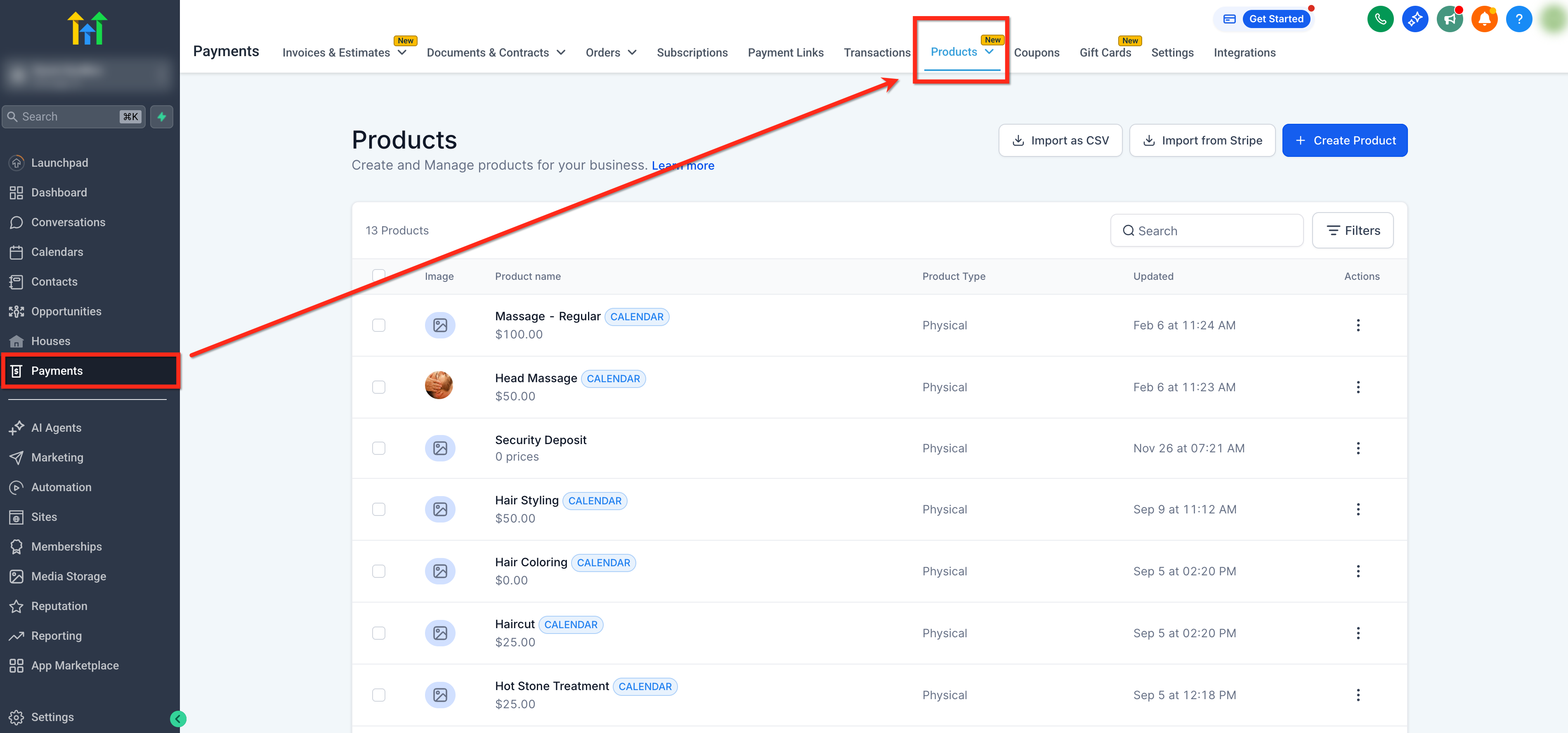
- Open the left menu, select Payments, then click Products.
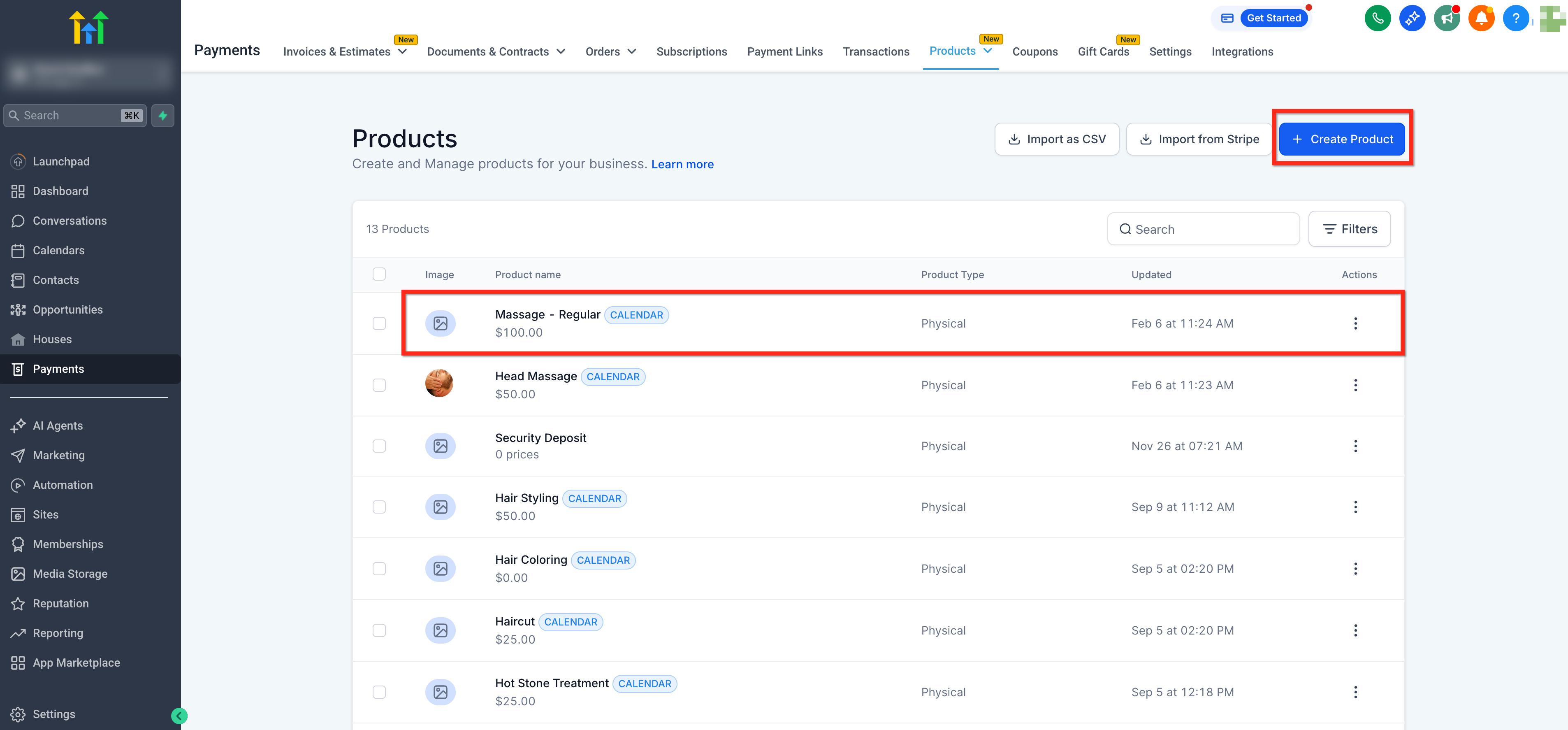
- Press + Create Product or open an existing product to edit it.
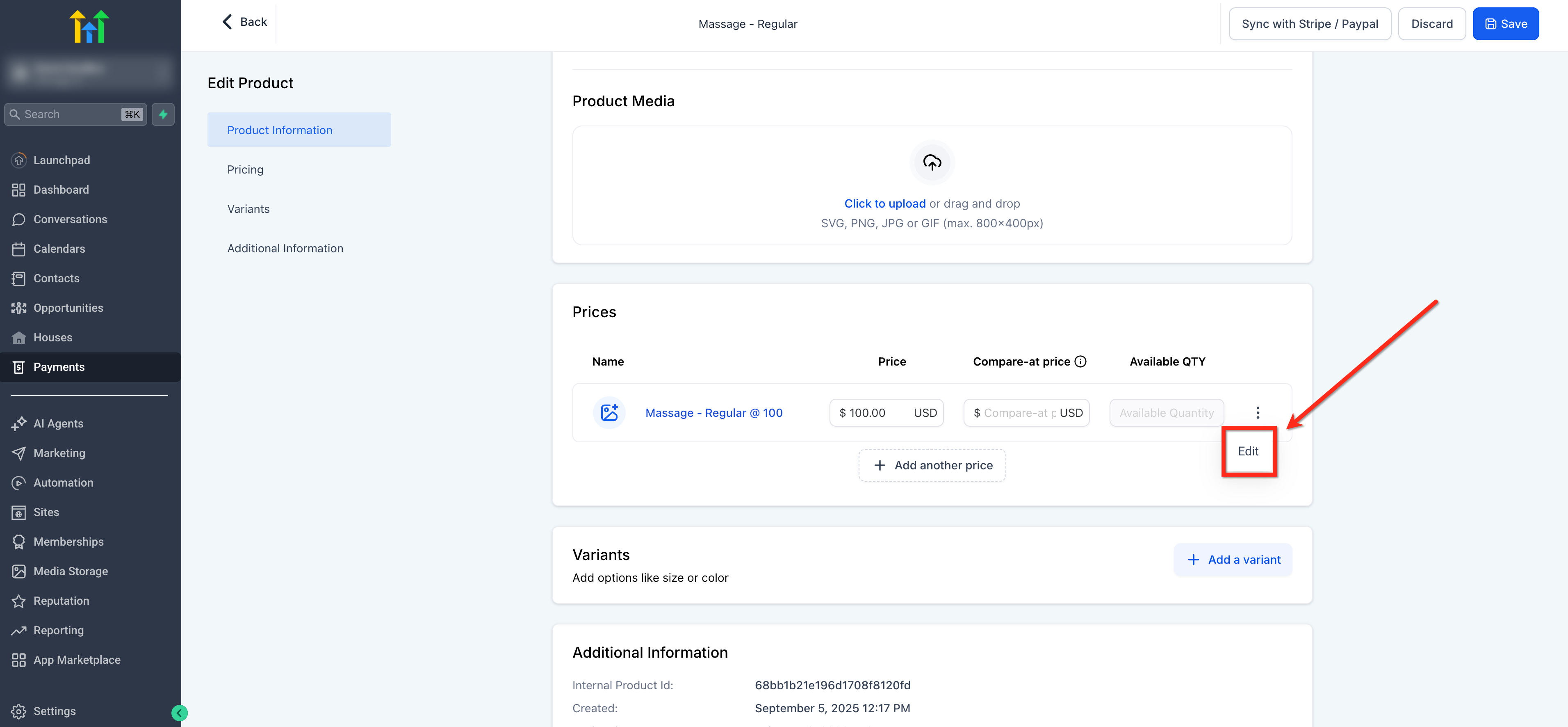
- Scroll to the Pricing section and click Edit next to the price if needed.
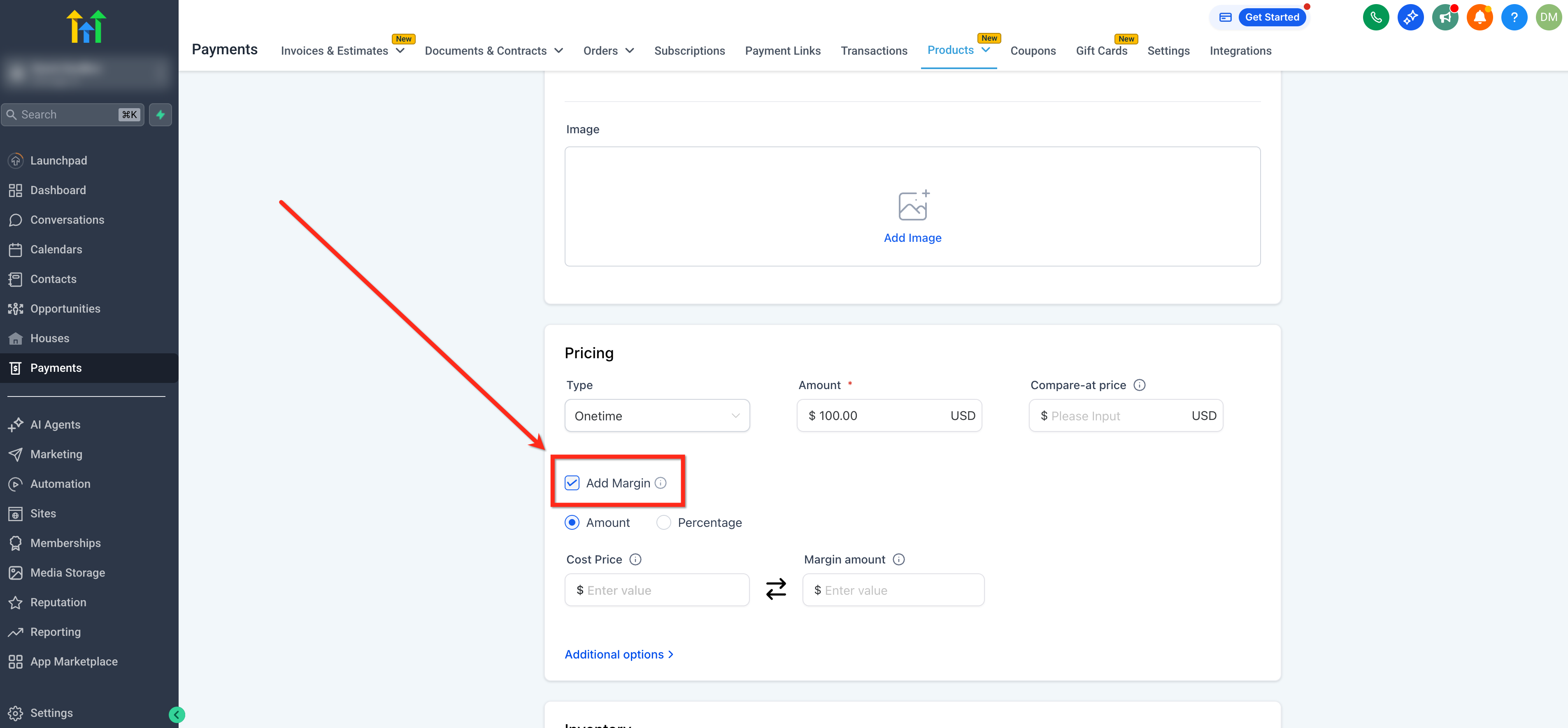
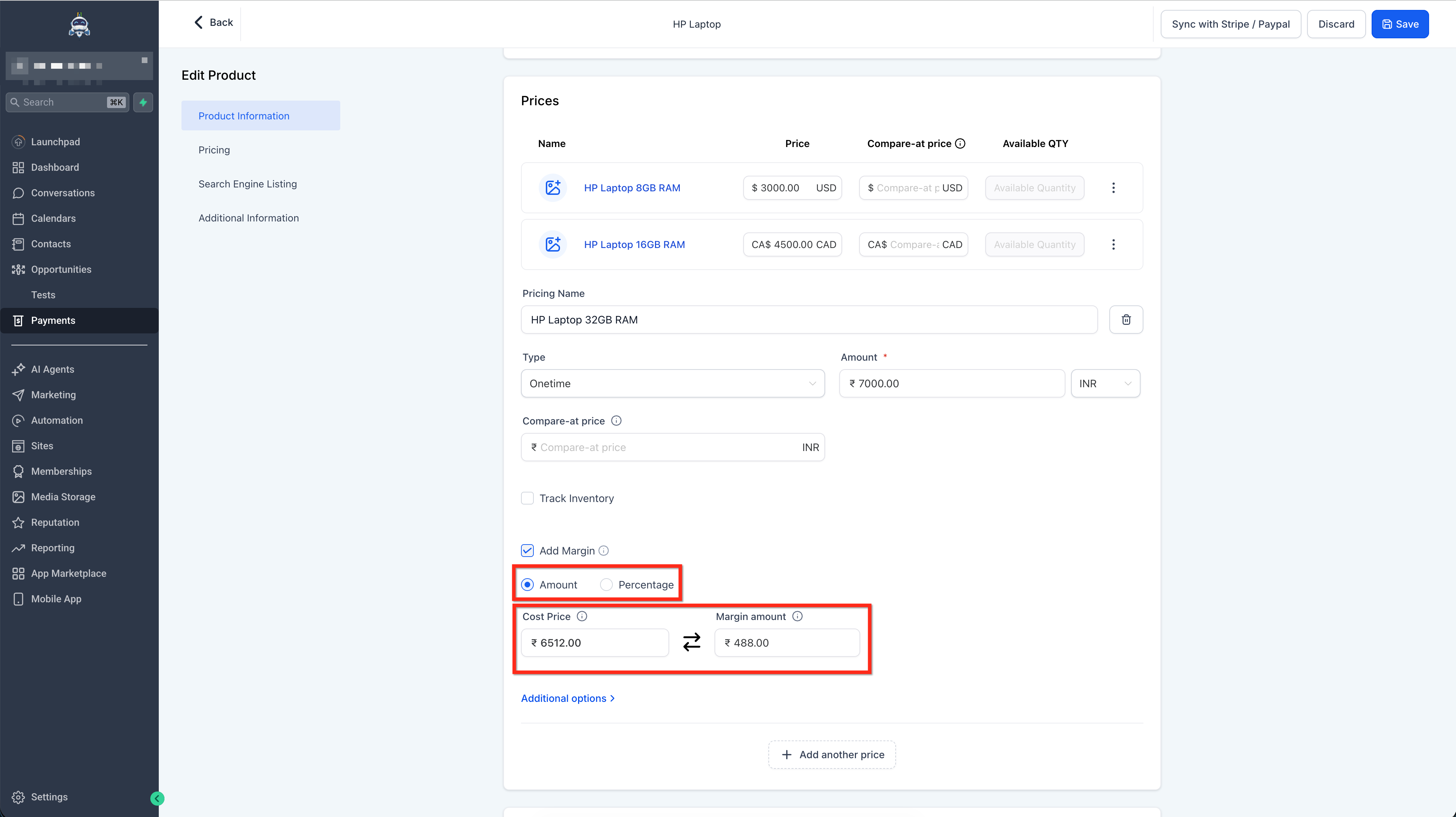
- Check the Add Margin checkbox to display the Cost Price and Margin inputs.
- Choose amount or percentage mode, then fill in either cost price or margin; the other field updates automatically.
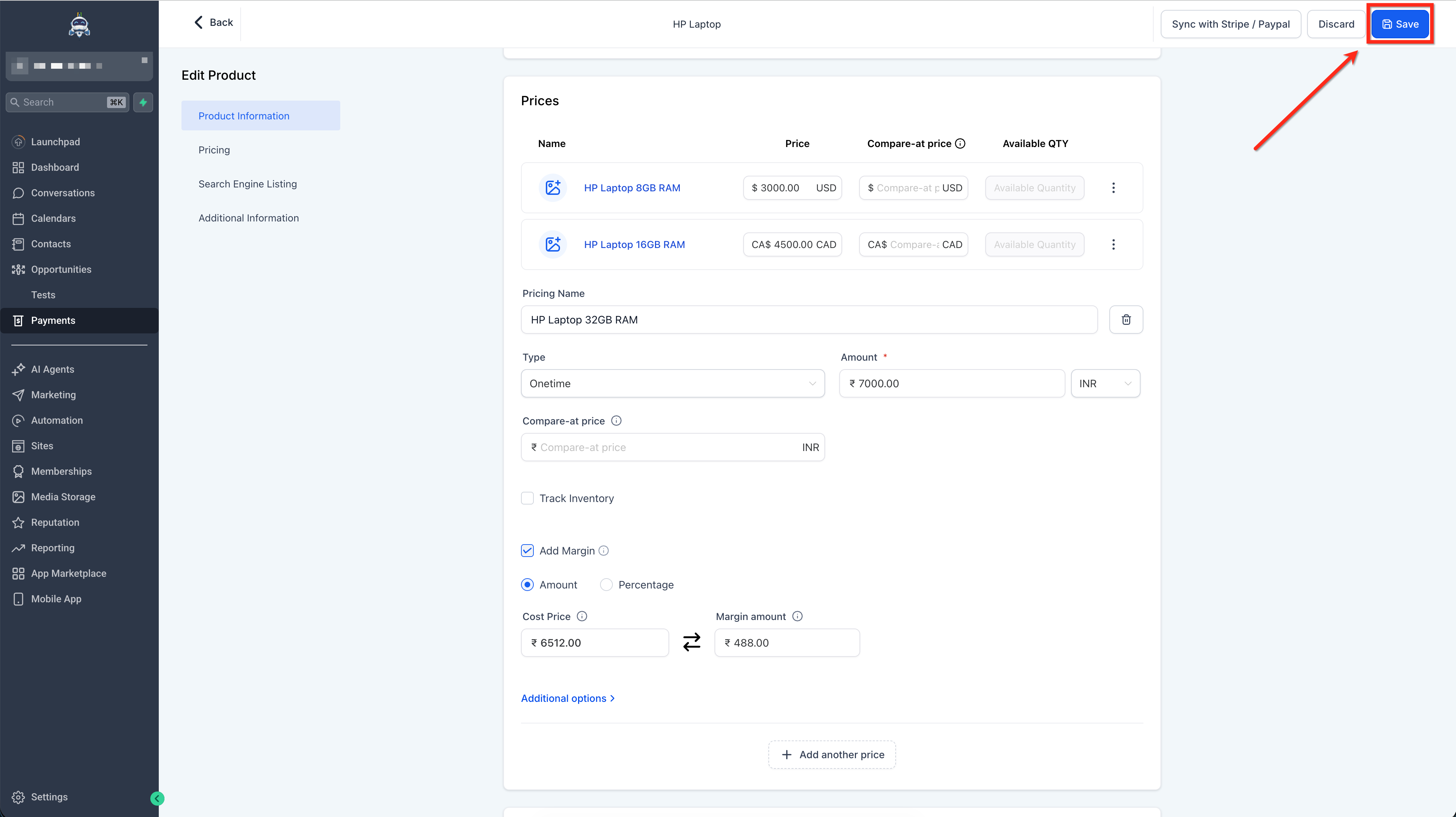
- Click Save to store the values.
Enable margin tracking for a product variant
- In the product edit view, go to the Variants tab.
- Click Edit on the variant you wish to modify.
- Tick the Add Margin checkbox inside the variant’s Pricing area.
- Select amount or percentage mode and enter either cost price or margin; the system calculates the counterpart.
- Press Save and repeat for any additional variants.
07What it looks like in HighLevel
08Settings that matter
- Add Margin. Activates the Cost Price and Margin fields for the selected price or variant.
- Cost Price. Records the amount it costs the business to acquire or deliver the product.
- Margin. Stores the profit amount or percentage; the value is auto calculated based on the selling price.
- Amount/Percentage toggle. Switches margin representation between a fixed amount and a percentage of cost price.
09Things to know before you rely on it
- Cost Price cannot be negative; it must be zero or higher.
- Margin percentage is limited to a range of -100% to 100%; values above 100% are invalid.
- When Cost Price is zero, the system treats margin percentage as 100%.
- Cost price data is only added to transactions created after the fields are configured; past records stay unchanged.
- Cost price is never shown to customers at checkout, on receipts, or invoices.
- Setup fees for recurring products are excluded from margin calculations.
- Bulk editing of cost prices is not available in the current release.
- Changing a product’s selling price recalculates margin but does not modify the stored cost price.
10If something goes wrong
- Add Margin checked but both Cost Price and Margin fields are empty.. The platform treats Cost Price as equal to the selling price, resulting in a zero margin; enter a value in either field to store explicit data.
- Cost price does not appear in the Transactions CSV for earlier sales.. Only transactions created after cost price is set include the Line Item Cost Price column; earlier records remain unchanged.
- Margin does not update on invoices or calendar entries where the selling price is overridden.. Cost price always comes from the original product price and margin is not recalculated for overridden line items.
- Cannot enable margin for a variant because no variants exist.. Create the required product variants first, then enable margin on each variant.
11How it connects to the rest of HighLevel
- Import Stripe subscription products into HighLevel Import Stripe products
- How to bulk import products into HighLevel, step by step guide Bulk import guide
- HighLevel pricing and plans Pricing page
Michael's take

Businesses often struggle to see whether each product is actually making money or just covering costs. Adding cost price and margin fields gives you a clear, built in view of profit per sale without juggling spreadsheets.
The first thing I would get right is the Add Margin checkbox for each price or variant. Turn it on, enter a realistic cost, and let HighLevel calculate the margin automatically.