
01Who this is for
- Sales managers, get a clearer picture of expected revenue and timing for better planning.
- Business owners, identify missing data in deals and improve forecast accuracy.
- Operations leads, use risk classifications to prioritize follow up on slipping opportunities.
02Opportunity forecasting, explained
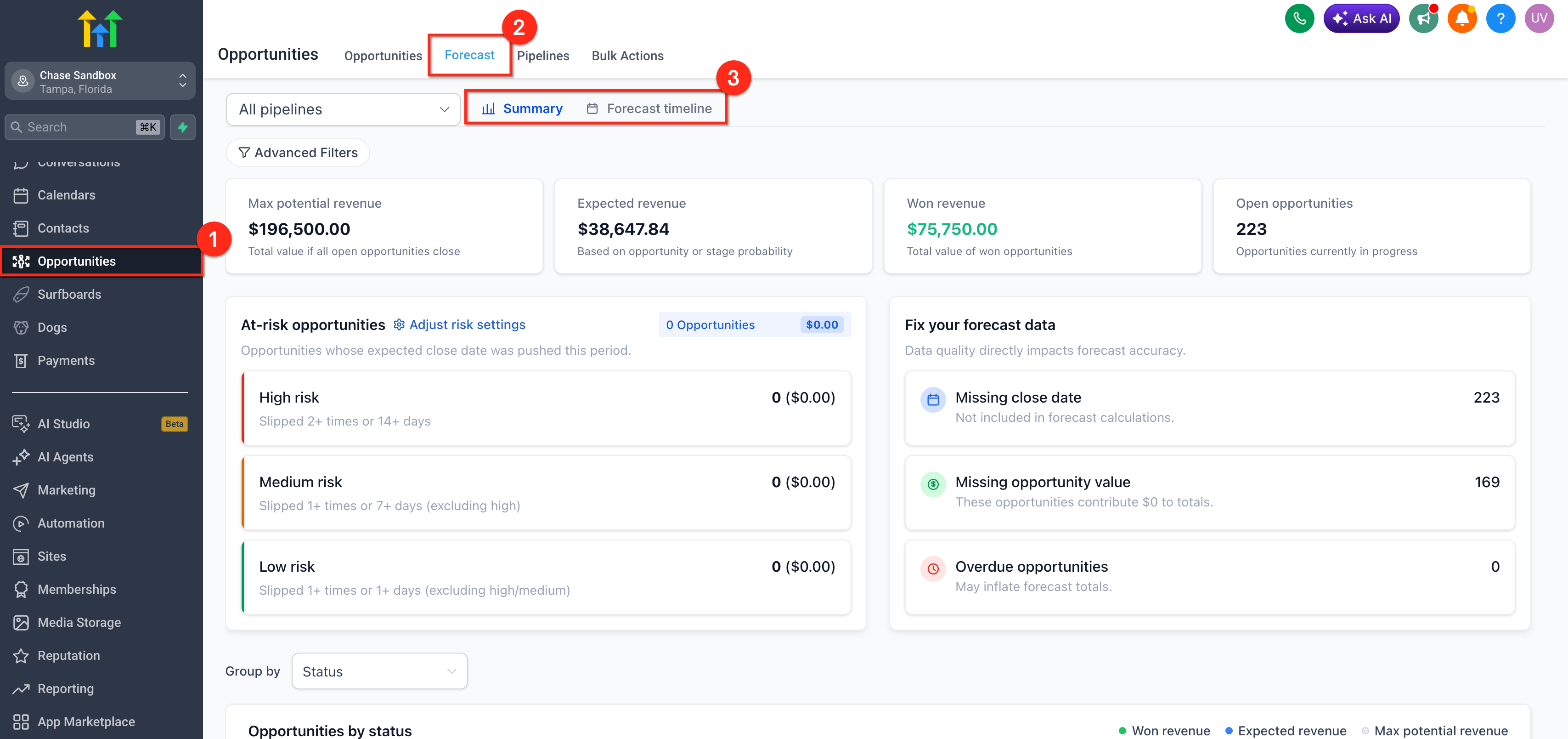
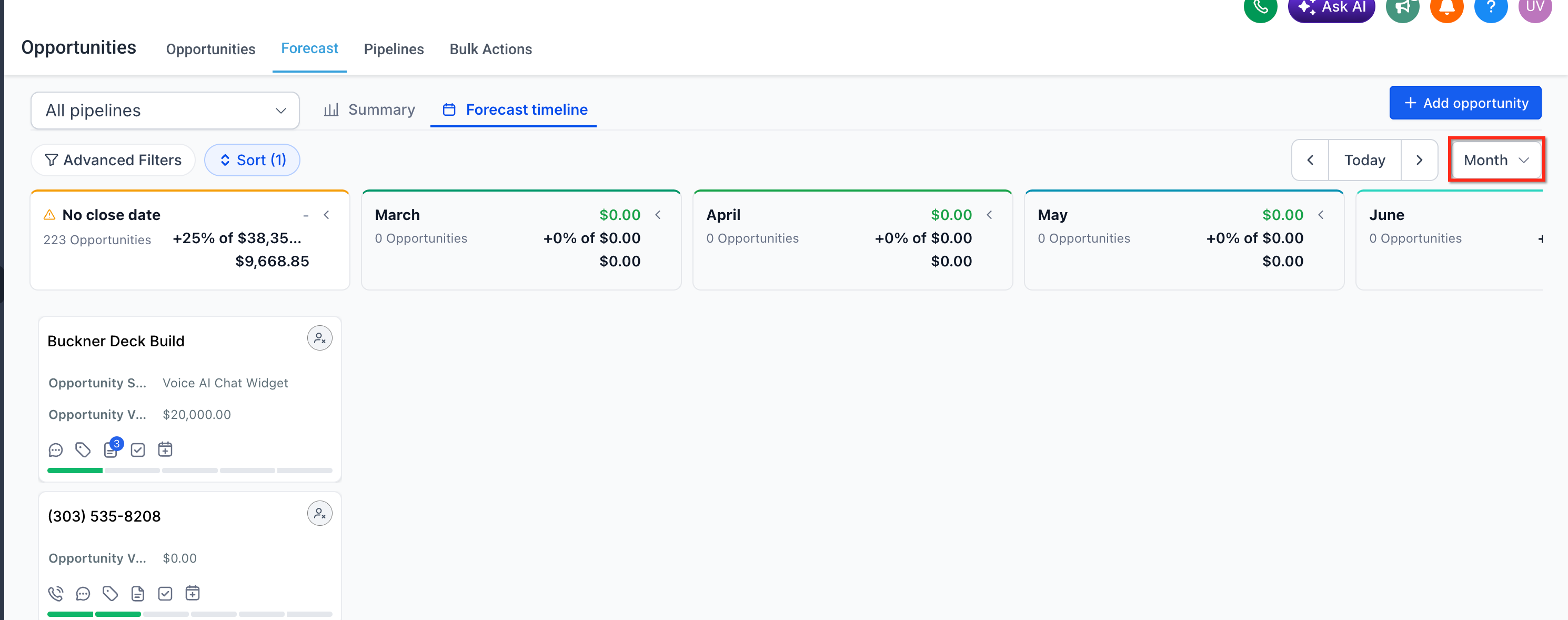
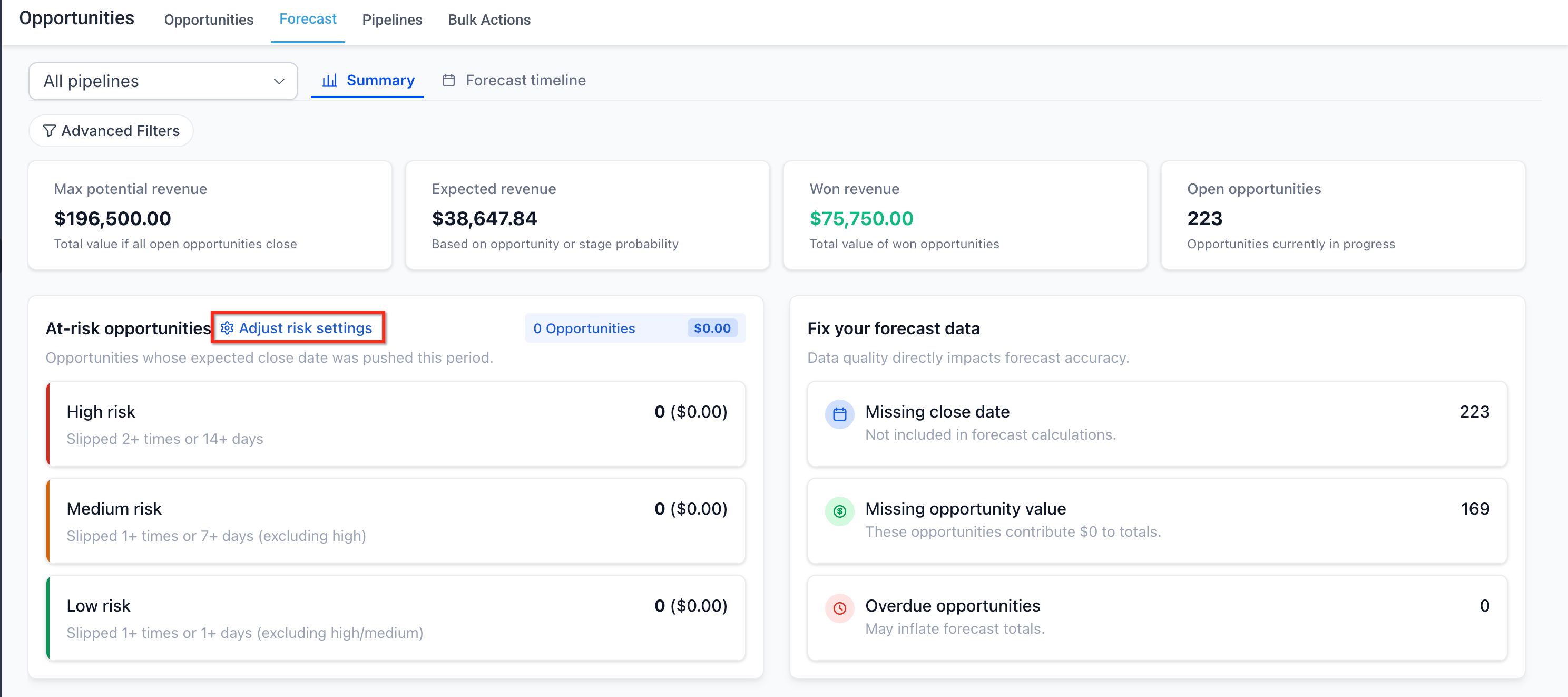
The feature creates a dedicated Forecast workspace within Opportunities. Users can switch between a summary dashboard and a visual timeline that groups revenue by week, month or quarter. Weighted values use stage probability or manual overrides, and an Expected Close Date field determines the time bucket for each deal.
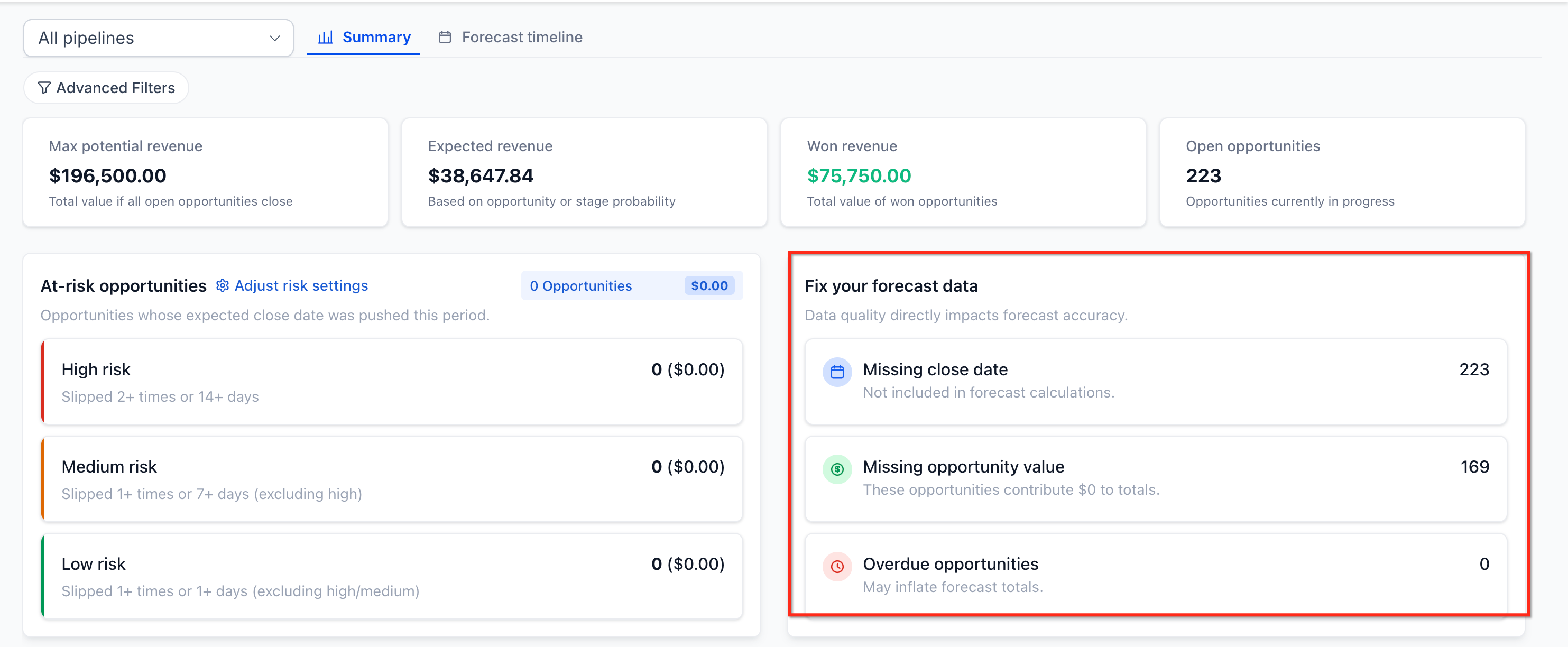
Risk levels (High, Medium, Low) are assigned automatically based on delays, and custom thresholds let teams define what counts as slippage or overdue. The workspace also highlights records with missing amounts or dates, offering data hygiene insights.
The Forecast tab lives under the Opportunities section once the feature is turned on in Labs. All existing pipeline and stage functionality remains unchanged; the tab simply extends the view with forecasting tools.
03How businesses use opportunity forecasting
- Real estate agency. The agency enables Opportunity Forecasting, selects a monthly granularity, and filters by the agents' pipelines. They drill into the summary metrics to see expected commission revenue and update any missing expected close dates to keep the timeline accurate.
- SaaS startup. The startup turns on the feature in Labs, chooses the quarter view, and applies a filter for the enterprise sales pipeline. They review weighted revenue and adjust risk thresholds to flag deals that may slip, then clean up stale opportunities flagged by the data hygiene insights.
- Consulting firm. The firm activates Opportunity Forecasting, picks the week view, and filters by consulting service lines. They click a revenue bucket to see the underlying opportunities, update missing amount fields, and use the risk classification to prioritize follow up calls.
04Before you start
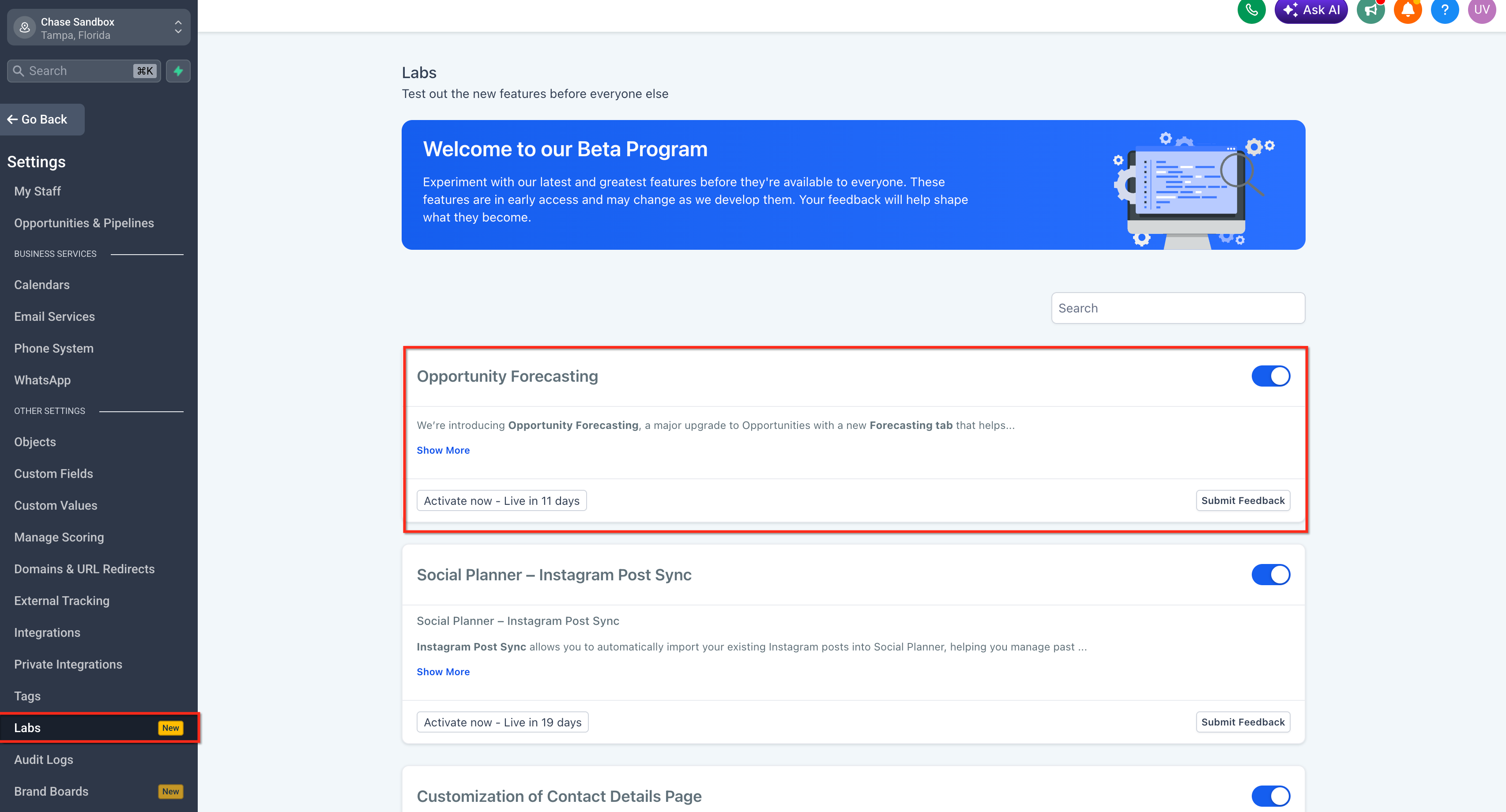
- Enable the Opportunity Forecasting toggle in Subaccount > Labs.
- Ensure opportunity records contain amount values and Expected Close Dates.
05How to set up and use opportunity forecasting in HighLevel
Set up opportunity forecasting
- Open the Subaccount settings.
- Select Labs and turn on the Opportunity Forecasting option.
- Go to Opportunities and open the Forecast tab.
- Pick either the Summary view or the Forecast Timeline view.
- Choose a time granularity of Week, Month, or Quarter.
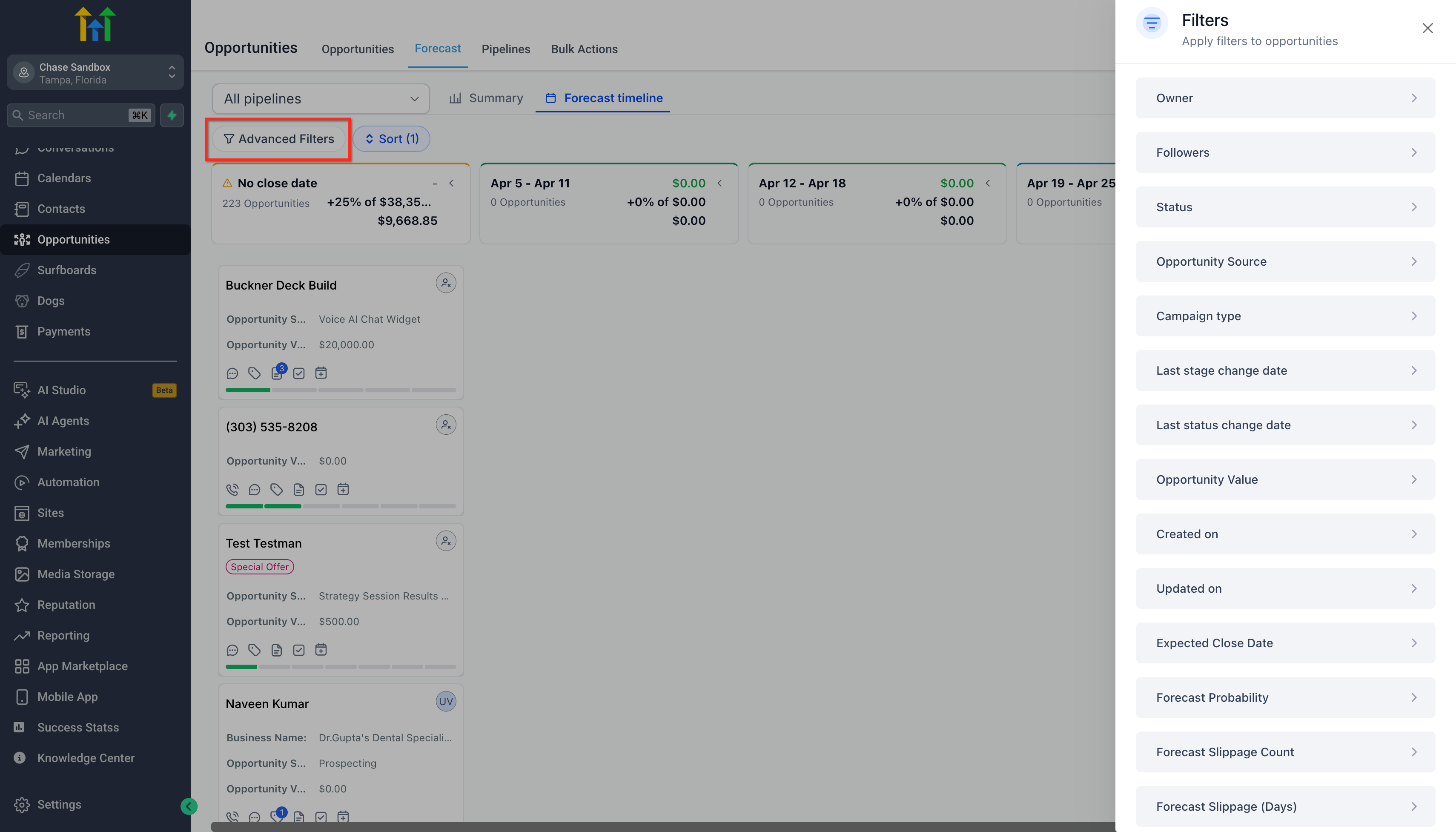
- Apply filters to focus on specific pipelines, owners, or other segments.
- Click a metric or time bucket to drill down into the underlying opportunities.
- Review the risk settings and modify thresholds if required.
- Use the data hygiene insights to correct missing or outdated opportunity information.
06What it looks like in HighLevel
07Settings that matter
- Opportunity Forecasting. Controls whether the Forecast tab appears inside Opportunities; it must be enabled in Labs.
- Risk settings. Allows customization of the thresholds that determine High, Medium, and Low risk classifications based on deal slippage and overdue status.
08Things to know before you rely on it
- The feature is released through Labs, meaning it is in early access and may evolve over time.
09If something goes wrong
- Missing amount or Expected Close Date values reduce forecast accuracy.. Update the amount and Expected Close Date fields for affected opportunities.
- Opportunities do not appear in the Forecast view.. Confirm the Opportunity Forecasting toggle is enabled and that the records have complete amount and date information.
10How it connects to the rest of HighLevel
- Enable multiple opportunities per contact to capture all deals. Multiple opportunities
- Use opportunity filters for precise segment analysis. Opportunity filters
- Check pricing and plan eligibility for Labs features. Pricing
Michael's take

Opportunity forecasting is useful, but only if you need granular revenue planning.
Teams that don’t track close dates or probability should skip it.