
01Who this is for
- Affiliate managers benefit because they can see which affiliates generate leads and reward them correctly.
- Marketing teams gain visibility into lead origins, allowing better optimization of campaigns.
02Lead tracking, explained
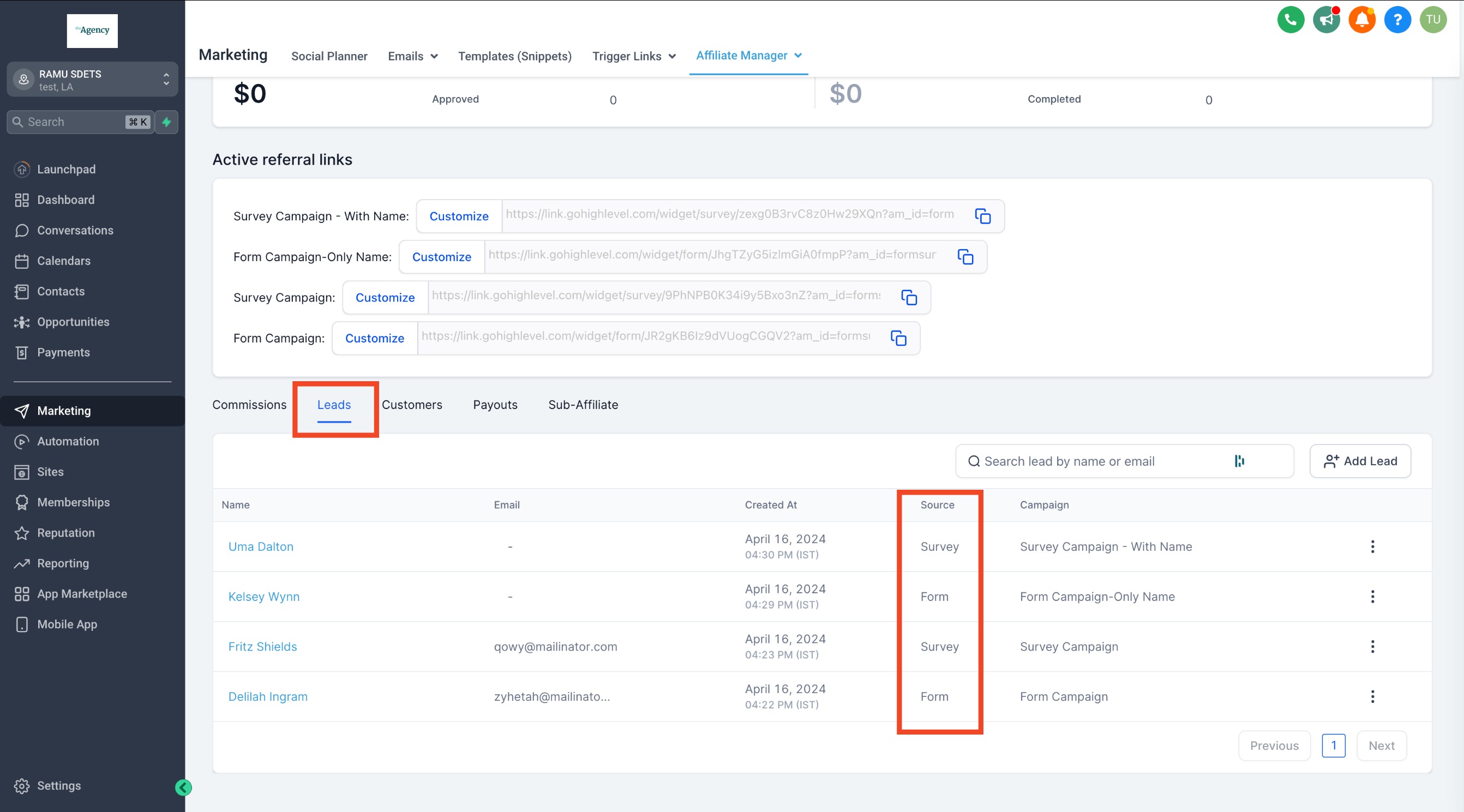
The lead tracking feature ties forms, surveys, or calendars to an affiliate campaign. When a visitor completes one of those assets, the platform records the lead and attributes it to the affiliate whose URL was used. This attribution appears on the affiliate’s profile page under the Leads tab.
The feature lives inside the Affiliate Manager, which is accessed from the Marketing tab. Within a campaign you choose the source type, pick the specific form, survey or calendar, and optionally enable Pay Per Lead commissions. After publishing, the system automatically logs each new lead and shows the source field for quick reference.
03How businesses use lead tracking
- Real estate agency. The agency creates a property showing calendar and adds it to a funnel page. In the Affiliate Manager it selects Calendars as the source and links the specific calendar. Leads that schedule showings are captured and tied to the referring affiliate.
- Online course provider. The provider builds a course enrollment form and embeds it in a landing page. When setting up an affiliate campaign, it selects Forms as the source and picks the enrollment form. Each student sign up generates a lead record linked to the affiliate.
- Fitness studio. The studio uses a membership survey to qualify prospects. In the Affiliate Manager it chooses Surveys as the source and selects the survey. Completed surveys appear as leads under the affiliate who shared the campaign URL.
04Before you start
- An Affiliate Manager must be accessible under the Marketing tab.
- The form, survey, or calendar must be placed as a component inside a funnel or webpage.
- A branded domain is optional; without it the system domain is used.
05How to set up and use lead tracking in HighLevel
Set up lead tracking in an affiliate campaign
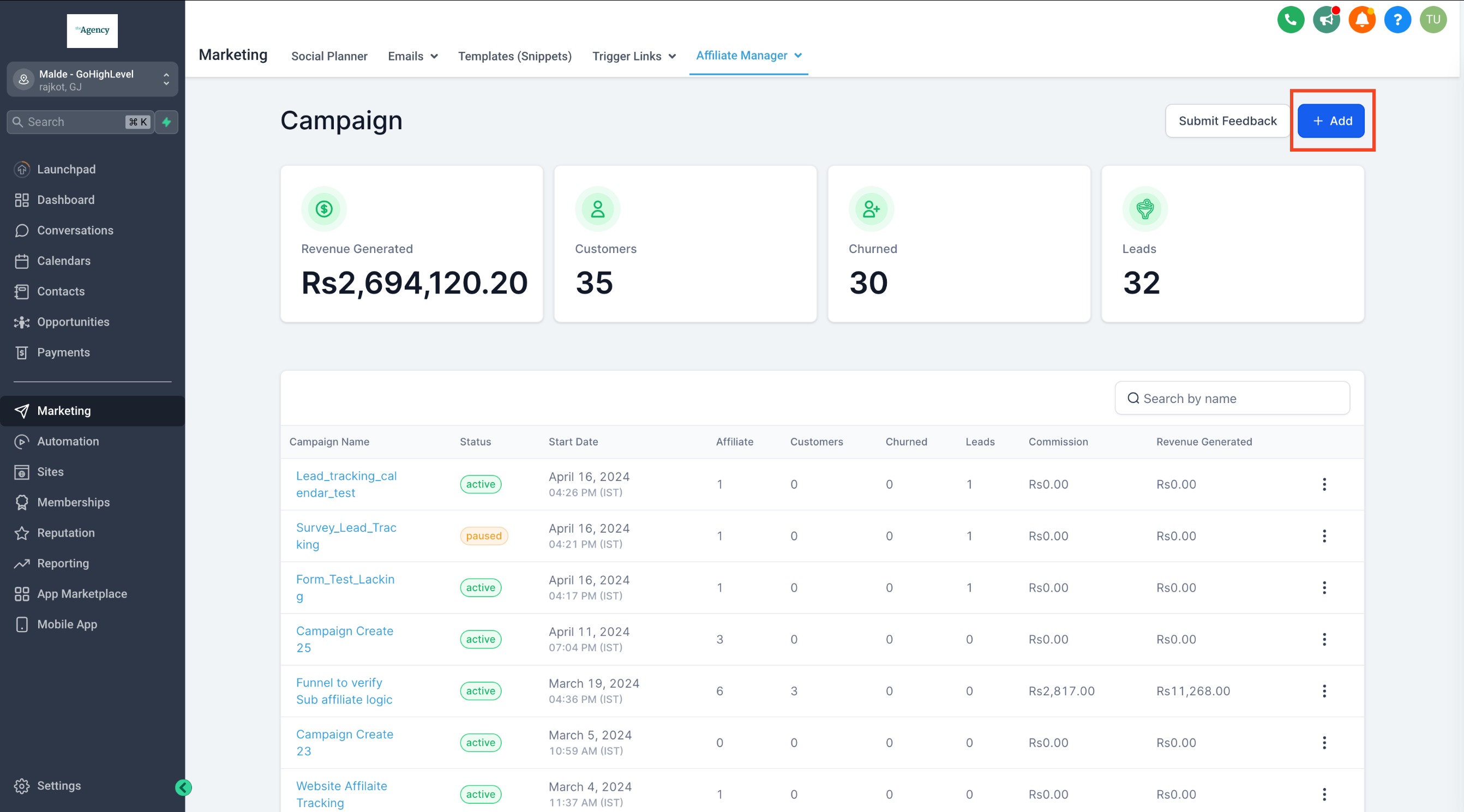
- Open the Affiliate Manager from the Marketing tab and go to the Campaign page.
- Click the Add button to start a new campaign.
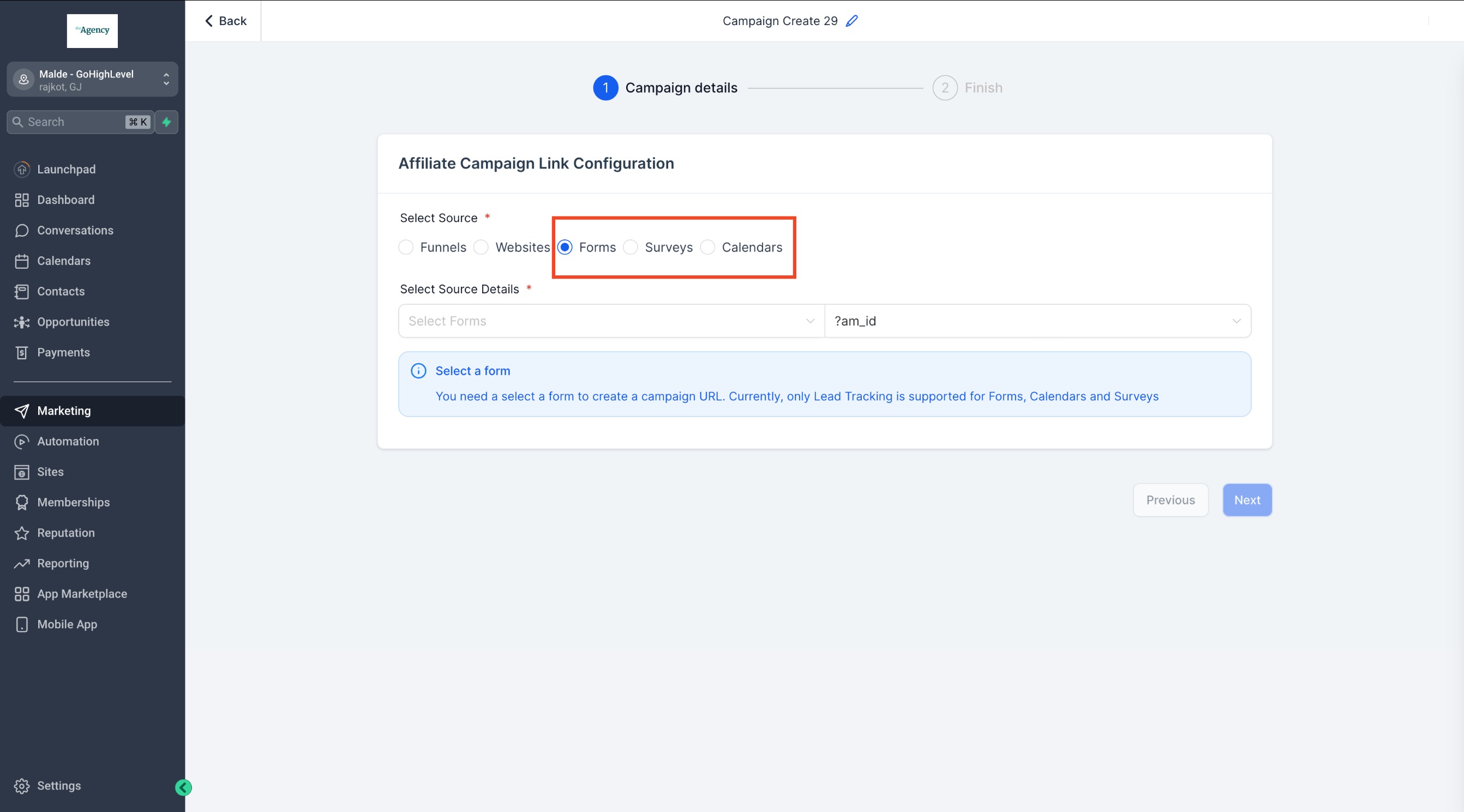
- Choose the source type, Forms, Surveys, or Calendars, for the campaign.
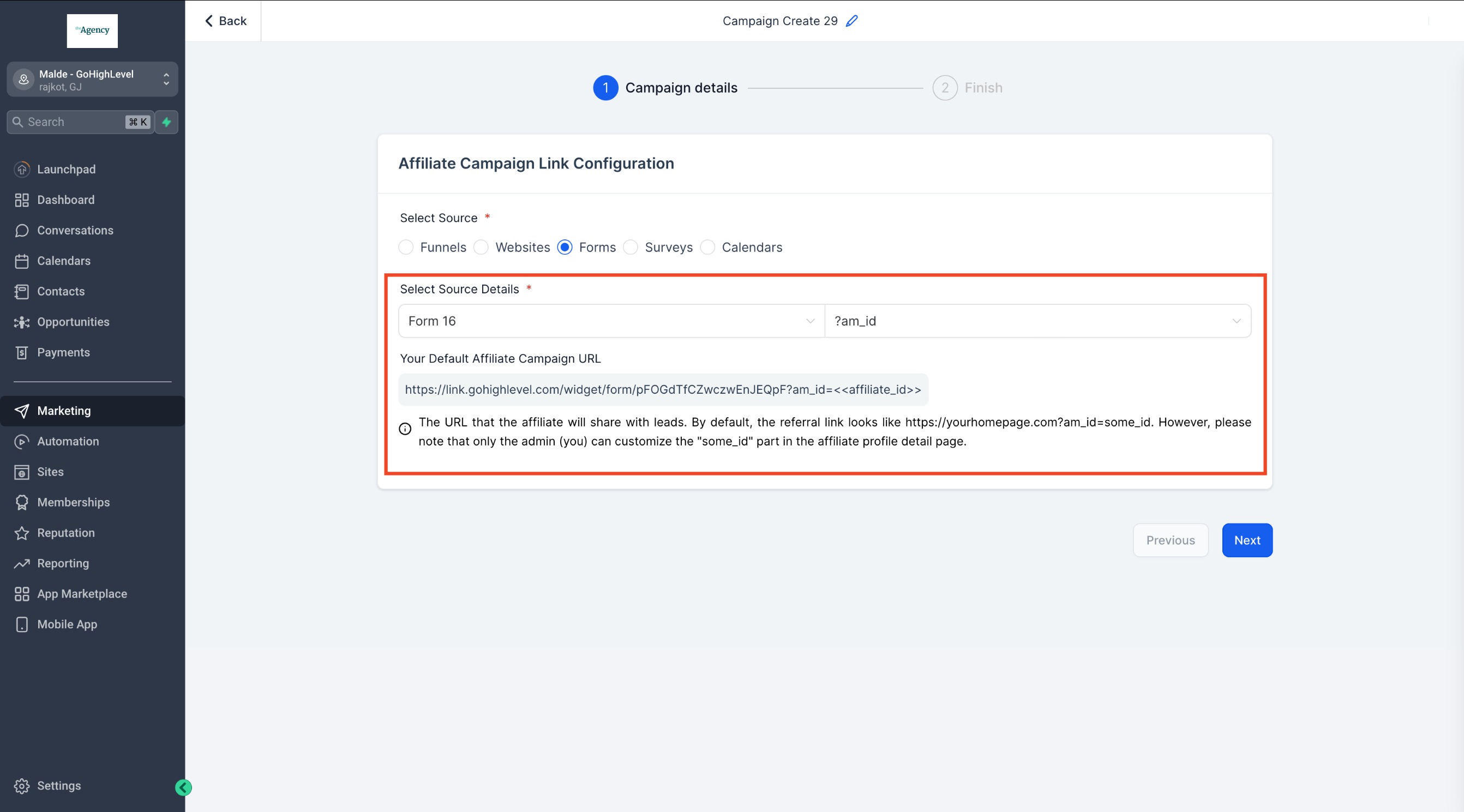
- Select the specific form, survey, or calendar from the dropdown menu.
- Ensure the selected asset is added as a component inside a funnel or webpage; custom embed or iframe components are not supported.
- Review the generated default affiliate campaign URL.
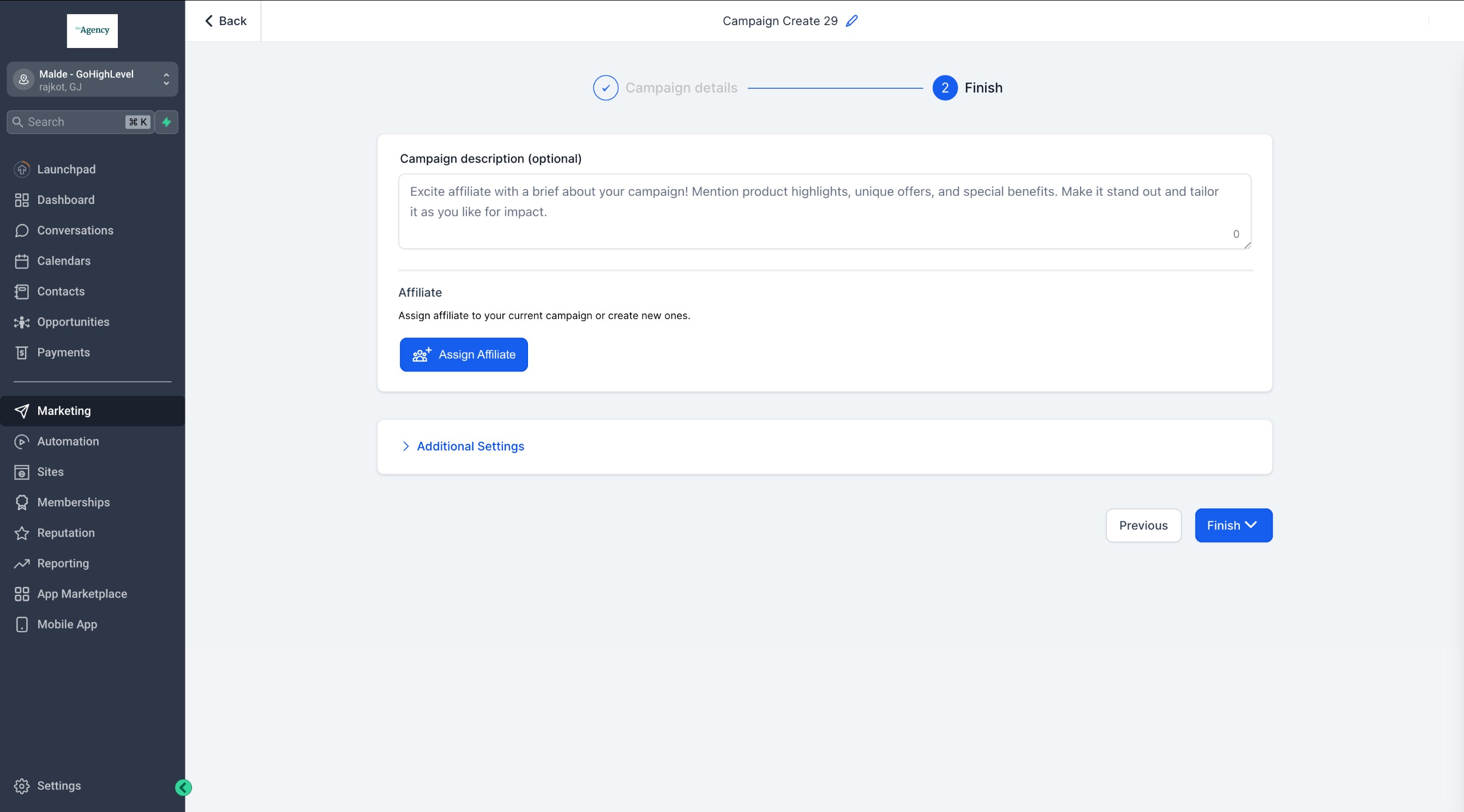
- Optionally enable Pay Per Lead in the Commissions tab.
- Add any optional details such as a description or assigned affiliates.
- Press Publish to activate the campaign.
- Open the Leads tab on an affiliate’s profile to view automatically captured leads.
06What it looks like in HighLevel
07Settings that matter
- Pay Per Lead. Controls whether affiliates receive a commission each time a lead is recorded from their campaign.
08Things to know before you rely on it
- Custom embed or iframe components are not supported for lead tracking; only components inside a funnel or webpage work.
- If no branded domain is set, the affiliate URL defaults to the system domain.
- Branded domain URLs appear only after adding the domain in Settings > Business Profile > Branded Domain.
09How it connects to the rest of HighLevel
- How to create and manage affiliate campaigns in HighLevel Affiliate campaign creation
- Setting up pay per lead commissions for affiliates Pay Per Lead setup
- Affiliate campaigns FAQs Affiliate FAQs
Michael's take

Skipping the proper domain setup can leave your affiliate links looking generic and may confuse partners. Even though it isn’t required for tracking, a branded URL gives a more professional impression.
When the system handles the heavy lifting of logging leads from forms, surveys, and calendars, it saves time and ensures affiliates are accurately rewarded for their lead generation efforts.