
01Who this is for
- Agency administrators who want a cleaner client interface without the SMTP help link.
- Marketing consultants managing multiple client subaccounts and wishing to prevent accidental navigation.
- SaaS product owners embedding HighLevel for their users and needing to remove extra documentation links.
02Hide the smtp setup help doc link, explained
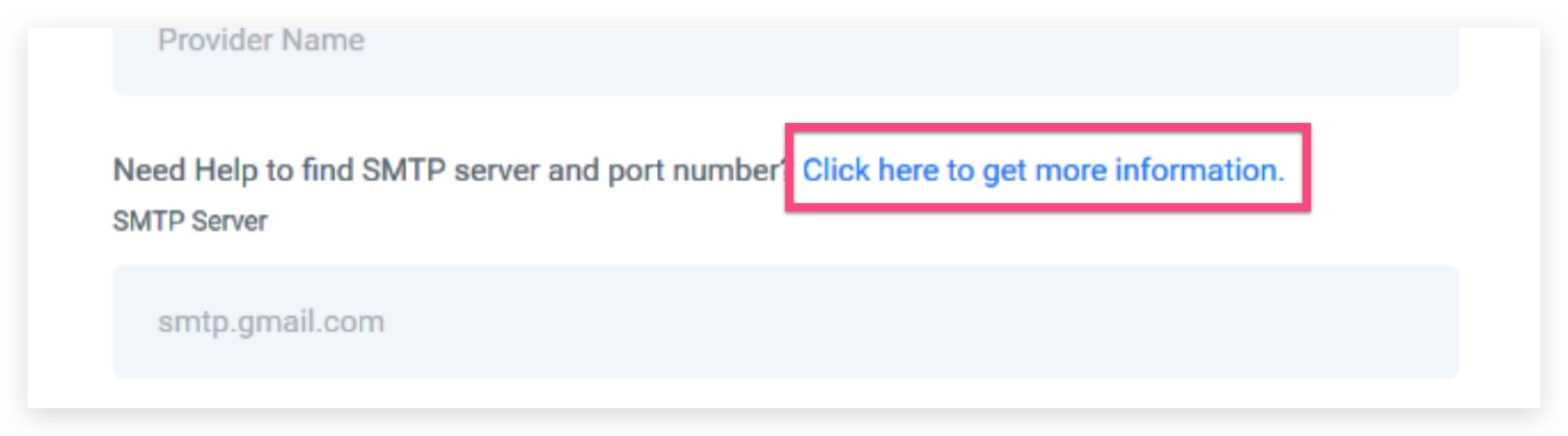
The hide link feature works by inserting a custom CSS rule that targets the element with the class .hl__smtp help doc and sets its display to none. This rule is entered in the Custom CSS field of the agency settings and runs for every client view in the agency.
When the snippet is saved, the SMTP setup help doc link disappears from client facing pages. The underlying SMTP configuration and functionality remain unchanged.
If the link needs to appear again, simply delete the snippet from the Custom CSS field and save. The same method can be used to hide other interface elements that have a stable CSS class.
03How businesses use hide the smtp setup help doc link
- Marketing agency. The agency adds the CSS snippet in its Agency Settings so client dashboards no longer show the SMTP setup help link, keeping the UI focused on branding.
- Coaching business. Coaches who provide subaccounts for clients paste the snippet to hide the link, avoiding confusion for clients unfamiliar with SMTP configuration.
- SaaS platform reseller. A reseller embeds HighLevel for its users and uses the custom CSS to suppress the help link, presenting a streamlined interface across all tenant accounts.
04Before you start
- You must be logged into HighLevel with access to Agency Settings.
05How to set up and use hide the smtp setup help doc link in HighLevel
Hide the SMTP help doc link
- Navigate to Settings > Agency Settings and locate the Custom CSS field.
- Paste the code .hl__smtp help doc { display: none; } into the Custom CSS field.
- Save the changes to apply the CSS.
06What it looks like in HighLevel
07Settings that matter
- Custom CSS. Holds custom styling rules that are applied across the agency, such as hiding interface elements.
08Things to know before you rely on it
- The snippet hides only the visual link; SMTP functionality is unaffected.
- Custom CSS set at the agency level applies to all client facing views, not to individual subaccounts.
- If a future platform update changes the .hl__smtp help doc class name, the snippet may stop working.
09If something goes wrong
- The SMTP help link still appears after adding the snippet.. Verify the exact CSS code is entered in the Custom CSS field at the agency level and that the changes are saved.
- The link reappears after a platform update.. Check whether the .hl__smtp help doc class name has changed and update the custom CSS accordingly.
10How it connects to the rest of HighLevel
- Set up SMTP providers for sending email SMTP providers setup
- Guide to connecting SendGrid as your SMTP provider SendGrid SMTP guide
- Dedicated sending domain setup and management Sending domain guide
Michael's take

Hiding the SMTP help doc link is a tiny convenience for agencies that want a cleaner client view. It doesn’t alter any email functionality, just removes a piece of UI that can look like a support hint you don’t want to surface to every client.
For a marketing agency that runs dozens of client sites, keeping the dashboard tidy helps the client focus on the tools they use daily. I’d add the snippet right after the agency is set up, then check after each HighLevel update to make sure the class name is still the same.