
Elements
The building blocks
Elements include text, image, button, divider, social, footer, code and video.
Home/HighLevel/Features/Email templates
HighLevel features · Email templates
GoHighLevel email templates are saved email designs you build one time and use again in campaigns and workflows. This page shows where templates and the email builder live, how to build and save one, how snippets fit in for text and email, and what to set up so the email reaches the inbox.
The short answer
GoHighLevel email templates live in each subaccount under Marketing, Emails, Templates. You build one in the drag and drop email builder, click Save Template, then reuse it in email campaigns and in workflow Send Email actions. Short replies for text and email are saved separately as snippets.
Michael is a sponsored HighLevel affiliate. Links to HighLevel use his partner link at no extra cost to you. HighLevel prices and product facts on this page come from HighLevel's own pricing page and help center, checked on the date above.
Where it lives
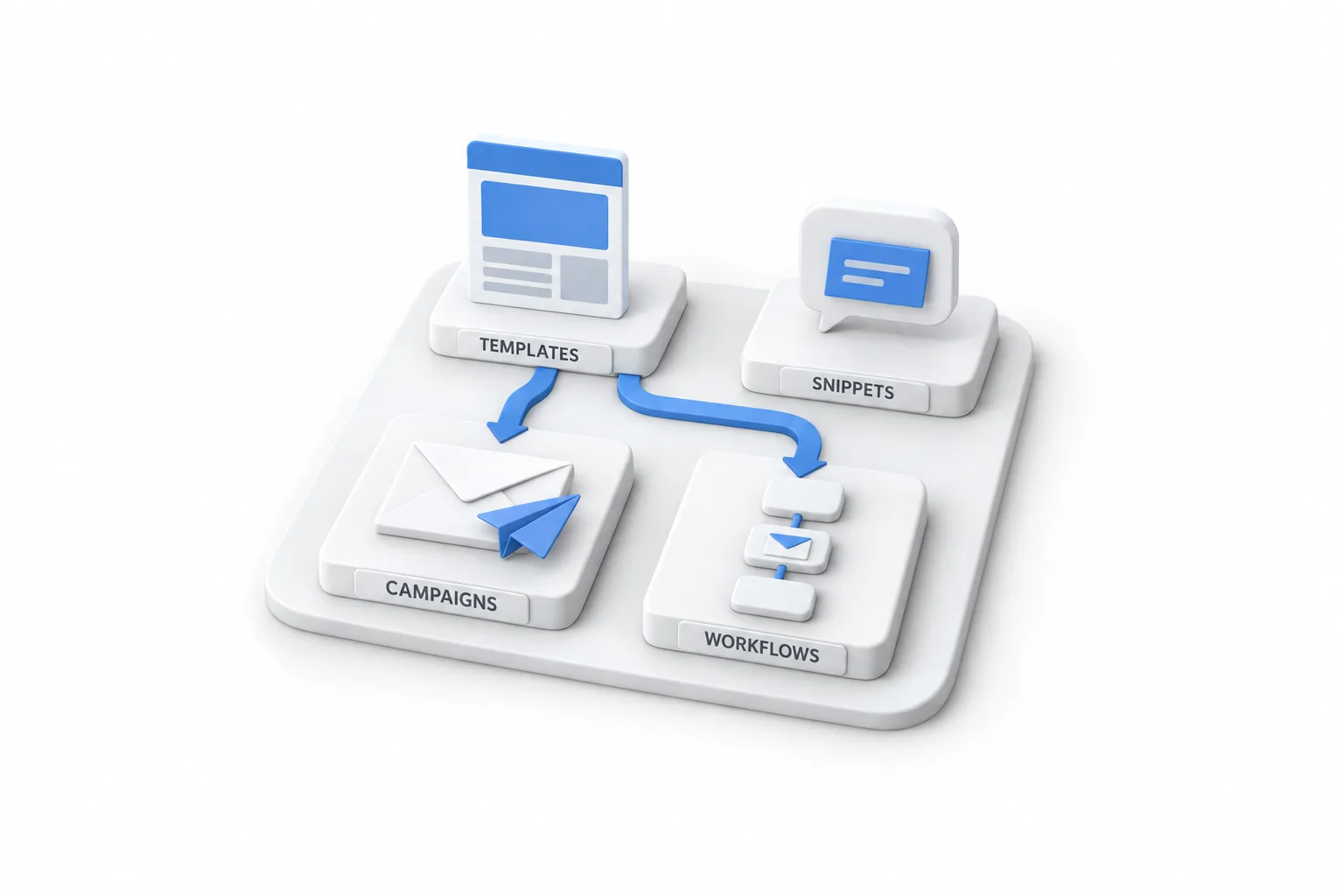
Email templates sit inside each subaccount under Marketing, then Emails, on the Templates tab. The Campaigns tab is right beside it. That one screen covers most of what people call HighLevel email marketing: the designs you save and the sends you schedule. Does HighLevel have email marketing covers the wider picture. Quick answers to related questions are under GoHighLevel email answers.
Three other places matter, because a template is only useful where you can send it. This table shows each one.
| What | Where to find it | What it is for |
|---|---|---|
| Email templates | Marketing, Emails, Templates | Saved designs you reuse in campaigns and workflows |
| Email campaigns | Marketing, Emails, Campaigns | A send to a list, now or on a schedule |
| Workflow emails | Automation, Workflows, Send Email action | Automated emails that go out when a trigger fires |
| Snippets | Conversations, Snippets, or Marketing, Snippets | Saved replies for text and email, sent one contact at a time |
| Sending domain | Settings, Email Services, Dedicated Domain and IP | SPF, DKIM and DMARC records for the domain you send from |
Source: HighLevel help center articles on the email builder, launching an email campaign and snippets, checked November 2026. HighLevel redesigned its Email Marketing area in late October 2026 and moves menus from time to time. If a label looks different in your account, look for the closest match on the same screen.
This page is part of the HighLevel features section, which covers each tool one at a time.
Build it
You build an email template from the Templates tab: click New, pick a starting design, edit it in the email builder and click Save Template. Here are the steps in order.
Do not skip the test email. It shows the template the way a reader will see it, in a real inbox, on a phone. Send it to yourself before the template goes anywhere near a list.
The builder
The GoHighLevel email builder is a drag and drop editor. You add elements to a layout, edit the text in place and set the overall look of the email. Here is what you work with.
Elements
Elements include text, image, button, divider, social, footer, code and video.
Layouts
Single and multi column sections, so text and images can sit side by side.
Custom values
Insert contact and business details from the custom value picker so each email fills in for the person receiving it.
Plain text
Choose Plain Text when you create a template for an email that should read like a direct message.
Library
Browse the Template Library, preview a design and start from it.
Mobile view
Set padding, button alignment and image size for mobile separately from desktop.
A template switcher in the builder's top tray lets you swap the design, and HighLevel asks you to confirm before it replaces your content.
Which editor should you use? A designed template suits newsletters and promotions with images and buttons. Plain text suits follow up emails from a person, such as a reply after a form fill or a check in after an appointment.
Reuse
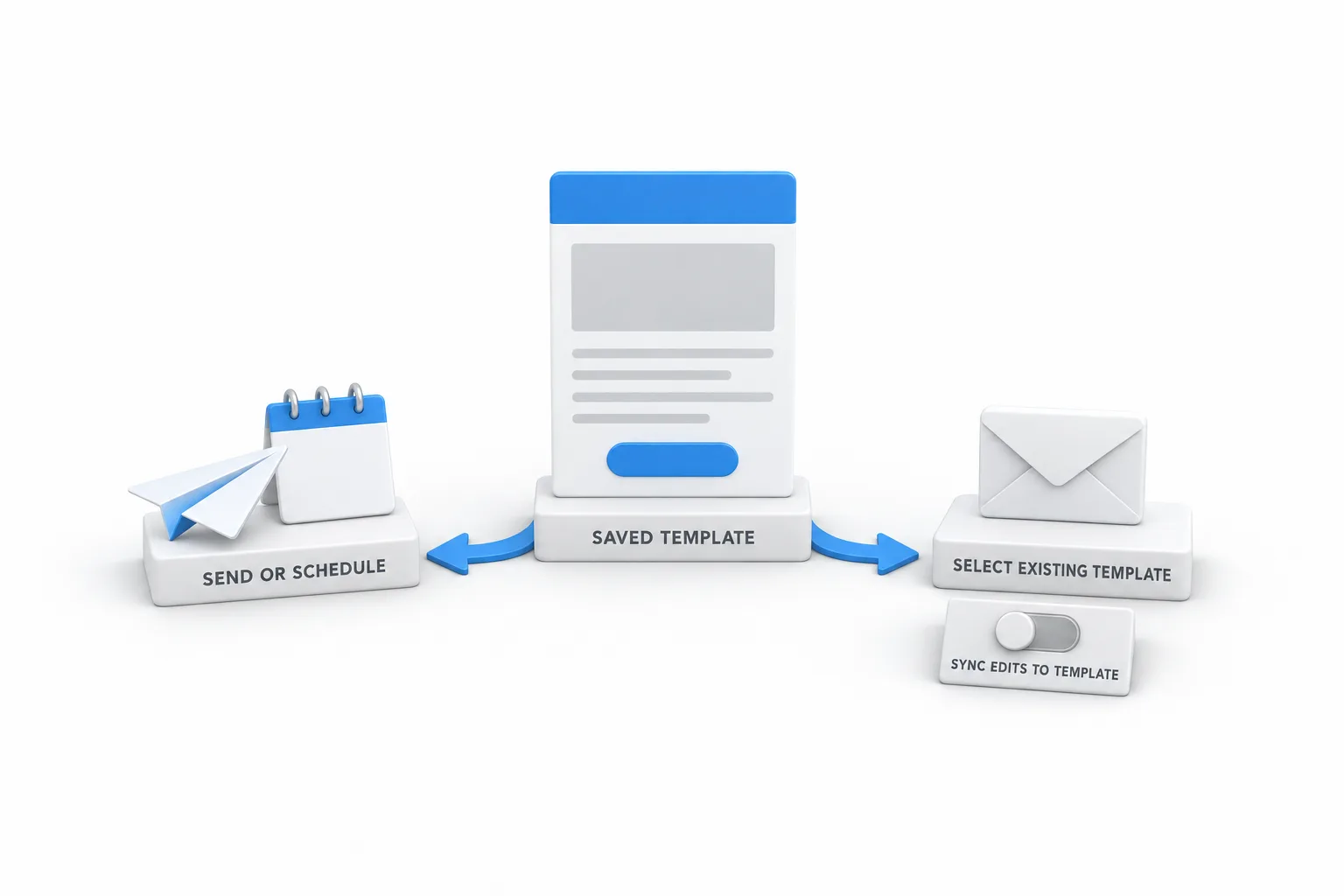
A saved template can go out two ways. A campaign sends it to a list. A workflow sends it automatically when something happens, such as a form submission or a booked appointment.
In a campaign. There are two routes, and they end in the same place.
Then choose Send or Schedule, set the recipients and review the email before it goes out.
In a workflow. Go to Automation, Workflows, and add or edit a Send Email action. Set the sender details, click Select Existing Template and choose the saved template. If workflows are new to you, the GoHighLevel workflows guide explains triggers and actions first.
Snippets
Snippets are saved messages for one to one conversations. A template is a designed email for a campaign or a workflow. A snippet is the reply your team types ten times a day: directions to the office, the reschedule link, the answer to the pricing question. There are two types, text snippets and email snippets, and you choose the type that matches the channel.
Selecting a snippet does not lock the text. You can edit the message before you send it. You can sort snippets into folders, and edit, duplicate or delete each one from its action menu.
Text snippets also show up in workflows. Open a Send SMS action, find Templates and select the saved message. Workflow emails use email templates instead, through the Send Email action described above.
Deliverability
Before you send, you need a dedicated sending domain authenticated with SPF, DKIM and DMARC. A template does not decide whether an email lands in the inbox. The sending domain does. Since February 2024, Gmail and Yahoo require bulk senders to authenticate email with all three.
If email is already landing in junk, work through the email deliverability guide. Sending through LC Email, HighLevel's built in email service, costs $0.675 per 1,000 emails on every plan, and HighLevel email pricing has the full table with validation and dedicated IP rates.
Avoid
The common mistakes are hard coded details, skipped tests and sending before the domain is ready. Each one has a simple fix.
Plan prices are on the GoHighLevel pricing page, and the 30 day trial through Michael's link gives you a full account to build your first template in.

A good template does not fix a sending domain that is not authenticated. Authenticate the domain first, then build the template.
Questions
Yes. GoHighLevel has email templates built in. You find them in each subaccount under Marketing, Emails, Templates. You can start from the Template Library, start from scratch, paste in your own HTML or write a plain text email. A saved template can be used in email campaigns and in workflow emails.
Open Conversations, select Snippets at the top of the page and click New Snippet. Choose Add Text Snippet or Add Email Snippet, write the message, add any custom values or a trigger link, then click Save. To use it, click the Snippets icon in the message composer and pick the snippet.
Yes. Go to Marketing, Emails, Templates, click New and start a blank template. Choose the code editor, paste your HTML, check the preview and click Save Template. Replace merge tags from your old email tool with HighLevel custom values.
Only if sync is on for that workflow email. Each Send Email action has a Sync Edits to Template setting. With sync off, the workflow email and the template stay independent. With sync on, the two are linked and an edit can carry across. Check the setting before you edit a template that live workflows use.
The cost is in the sending. Email sent through HighLevel's built in email service costs $0.675 per 1,000 emails on every plan, billed as usage. You can build templates and send test emails during a 30 day trial through Michael's link.
Next step
Start a trial, build the first system and test it before the first invoice. Usage fees for phone, SMS, email and AI can apply during the trial.
HighLevel has three plans at a flat monthly price, each with unlimited users and contacts. See what each one includes and what it costs.
Compare the PlansStarter, Unlimited and Founder