
01Who this is for
- Agency admins who manage multiple user profiles can verify each user’s Google link to keep team calendars functional.
- Coaches or consultants using HighLevel for appointment booking need their personal Google Calendar visible for client scheduling.
02Google calendar accounts, explained
HighLevel stores a Google Calendar connection per individual user. The user authorises the platform to read and write calendar data, and then selects specific calendars for syncing. The connection appears under Calendar Settings > Connections, while the overall integration lives in Settings > Integrations. If the authorized account is present but a calendar is missing, the issue may be limited to permissions or the calendar selection rather than the whole account.
The platform offers a Reconnect button when required permissions are absent, and a full reintegration path for cases where the existing token cannot be refreshed. These tools let you restore access without adding a different Google account, preserving existing calendar configurations.
03How businesses use the Google calendar account
- Digital marketing agency. The agency admin opens Calendars, checks the Connections tab for each team member, and uses the Reconnect option if permissions are flagged. After reauthorising, the correct Google Calendar becomes selectable for client appointment bookings.
- Health coach practice. A coach navigates to Settings > Integrations, clicks Reconnect on the Google entry, and selects their personal Google account. Once authorised, the coach verifies that their session calendar appears under Calendar Settings > Connections and links it to the booking widget.
- Legal consultancy. When a lawyer’s Google Calendar does not show after a password change, they follow the full reintegration guide, remove the old connection, add it again via Calendars > Calendar Settings > Connections, and then test the sync to confirm availability data is correct.
04Before you start
- Confirm the HighLevel user you are troubleshooting is the correct one.
- Identify the Google account that the user intends to link.
- Make sure the user can sign in directly to that Google account.
- Verify the target Google Calendar is owned by the account or shared with proper access.
- Ensure the user is ready to approve the Google permissions when prompted.
05How to set up and use the Google calendar account in HighLevel
Fix a Google Calendar account that is not showing
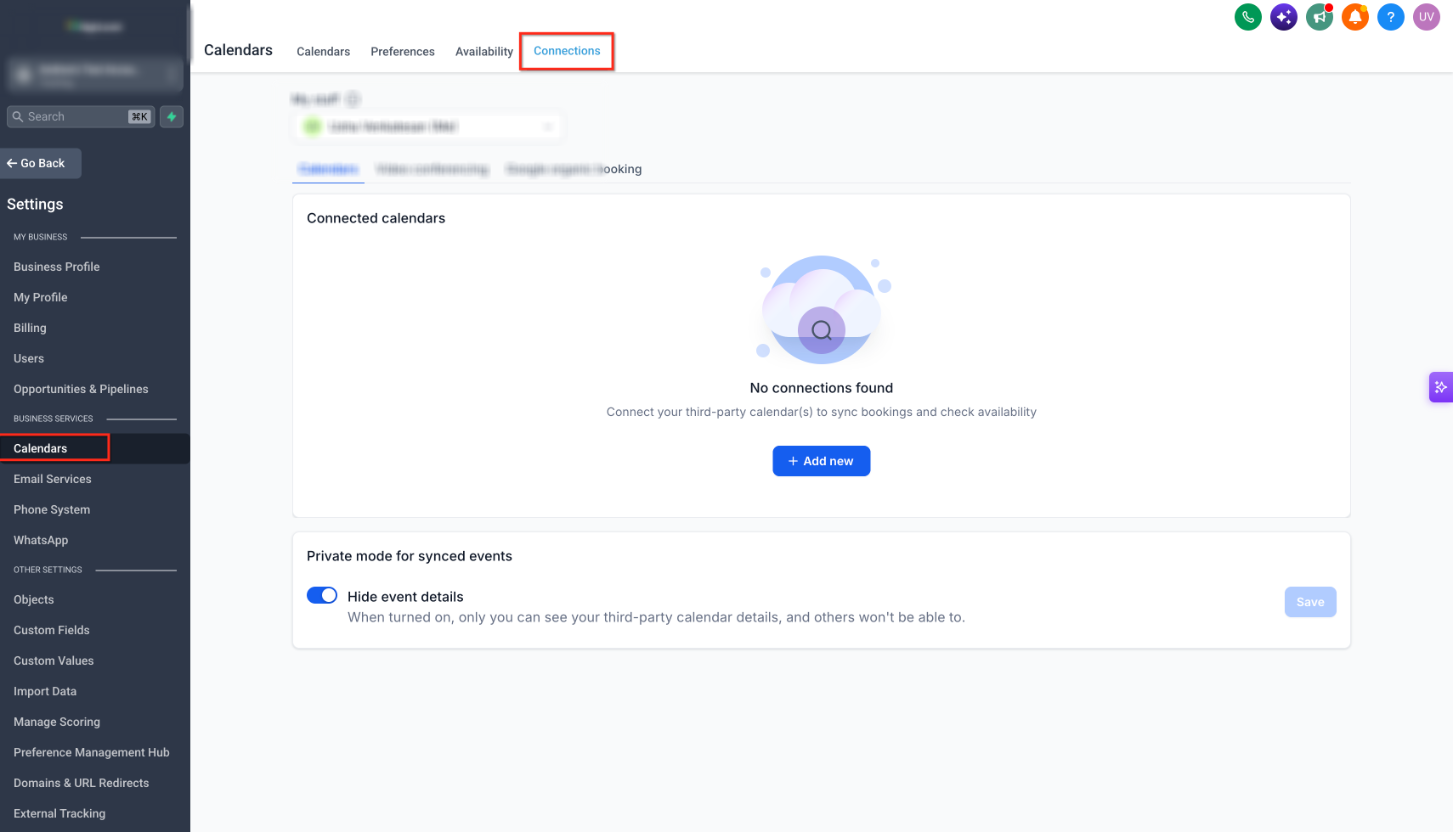
- In the relevant HighLevel subaccount, open the Calendars area.
- Select Calendar Settings.
- Choose the Connections tab.
- Look for the intended Google account among the connected accounts.
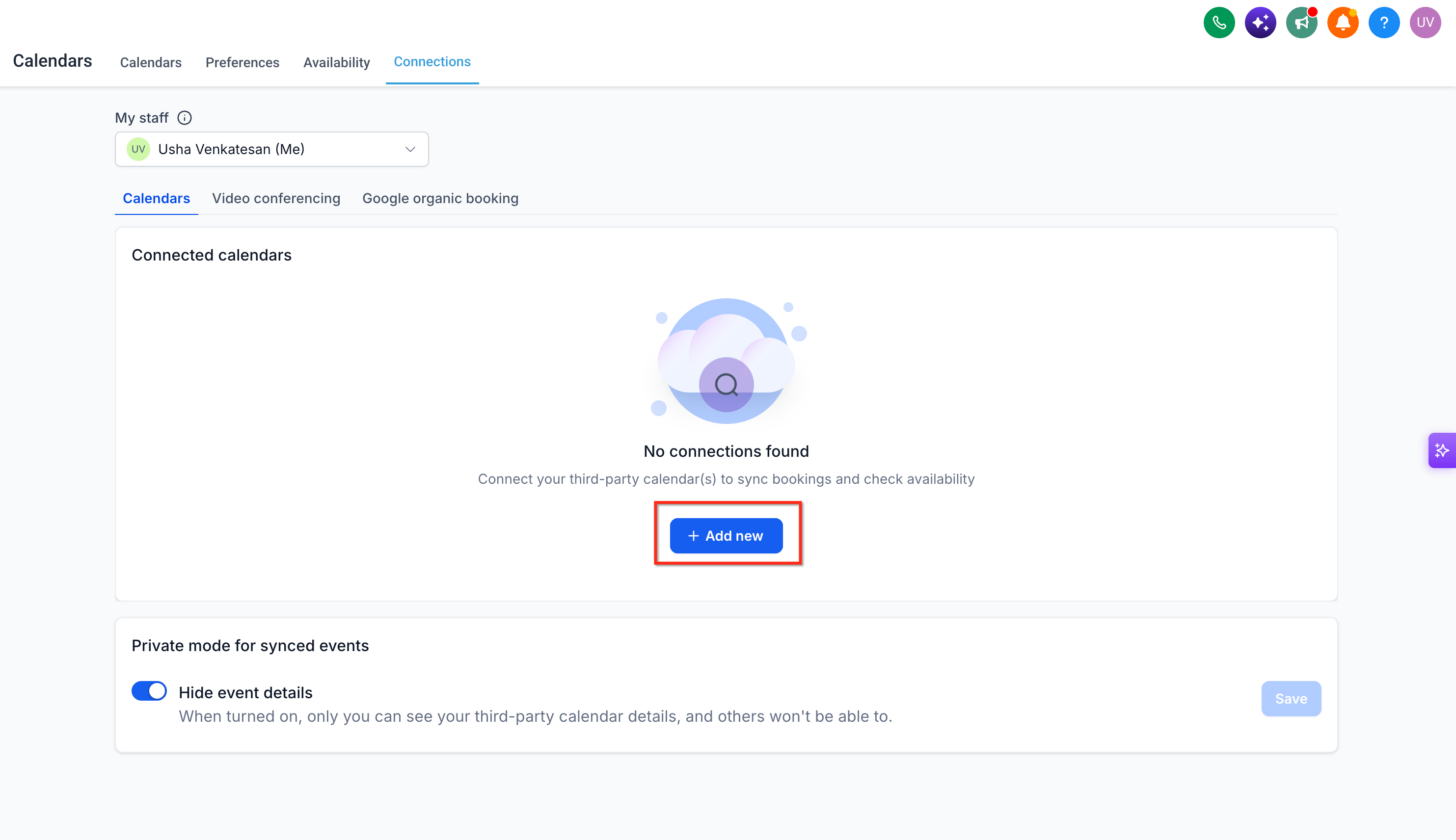
- If the account is missing, click the + Add New button.
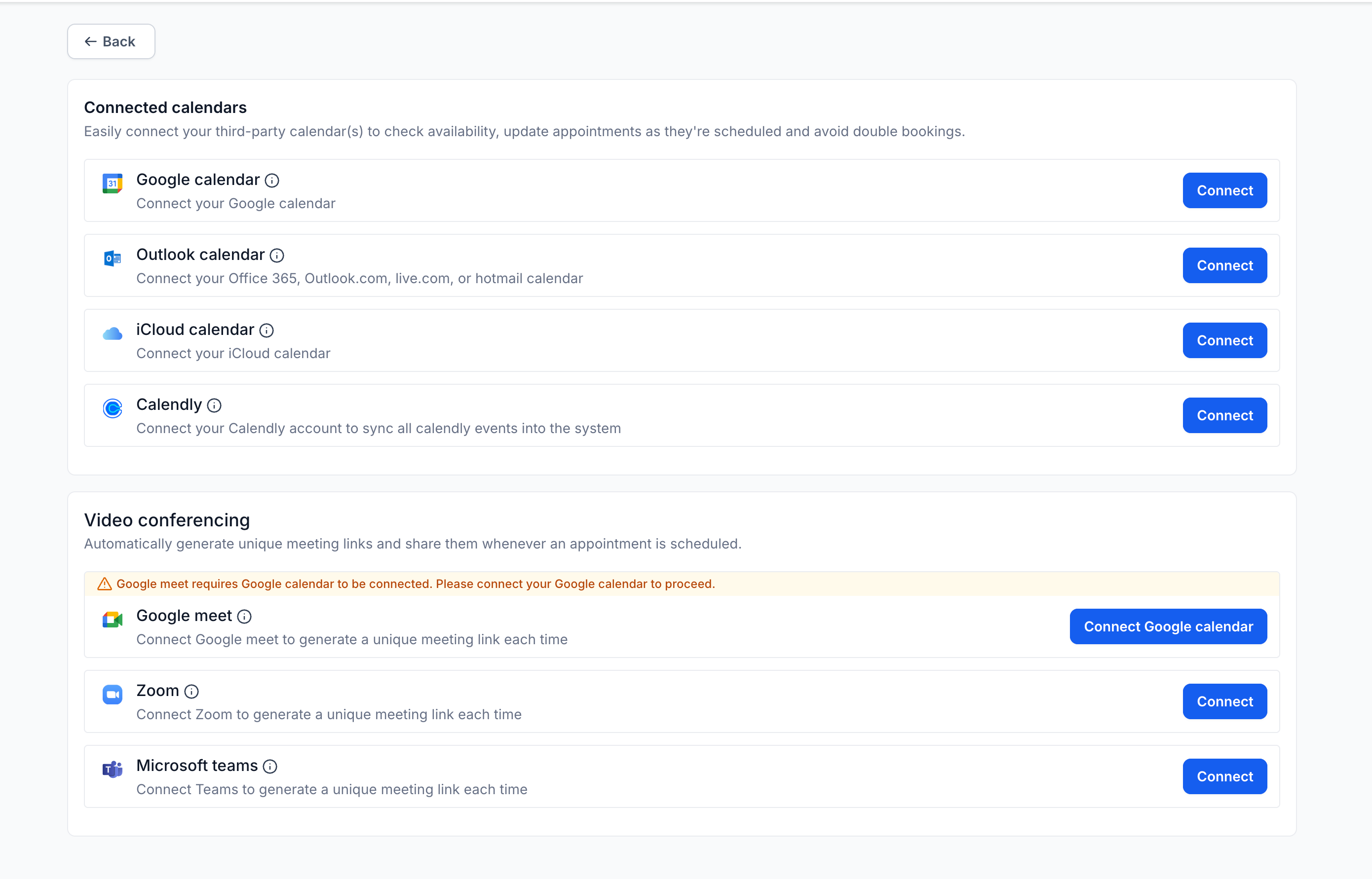
- Pick Google Calendar as the provider.
- When Google asks for an account, choose the same Google account you plan to use.
- If the account does not appear, use Google’s sign in option to log in with that account.
- Complete Google’s authorization flow and grant all requested calendar permissions.
- Return to HighLevel after the authorization finishes.
- Check that the Google account now lists under Calendar Settings > Connections.
- Confirm the desired Google Calendar is available for the current calendar setup.
Check Google permissions and reconnect the account
- Open Settings > Integrations.
- Find the Google integration entry.
- Look for any warning that required permissions are missing.
- If a Reconnect button is shown, click Reconnect.
- Select the correct Google account in the prompt.
- Finish the Google authorization steps and allow the needed permissions.
- Go back to Calendars > Calendar Settings > Connections.
- Verify that the Google account and its calendars are now listed.
Reintegrate Google Calendar if the account still does not appear
- Follow the step by step reintegration guide for the user.
- Return to Calendar Settings > Connections.
- Make sure the correct Google account is displayed as connected.
- Check that the intended Google Calendar is listed for selection.
- Review the Linked and Conflict Calendar settings for proper configuration.
- Run a quick sync test, if needed, to confirm the connection works.
06What it looks like in HighLevel
07Settings that matter
- Connections tab. Shows all Google accounts that have been authorized for the current HighLevel user.
- Google integration. The entry in Settings > Integrations that controls the overall Google Calendar connection.
- Reconnect option. A button that appears when required Google permissions are missing, allowing the user to re authorize the existing account.
08Things to know before you rely on it
- Google connections are tied to individual HighLevel users; they are not shared across users.
- A connected Google account does not automatically make every calendar in that account available for syncing.
- Re authorising is required only when permissions have been revoked, the Google password changed, or the token becomes invalid.
09How it connects to the rest of HighLevel
- How to delete and reconnect a Google calendar in HighLevel Re connect guide
- Fixing Google calendar writer access error in HighLevel Writer access help
- Why Google Calendar integration breaks Integration break reasons
Michael's take

A quick fix for a missing Google calendar account can feel convenient. Restoring the proper connection keeps your booking flow steady and avoids the noise of duplicate accounts.