
01Who this is for
- Service teams that need more than one staff member to handle appointments, because the calendar can assign a primary owner and still share the schedule.
- Multi service businesses that want a single booking point for different offerings, as they can add a custom form to capture service types.
- Businesses that require payment before confirming a booking, since payment settings remain active for collective calendars.
02Collective booking calendars, explained
Collective calendars group two or more team members under one booking page. Customers choose a time slot, and the appointment is owned by the primary owner, who cannot be removed from the calendar. The primary owner is the first member added unless you later change it.
All settings for payments, notifications, widget appearance, external sync, and booking channels are accessed through the Advanced settings section. Email alerts go only to the assigned user, while calendar invites are sent to every team member via their integrated calendars.
The feature lives under Calendars > Calendar Settings. From there you can create a new collective calendar, edit its details, or adjust the primary owner.
03How businesses use collective booking calendars
- Home repair service. The business creates a collective calendar, adds at least two technicians, and sets one as the primary owner. When a client books a repair, the primary owner receives the appointment and the technician team sees the calendar invite.
- Dental practice. The office builds a collective calendar with several dentists, selects a primary owner for each day, and enables payment so patients must pay before the appointment is locked in.
- Fitness studio offering multiple classes. The studio sets up a single collective calendar, adds instructors as team members, and attaches a custom form where clients pick a class type. The primary owner handles the booking while all instructors receive the invite.
04The numbers and rules that matter
- A minimum of 2 team members are required for a Collective Calendar.
05Before you start
- At least two team members must be available to add to a collective calendar.
06How to set up and use collective booking calendars in HighLevel
Create a collective calendar
- Open Calendars and select Calendar Settings.
- Click the Create Calendar button.
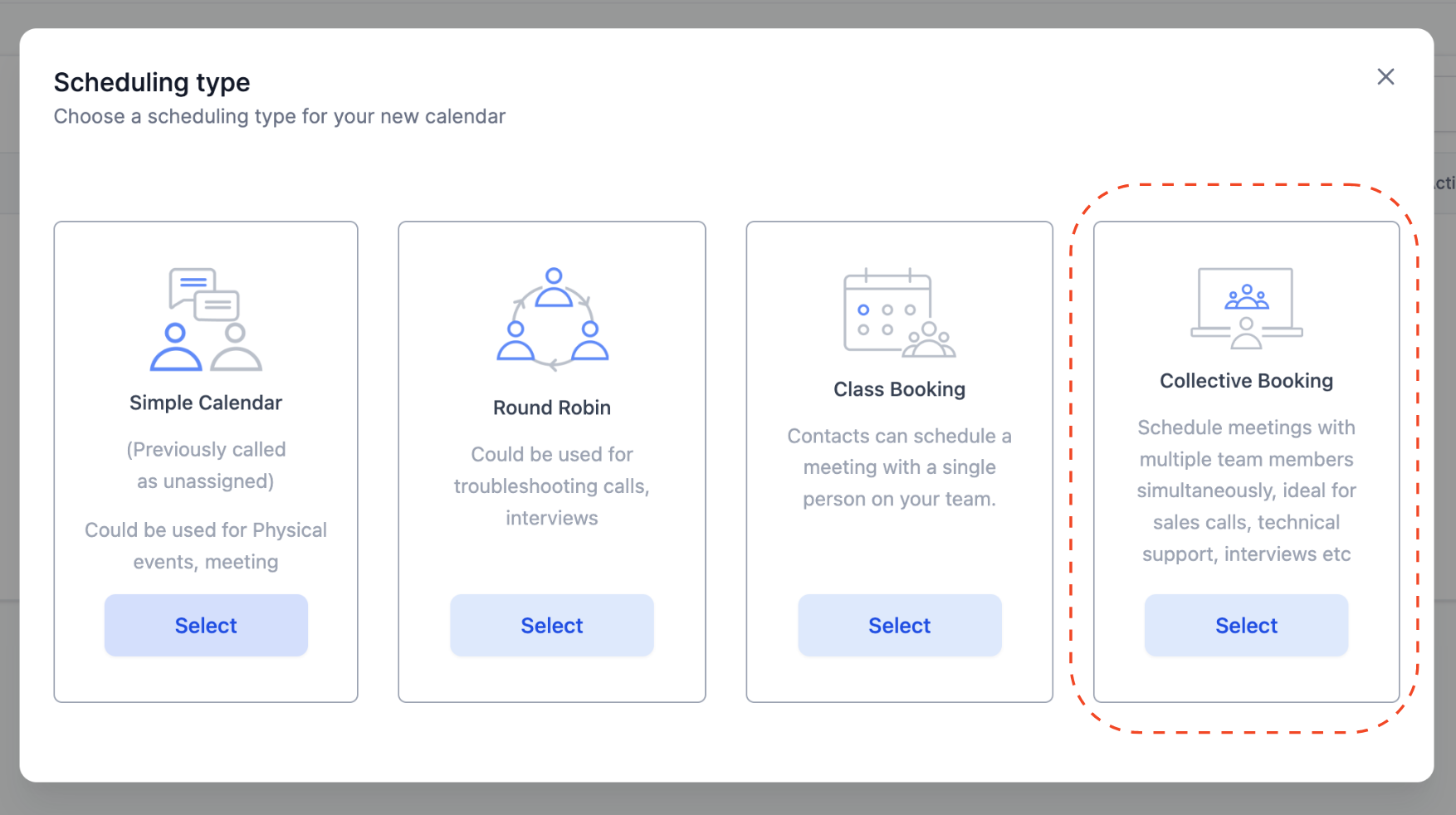
- Choose the Collective Booking option.
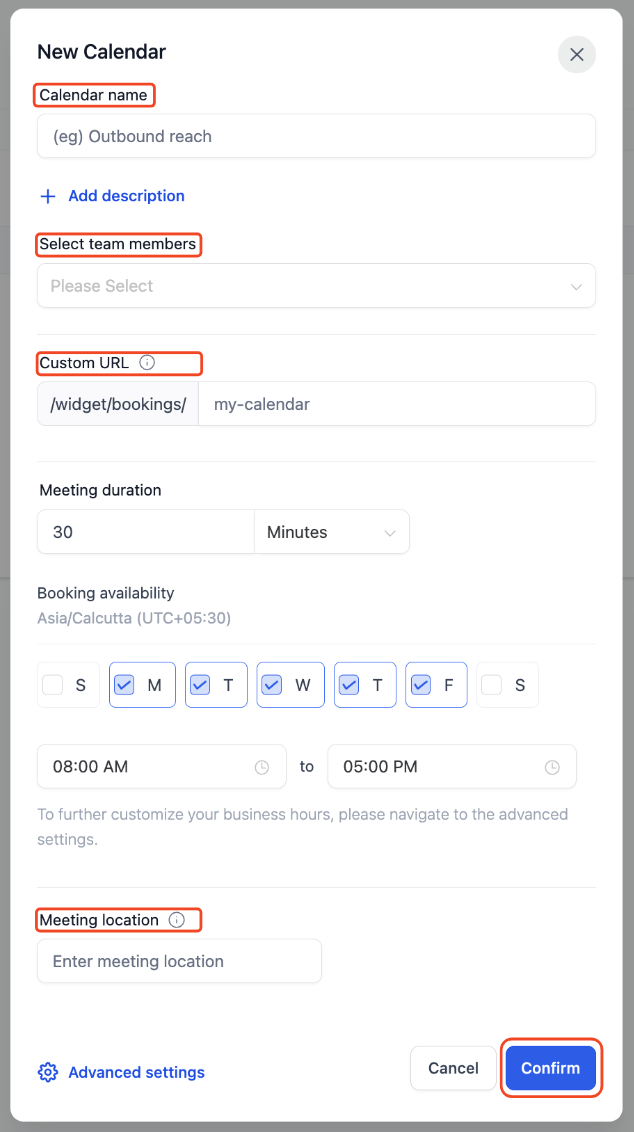
- Enter the mandatory calendar details.
- Provide a Calendar Name.
- Select two or more team members.
- Edit the auto generated Custom URL if desired.
- Add a Meeting Location if you wish, then click Confirm to create the calendar.
Change the primary owner
- Open Edit calendar for the collective calendar.
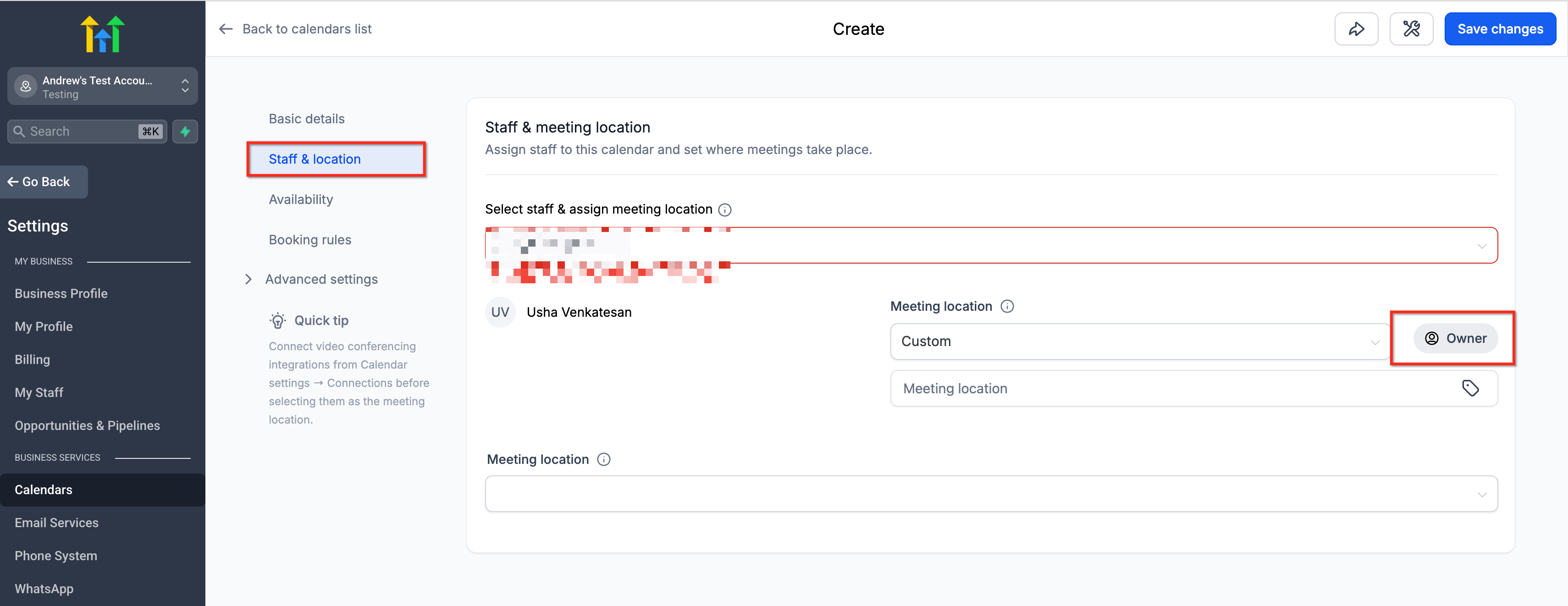
- Navigate to the Basic details section that contains meeting and owner information.
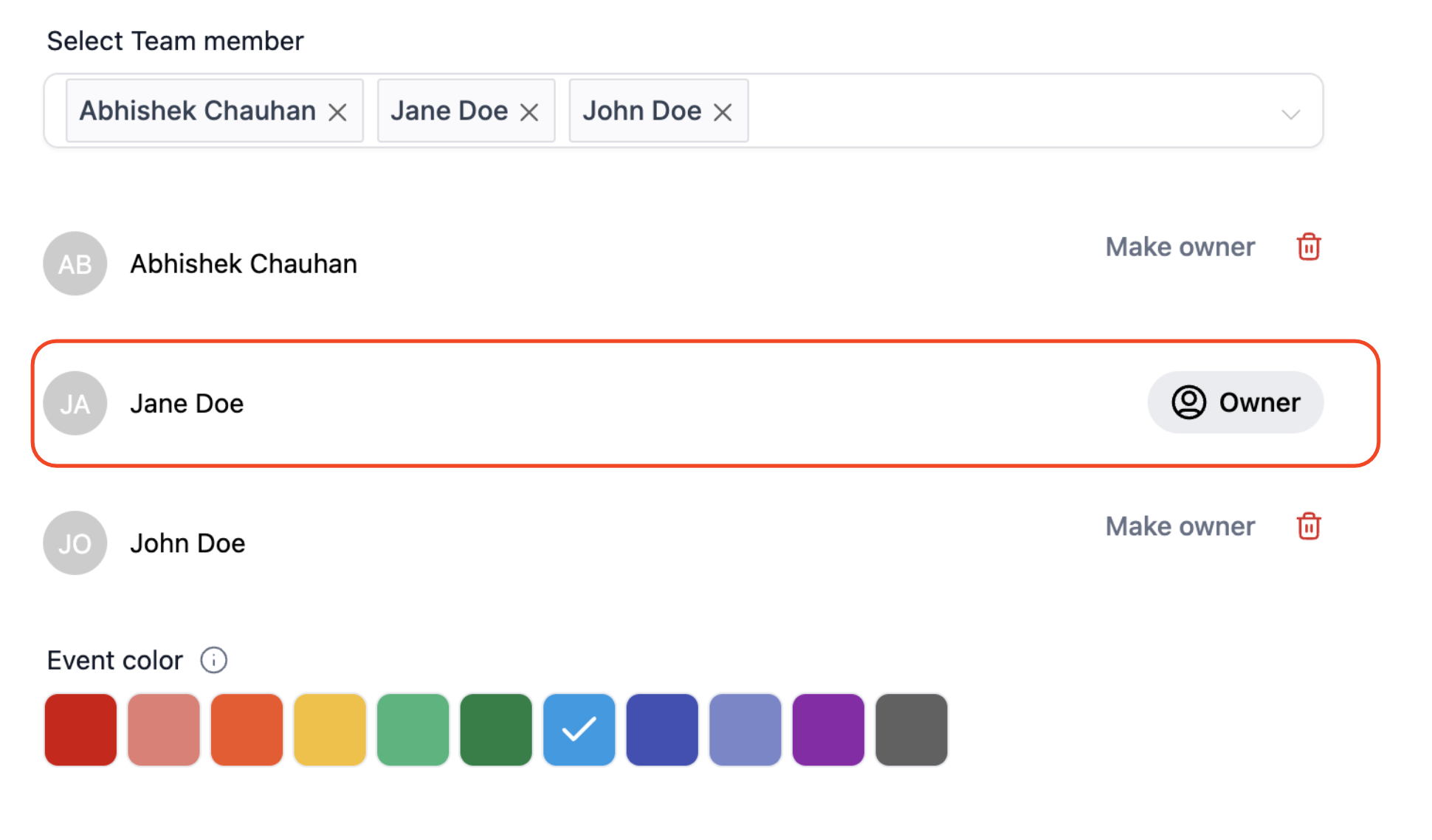
- Find the Make owner button next to each non primary team member.
- Click Make owner for the team member you want to become the new primary owner.
- Confirm that the Owner label now appears beside the selected member.
07What it looks like in HighLevel
08Settings that matter
- Payments. Controls whether a client must complete a payment before the appointment is confirmed.
- Notifications & policies. Defines email alerts for the assigned user and how calendar invites are sent to all team members.
- Widget appearance. Adjusts the visual style of the calendar widget that clients see when booking.
- External sync. Manages synchronization of the calendar with third party services such as Google, Outlook, or iCloud.
- Booking channels. Specifies where the calendar can be accessed, for example via a custom URL or embedded widget.
09Things to know before you rely on it
- A collective calendar requires a minimum of two team members.
- The primary owner is set automatically as the first team member added and cannot be deleted from the calendar.
- Only the assigned user receives email notifications; all team members receive calendar invite notifications from their integrated calendars.
10How it connects to the rest of HighLevel
- Overview of collective booking calendars Collective bookings overview
- Guide to setting up a group calendar in HighLevel Group calendar setup
- HighLevel pricing and plans information Pricing
Michael's take

Many people assume every team member gets an email when a client books through a collective calendar. The reality is only the assigned user gets the email, while the rest see a calendar invite from their own Google, Outlook, or iCloud sync. I would first set the primary owner clearly and use the notification settings to know who will actually receive the email.
If I were setting this up for a repair business, I’d create one collective calendar and add a custom form with a service dropdown. That way the client picks fridge, washer, or dryer, and I can route the appointment using tags or automations. I’d test the payment flow and the invite sync before going live.