
01Who this is for
- Founders of service based businesses that do not work weekends, because the setting prevents closed days from consuming the booking window.
- Owners of rental companies with variable equipment availability, so customers only see days the items can actually be rented.
- Managers of teams that use round robin or collective calendars, to ensure a day counts when any staff member is available.
02Count available days only, explained
The Count Available Days Only toggle changes the way HighLevel counts days for a booking window. Instead of counting every calendar day, the platform looks at the availability schedule attached to a meeting calendar, service or rental and only counts the days that are marked as available. A fully booked day still counts, because the check is based on schedule, not on remaining time slots.
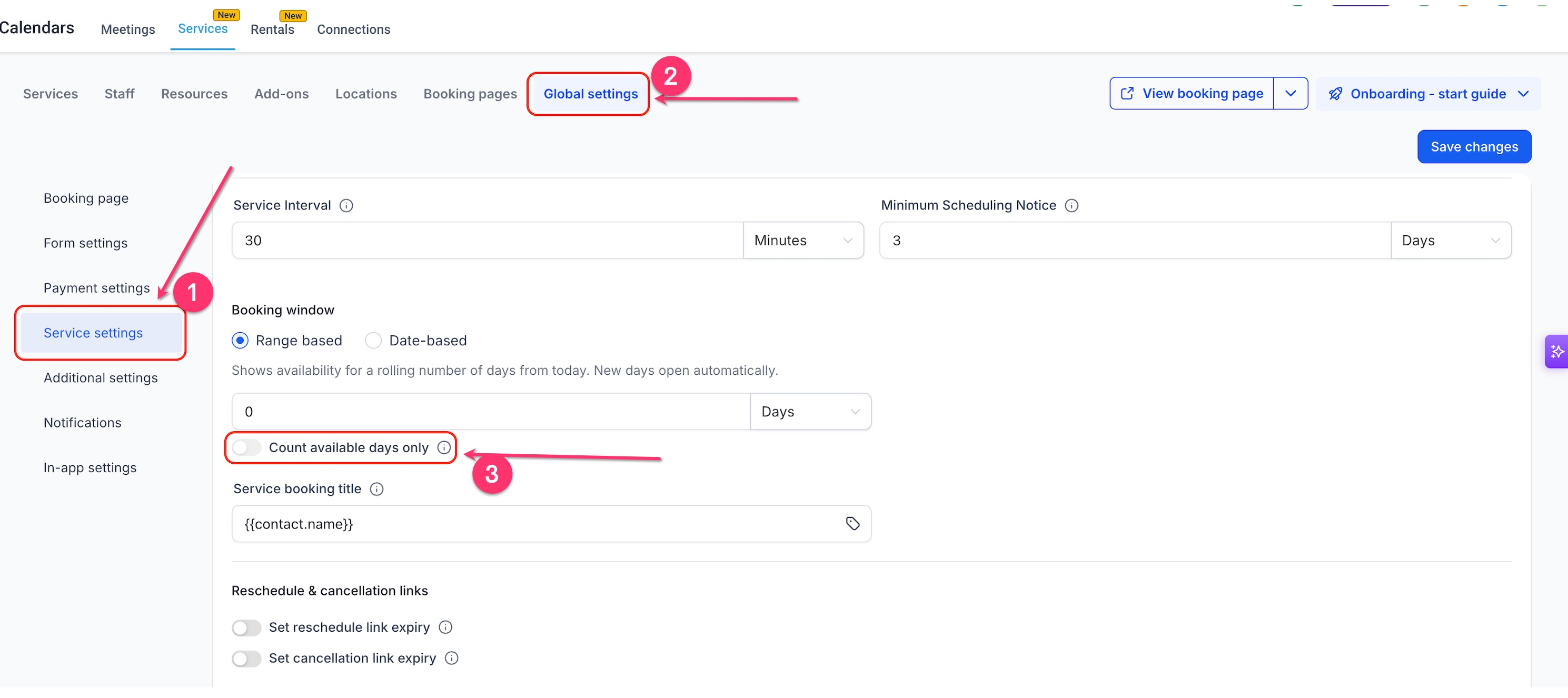
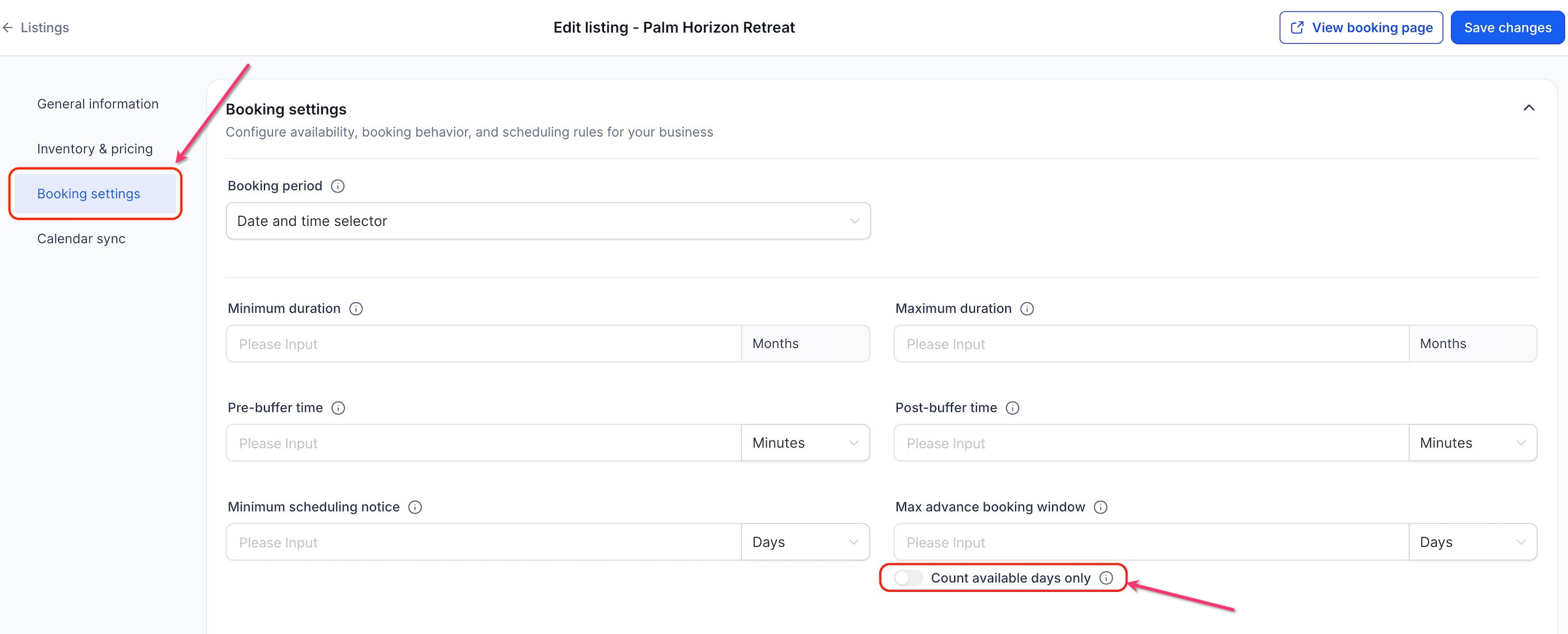
The setting lives in different places depending on the type of booking. For meeting calendars it is found under the Date range rule. For services it appears within the Booking window options when a Range based window is selected. For rentals the toggle is part of the Max advance booking window settings. The feature respects Minimum Scheduling Notice, which still uses ordinary calendar time before the available day count begins.
03How businesses use count available days only
- Dental practice. The practice enables the toggle on its meeting calendar so patients can book appointments only on days the clinic is open. Weekends and holidays are skipped, giving patients the full number of available days to choose from.
- Fitness studio offering classes. The studio turns on Count Available Days Only for its class services, using a Range based booking window. Members see class dates that match the studio’s schedule, even when the studio is closed on certain weekdays.
- Equipment rental company. The rental manager activates the setting on each rental listing. The booking page then shows only dates when the equipment is marked as available, ignoring days the inventory is unavailable.
04The numbers and rules that matter
- Setting is available for Meeting Calendars, Services, and Rentals.
- Minimum Scheduling Notice always uses regular calendar time.
05Before you start
- An availability schedule must be created for the calendar, service or rental before enabling the setting.
- For Services, the booking window must be set to Range based, as the toggle does not work with Date based windows.
06How to set up and use count available days only in HighLevel
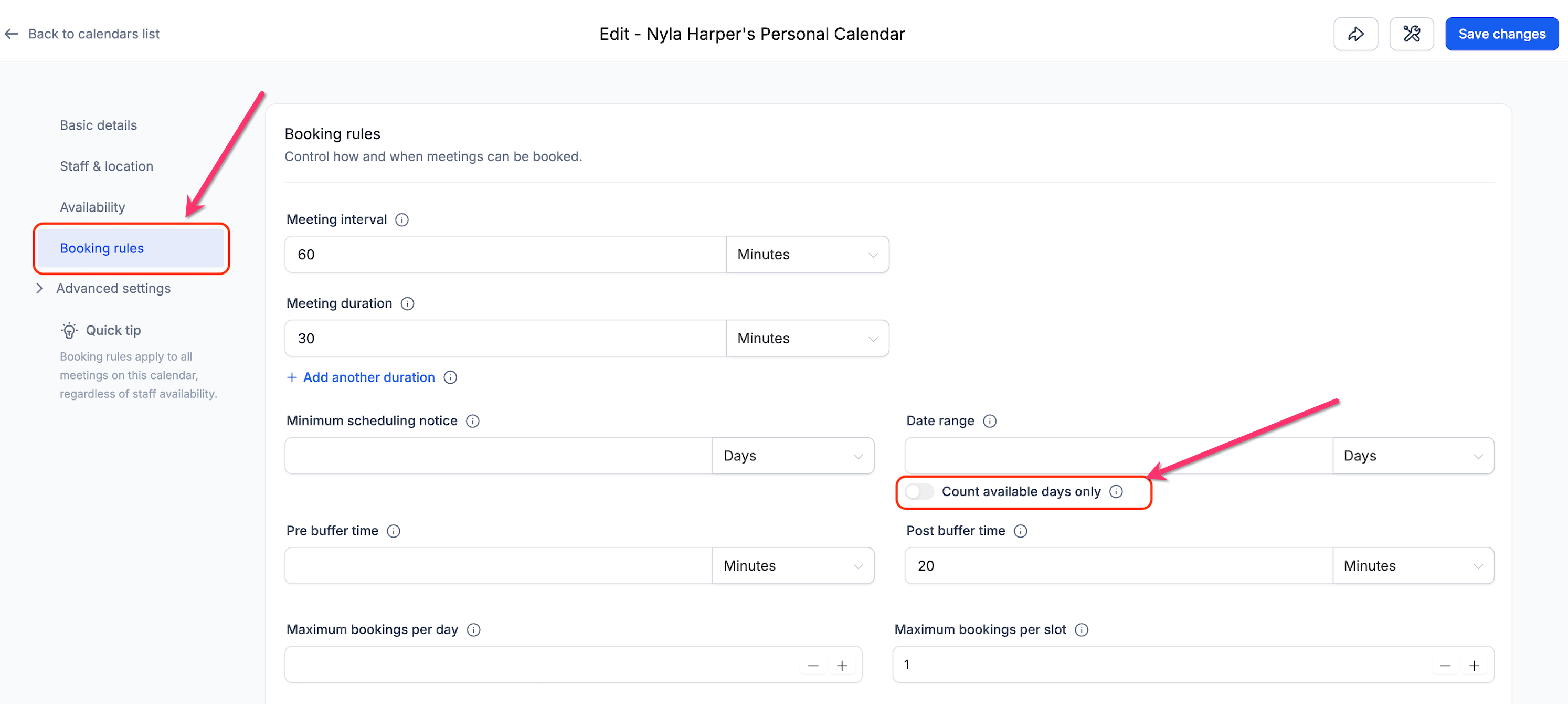
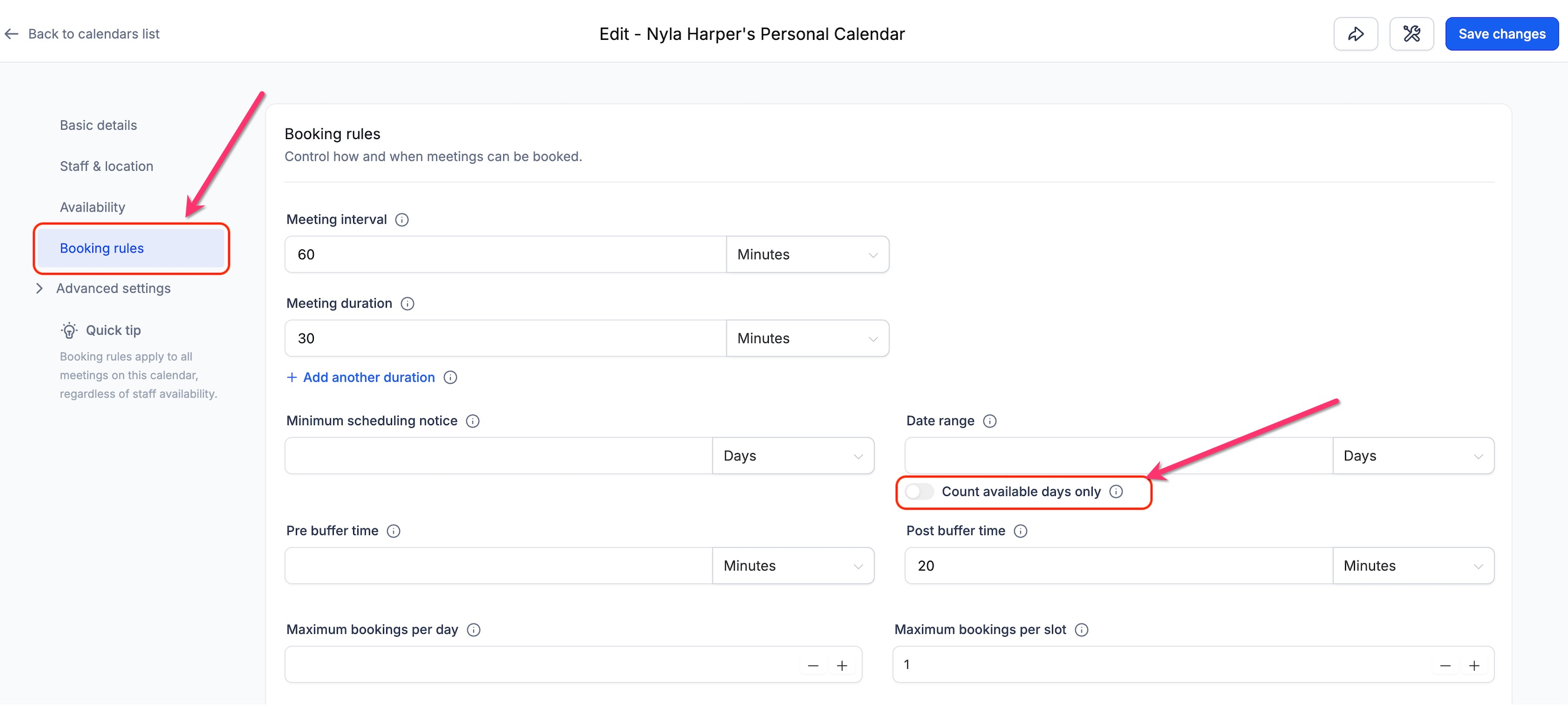
Enable Count Available Days Only for Meeting Calendars
- Navigate to Calendars > Calendar Settings.
- Locate the desired calendar and press Edit.
- Choose Booking rules.
- Find the Date range option.
- Switch on Count available days only.
- Press Save changes.
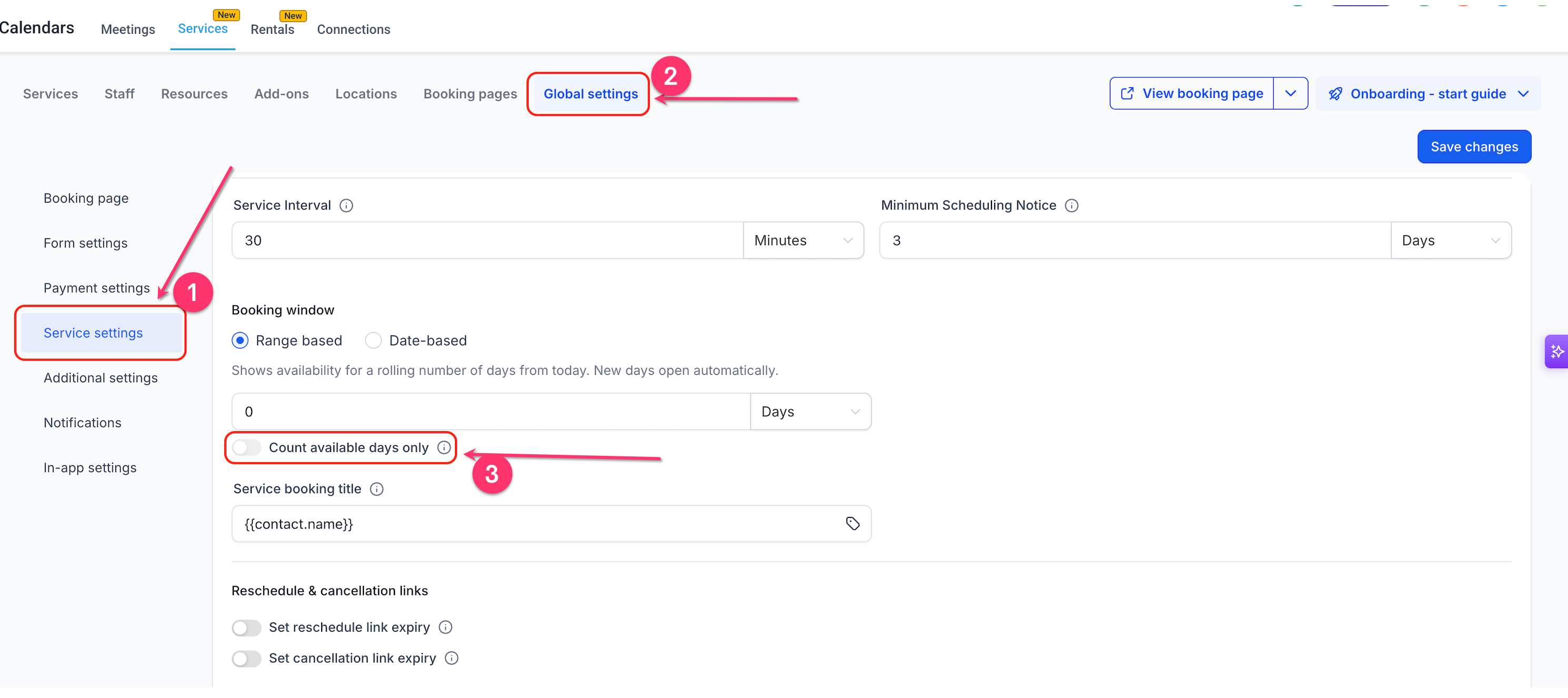
Enable Count Available Days Only for Services
- Go to Calendars > Services.
- Open Global settings.
- Select Service settings.
- Under Booking window, pick Range based.
- Enter the number of days customers may book ahead.
- Activate Count available days only.
- Click Save changes.
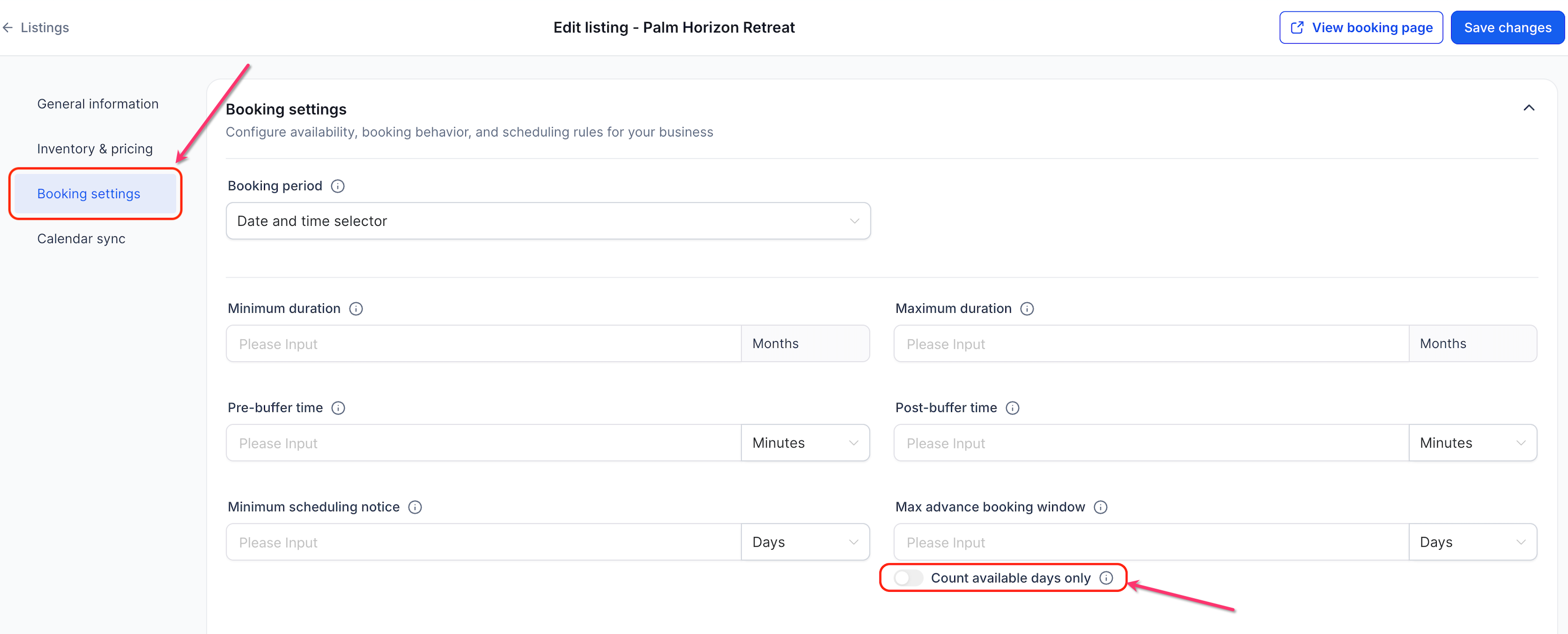
Enable Count Available Days Only for Rentals
- Select Calendars > Rentals.
- Open the rental listing you want to modify.
- Choose Booking settings.
- Locate Max advance booking window.
- Set how far in advance customers can start a rental.
- Turn on Count available days only.
- Save the changes.
07What it looks like in HighLevel
08Settings that matter
- Count available days only. Controls whether a booking window counts only days that appear in the attached availability schedule rather than every calendar day.
09Things to know before you rely on it
- The toggle works with Services only when the Booking window is set to Range based; it does not apply to Date based windows.
- Minimum Scheduling Notice always uses normal calendar time, so weekends and closed days still count toward the notice period.
- If no availability schedule is defined, the booking page may display no dates after the setting is turned on.
- A day that is fully booked still counts toward the available day total.
10If something goes wrong
- Not seeing any dates after turning the setting on. Verify that an availability schedule exists for the calendar, service or rental; without it, no dates will appear.
11How it connects to the rest of HighLevel
- Browse all calendar and appointment features Calendars & Appointments
- Review HighLevel pricing and plan options Pricing
- Start a 30 day trial of HighLevel 30 day trial
Michael's take

For a small business that only works weekdays, Count available days only helps keep the booking page from looking empty and shows customers realistic dates.
Skipping the step of confirming your availability schedule first may leave the booking page with no dates to show.