
01Who this is for
- Marketers can let the bot start a published workflow when a prospect expresses interest in a service.
- Support teams can have the bot launch a ticket creation workflow when a user requests help.
02Trigger a Workflow, explained
The feature links a Conversation AI bot to any workflow that has already been published in HighLevel. When the bot detects a phrase that matches the trigger condition, it calls the selected workflow automatically.
The trigger condition is a short description you write, such as “Customer wants to book an appointment”. The AI uses this text to decide when to fire the workflow during a live conversation.
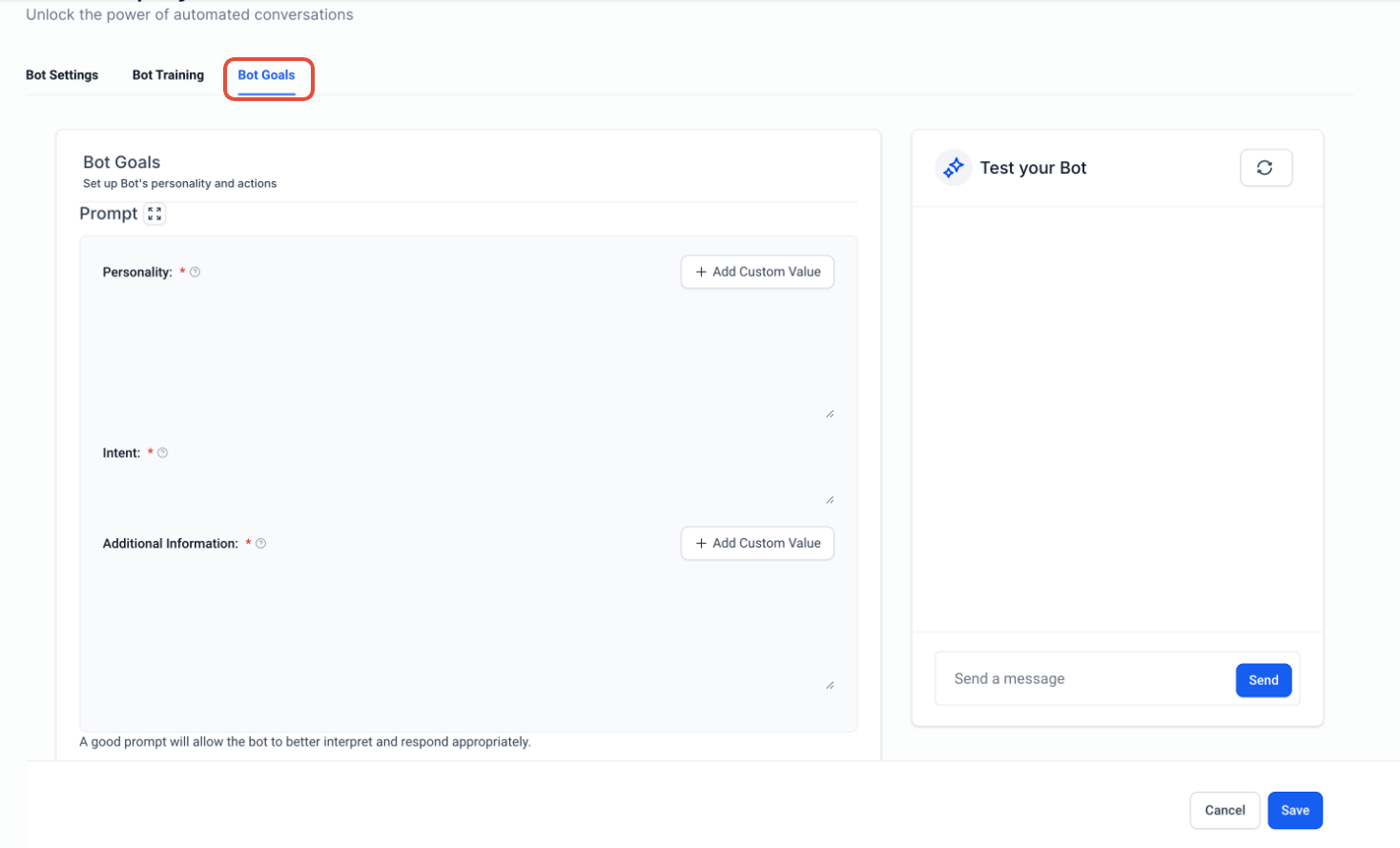
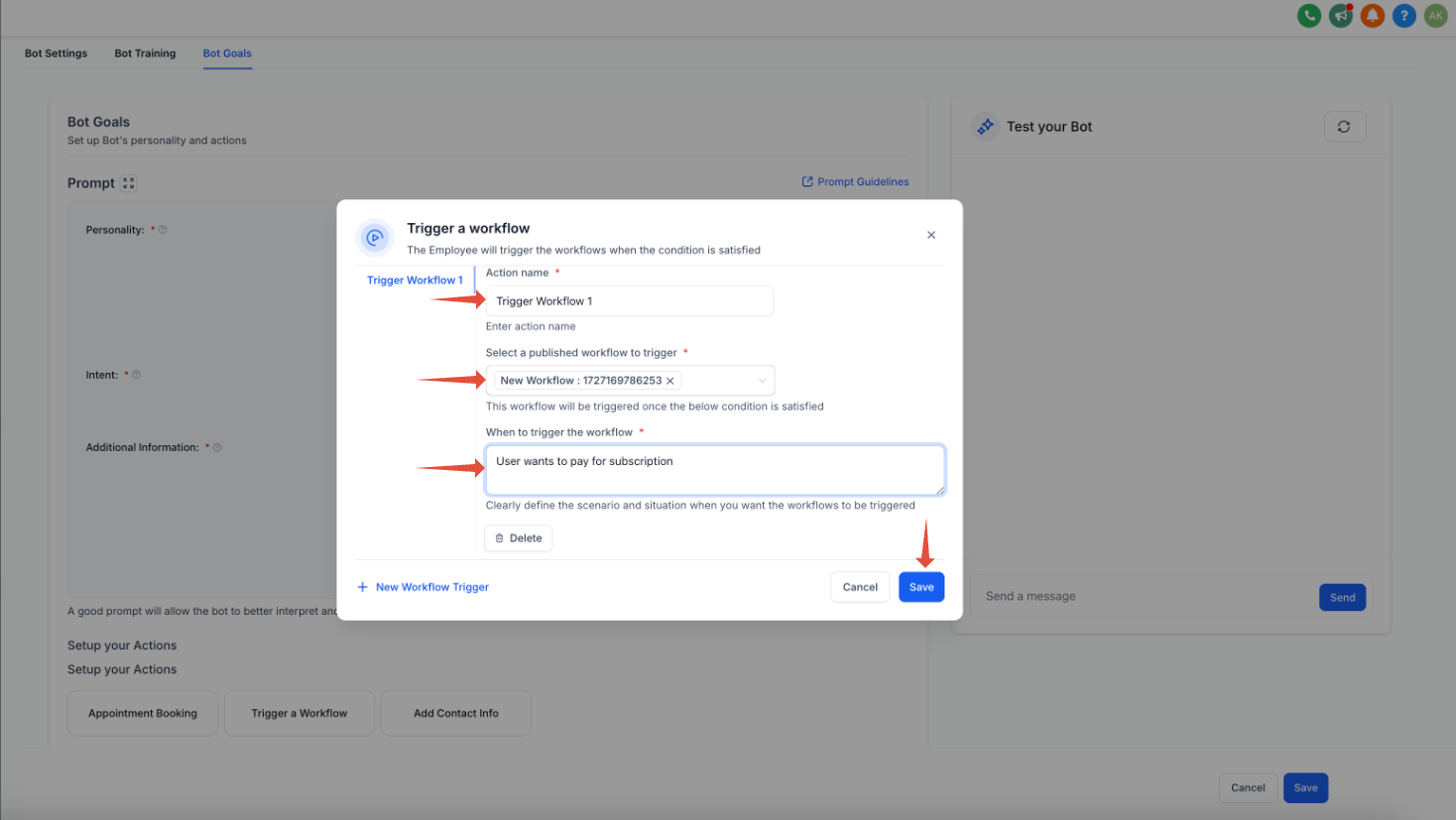
You set up the trigger inside the Bot Goals tab of the Conversation AI builder. The configuration includes an action name, the workflow to run, and the trigger condition description.
03How businesses use trigger a Workflow
- Dental practice. Create a trigger condition like “Customer wants to book an appointment”. When the bot hears this, it launches the appointment booking workflow, which can send a calendar link and update the contact record.
- SaaS subscription service. Define the condition “Customer wants to purchase the subscription”. The bot then starts the subscription onboarding workflow, which can collect payment details and add the user to the appropriate plan.
- Contact management. Add a trigger condition “Customer wants to update contact information”. The bot activates a workflow that updates the contact’s details and confirms the change.
04Before you start
- A workflow must be published before it can be selected as a trigger.
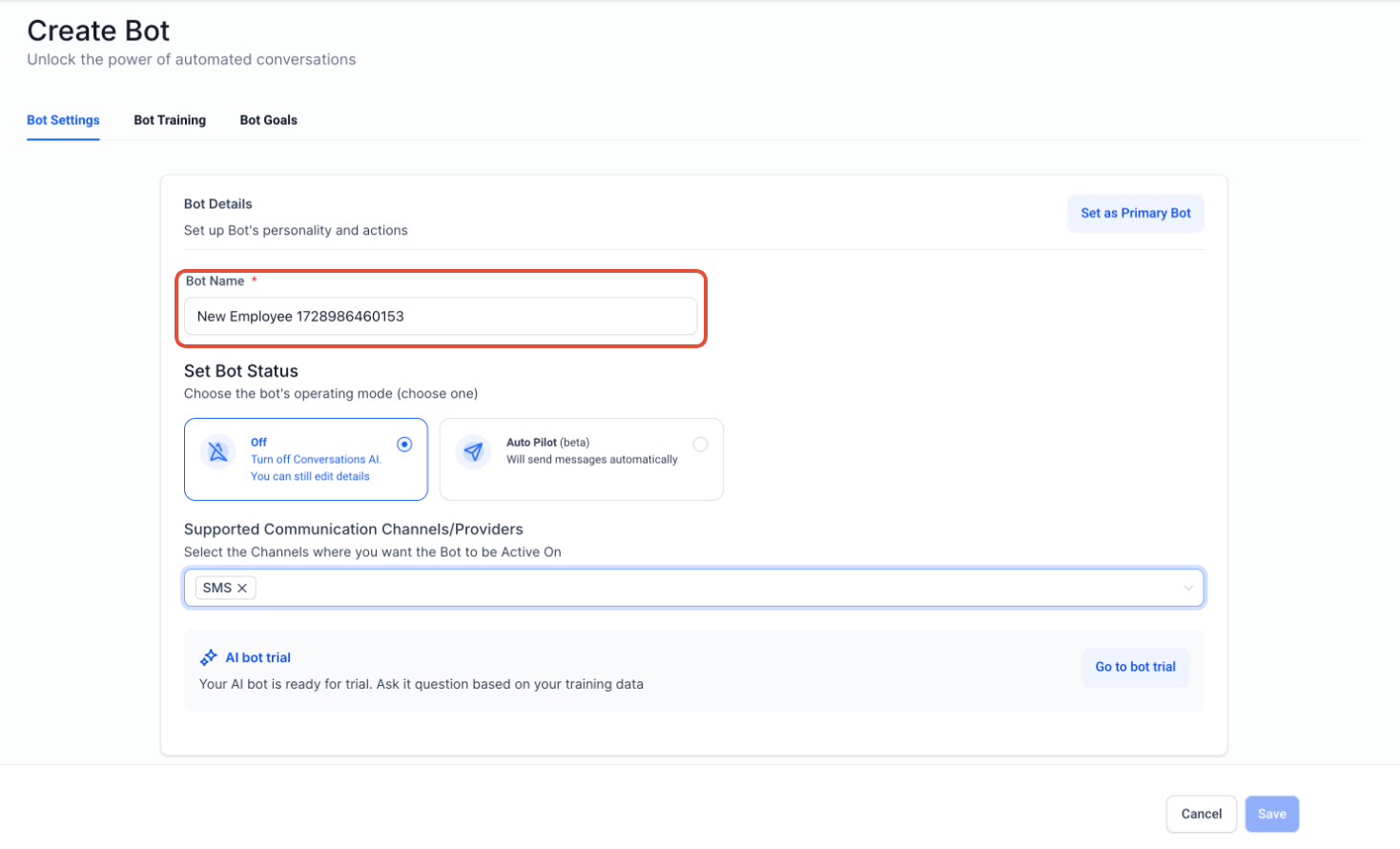
- The bot must have a name; edit or assign one before opening the Trigger a Workflow settings.
05How to set up and use trigger a Workflow in HighLevel
Configure a bot to trigger a workflow when a condition is met
- Open the Bot Goals tab for the desired Conversation AI bot.
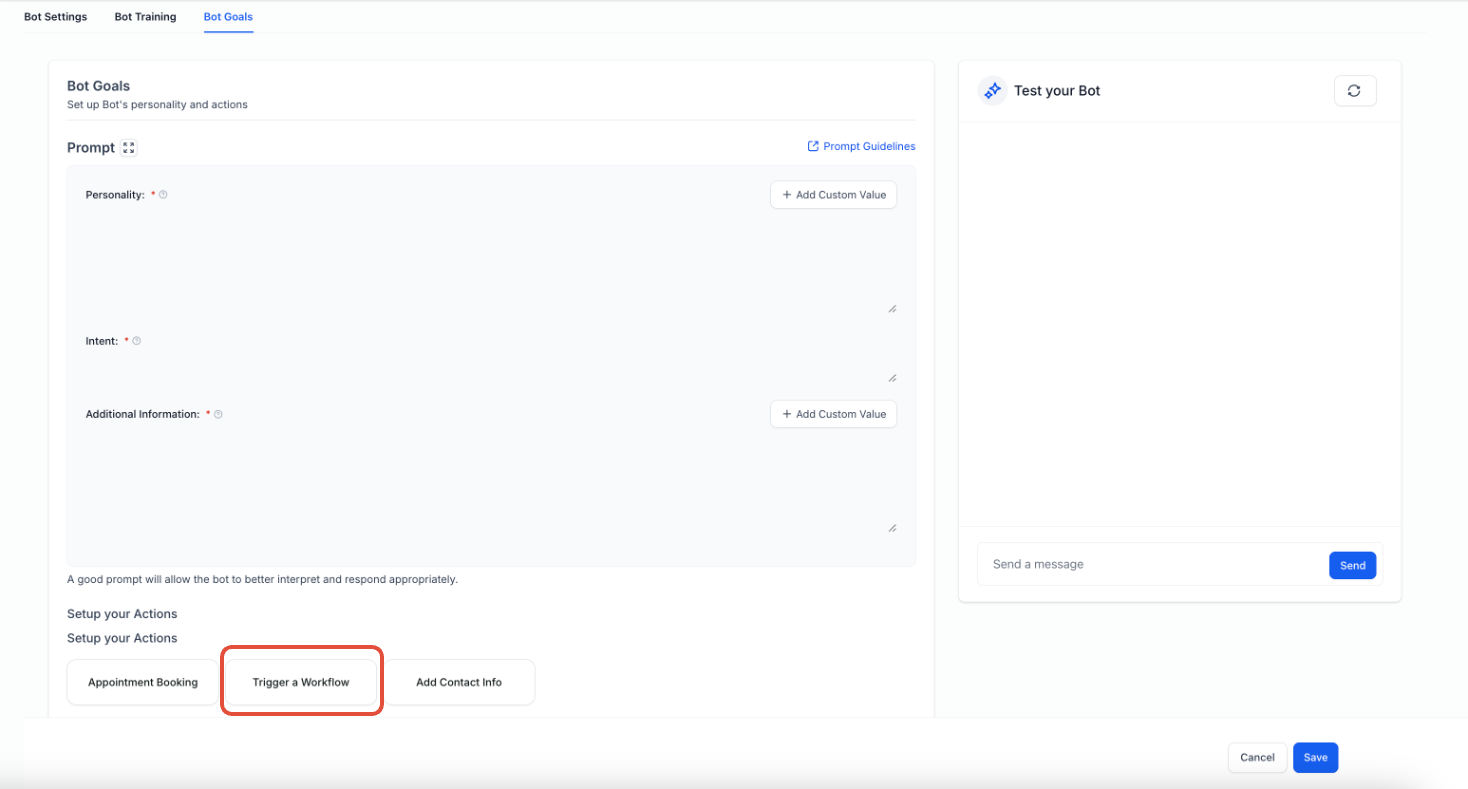
- Click the Trigger a workflow button to open the configuration panel.
- If the bot is new, edit the Bot name or assign a new name before proceeding.
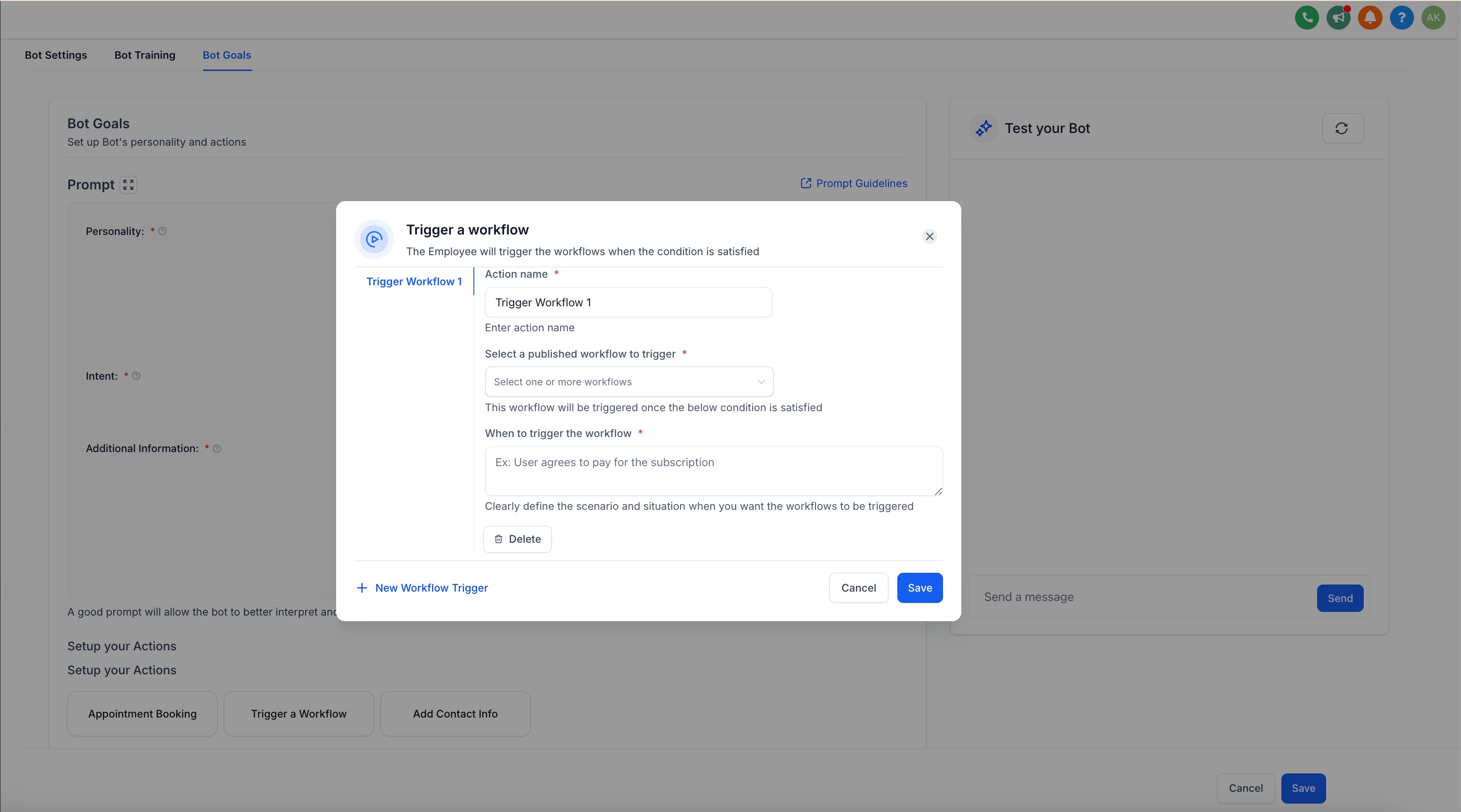
- Enter an Action Name that will identify this trigger later.
- Select a published workflow from the dropdown list.
- Write a short description that defines the condition which will trigger the workflow.
- Click Save to store the trigger configuration.
06What it looks like in HighLevel
07Settings that matter
- Action Name. A label you assign to the trigger so you can recognize it later.
- Select a published workflow to trigger. Chooses which already published workflow will run when the condition is satisfied.
- When to trigger a workflow. A brief description of the customer request or bot statement that should cause the workflow to start.
08Things to know before you rely on it
- Do not set a Trigger a Workflow action for a workflow that already has the same trigger in Workflow Automation; it will run twice.
- If multiple trigger conditions match at the same time, the AI decides which action to execute based on its internal prioritization.
- Trigger conditions can be activated by either the bot’s prompts or the user’s replies.
09How it connects to the rest of HighLevel
- Explore all AI Employee capabilities for deeper automation. All AI Employee features
- Review AI usage limits and how to enable extra usage if needed. Manage AI limits
- Start a trial to test Conversation AI and workflow triggers. 30 day trial
Michael's take

Businesses often waste time hand coding follow up steps when a prospect says they want to buy or book. The Trigger a Workflow feature lets the bot fire the right workflow the moment that intent shows up, cutting out the manual hand off.
The first setting to get right is the condition description in the "When to trigger a workflow" field. Make sure it matches the exact phrasing the bot will use, like "Would you like to book an appointment?" so the AI can recognise the condition and trigger the workflow accordingly.