
01Who this is for
- Founders of service based businesses who need consistent brand voice in automated chats.
- Marketing teams that want to enforce specific escalation rules for lead qualification.
- Support managers looking to control how the AI hands off complex issues to human agents.
02Conversation AI Agents, explained
Conversation AI bot instructions are text blocks that tell the agent how to behave in specific situations. They cover tone, response style, escalation triggers, question sequencing, and actions when the AI lacks information. Instructions sit alongside Bot Training, Bot Goals, and Response Style settings but do not replace them.
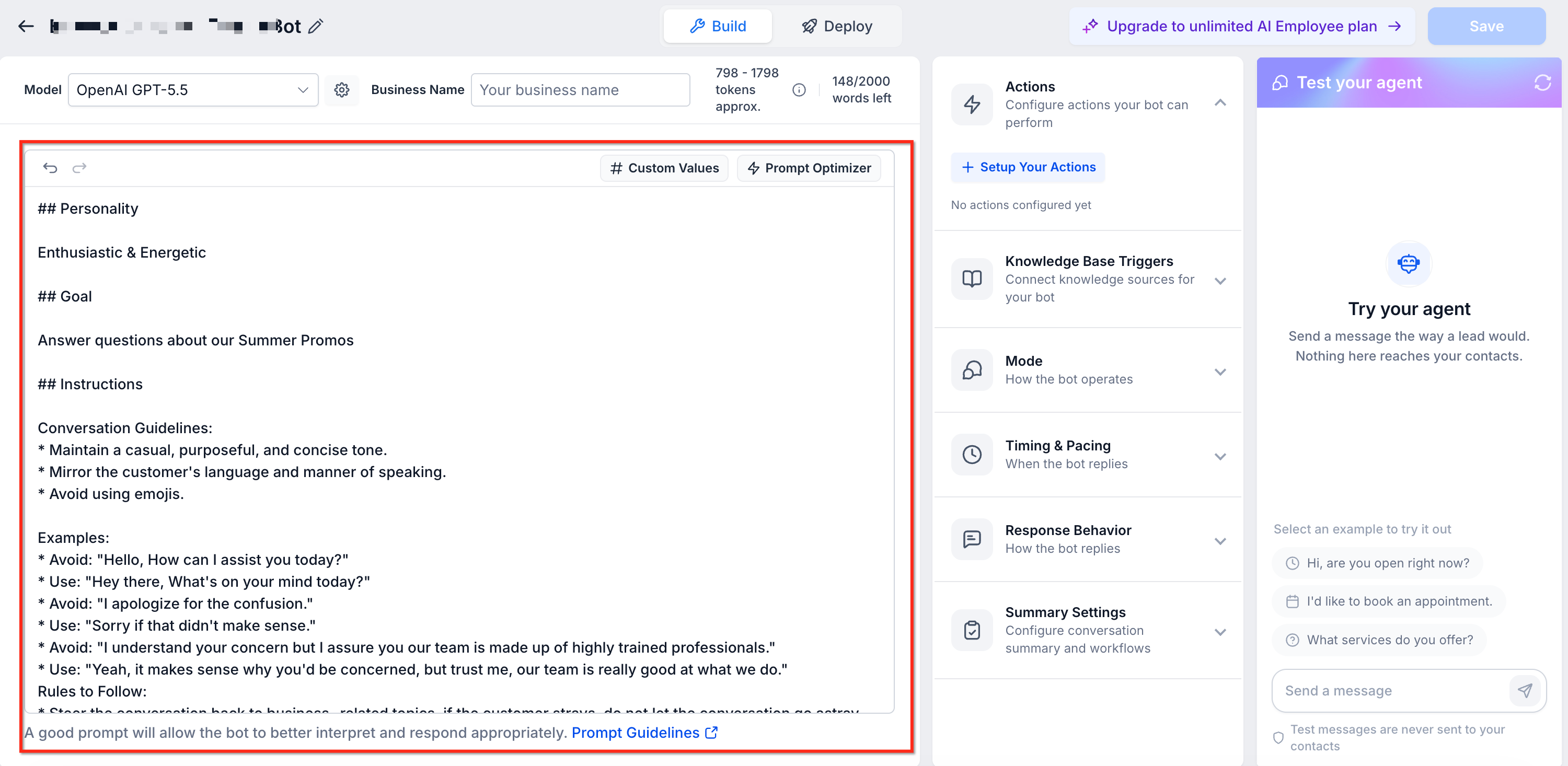
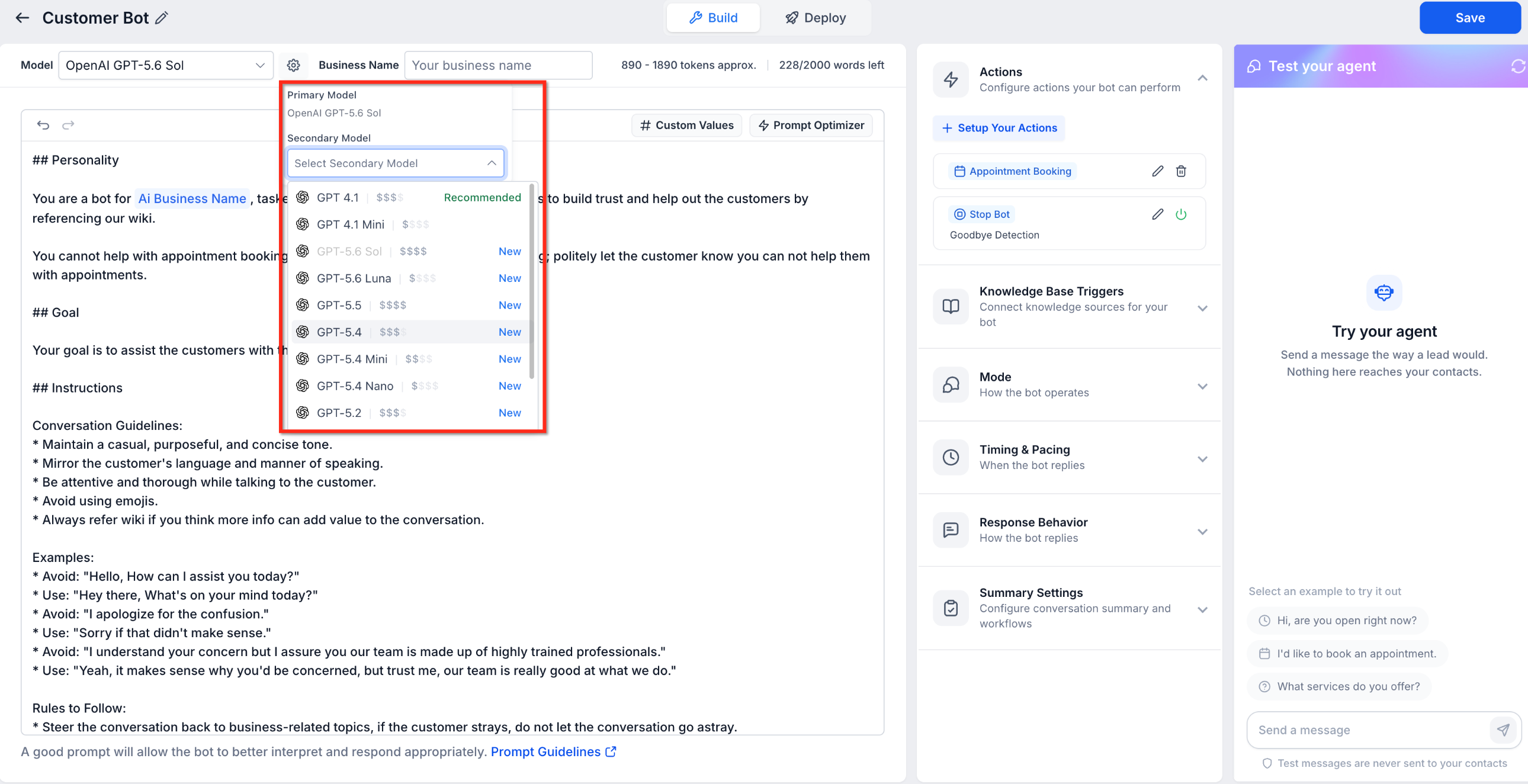
The instructions are edited in the Prompt area of each Conversation AI agent. The Prompt area contains fields for model selection, personality, goal, additional information, and custom values. Each field contributes to the overall prompt that the model uses when generating replies. After editing, the changes are saved to the agent and can be tested with sample customer messages.
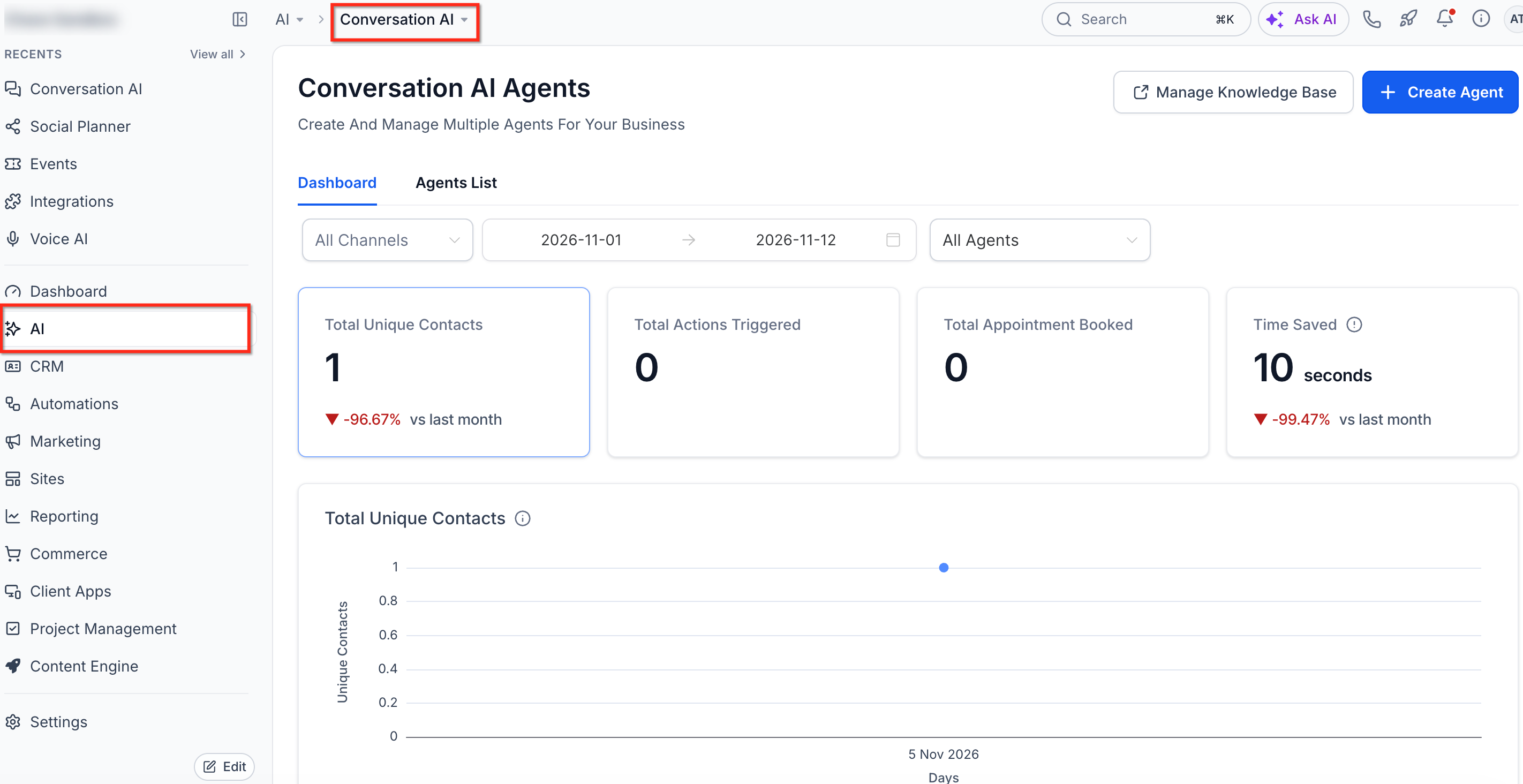
All agents are managed under AI Agents > Conversation AI. Each agent can have its own model, prompt, and set of instructions. The platform validates variable references and disables saving when errors exist, ensuring the prompt remains executable.
03How businesses use Conversation AI Agents
- Dental practice. The practice edits the Personality field to sound friendly and professional, sets a Goal to schedule appointments, and adds an Additional Information rule to ask one question at a time. The agent then follows this flow when patients inquire about services.
- Online retailer. The retailer adds a Custom Value that inserts the store name into every reply, defines a Goal to guide shoppers toward product pages, and includes an instruction to defer to human help when stock information is missing.
- Consulting firm. The firm selects a Claude model after enabling provider support, writes an instruction for the agent to keep responses concise, and adds a rule that the AI should hand off the chat if the prospect asks for a detailed proposal.
04The numbers and rules that matter
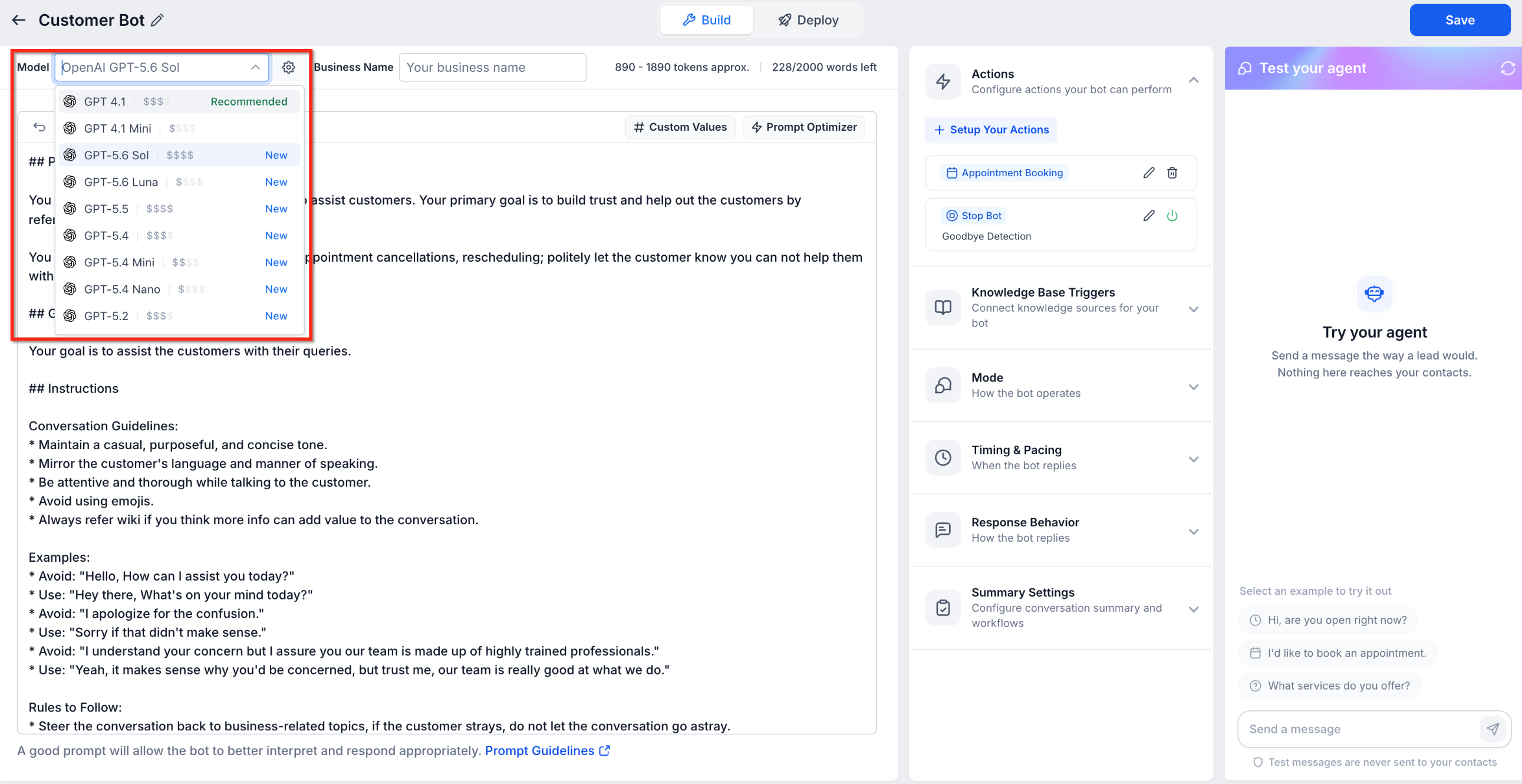
- Available OpenAI models: GPT 5.6 Sol, GPT 5.6 Luna, GPT 5.5, GPT 5.4, GPT 5.4 Mini, GPT 5.4 Nano, GPT 5.2, GPT 5.1, GPT 6 Sol, GPT 6 Luna, GPT 6.1 Sol.
- Recommended model: GPT 6 Sol, appears first in the Model dropdown with a Recommended label.
- Deprecated models: GPT 5, GPT 5 Mini, and GPT 4.1; agents on these models now run on GPT 6 Sol.
- GPT 6.1 Sol offers about 2% lower cost per reply and about 11% faster response times for the slowest replies compared with GPT 6 Sol.
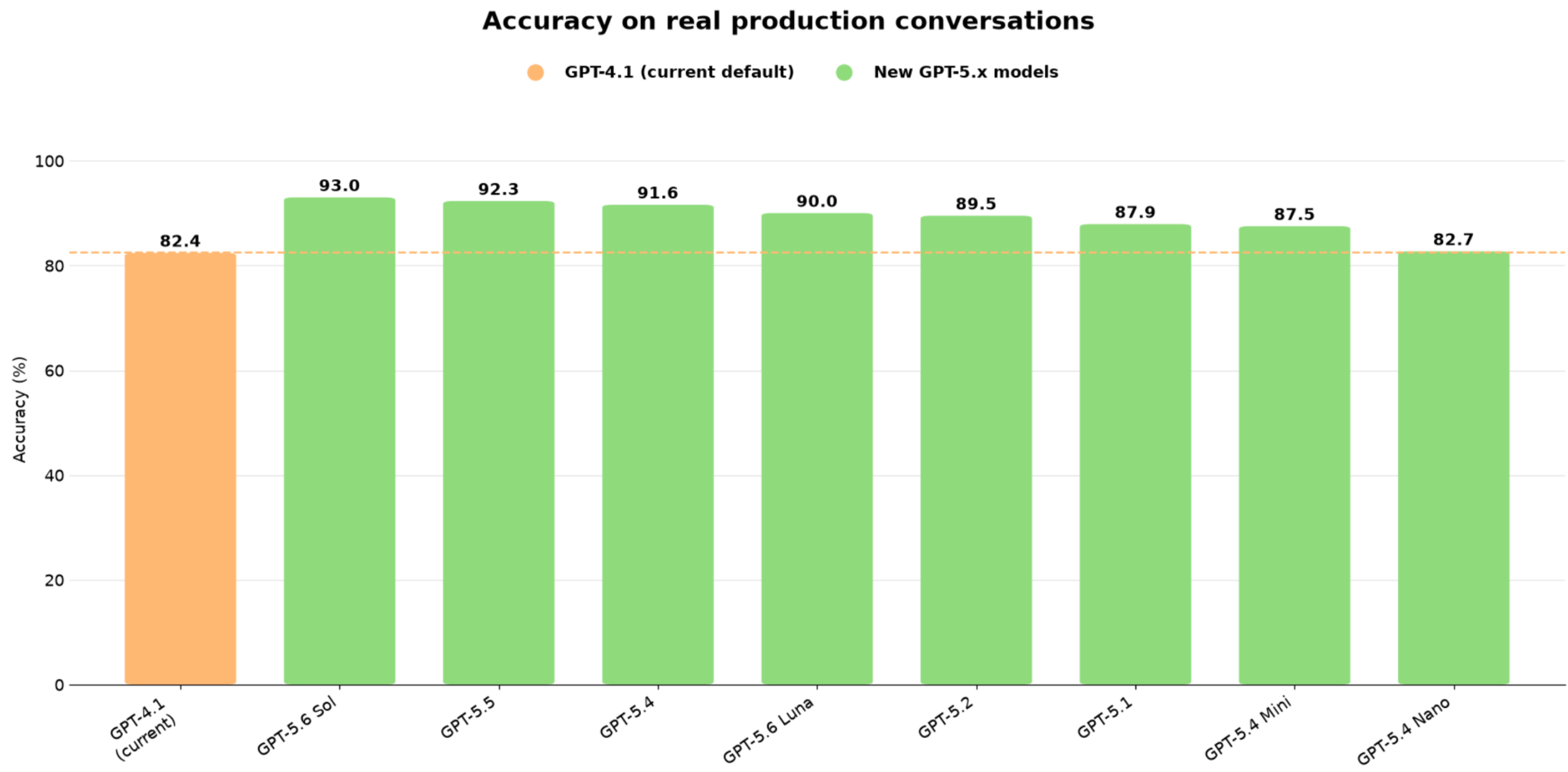
- All eight GPT 5.x models matched or exceeded GPT 4.1 accuracy in the production evaluation.
- Word count limit is shown in the Prompt area; long instructions should stay within the available count.
05Before you start
- Access to AI Agents > Conversation AI in the account.
- Enable Conversations AI Provider Support under Settings > Labs if you plan to use Claude or Gemini models.
06How to set up and use Conversation AI Agents in HighLevel
Customize bot instructions
- Navigate to AI Agents > Conversation AI.
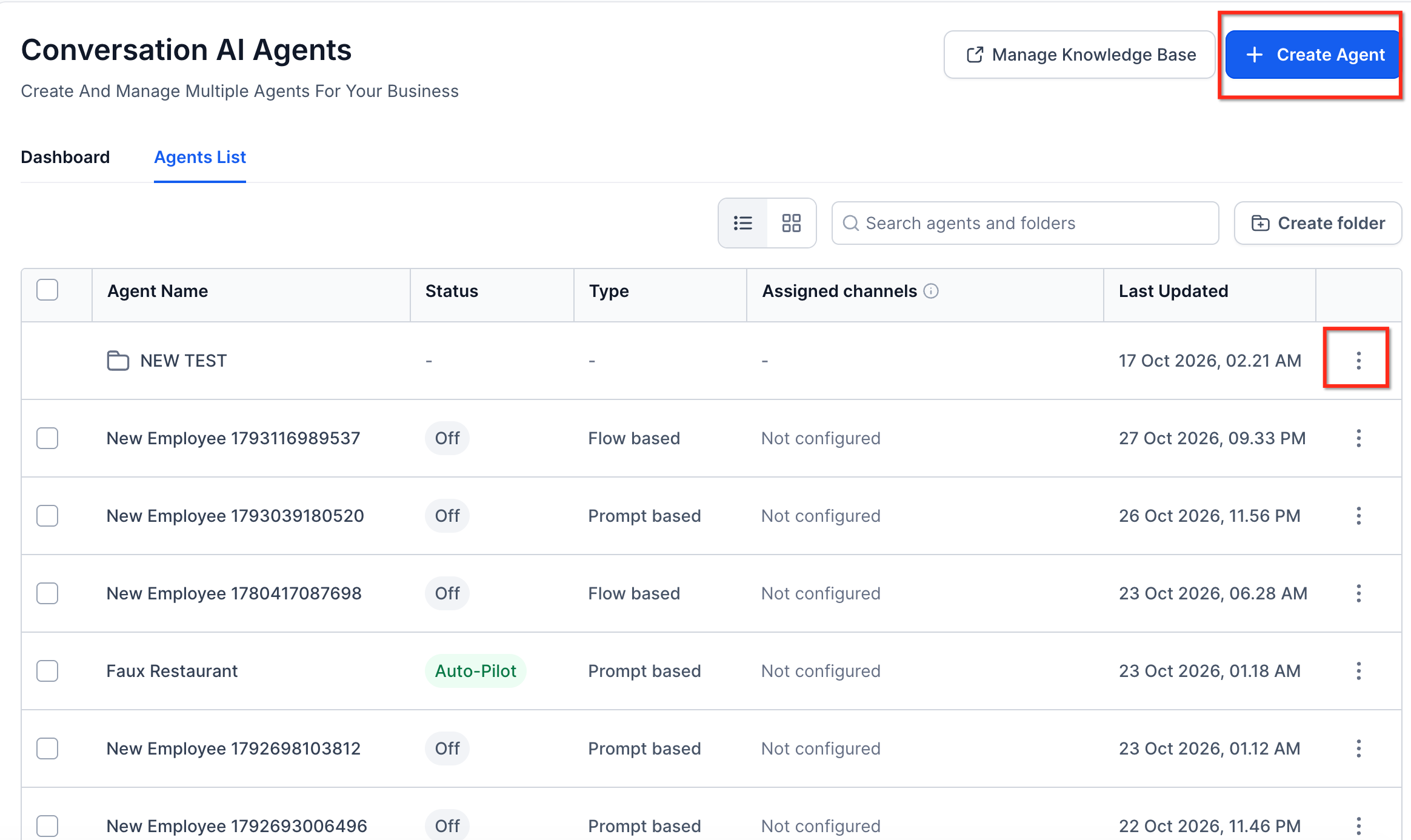
- Open the Agents List to view existing agents.
- Create a new agent or select an existing one to edit.
- Open the Prompt area to start configuring the agent’s behavior.
- Choose a model from the Model dropdown; select Claude or Gemini only after enabling provider support.
- Enter the desired tone and role in the Personality field.
- Define the primary purpose of the bot in the Goal field.
- Add supporting rules and context in the Additional Information field.
- Insert dynamic data using the Add Custom Value button and select available variables.
- Check the prompt for any conflicting instructions and remove duplicates.
- Resolve any highlighted variable errors, then click Save to apply the changes.
- Use the test panel to send sample messages and verify that the agent follows the new instructions.
07What it looks like in HighLevel
08Settings that matter
- Model. Selects which AI model the agent uses for generating replies.
- Personality. Defines the agent’s role, tone, and communication style.
- Goal. Specifies the main outcome the agent should aim for during a conversation.
- Additional Information. Provides extra rules, boundaries, and guidelines for handling specific situations.
- Add Custom Value. Inserts dynamic account, contact, or business information into the prompt via variable placeholders.
09Things to know before you rely on it
- Deprecated models such as GPT 5 and GPT 5 Mini automatically run on GPT 6 Sol.
- Word count limits apply; check the available word count before adding long instructions.
- Saving is blocked while the prompt contains unresolved variable errors.
- A secondary model can be set to automatically replace the primary if it becomes unavailable.
- Claude and Gemini models require the Conversations AI Provider Support toggle to be enabled in Settings > Labs.
10If something goes wrong
- The agent ignores the instructions.. Make the instructions more specific, remove any conflicts, and ensure they are not better placed in Bot Goals, Bot Training, or Response Style settings.
- Save button remains disabled.. Correct any highlighted variable references in the prompt until no errors remain.
11How it connects to the rest of HighLevel
- Learn how to set bot goals that complement instructions. Configure Bot Goals
- Enable Claude and Gemini models for Conversation AI. Claude & Gemini Models
- Explore prompt best practices for Conversation AI agents. AI Prompting 101
Michael's take

When the bot’s tone, escalation points and question flow are critical to the brand experience, I find that clear instructions are useful for keeping the conversation on message.
If the conversations are simple, low volume, or you already have solid Bot Training and Bot Goals in place, spending extra time on detailed instructions may not add much value. In those cases, focusing on the core training and goal settings first can be more efficient.