
01Who this is for
- Customer support teams benefit because the bot can automatically hand over complex queries to a real agent.
- Businesses with high volume inbound chats gain by preventing dead ends and keeping customers engaged.
- Sales groups using the bot for lead qualification avoid missed opportunities when the bot hits its limits.
02Human handover actions, explained
The Human Handover action lives inside the Bot Goals section of a Conversation AI bot. When a pre defined scenario triggers, the platform transfers the conversation to a chosen staff member, posts a final bot message, and pauses further bot replies. A task is generated for the assigned user and the contact receives a tag for reporting.
The feature is delivered through Labs, so it must be enabled before it appears in the Bot Goals list. Up to six handover actions can be configured per bot, each with its own trigger and post handover behavior.
03How businesses use human handover action
- Dental practice. A dental office sets the Human Requested scenario so that when a patient types "I need to talk to a person", the bot hands the chat to the office manager, creates a follow up task, and pauses the bot until the manager replies.
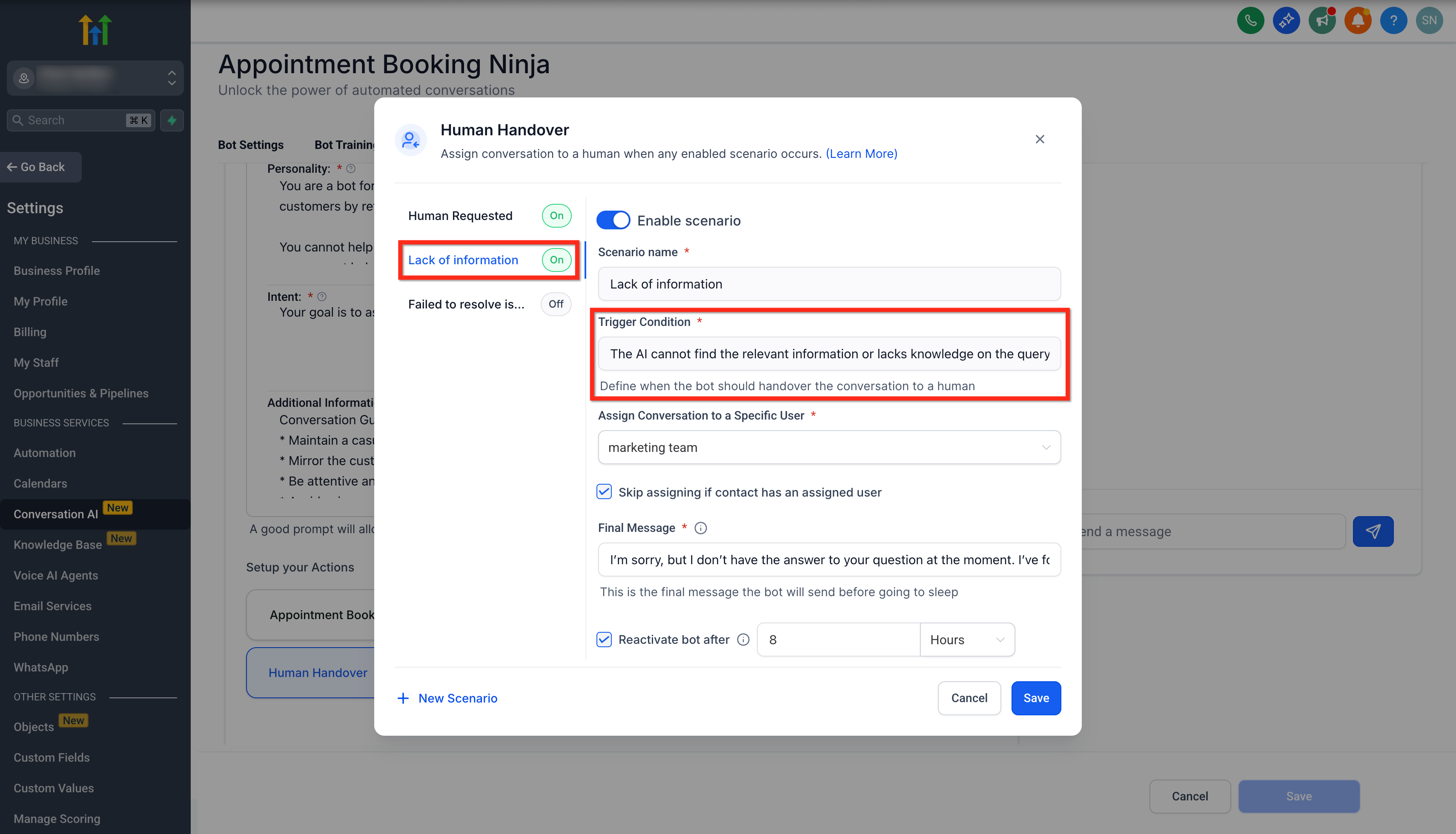
- Online retailer. The retailer enables the Lack of Information scenario. When the bot cannot locate a product detail, it assigns the conversation to a sales associate, tags the contact, and sends a closing message while the bot is paused.
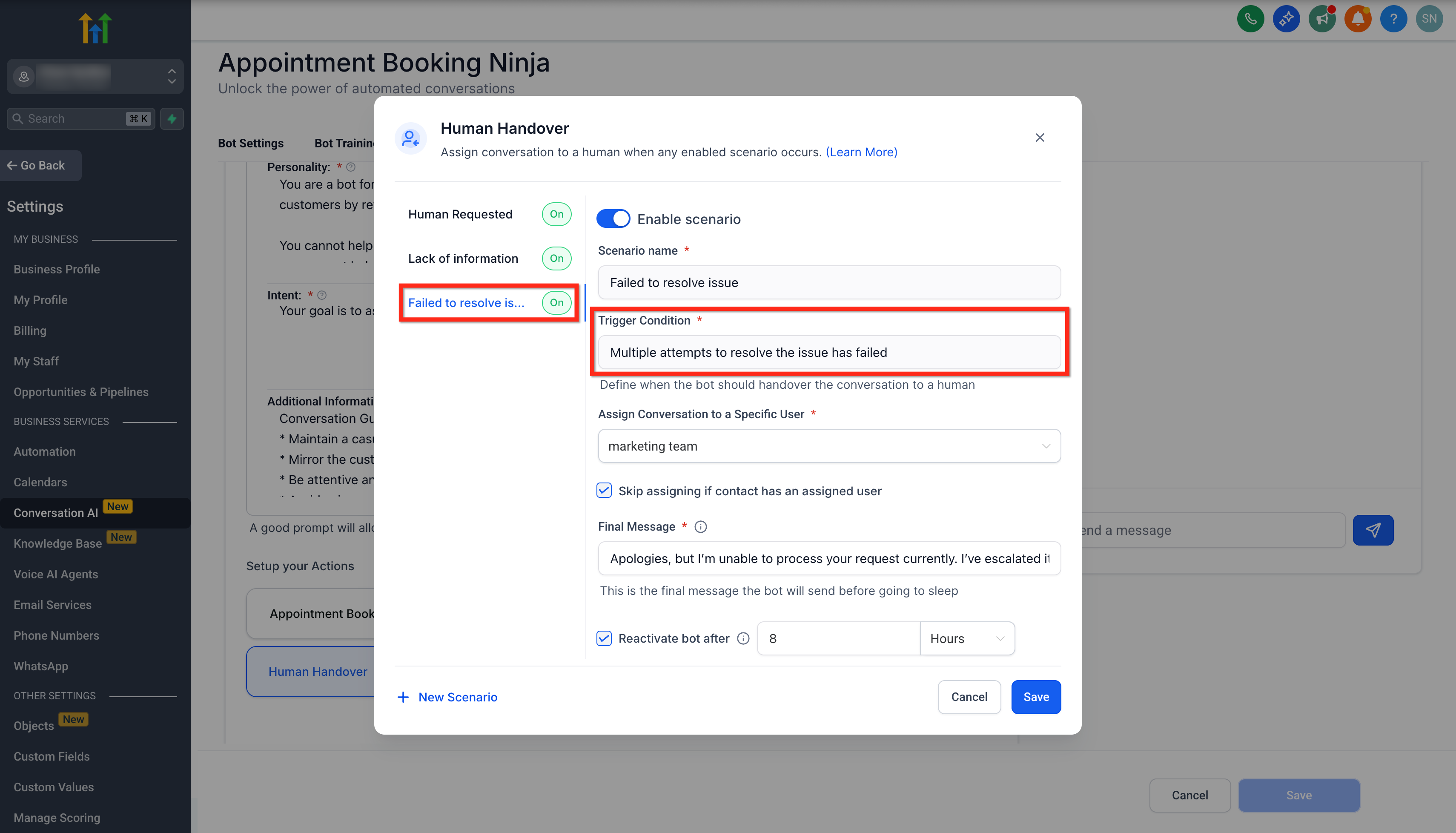
- SaaS startup. The startup configures the Failed to Resolve Issue scenario with a maximum of two retries. After two unsuccessful attempts, the bot assigns the chat to a support engineer, creates a 24 hour task, and adds the human_handover tag.
04The numbers and rules that matter
- Maximum of 6 handover actions per bot.
- Max 2 retires for the Failed to Resolve Issue scenario.
- Due time for created task: 24 hours from trigger.
05Before you start
- Human Handover must be enabled in Labs before it appears in the Conversation AI Bot Goals.
06How to set up and use human handover action in HighLevel
Set up human handover action
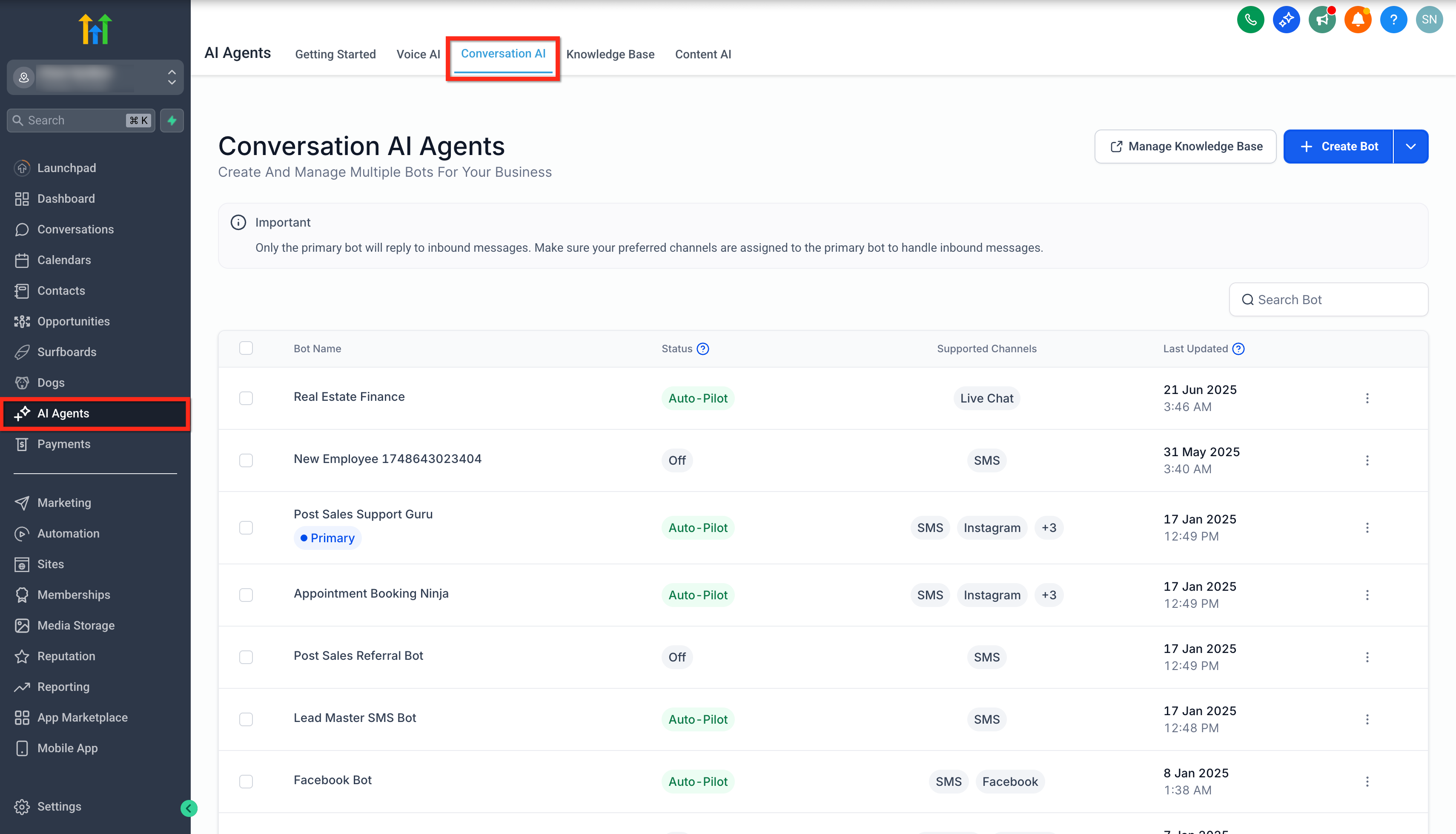
- Open the subaccount and click AI Agents.
- Select the Conversation AI tab.
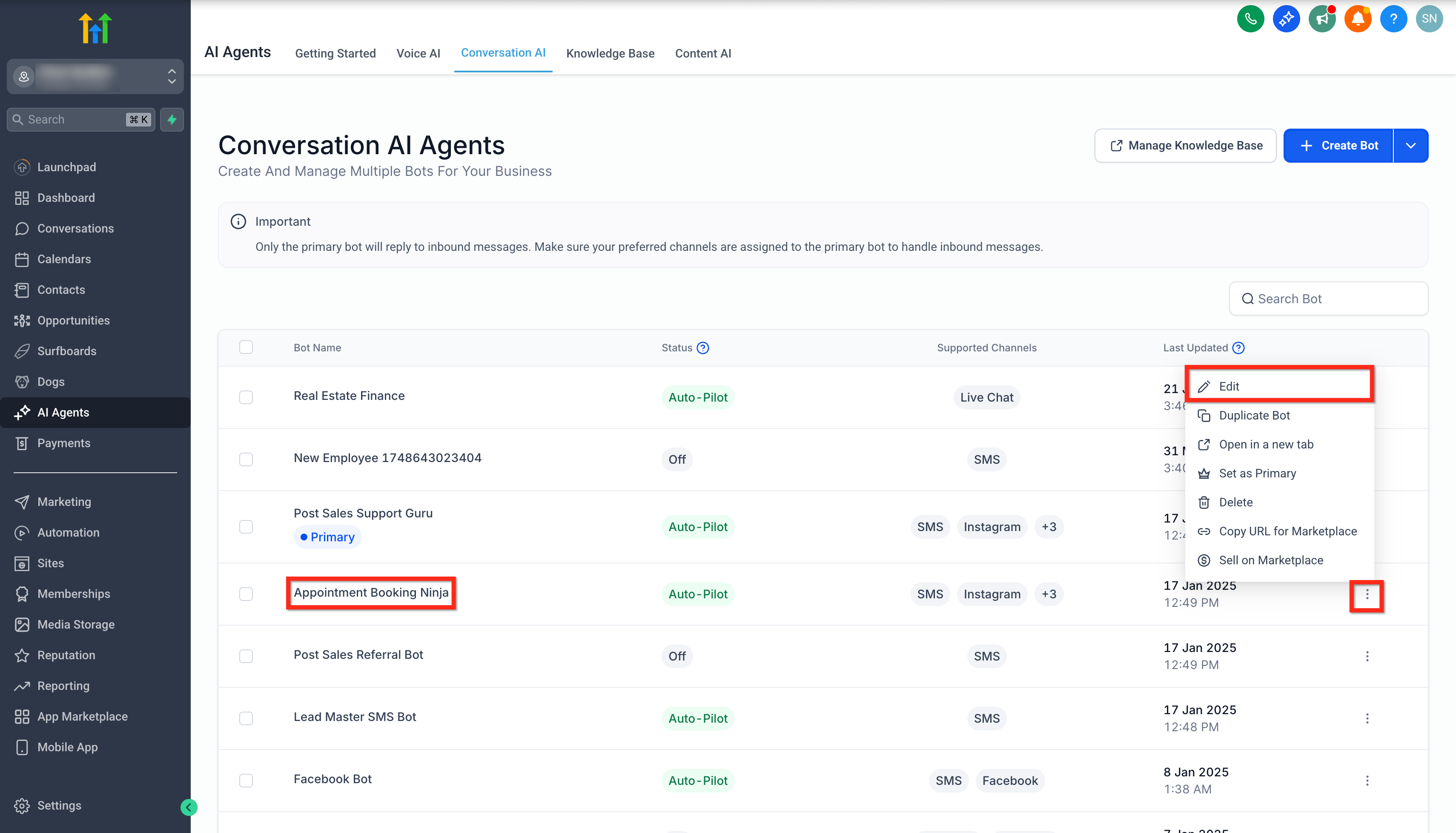
- Choose the bot by clicking its name or the three dot menu and then Edit.
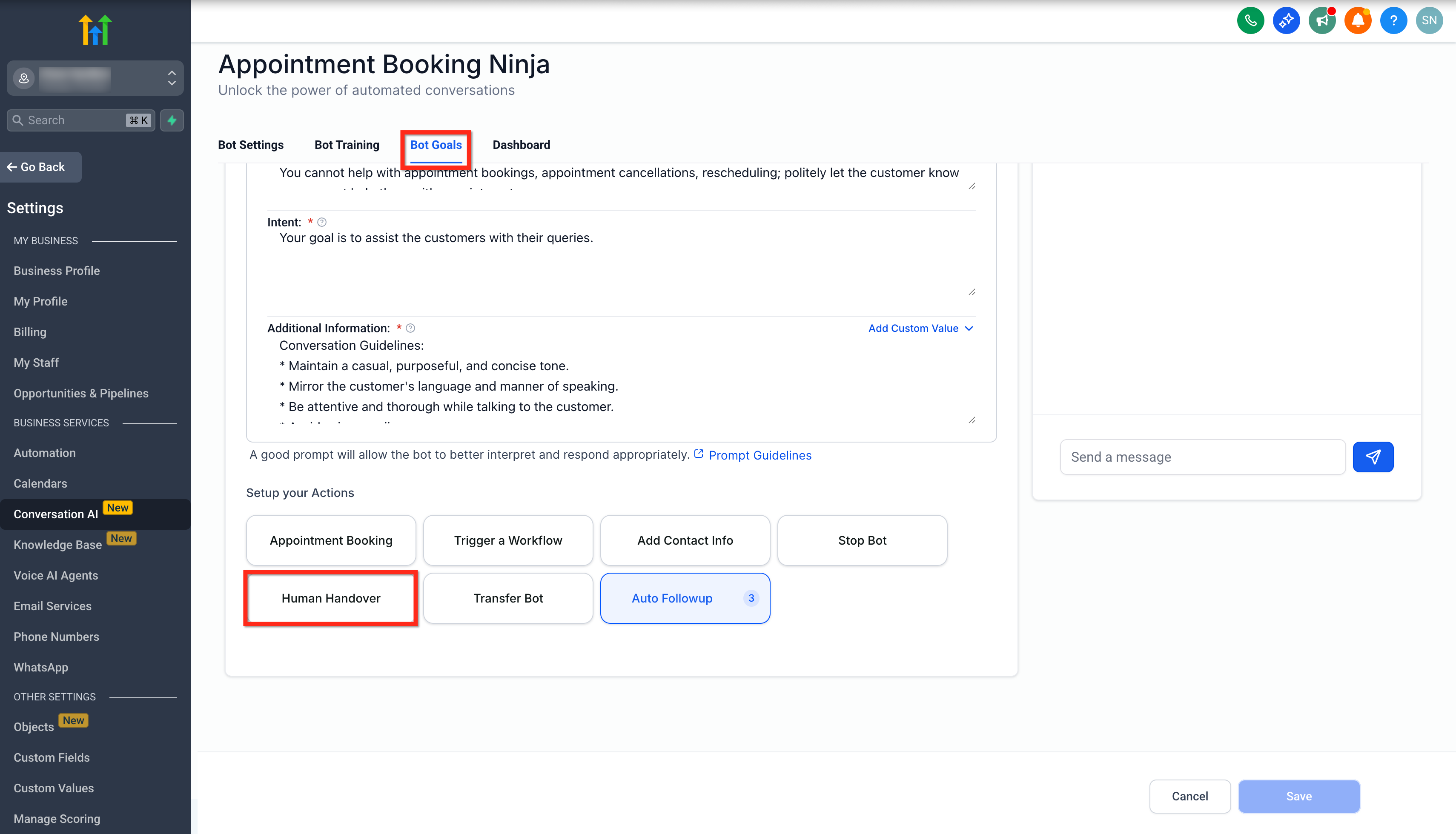
- Open the Bot Goals tab.
- Scroll to the Setup Your Actions section and click the Human Handover button.
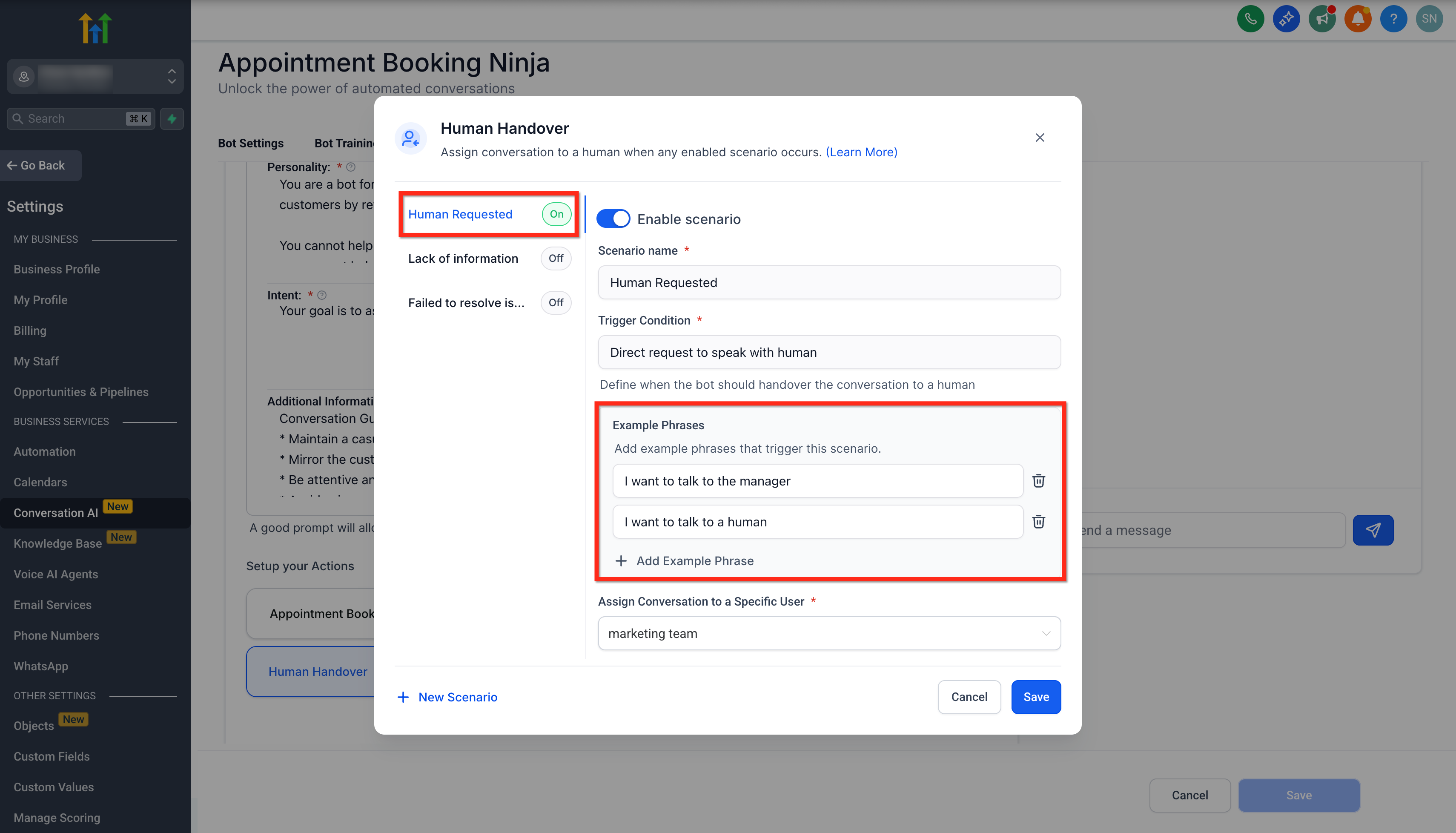
- Toggle on the Enable Scenario switch for the desired prebuilt scenario.
- If using the Human Requested scenario, click + Add Example Phrase and type a custom phrase.
- Select a staff member to assign the conversation, optionally skipping assignment for contacts that already have an owner.
- Enter the final message the bot will send before the handover.
- Set the bot pause duration in days, hours, and minutes.
- Enable the Create a Task option and set the due time to 24 hours from the trigger.
- Add the default tag human_handover or a custom tag under Create Tags.
- Go to Settings, open My Staff, edit the appropriate staff member, enable notifications for assigned conversations and tasks, and click Save.
07What it looks like in HighLevel
08Settings that matter
- Enable Scenario toggle. Activates a prebuilt handover condition such as Human Requested, Lack of Information, or Failed to Resolve Issue.
- Assign Conversation to a User. Specifies which staff member receives the transferred chat; can be skipped if the contact already has an owner.
- Final Message. Defines the closing text the bot sends to the customer right before the handover occurs.
- Bot Pause Behaviour. Sets a time interval for which the bot stops responding after the handover, configurable in days, hours, and minutes.
- Create a Task. Generates a task linked to the contact with a default due time of 24 hours after the handover.
- Create Tags. Adds a tag, default is human_handover, to the contact for later filtering and reporting.
- Notification Settings. Controls whether staff receive alerts for conversations assigned to them and tasks created for them.
09Things to know before you rely on it
- A maximum of six handover actions can be configured per bot.
- The Failed to Resolve Issue scenario allows up to two retires before triggering handover.
- Human Handover is released via Labs and may need to be enabled before it appears.
- If no staff member is assigned, the conversation stays unassigned until claimed.
10How it connects to the rest of HighLevel
- Learn how to configure other bot actions that work with handover. Transfer Bot Action
- Customize bot instructions and prompts that affect when handovers fire. Customize Conversation AI
- Read the overview of all Bot Goals, including handover settings. Bot Goals Overview
Michael's take

The instant alert to staff and the automatic task mean the issue gets chased without any manual juggling, which frees me to focus on higher value work.
If your business runs a simple FAQ bot that rarely needs human help, the extra configuration and the limited number of handover actions may not add enough value. In that case, you might stay with a pure bot and only add a live chat widget for those occasional escalations.