
01Who this is for
- Customer support managers, eliminate manual typing by having the bot capture client address and company data during interactions.
- Lead generation specialists, keep prospect records current without leaving the conversation flow.
- Small business owners, ensure contact profiles contain all required fields while the AI handles the dialogue.
02Add contact info actions, explained
The Add Contact Info action is a bot instruction that listens for specific answers in a Conversation AI chat and writes those values into the contact's profile. It only writes to fields that have no value yet, leaving any existing data untouched. Email, phone and name are handled automatically, so the action is not needed for those items.
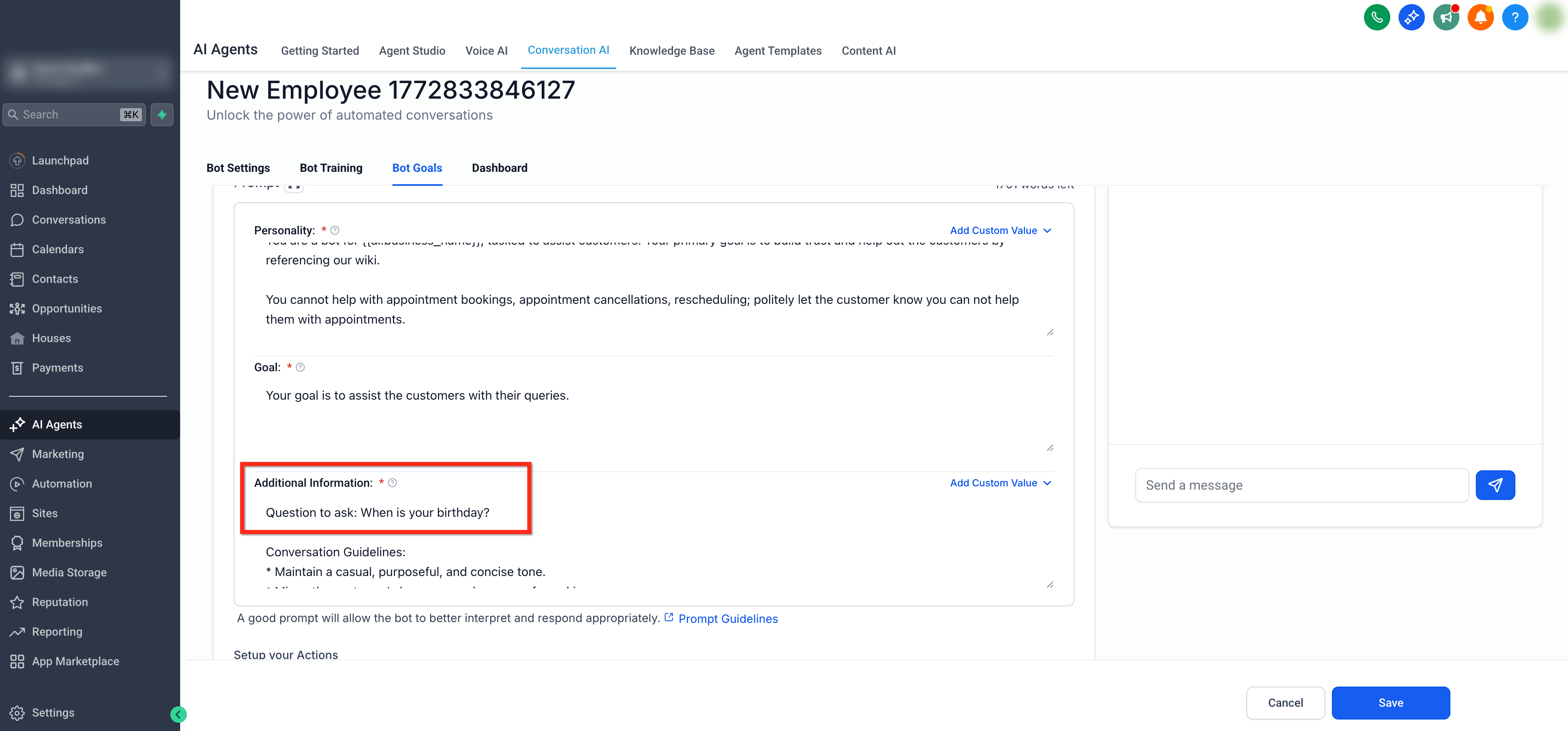
You find the action while editing an AI agent. Open the agent, go to the Bot Goals tab, and under the actions section select Contact Info. From there you name the action, choose which contact field to fill, describe the expected input, and optionally add examples for custom fields. After saving, the bot’s prompt must explicitly request the information so the AI knows to ask the user.
The feature lives inside the Conversation AI area of HighLevel and works together with the agent’s overall goal configuration. It complements other actions such as triggering workflows or handing over to a human.
03How businesses use add contact info action
- Real estate agency. The agency adds a Contact Info action for "Property Address" and provides sample address formats. The bot asks the prospect for the address during a chat and stores it directly in the contact record, keeping listings up to date.
- Medical clinic. The clinic creates an action to capture "Date of Birth". By inserting a mandatory instruction in the prompt, the bot requests the patient’s birth date and saves it to the empty date of birth field, simplifying intake.
- Consulting firm. The firm adds a custom field called "Preferred Industry" and supplies two sample values. When the bot converses, it prompts the lead for the industry and fills the custom field if it was previously empty.
04Before you start
- You must have permission to edit AI agents and manage their goals.
- The contact field you plan to update must be empty before the bot attempts to write to it.
- The agent’s Additional Information Prompt should contain a clear instruction to ask for the desired detail.
05How to set up and use add contact info action in HighLevel
Set up Add Contact Info action
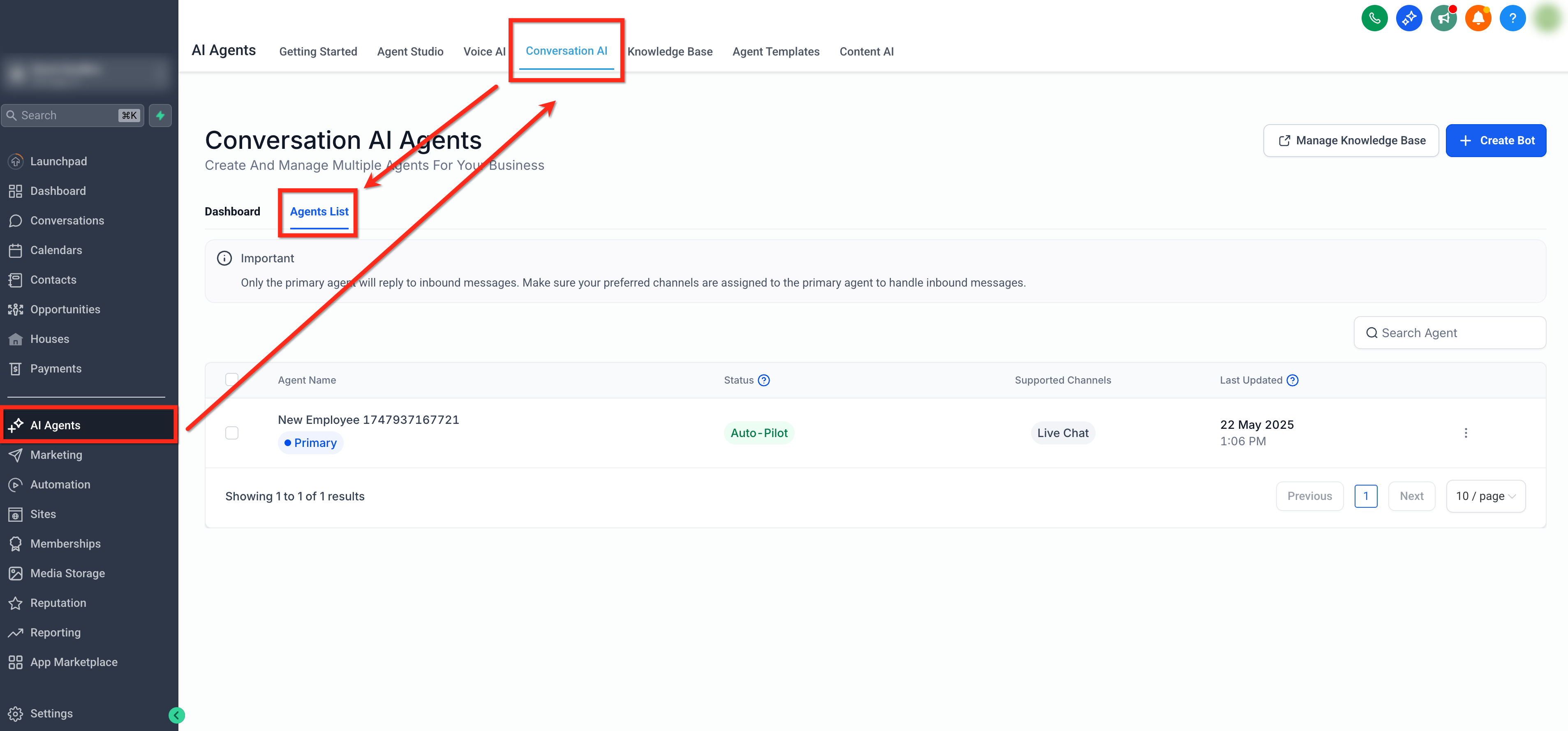
- Go to AI Agents > Conversation AI > Agents List.
- Select the agent you want to modify.
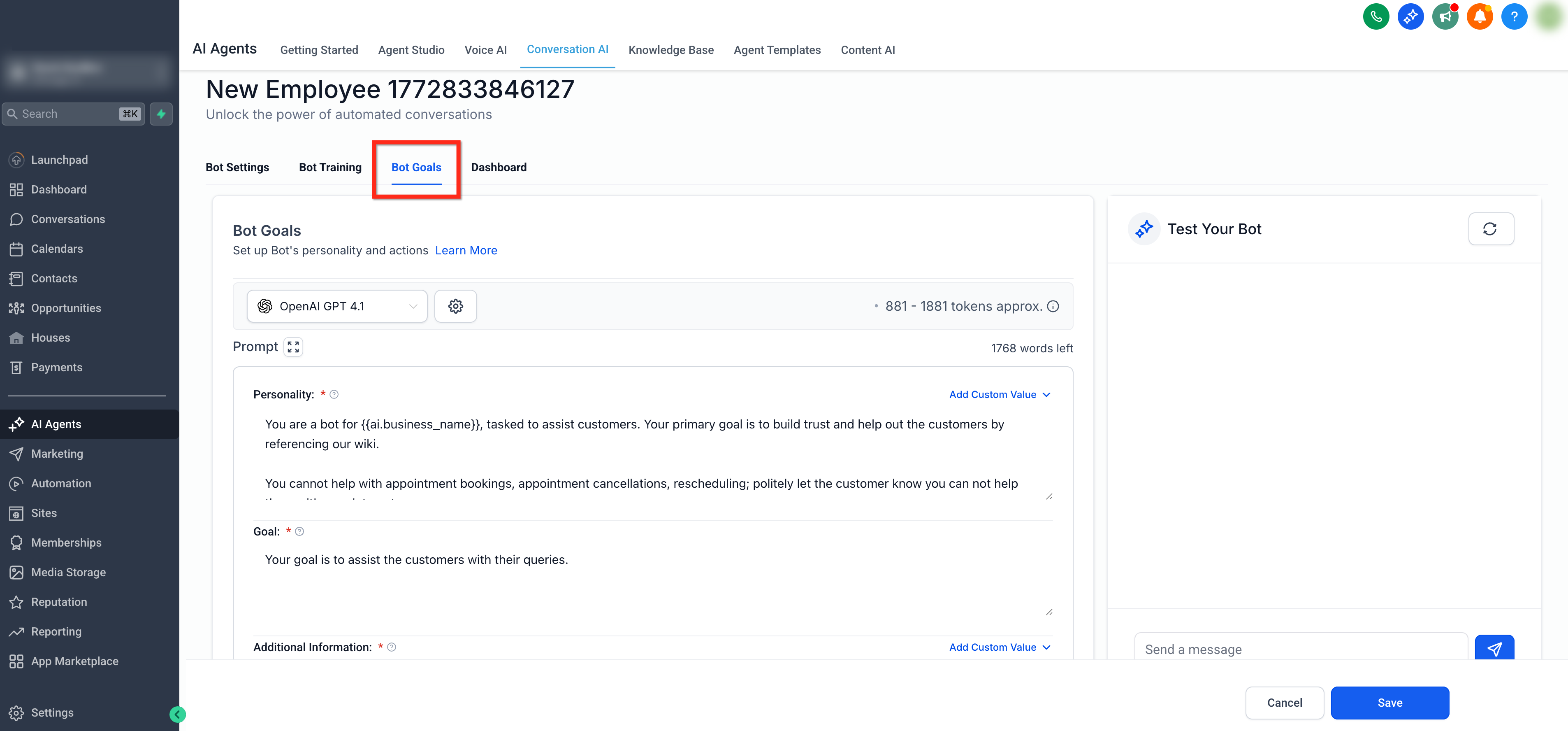
- Click the Bot Goals tab.
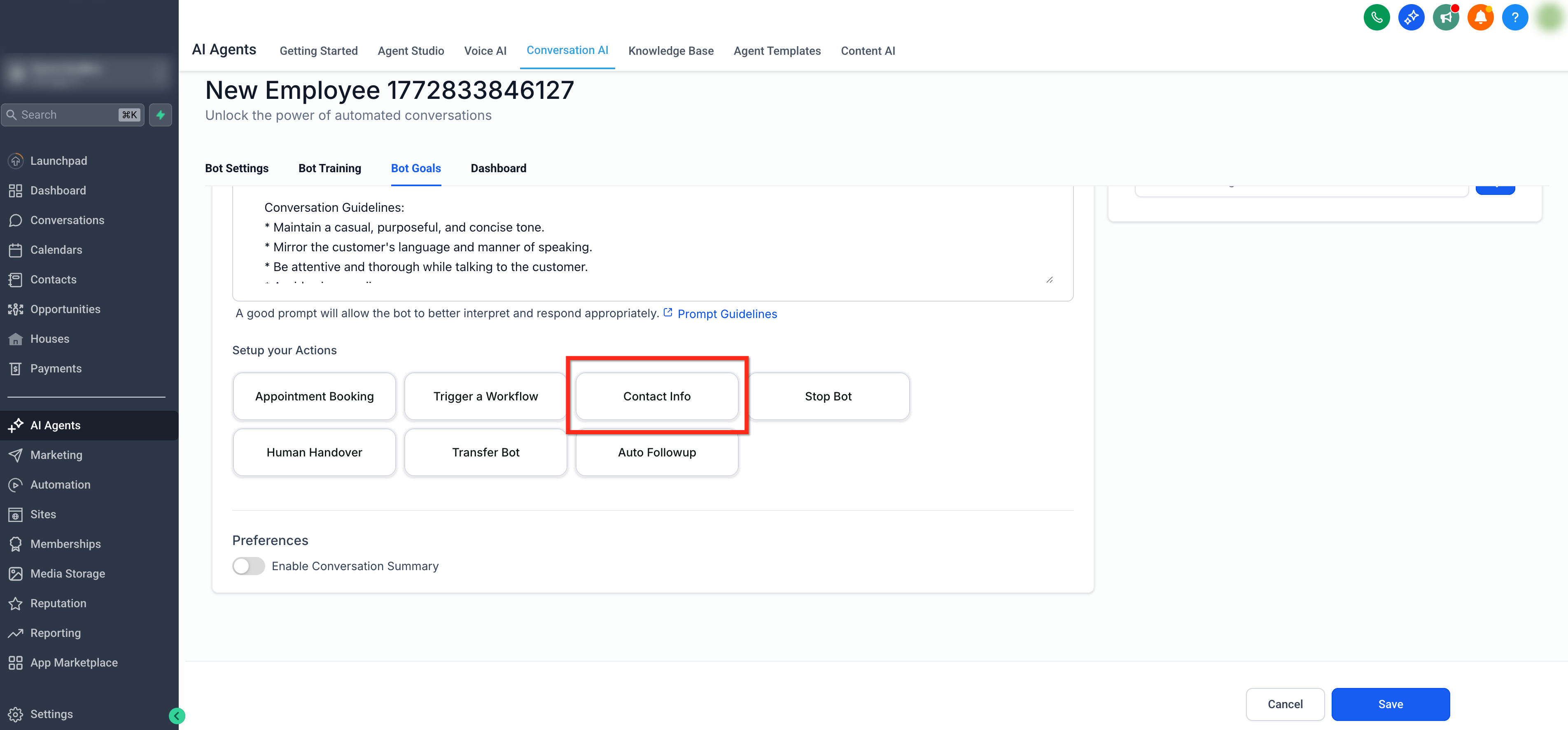
- Find the Setup your Actions area and pick Contact Info.
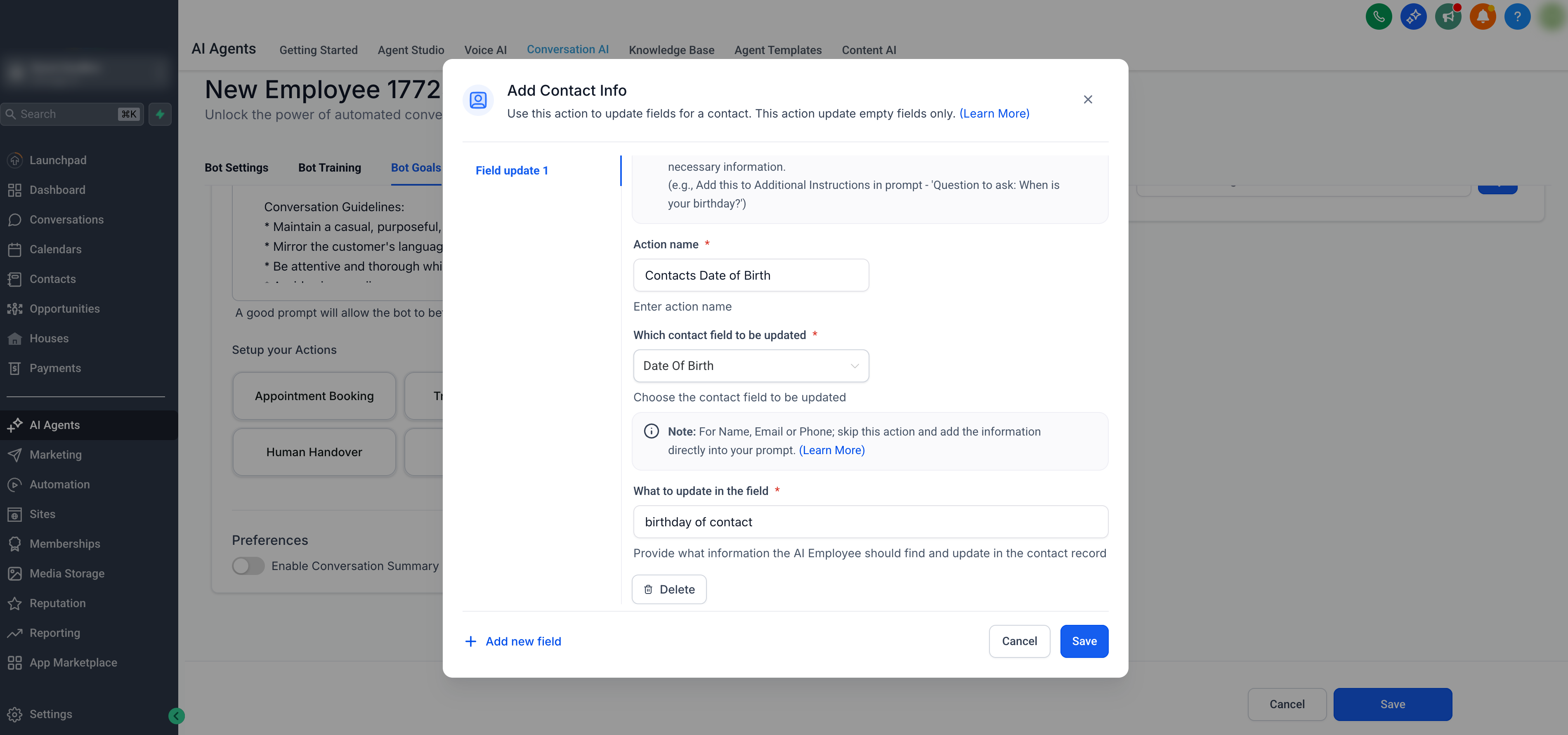
- Enter a name for the new action.
- Choose the contact field to fill from the dropdown list.
- Write a short description of the information to be captured.
- If the field is a custom one, add at least two example responses.
- Press Save to store the configuration.
- Edit the bot’s Additional Information Prompt to explicitly request the new detail.
06What it looks like in HighLevel
07Settings that matter
- Action Name. A label you assign to recognize the action later.
- Which contact field to be updated. Selects the specific contact record field that will receive the captured data.
- What to update in the field. Provides a brief description that guides the AI in generating accurate responses.
- Output Example (Custom Fields Only). Supplies sample values for a custom field so the AI knows the expected format.
08Things to know before you rely on it
- The action only writes to fields that are currently empty; it never overwrites existing data.
- It cannot be used for Name, Email, or Phone fields; those should be collected via the prompt instead.
- Only a limited number of fields can be mapped in a single action; additional fields require another action or a workflow.
- Only supported custom field types can be selected; unsupported types will not be updated.
- Users without the appropriate role may not see the Contact Info action.
09If something goes wrong
- Field does not update after the bot captures the answer. Confirm the target field is empty, the correct field is selected in the action, and the bot’s prompt includes a clear request for that information.
- Cannot see the Contact Info action in the agent editor. Check that your user role includes permission to manage Conversation AI agent goals; request access from an admin if needed.
- Attempting to use the action for Name, Email, or Phone. Remove the action for those fields and instead add explicit instructions in the bot’s prompt to collect them.
10How it connects to the rest of HighLevel
- Learn how to customize the bot’s prompts to ask for contact details. Customize prompts
- See how to configure overall bot goals for your Conversation AI agent. Configure bot goals
- Explore the human handover action for cases where a live agent must take over. Human handover
Michael's take

Most people forget to add the explicit instruction in the bot prompt, assuming the action will magically pull the data. Without that mandatory line, the bot never asks the question and the contact field stays empty.
I would first write a clear Additional Information Prompt that lists each piece of data you need, then map those fields in the Add Contact Info action. A quick test with a dummy contact confirms the flow works before you roll it out to real customers.