
01Who this is for
- Agency owners can tailor audit reports to match each client’s priorities, highlighting key metrics first.
- Freelance marketers benefit from a concise, ordered report that conveys insights efficiently.
- Consultants can remove unnecessary sections to keep reports focused and easy to read.
02Audit report sections, explained
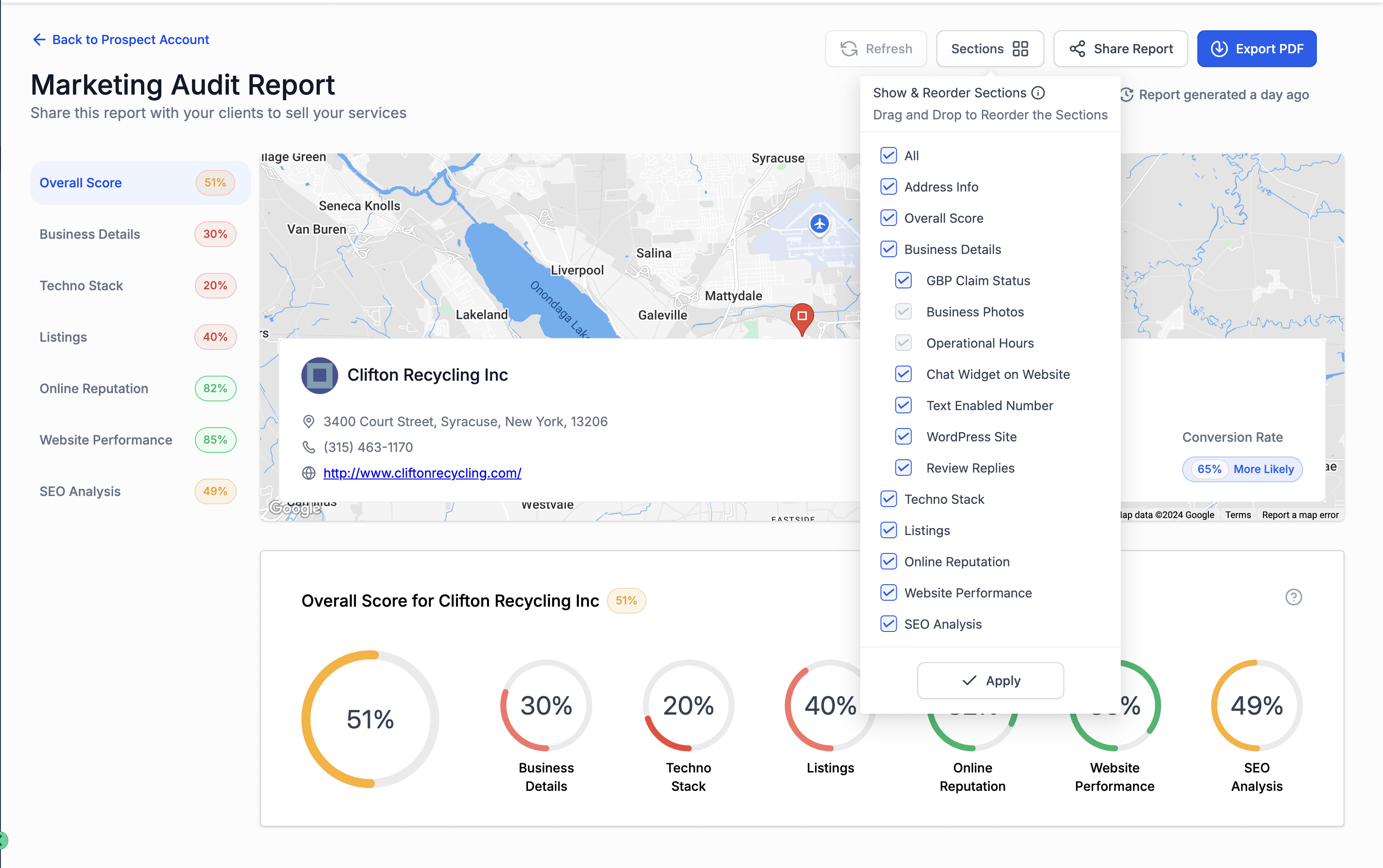
The feature lives inside the report editor of the HighLevel platform. When you open a report, a Sections button reveals the list of available report parts. You can tick boxes to include or exclude any section you need.
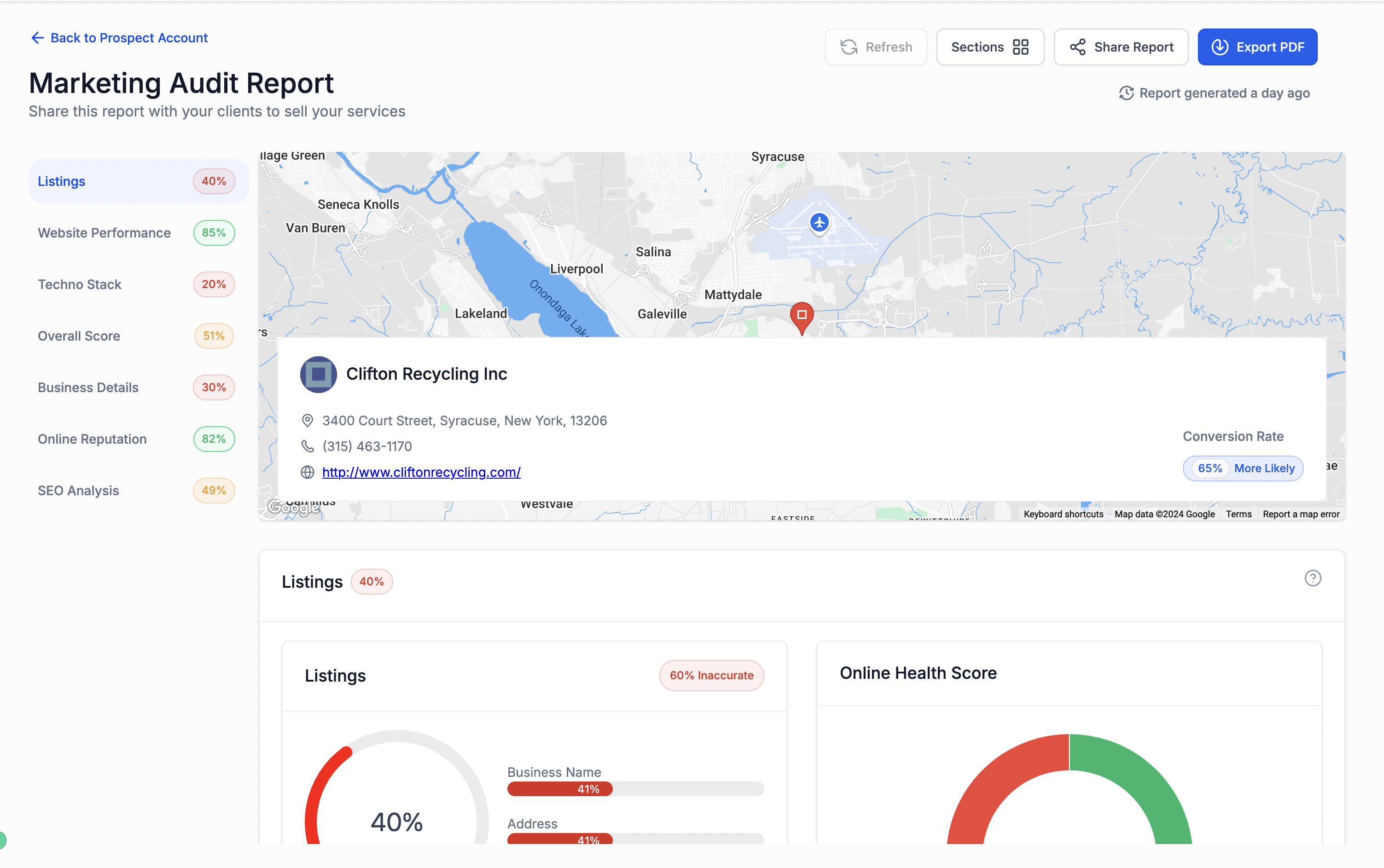
After choosing sections, you can change their order. Hover over a section name, grab the drag handle, move the item up or down, and release it where you want it to appear. The new arrangement applies to the live view and the PDF version of the report.
Once the layout meets your expectations, you click Apply to lock the selections and order, then generate the report as usual. The output respects the custom configuration you set.
03How businesses use customizing audit report sections
- Marketing agency. The agency opens a client’s audit report, checks the boxes for the most relevant performance metrics, drags the desired sections to the top, and saves. The generated report follows the agency’s preferred narrative flow.
- Freelance consultant. The consultant selects only the essential sections, removes any superfluous parts, rearranges the remaining items, and applies the changes before sending the PDF to the client.
- Consulting firm. The firm customizes an audit by including only the sections needed for the engagement, orders them to match their reporting style, and saves the layout. The final report reflects that custom order.
04How to set up and use customizing audit report sections in HighLevel
Access the Report Customisation
- Navigate to the dashboard where reports are generated or managed.
- Select the specific report you wish to edit.
- Click the “Sections” button to open the layout editor.
Select Report Sections
- Check the boxes next to the sections you want to include in the report.
- Choose as many or as few sections as the report requires.
Reorder Report Sections
- Hover over a section name to reveal the drag handle.
- Click and hold the drag handle that appears beside the section.
- Drag the section upward or downward to the desired position.
- Release the mouse button when the section is in the correct spot.
Save and Generate the Report
- Click “Apply” to lock in the chosen sections and their order.
- Generate the report as usual; the output reflects the custom layout.
05What it looks like in HighLevel
06How it connects to the rest of HighLevel
- Compare free and premium features of HighLevel marketing audit reports. Free vs premium audit reports
- Understand how HighLevel assigns grades to each part of a marketing audit report. Audit report grading
- Set up automatic generation of marketing audit reports with workflow actions. Automate audit reports
Michael's take

Customizing audit report sections can feel risky if you’re used to a fixed template; you might accidentally drop a key metric or shuffle sections in a way that confuses your client. Keep an eye on the flow and make sure the most critical data stays front and center.