
01Who this is for
- Agency owners who build subaccounts for multiple hair salons, the snapshot gives them a ready made foundation to avoid recreating the same assets repeatedly.
- Marketing consultants managing salon client accounts, they can load the snapshot into existing accounts to add new campaigns without disturbing live data.
02Hair salon snapshots, explained
The snapshot packages 60 configuration assets across 11 categories, such as calendar groups, custom fields, email templates, funnels, pipelines, review settings and workflows. When imported, these assets appear in the selected subaccount but remain inactive until the agency customizes business information, staff schedules and branding. The snapshot lives in the agency’s Account Snapshots library and can be applied either to a brand new subaccount or merged into an existing one.
Importing the snapshot adds it to the library; creating a new subaccount builds a fresh account that automatically receives all assets. Loading into an existing subaccount merges selected assets while prompting the user to resolve any conflicts between current and incoming items. After import, the agency must update business profile, staff calendars, forms, pages, pipelines and integrations before publishing any content.
03How businesses use hair salon snapshot
- Hair salon. The salon owner imports the snapshot to receive prebuilt service calendars, booking forms and email templates. After import they edit the Business Profile, replace placeholder images, set staff availability and publish the website. This prepares the salon for real client bookings.
- Agency that creates subaccounts for salons. The agency adds the shared snapshot to its library, then uses the Create new account option to spin up a fresh subaccount for each new client. The agency then follows the customization checklist to tailor each salon’s services and branding.
- Existing salon account that needs new marketing assets. The account manager loads the snapshot into the live subaccount, selects only the funnel and email template categories, reviews any conflicts, and overrides outdated assets. After loading, the manager updates the content and publishes the refreshed marketing pages.
04The numbers and rules that matter
- Snapshot name: V2 Industry, Beauty & Fashion, Hair Salon.
- 60 assets across 11 categories.
- Calendar Groups: 1.
- Calendars: 6.
- Custom Fields: 29.
- Custom Values: 3.
- Email Builder Templates: 5.
- Forms: 1.
- Funnels & Websites: 3.
- Pipelines: 2.
- Review Settings: 1.
- Text & Email Templates: 2.
05Before you start
- Confirm you have Agency Admin access or the required Snapshot permissions.
- Decide whether the snapshot will create a new subaccount or be loaded into an existing one.
- Review the snapshot’s 60 asset inventory.
- Document any existing configuration that could be overwritten.
- Gather the salon’s business name, logo, contact details, address, time zone, currency, services, staff, pricing and availability.
- Obtain access to domains, email DNS, phone services, social accounts and payment provider.
06How to set up and use hair salon snapshot in HighLevel
Import the shared snapshot
- Sign in to the agency account that should receive the snapshot.
- Open the Snapshot Share Link.
- Review the snapshot information and rename it if needed.
- Import the snapshot.
- Navigate to Agency View > Account Snapshots > Imported Snapshots.
- Wait until the import completes before loading the snapshot.
Create a new subaccount from the snapshot
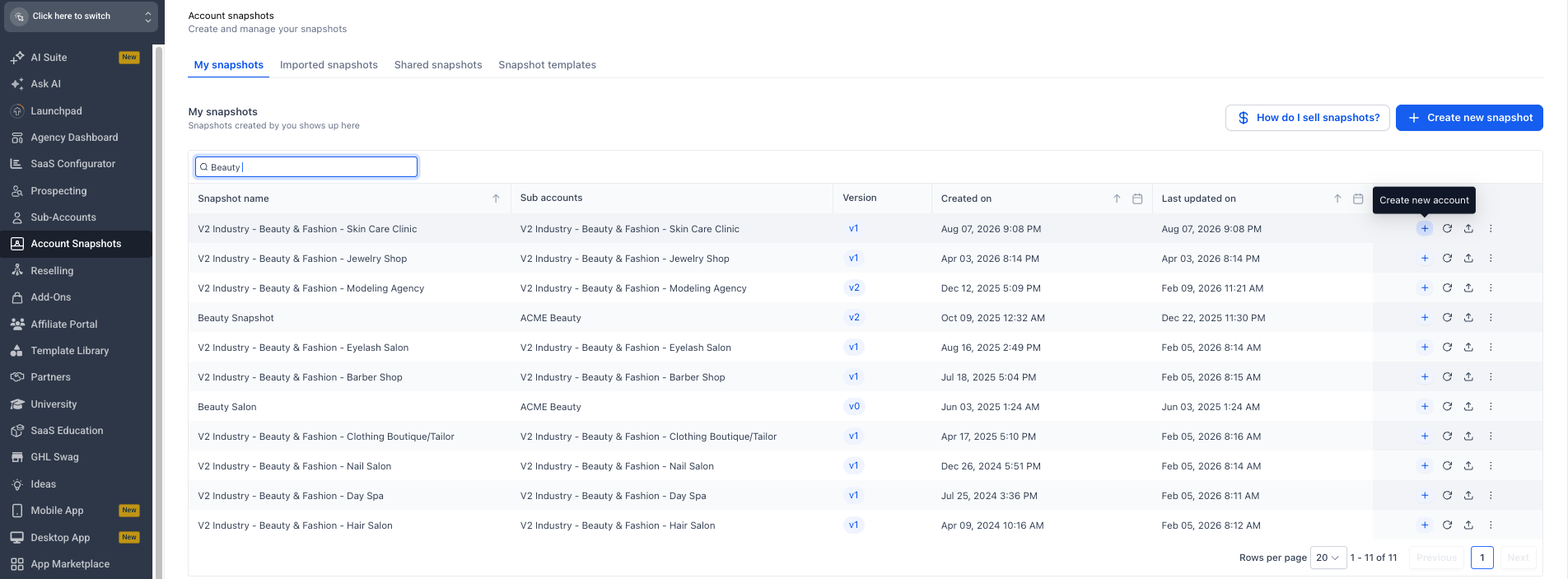
- From Agency View, open Account Snapshots.
- Open My snapshots or Imported snapshots, depending on where the snapshot is stored.
- Search for V2 Industry - Beauty & Fashion - Hair Salon.
- Click the blue + icon labeled Create new account.
- Enter and verify the salon’s business information.
- Create the subaccount.
- Wait for the snapshot assets to finish loading.
- Open the new subaccount and begin the customization checklist.
Load the snapshot into an existing subaccount
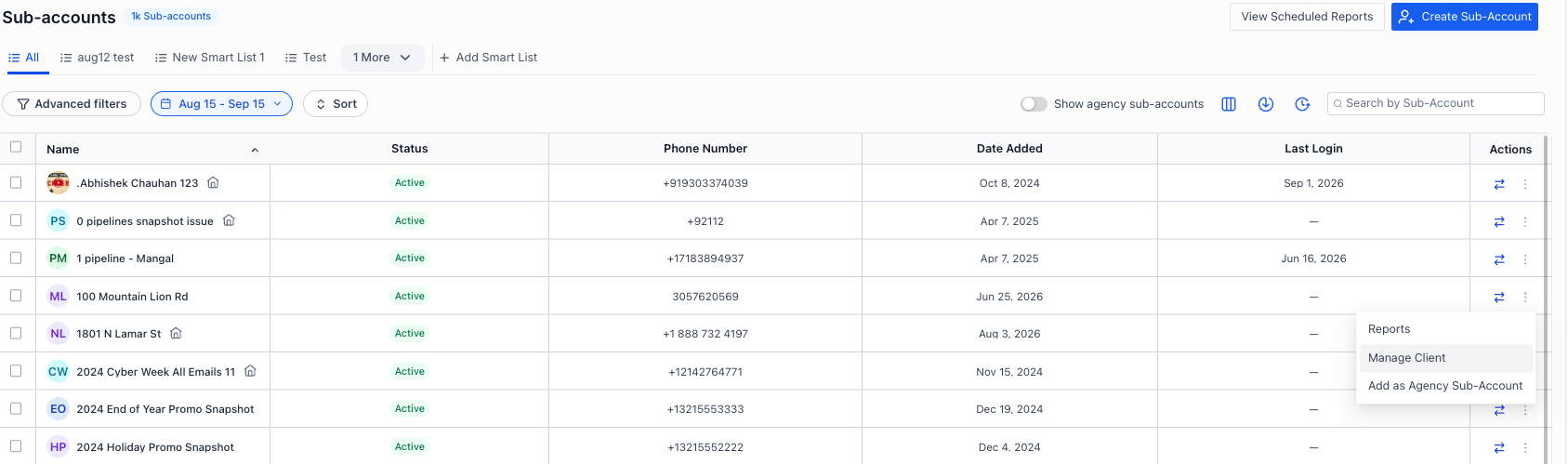
- From Agency View, open Subaccounts.
- Locate the destination subaccount.
- Open the three dot menu in the Actions column and select Manage Client.
- From the Manage Client view, click Actions > Load Snapshot.
- Select the Hair Salon Snapshot.
- Select all assets or only the categories required for the account.
- Review every detected conflict.
- Choose whether each conflicting asset should be skipped or overridden.
- Confirm the load.
- Wait for the load to finish before editing imported assets.
07What it looks like in HighLevel
08Things to know before you rely on it
- Loading the same snapshot more than once can create conflicts or duplicate assets.
- A loaded snapshot cannot be unloaded as a single package; assets must be edited, deactivated or deleted individually.
- Snapshots transfer configuration only; contacts, conversations, appointments, live reputation data and third party integrations are not included.
09If something goes wrong
- The share link does not open the import screen. Sign in to the intended agency, reopen the link, and confirm the user has snapshot permissions.
- The snapshot is greyed out or still importing. Wait for the import status to complete, review any displayed error and retry if needed.
- Load Snapshot is missing. Confirm snapshot permissions are enabled for the agency user.
- Duplicate assets appeared. Check whether the snapshot was loaded more than once or a conflict was imported instead of skipped.
- Website or funnel is not live. Imported pages are drafts. Connect a domain, review the content, and publish.
- Calendars show no availability. Confirm assigned staff, schedules, service settings and conflict calendars.
- Workflows do not run. Review publication status, triggers, filters, senders, custom values and execution history.
- Pages or messages show placeholder information. Update the Business Profile, Custom Values, page content, templates and workflow actions.
10How it connects to the rest of HighLevel
- How to create a new snapshot in HighLevel Create snapshot guide
- How to load snapshots into an existing subaccount Load snapshot guide
- All Account Snapshots features overview Snapshots overview
- Start a 30 day HighLevel trial Free trial
- The HighLevel Founder Plan Founder plan
Michael's take

Most people think the snapshot makes a salon ready to go live the moment it lands in the account. In reality the import only gives you a skeleton. You still have to swap out placeholder text, connect real phone numbers and payment providers, and verify every workflow before any real traffic sees it.
If I were setting up a new salon client, I would import the snapshot, then focus first on the Business Profile and Custom Values so every downstream page pulls the correct name, logo and booking URLs. After that I would run a full end to end test before turning on any live messaging or phone routing.