
Home/HighLevel/How to/Use the mobile app
How to · Mobile
Use the GoHighLevel mobile app. Run the business from your pocket.
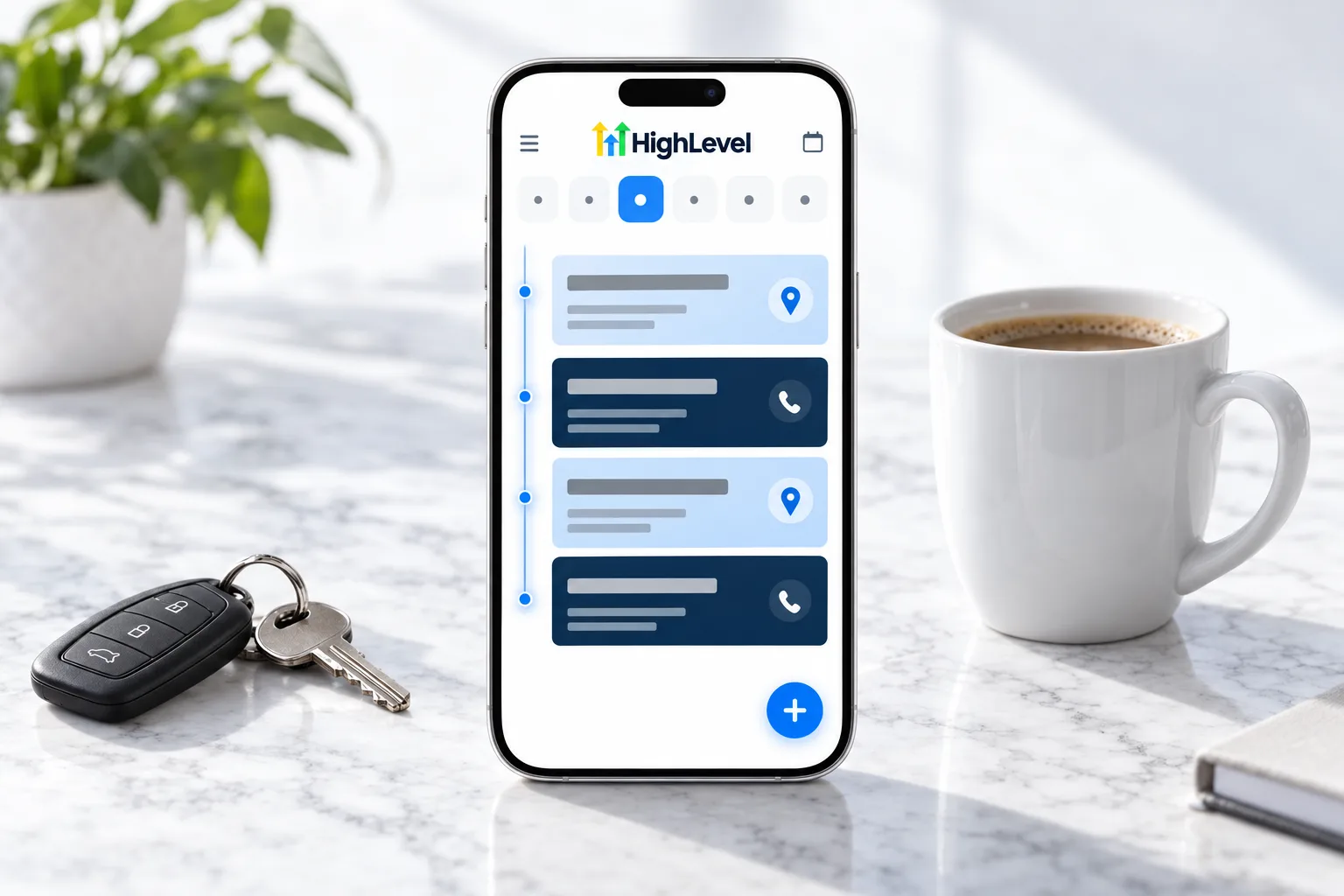
The GoHighLevel mobile app lets owners and teams reply to leads, take calls, check the calendar and update deals from a phone. For a busy owner, it is the difference between a lead answered in a minute and a lead lost.
Run the business from your pocket.
The short answer
To use the GoHighLevel mobile app, download it from the App Store or Google Play, or the branded app your agency gives you, log in with your HighLevel user, choose the subaccount and turn on notifications so new leads and calls reach you right away.
Michael is a sponsored HighLevel affiliate. Links to HighLevel use his partner link at no extra cost to you. HighLevel prices and product facts on this page come from HighLevel's own pricing page and help center, checked on the date above.
Set up
How do you use the HighLevel mobile app?
- Download the app your agency uses: HighLevel, LeadConnector or a branded app.
- Log in with your HighLevel email and password.
- Choose the subaccount.
- Allow notifications for new messages and calls.
- Open Conversations to reply to texts, chats and emails.
- Use Conversation AI suggestions to draft replies quickly.
- Check the calendar and move opportunities as deals progress.
Daily use
What owners use most.
- Replying to new leads within minutes
- Calling back missed calls
- Checking today's appointments
- Sending a quick invoice or payment link
- Seeing new reviews
Before you start
What do you need before you use the mobile app?
The app is quick to install. Some agencies run the same app under the LeadConnector name. The Lead Connector app page explains how the two names relate. A few things make it useful from the first day. Before you hand it to an owner in HighLevel (GoHighLevel), check these.
- A user login with the right permissions. See set up user permissions
- The name of the app your agency uses: HighLevel, LeadConnector or a branded app
- A phone number in the subaccount for calls and texts. See set up LC Phone
- Notifications allowed on the phone
- Conversation AI set to Suggestive if you want drafted replies
Working from a computer? Read about the HighLevel desktop app.
Test it
How do you test the mobile app?
Run through an owner's day in five minutes.
- Text the business number from another phone and confirm the notification arrives.
- Reply from Conversations in the app.
- Call the business number and answer in the app.
- Open the calendar and check today's appointments.
- Move a test opportunity to a new stage.
- Confirm the changes show on the desktop.
Common mistakes
What mistakes should you avoid when you use the mobile app?
- Notifications off. Without them the app is just another place to check. See fix mobile app notifications not working.
- The wrong subaccount selected. Users with several accounts should confirm which one they are in before replying.
- Sharing one login. Give each person their own user so replies and calls are tied to them.
- Never opening Conversations. Speed matters most on new leads. Reply from the app within minutes.
- Not showing the owner. Walk them through it once. It is the feature they use every day.

Give every business owner the app on day one. It is the feature they will actually use every day.
Questions
Common questions.
Is there a HighLevel mobile app?
Yes. HighLevel has a mobile app for iOS and Android, and some agencies give clients a branded version. Download it from the App Store or Google Play, log in with your HighLevel user and choose the subaccount. See the short answer on whether HighLevel has a mobile app.
Can I make calls from the app?
Yes. Calls and texts work from the app. You can answer a call to the business number, call back missed calls and reply to texts from Conversations. The subaccount needs a phone number for calls and texts, and notifications should be allowed on the phone so calls reach you.
Does Conversation AI work in the app?
Yes. You can use Conversation AI suggestions in the mobile app to draft replies quickly. Set Conversation AI to Suggestive if you want drafted replies, then review and send them from Conversations. It helps a busy owner answer a new lead within minutes, which is when speed matters most.
Can my agency brand the app?
Yes, with the white label mobile app, which puts your agency's brand on the app clients download. It is a paid add on, so set up the included branding first. Clients download whichever app the agency uses: HighLevel, LeadConnector or the branded app. Tell them the exact name.
Which app do I download?
The one your agency uses: HighLevel, LeadConnector or a branded app. Ask your agency if you are not sure. Then log in with your HighLevel email and password, choose the subaccount and allow notifications. Users with several accounts should confirm which one they are in before replying.
What can I do from the mobile app?
Reply to texts, emails and chats, make and take calls, review Conversation AI suggestions, check calendars and move opportunities. Owners most often use it to answer new leads, call back missed calls, check today's appointments, send a quick invoice or payment link and see new reviews.
How do I get text replies on my phone?
Install the app, log in and allow notifications. The setup behind it is in set up two way texting, and agency branding is covered in white label your agency. Give each person their own user so replies and calls are tied to them.
What should I turn on first in the mobile app?
Notifications for new messages and calls. That way a new lead or a missed call reaches you right away, and you can reply from Conversations. Without notifications the app is just another place to check. If the app is part of your decision, read whether GoHighLevel is worth it.
Can I use GoHighLevel on my phone?
Yes. Download the mobile app for iOS or Android, log in with your user and choose the subaccount. From your phone you can reply to texts, emails and chats, take calls, check the calendar and move opportunities. You can try the app during a 30 day GoHighLevel trial through Michael's link.
Next step
See it in your own account. Thirty days, every feature.
Start a trial, build the first system and test it before the first invoice. Usage fees for phone, SMS, email and AI can apply during the trial.
HighLevel has three plans at a flat monthly price, each with unlimited users and contacts. See what each one includes and what it costs.
Compare the PlansStarter, Unlimited and Founder