
01Who this is for
- Customer support managers, need immediate alerts to respond to incoming chat messages.
- Agency account owners, want centralized control of chat notifications across client subaccounts.
- Solo entrepreneurs, rely on email or SMS alerts to stay on top of conversations without constant platform login.
02Live chat notifications, explained
Live chat notifications let you know when supported chat activity happens, such as new messages, assignments, or mentions. The alerts follow the same Conversation notification preferences you use for other messaging channels, so no extra setup is required. You can turn events on or off and decide whether to receive them inside the platform, by email, or via SMS.
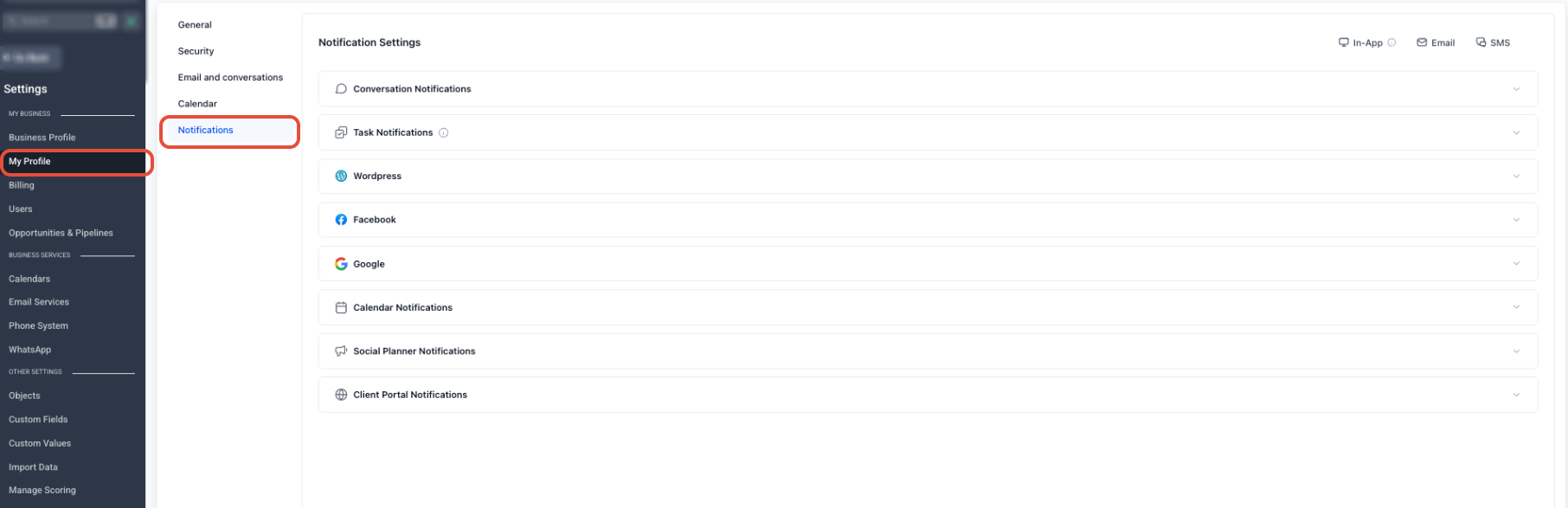
The settings live under My Profile > Notifications in any Subaccount where you have access. From there you manage all Conversation notification options, which include alerts for new conversations, assignments, internal chats, and mentions. Each option can have one or more delivery channels enabled.
Delivery channels vary by notification type. In App shows alerts while you work in HighLevel, Email sends them to your registered address, and SMS sends them to the phone number you have configured. You can mix and match channels for each event to suit your workflow.
03How businesses use live chat notifications
- Dental practice. Enable notifications for new chat messages and assignment events. Choose Email as the delivery channel so the receptionist receives alerts in the inbox and can forward patient queries promptly.
- Real estate agency. Turn on mention and assignment alerts. Select In App notifications to see them right away while using the platform, keeping agents aware of new lead conversations.
- Online coaching business. Activate alerts for all new messages on assigned conversations. Enable SMS delivery so the coach receives a text when a client sends a chat, allowing quick replies while away from a computer.
04Before you start
- Access to a Subaccount where you can edit profile settings.
- Permission to modify My Profile notification preferences.
05How to set up and use live chat notifications in HighLevel
Enable live chat notifications
- Open the Settings menu in the chosen Subaccount.
- Select My Profile and then click Notifications in the left sidebar.
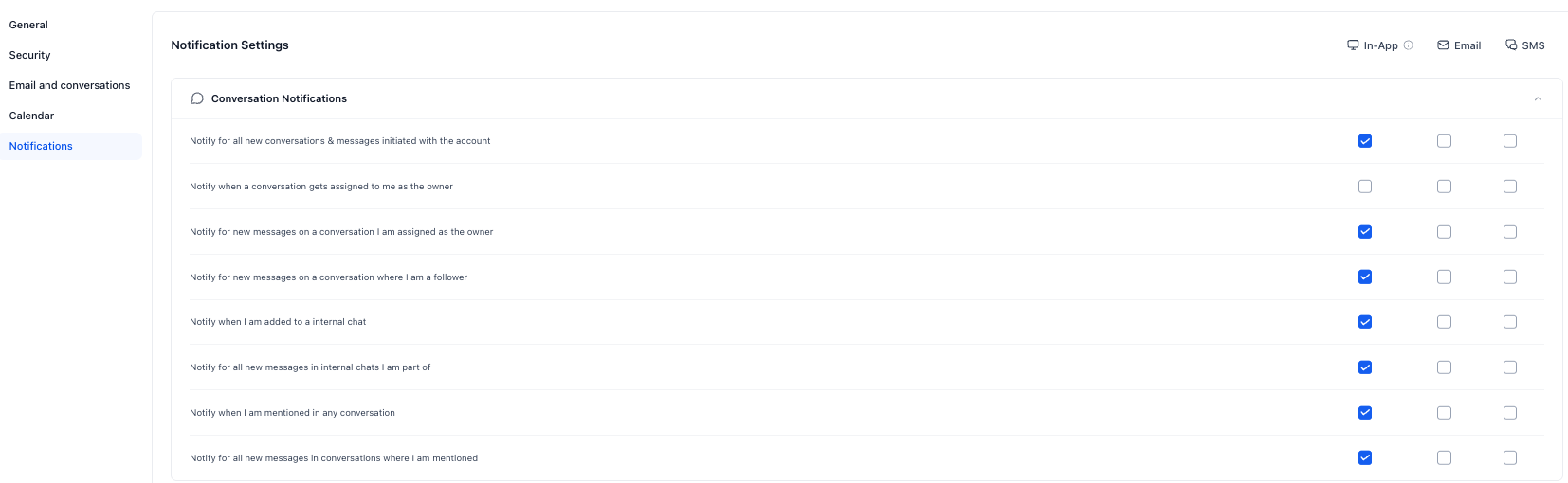
- Review the Conversation notification options and toggle on the events you want to be notified about.
- For each enabled event, choose the delivery channels (In App, Email, SMS) you prefer.
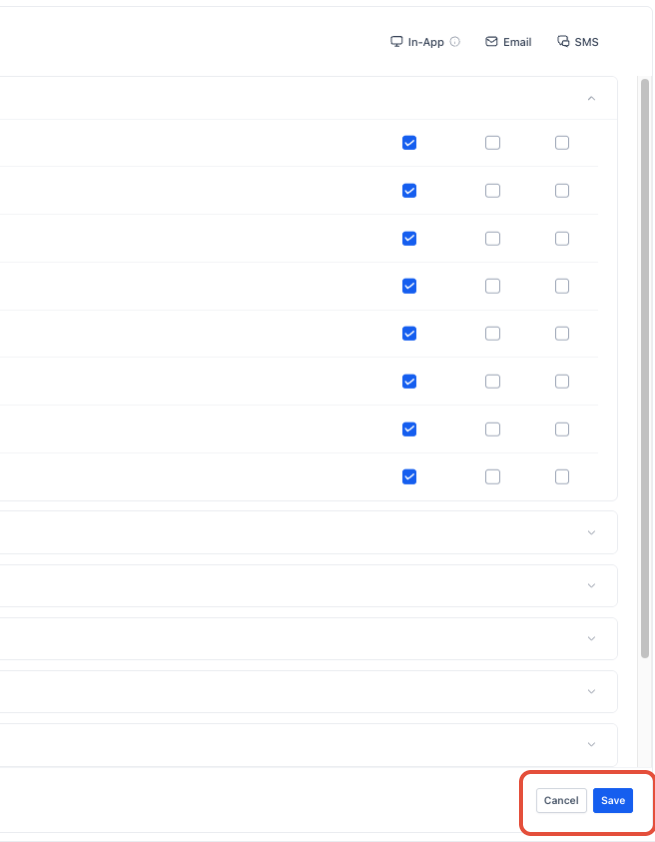
- Click the Save button to apply the changes.
06What it looks like in HighLevel
07Settings that matter
- Notify for all new conversations & messages initiated with the account. Sends an alert whenever any new conversation or message starts with the account.
- Notify when a conversation gets assigned to me. Alerts you when a conversation is assigned to your user profile.
- Notify for new messages on a conversation I am assigned to. Provides alerts for new messages in conversations that are assigned to you.
- Notify when I am added to an internal chat. Shows an In App notification when you are added to a supported internal chat.
- Notify for all new messages in internal chats I am part of. Delivers In App alerts for new messages in internal chats you have joined.
- Notify when I am mentioned in any conversation. Alerts you when another user mentions you in a conversation.
- Notify for all new messages in conversations where I am mentioned. Continues sending alerts for subsequent messages after you have been mentioned.
- In, App. Displays supported alerts while you are working inside the platform.
- Email. Sends supported notifications to your registered email address.
- SMS. Sends supported notification alerts to the phone number you have configured.
08Things to know before you rely on it
- Live chat notifications do not have a separate configuration; they follow the Conversation notification settings.
- Available notification channels depend on the specific notification type; not every channel is offered for every event.
09How it connects to the rest of HighLevel
- Manage all notification settings in a subaccount Subaccount notification settings
- View the full list of notification features All Notifications
- Start a free 30 day trial of HighLevel 30 day trial
- See HighLevel pricing and plans Pricing
Michael's take

Live chat notifications are a straightforward way to stay on top of incoming messages.
Teams that rely on other communication tools and don’t need real time chat alerts should skip this feature.