
01Who this is for
- Marketing agencies benefit because the whole team can view and import Canva assets without leaving the platform.
- Ecommerce stores gain a faster way to bring product graphics from Canva into email and funnel templates.
- Coaches and online educators can centralize course visuals by importing finished Canva slides into My Media.
02Canva integrations, explained
The integration adds a Canva tab inside Media Storage that is tied to one specific location. All users in that location can see the Canva library, download exports, and import copies into My Media, where the assets become independent of the original Canva file.
Only the user who initially linked Canva receives full edit rights in the Canva editor. Other users can open the editor for supported file types (PNG, JPG, JPEG) but will see a view only notice if they lack permission. Imported designs are stored in My Media and do not update automatically when the original Canva file changes.
03How businesses use Canva integration
- Digital marketing agency. The agency connects its Canva account at the subaccount level, allowing campaign managers to pull ready made graphics into funnels. Designers can edit supported files directly from Media Storage, then import the final version for reuse across client projects.
- Real estate brokerage. Agents browse property flyer templates in the Canva view, download a PDF export for a multi page brochure, and import the file into My Media. The imported brochure can then be attached to listing emails without leaving HighLevel.
- Online course creator. The creator opens a slide deck in Canva via the three dot menu, makes last minute edits, and saves. After export, the PDF is imported into Media Storage, making the updated lesson material right away available for course emails and membership pages.
04The numbers and rules that matter
- Canva is connected per location (subaccount).
- 1 page designs export as PNG, multipage designs export as PDF.
- Supported edit file types: PNG, JPG, JPEG.
05How to set up and use Canva integration in HighLevel
Set up Canva integration
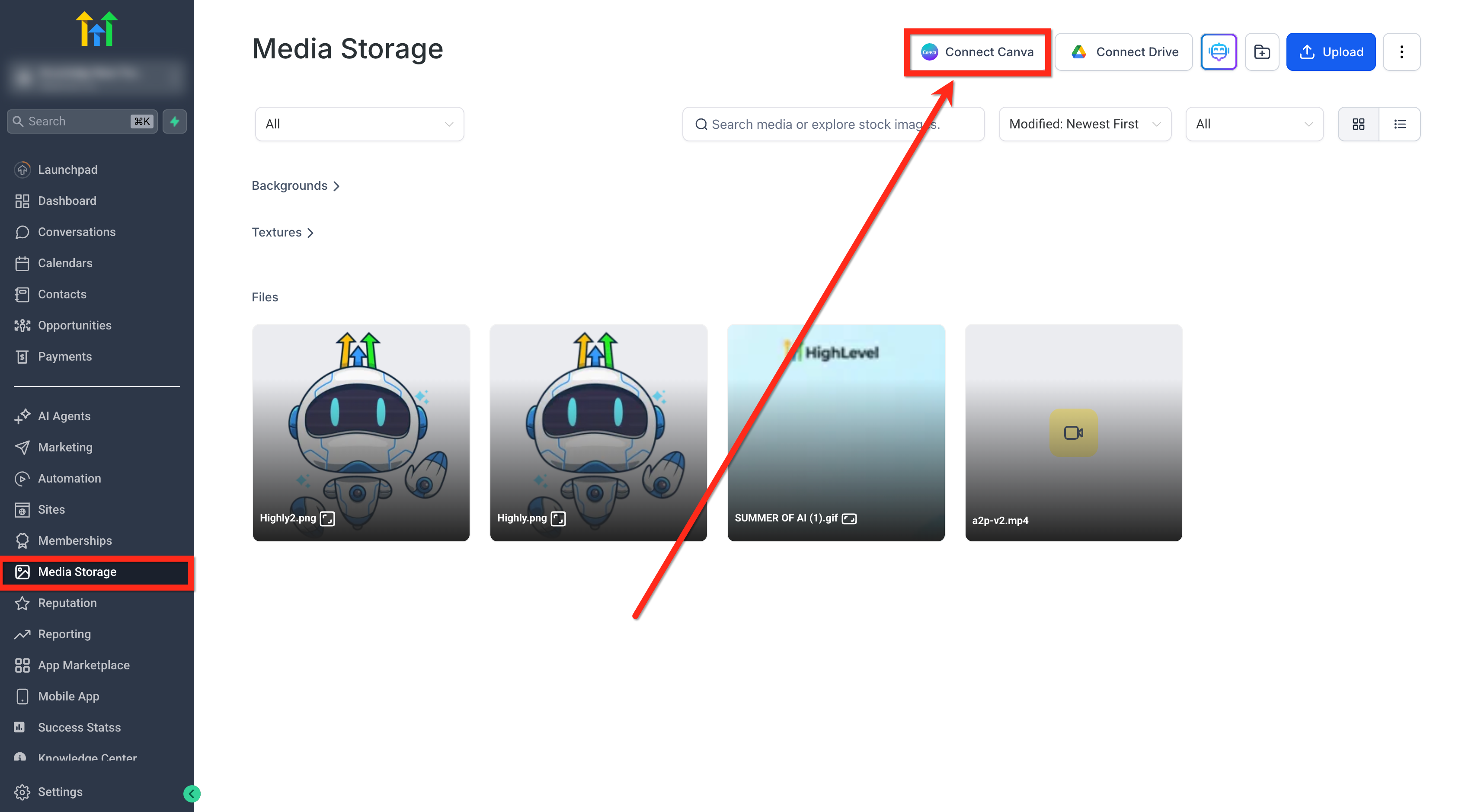
- Open Media Storage in the platform.
- Click the Connect Canva button.
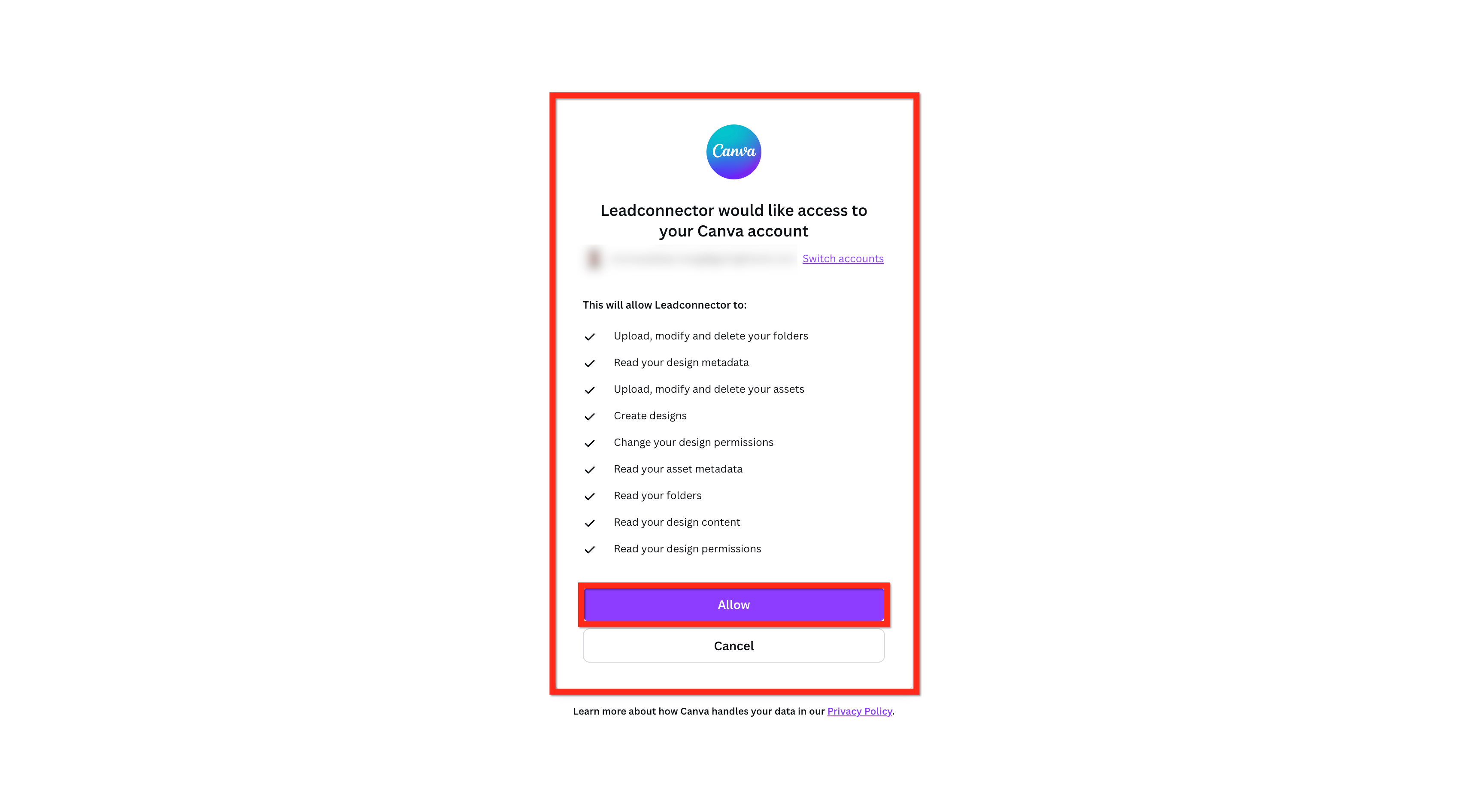
- Complete the Canva OAuth login that opens in a new browser tab.
- Click Allow to grant HighLevel access to the Canva account.
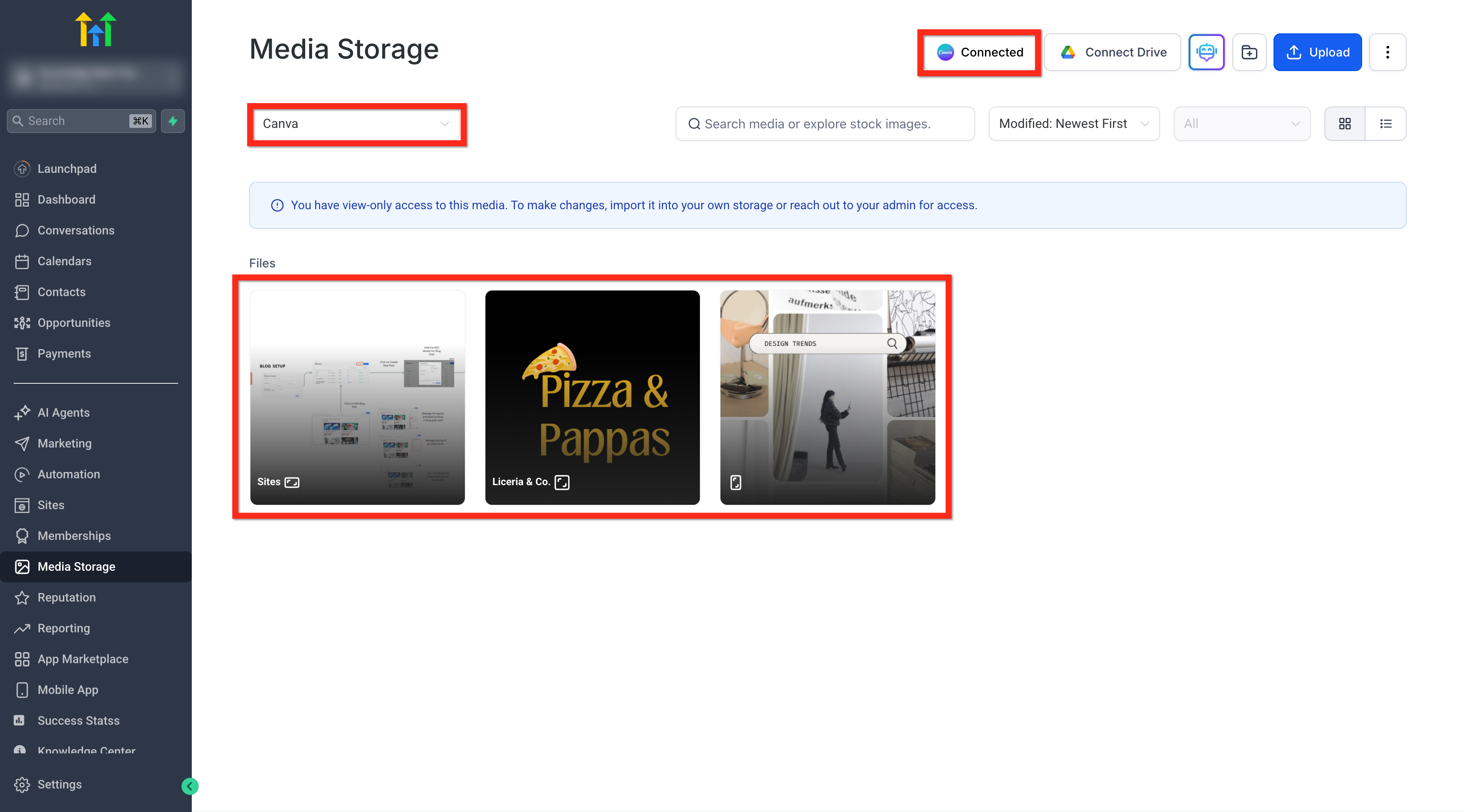
- Return to Media Storage and verify that the Canva button now shows Connected.
- Select Canva from the My Media dropdown to start browsing designs.
Edit a design in Canva
- Navigate to Media Storage and open the Canva view.
- Find the design you want to modify.
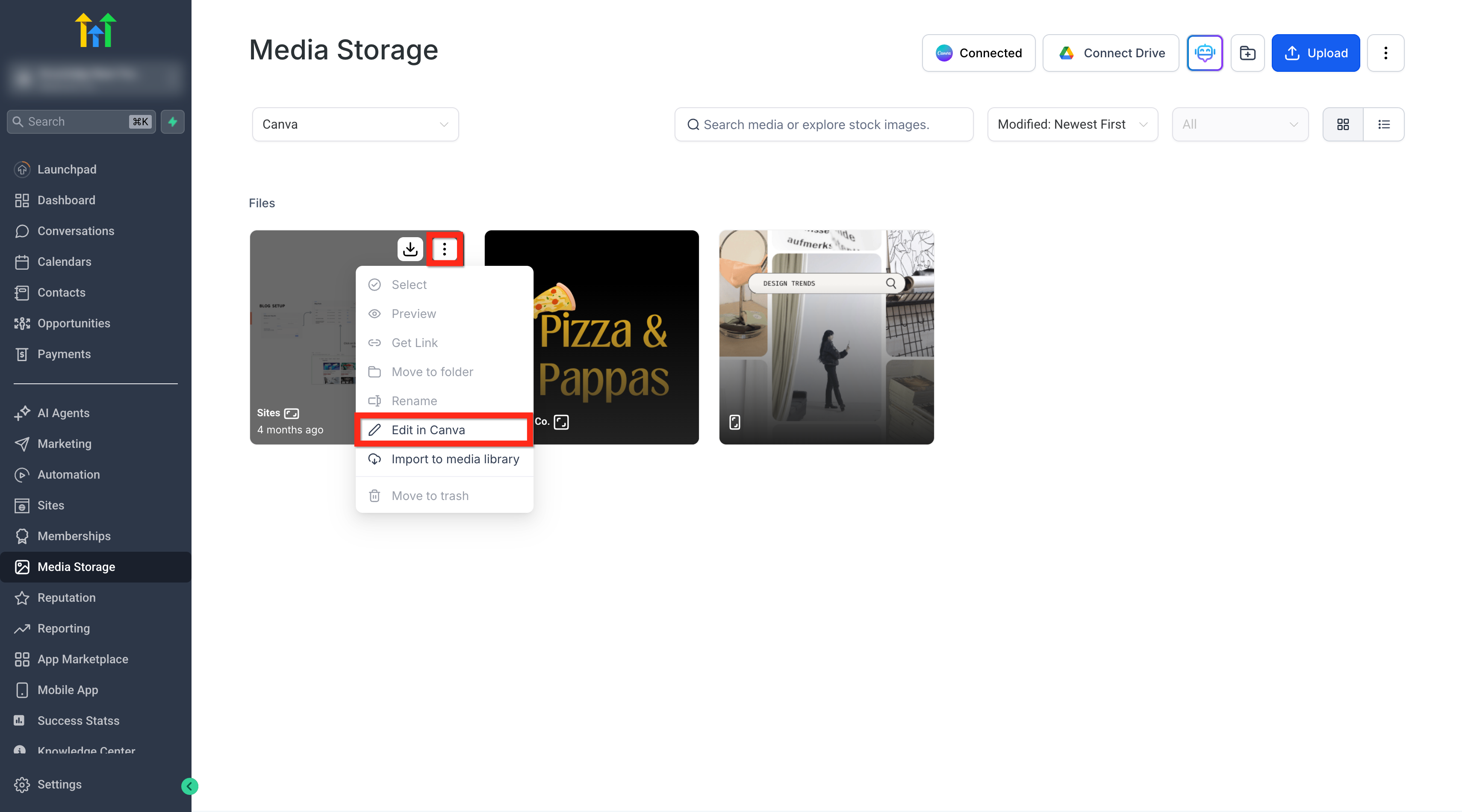
- Click the three dot menu at the top right of the design.
- Select the Edit in Canva button.
- If you are not the installer, the editor will open in view only mode and display a message to import the design for editing.
- Make changes in the Canva editor tab and save them.
Download a Canva design
- Open Media Storage and go to the Canva view.
- Locate the desired design.
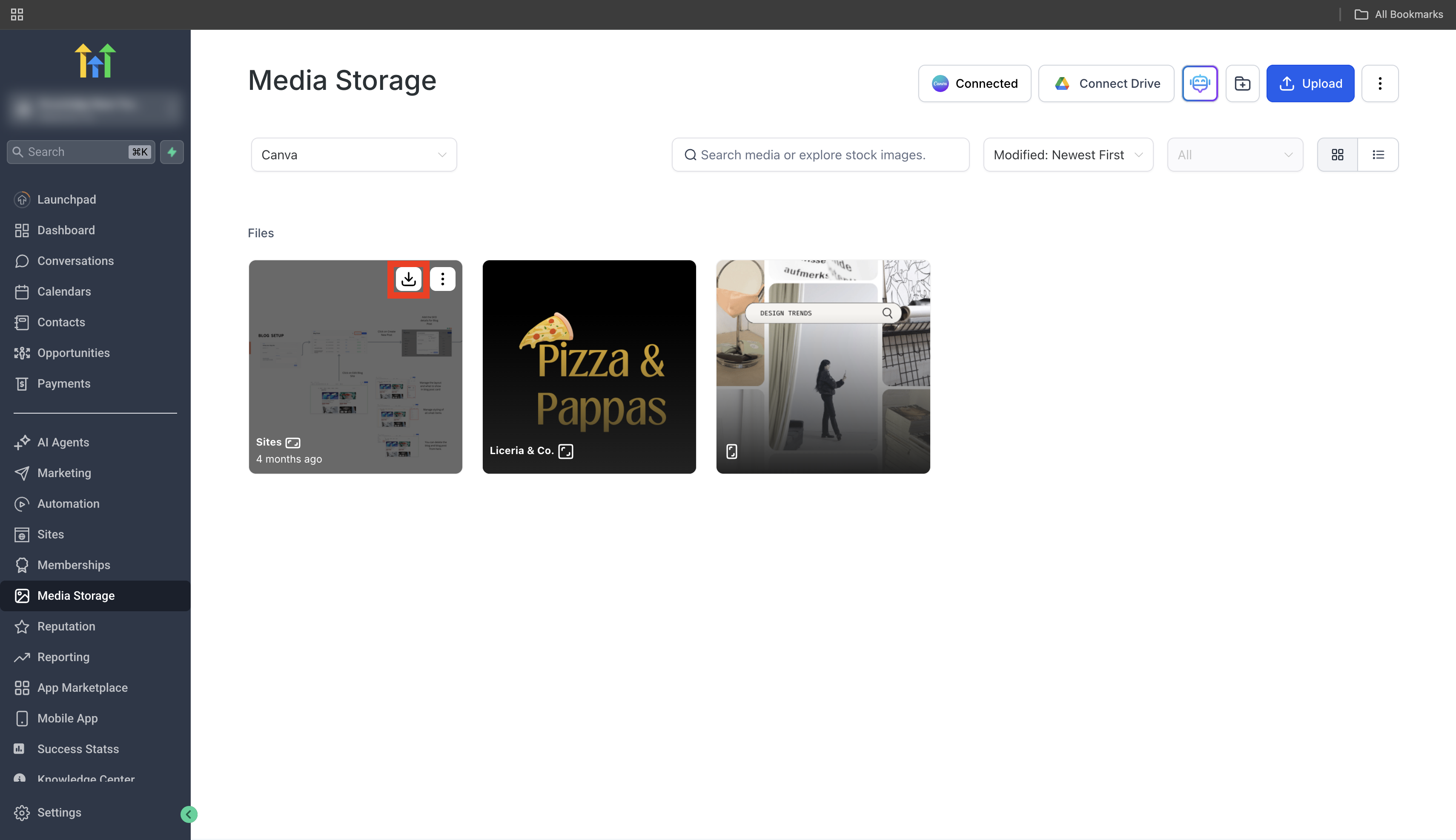
- Click the three dot menu on the design’s top right corner.
- Select the Download button.
- One page designs download as PNG; multi page designs download as PDF.
Import Canva designs to Media Library
- Open Media Storage and go to the Canva view.
- Locate the desired Canva design.
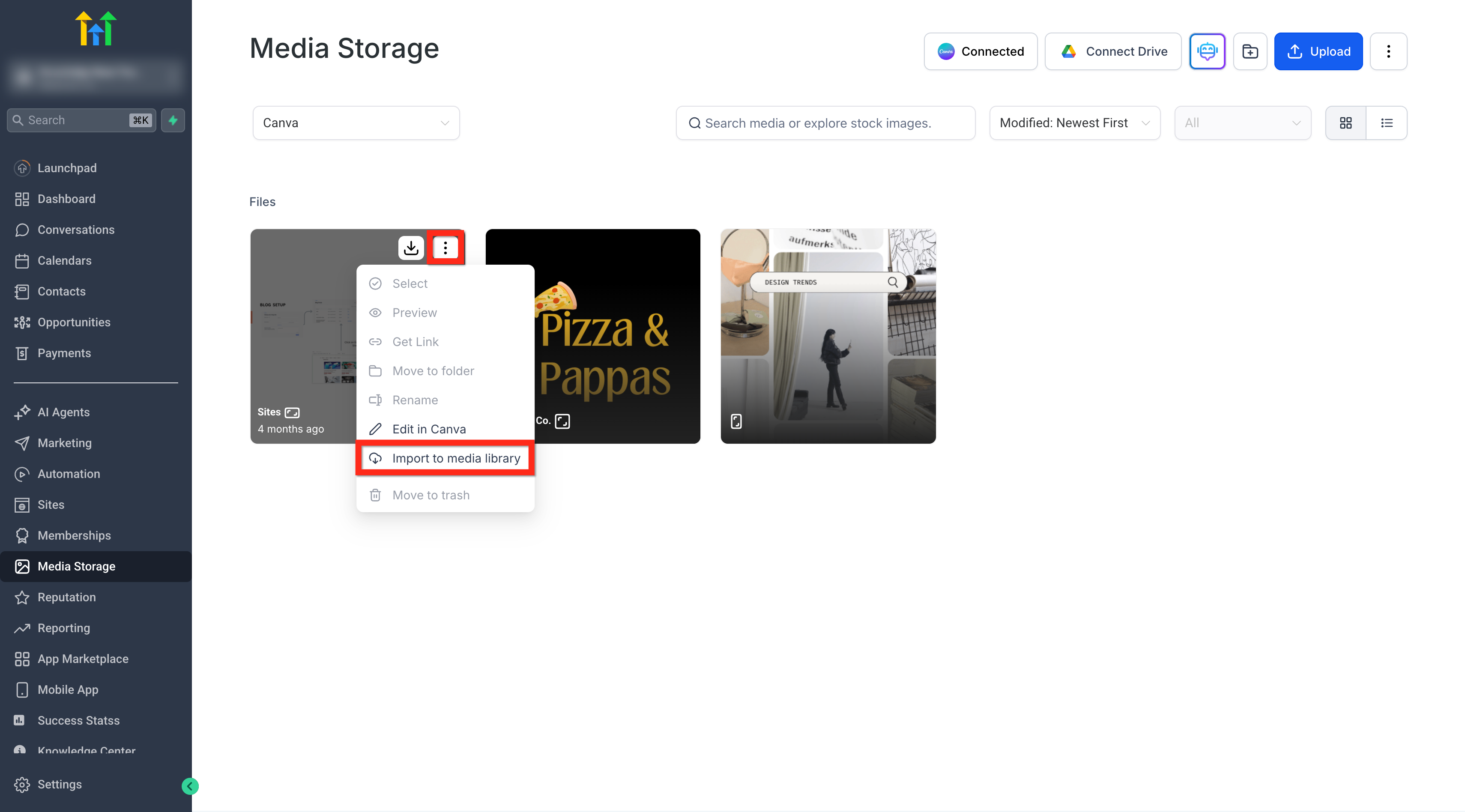
- Click the three dot menu on the design’s top right corner.
- Choose Import to Media Library to create an independent copy in My Media.
Disconnect Canva from Media Storage
- Open the App Marketplace.
- Select Installed Apps.
- Find Canva in the list of installed applications.
- Click Uninstall to remove the OAuth connection.
06What it looks like in HighLevel
07Things to know before you rely on it
- Only one Canva account can be linked to a given location.
- Private Canva files cannot be edited from the integration.
- Users who did not set up the connection receive a view only message when attempting to edit.
- Proxy (Login As) users cannot access Canva assets.
- Imported files are detached from the original Canva design and will not reflect later changes.
08How it connects to the rest of HighLevel
- Complete guide to using Media Storage, including upload and edit options Media storage guide
- Explore all Media Storage capabilities such as file filters and picker integration All Media Storage features
- Review HighLevel pricing and plans to ensure your subscription supports integrations HighLevel pricing
Michael's take

People often think the Canva link lets every team member edit the original design, but only the person who set up the connection can edit directly. I would first import the design into My Media, then make any changes on my copy so the whole team can use the final version without permission roadblocks.
Once the asset lives in My Media it’s safe to reuse across campaigns, landing pages and emails. I’d run a quick test by importing a multipage design, confirming it appears as a PDF, and then sharing the file with a teammate to ensure the view only limits work as described.