
01Who this is for
- Marketing teams can keep brand assets in one place, making it easy to add logos to every campaign.
- Survey creators benefit from quick image selection, reducing the time spent searching for pictures.
- Product managers can reuse demo graphics across quizzes and QR codes, ensuring visual consistency.
02Media picker & media storage integration, explained
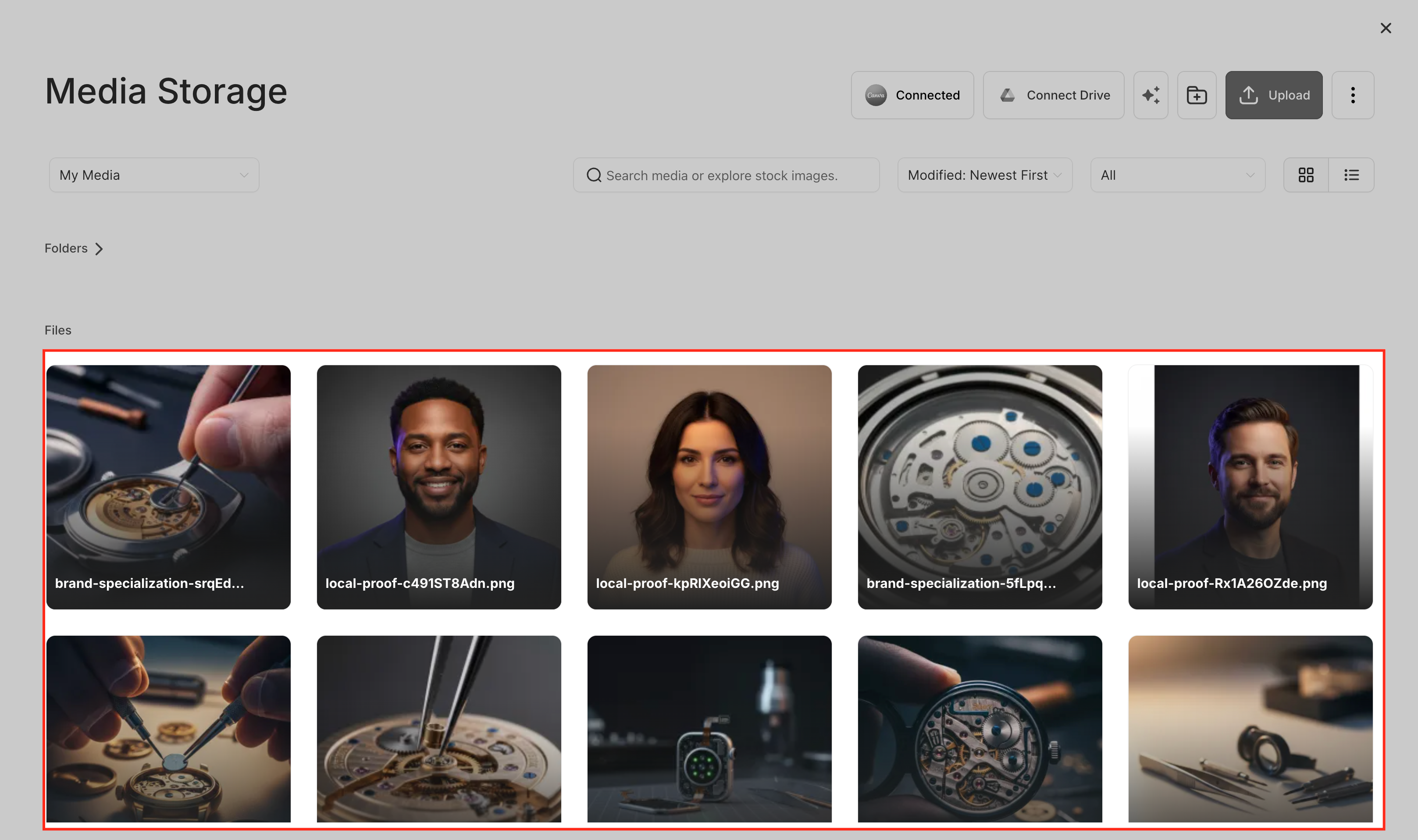
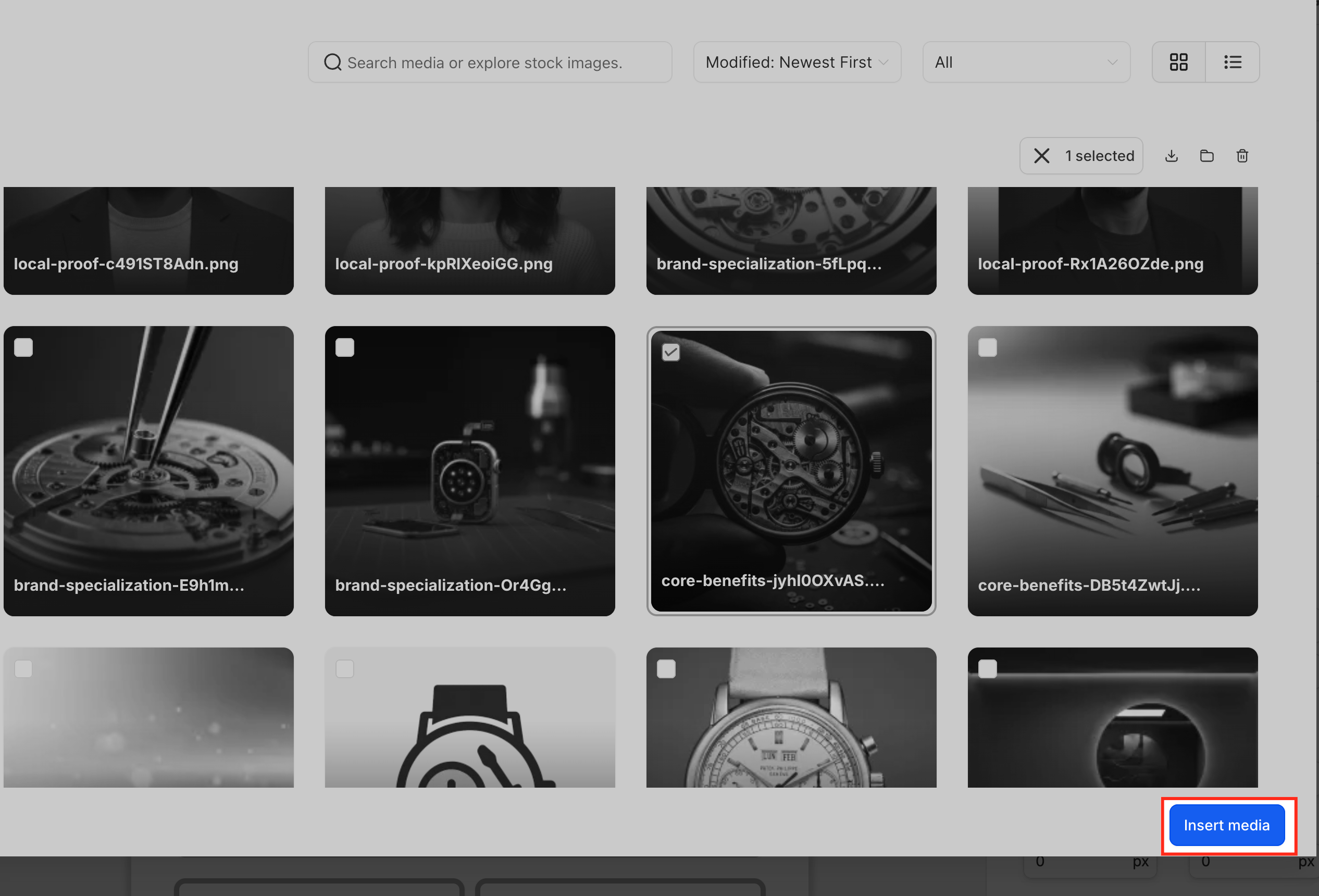
Media Picker is a pop up window that appears when you click image related icons inside a builder. It pulls the full Media Storage library, including folders, search filters and external sources, into a single view.
From the picker you can browse existing files, search by name, drag new images into the window, preview each asset and launch the built in editor. After you choose an image, the picker inserts it into the form, survey, quiz or QR code you are editing.
All images selected through the picker are stored in Media Storage for the subaccount. Any changes you make to a file, renaming, moving or editing, are reflected everywhere the image is used.
03How businesses use media picker & media storage integration
- Digital marketing agency. The agency creates landing pages and QR codes for many clients. Using the Media Picker, they pull a client’s logo from a shared folder, insert it into each QR code, and rename the file later to keep the brand updated across all assets.
- Education provider. When building course enrollment forms, the provider clicks the image icon in the rich text editor, opens the Media Picker, selects a course banner, and places it directly inside the form’s description.
- Fitness studio. The studio constructs a membership quiz. They open the Quiz Result Builder, choose the image slot for each outcome, and reuse the same badge image from Media Storage for multiple results, keeping the visual theme consistent.
04The numbers and rules that matter
- Limits are based on Media Storage and the specific builder being used.
05How to set up and use media picker & media storage integration in HighLevel
Add and reuse images across builders
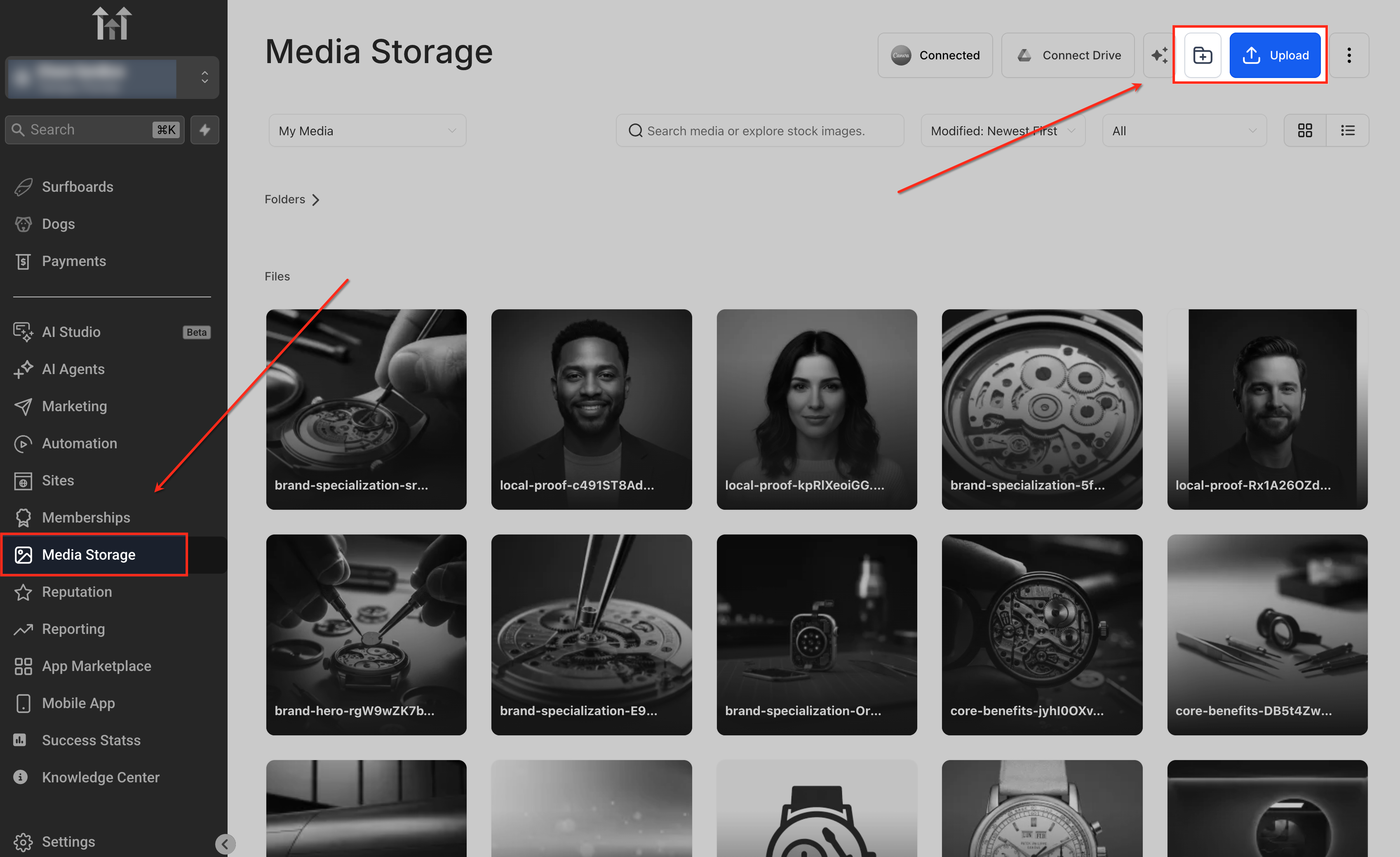
- Organize Media Storage by creating folders such as Logos, Forms, Quizzes, and QR Codes, then upload the images you plan to use.
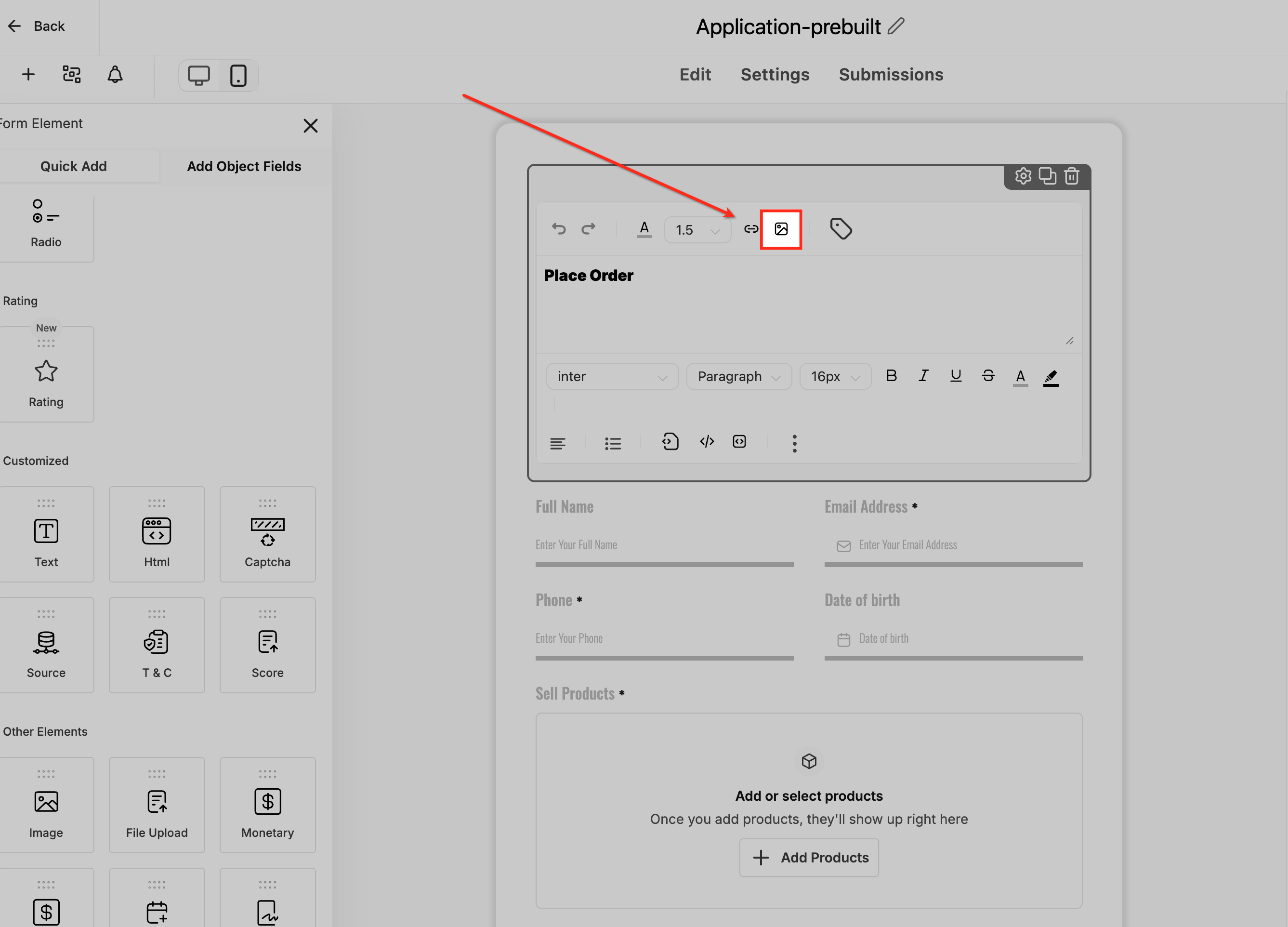
- Open the builder you need, Form Builder, Survey Builder, Quiz Builder, or QR Code configuration, and start creating or editing the asset.
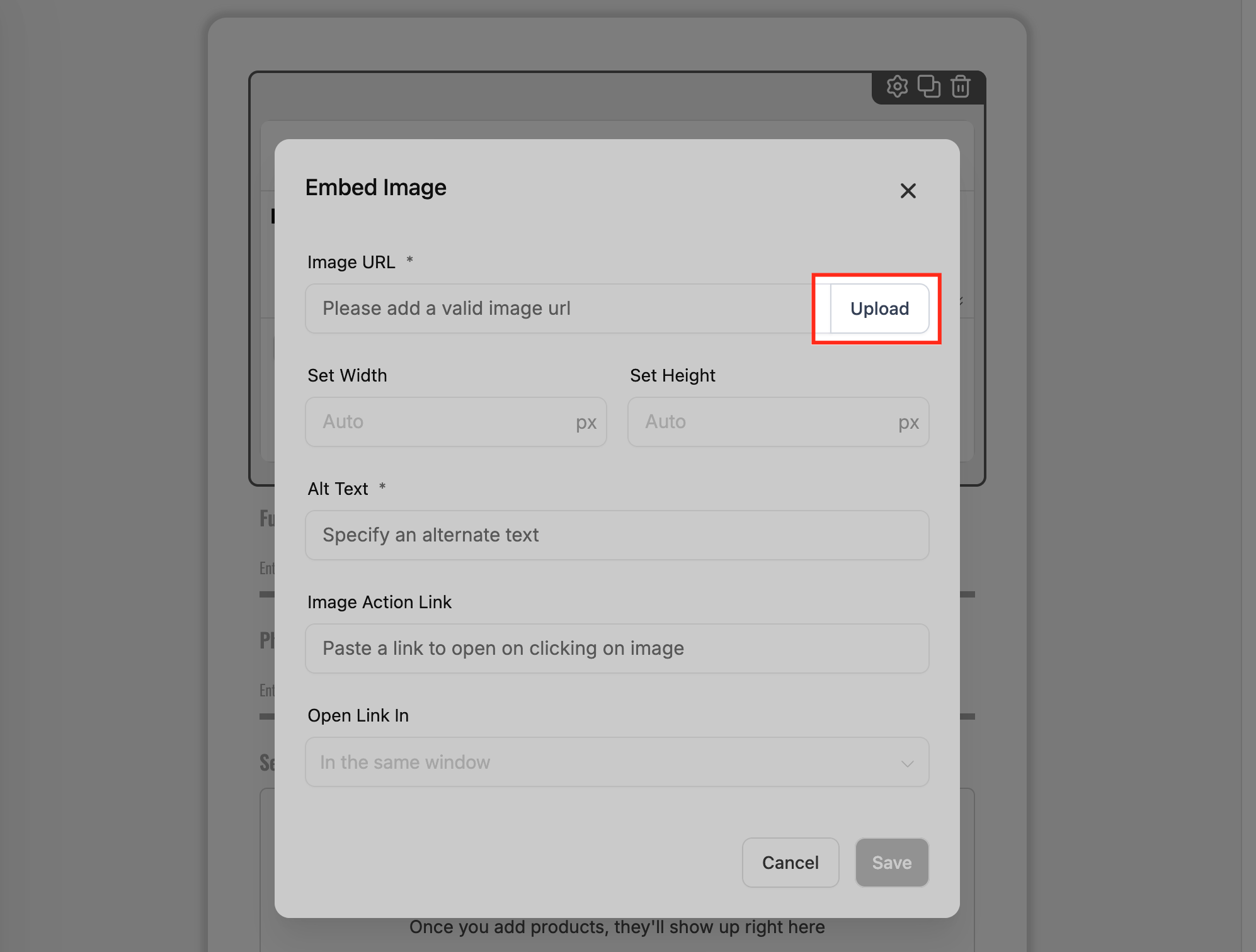
- Click the image icon or the Change Image button within the builder to launch the Global Media Picker.
- In the picker, browse or search for the desired image, upload a new file if necessary, and then click Insert Media to place it in the builder.
- Return to Media Storage to rename, move, or edit the image; the updated version will appear everywhere the image has been used.
06What it looks like in HighLevel
07Settings that matter
- Change Image. Opens the Global Media Picker so you can select a new picture or upload one.
- Insert Media. Adds the selected image from Media Storage into the current builder element.
08Things to know before you rely on it
- File size and type limits follow the restrictions set by Media Storage and the individual builder you are using.
- Supported external sources can be accessed through the Media Picker, but only those integrations that HighLevel currently supports will appear.
09How it connects to the rest of HighLevel
- Complete guide to Media Storage Media Storage guide
- How to edit images inside HighLevel’s Media Library Edit images
- Using file type filters in the Media Center File type filter
Michael's take

How do I keep my branding consistent without juggling dozens of uploads? The Media Picker gives you a single place to store logos, backgrounds and graphics, then pull them into any form, survey, quiz or QR code. No more hunting through different upload dialogs or reuploading the same file.
If I were setting up a new campaign, I’d first organize a folder structure in Media Storage, Logos, Emails, Landing Pages. Then let the team pull assets directly from that library. It’s a quick win for brand consistency and saves time on every new builder you spin up.