
01Who this is for
- Agency Owners, can quickly report language issues they encounter while managing multiple client accounts.
- Agency Admins, have the same ability to flag translations without needing separate tickets.
02Translation feedback, explained
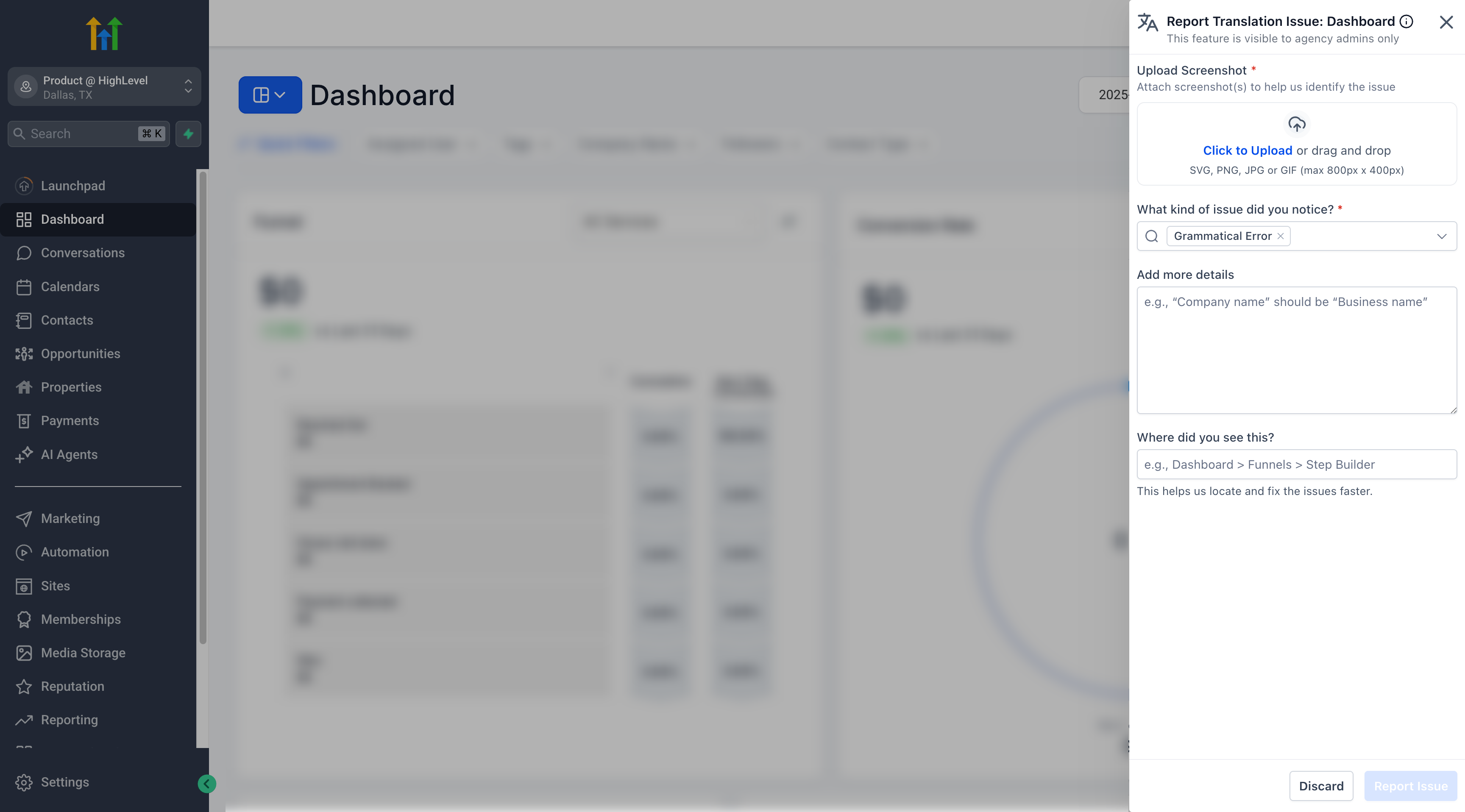
The feature adds a small icon to the top bar of most HighLevel pages when the platform language is set to a non English language. Clicking the icon opens a panel where users choose the type of translation problem, attach a screenshot and add notes. After submitting, the report is routed to HighLevel’s localization team for investigation.
The feedback tool is limited to agency level administrators; subaccount users and anyone viewing the platform in English will not see the icon. It works both in agency view and when an admin is inside a subaccount, as long as the language condition is met. The submitted information stays within HighLevel and is not sent to external systems.
03How businesses use translation feedback
- Marketing agency. An agency admin notices a mislabeled button in the French version of the dashboard. From that page they click the translation icon, select “incorrect translation”, attach a screenshot, add a brief note, and submit the report.
- SaaS startup. A Founder who also holds Agency Owner rights works in the German client portal, sees missing text, opens the feedback panel, chooses “missing translation”, uploads a screenshot and provides the expected wording before submitting.
- International ecommerce store. The store’s admin uses the Spanish language setting, finds an unclear label, clicks the top bar icon, marks the issue as “unclear translation”, attaches an image of the label, writes a clarification and sends the feedback.
04The numbers and rules that matter
- Issue types include incorrect translation, unclear translation, missing translation, untranslated text.
05Before you start
- Be logged in to HighLevel as an Agency Owner or Agency Admin.
- Set the platform language to a supported non English language.
06How to set up and use translation feedback in HighLevel
Submit translation feedback
- Log in to HighLevel as an Agency Owner or Agency Admin.
- Navigate to the page where the translation issue appears.
- Click the report translation icon in the top bar.
- In the panel that opens, select the issue type that matches the problem.
- Upload a screenshot that shows the translation issue.
- Enter any additional details describing what is incorrect or unclear.
- Click Submit to send the report.
07What it looks like in HighLevel
08Settings that matter
- Platform language. Controls which language the HighLevel interface displays; the translation feedback icon appears only when this setting is not set to English.
09Things to know before you rely on it
- The icon is visible only to Agency Owners and Agency Admins.
- It does not appear when the platform language is set to English.
- Subaccount users cannot see or use the translation feedback tool, even when an admin is inside a subaccount.
10If something goes wrong
- Translation feedback icon does not appear. Confirm you are logged in as an Agency Owner or Agency Admin, ensure the platform language is set to a non English language, and verify the current page supports the tool.
11How it connects to the rest of HighLevel
- Configure the platform language in HighLevel Platform language settings
- Learn how to submit translation feedback Submit feedback guide
- Explore all Internationalization features Internationalization overview
Michael's take

Translation feedback is a handy shortcut for agencies to improve localized UI.
If your agency never works in languages other than English, you can skip it.