
01Who this is for
- Agency Owners can keep the platform language accurate for their teams by reporting issues as they appear.
- Agency Admins can quickly capture translation problems without opening external support tickets.
02Report Translation Feedback, explained
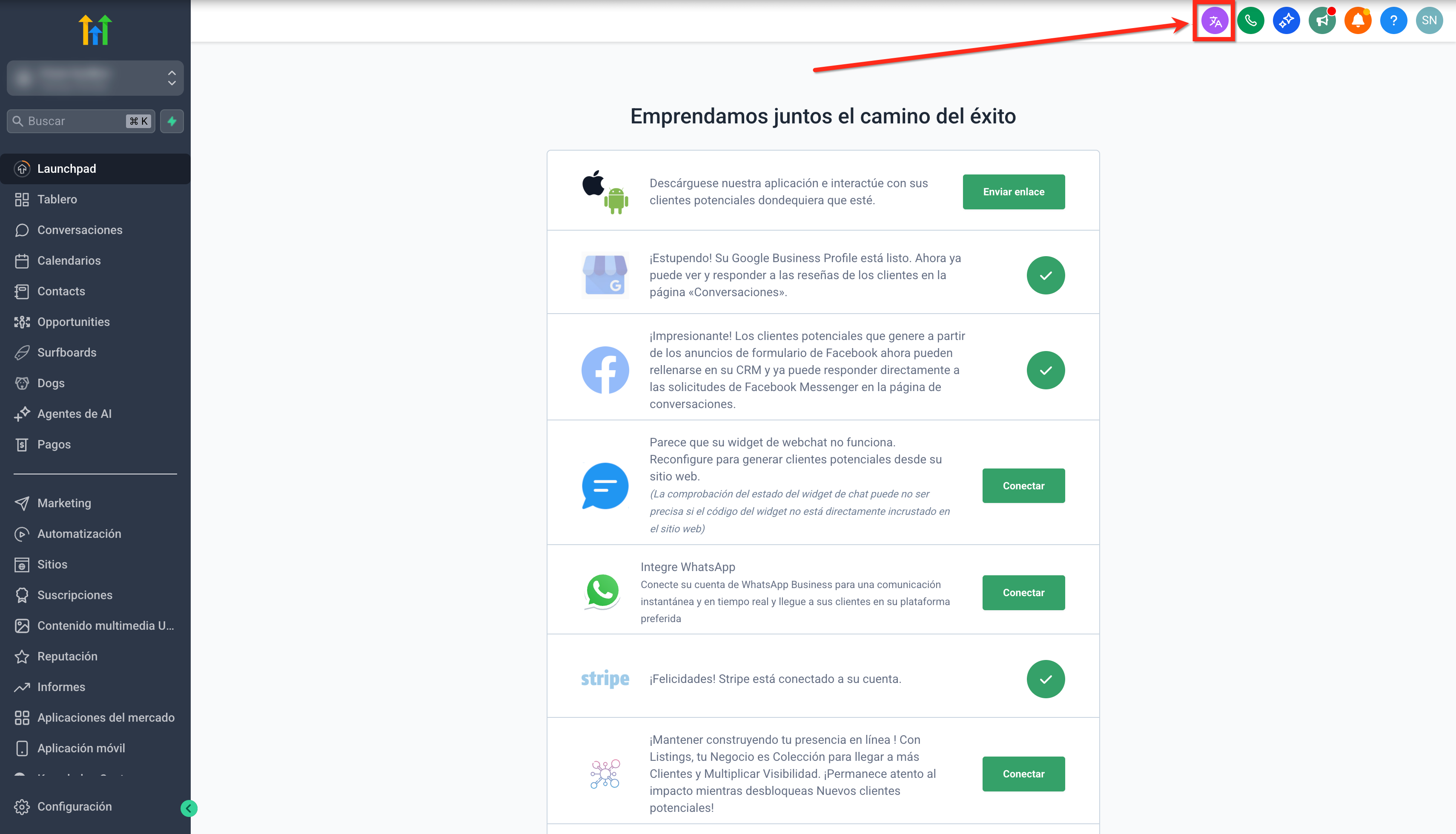
The feature adds a report icon to the top navigation bar for eligible users. When clicked, a panel opens in the currently selected platform language, allowing the user to describe the problem and upload a screenshot. The submission is routed to the product team for review, and the reporter receives a notification when the translation is fixed.
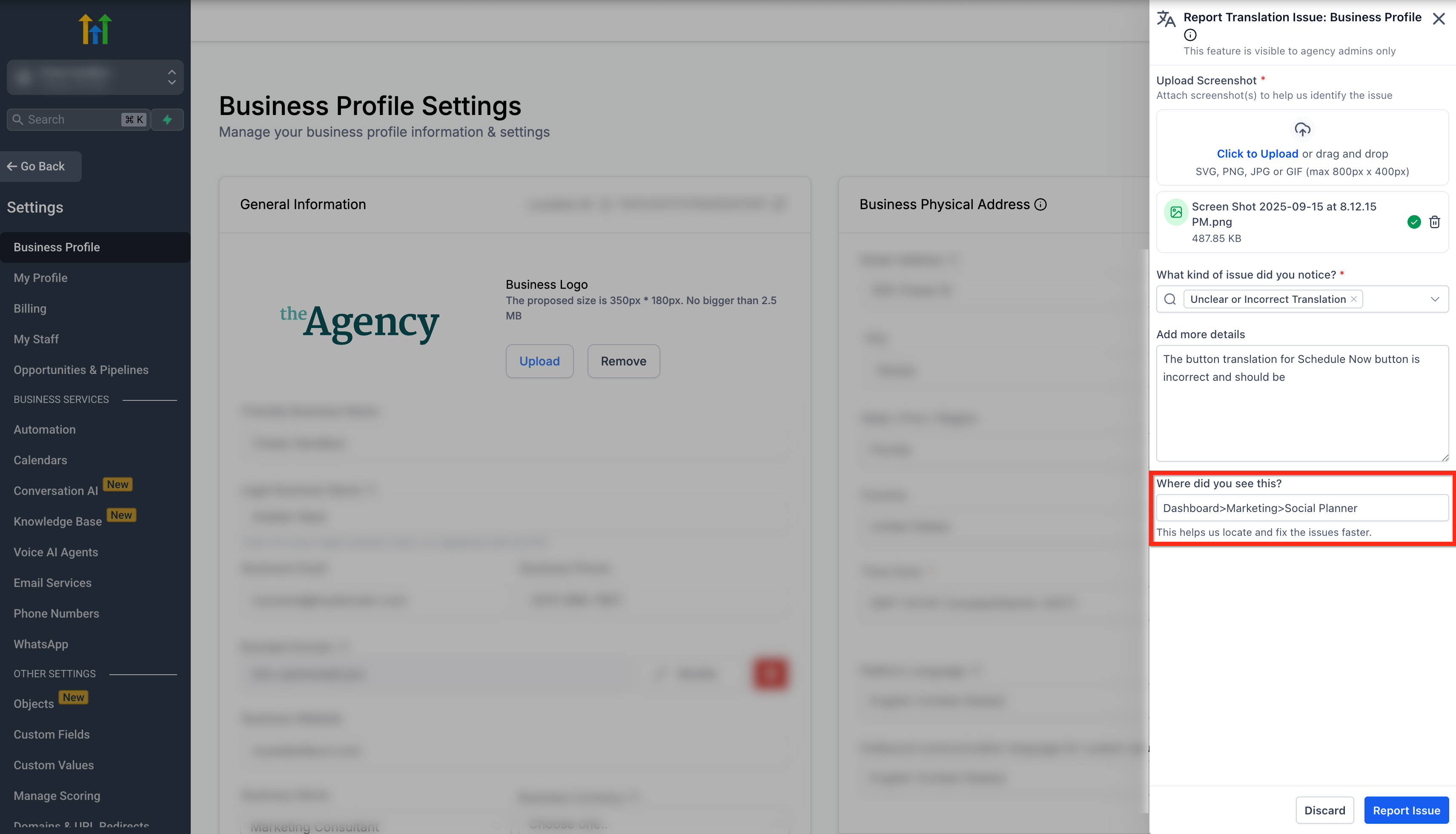
The icon is only visible when the platform language is set to something other than English and the logged in user holds an Agency Owner or Agency Admin role. A screenshot is required for every report, and the user must specify the issue type and where the problem was seen.
03How businesses use translation feedback feature
- Digital marketing agency. An agency admin notices a mistranslated button label while configuring a campaign. They click the report icon, attach a screenshot of the button, select ‘incorrect translation’, and submit the issue directly from the campaign page.
- Ecommerce consultancy. The agency owner sees a grammar error in the checkout flow language. They open the checkout page, use the report icon, upload a screenshot showing the error, choose ‘grammar’, and send the report without leaving the checkout screen.
- SaaS onboarding team. During a client portal walkthrough, an admin spots a formatting problem in a help article. They click the top bar icon, attach a screenshot of the misformatted text, select ‘incorrect formatting’, and file the report on the spot.
04Before you start
- Be logged in as an Agency Owner or Agency Admin.
- Ensure the platform language is set to a language other than English.
05How to set up and use translation feedback feature in HighLevel
Submit translation feedback
- Verify you are logged in as an Agency Owner or Admin and that the platform language is not English.
- Navigate to the page where the translation problem appears.
- Click the Report Translation Issue icon in the top navigation bar.
- Wait for the feedback panel to appear in the selected language.
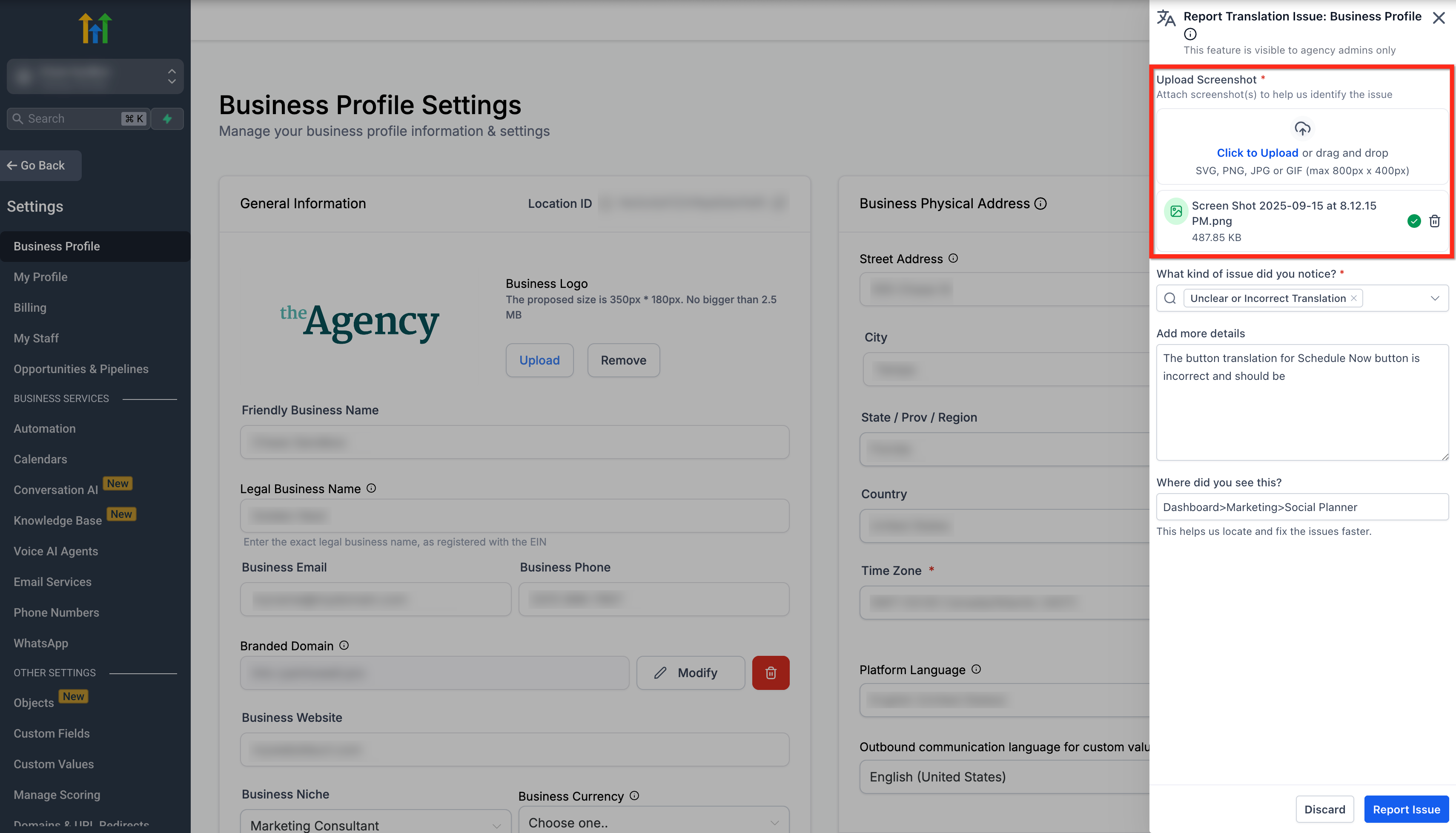
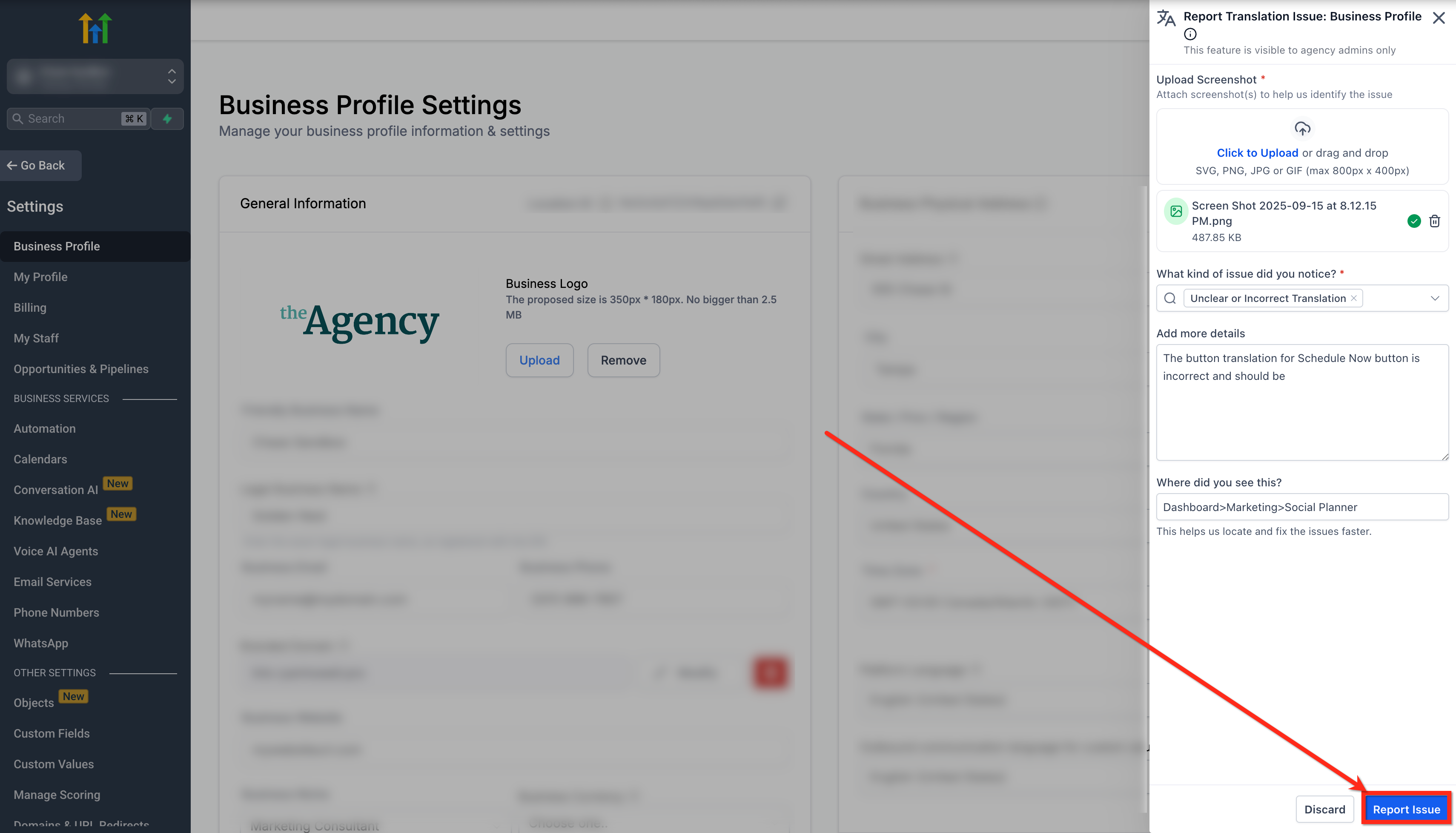
- Upload a screenshot that clearly shows the problematic text.
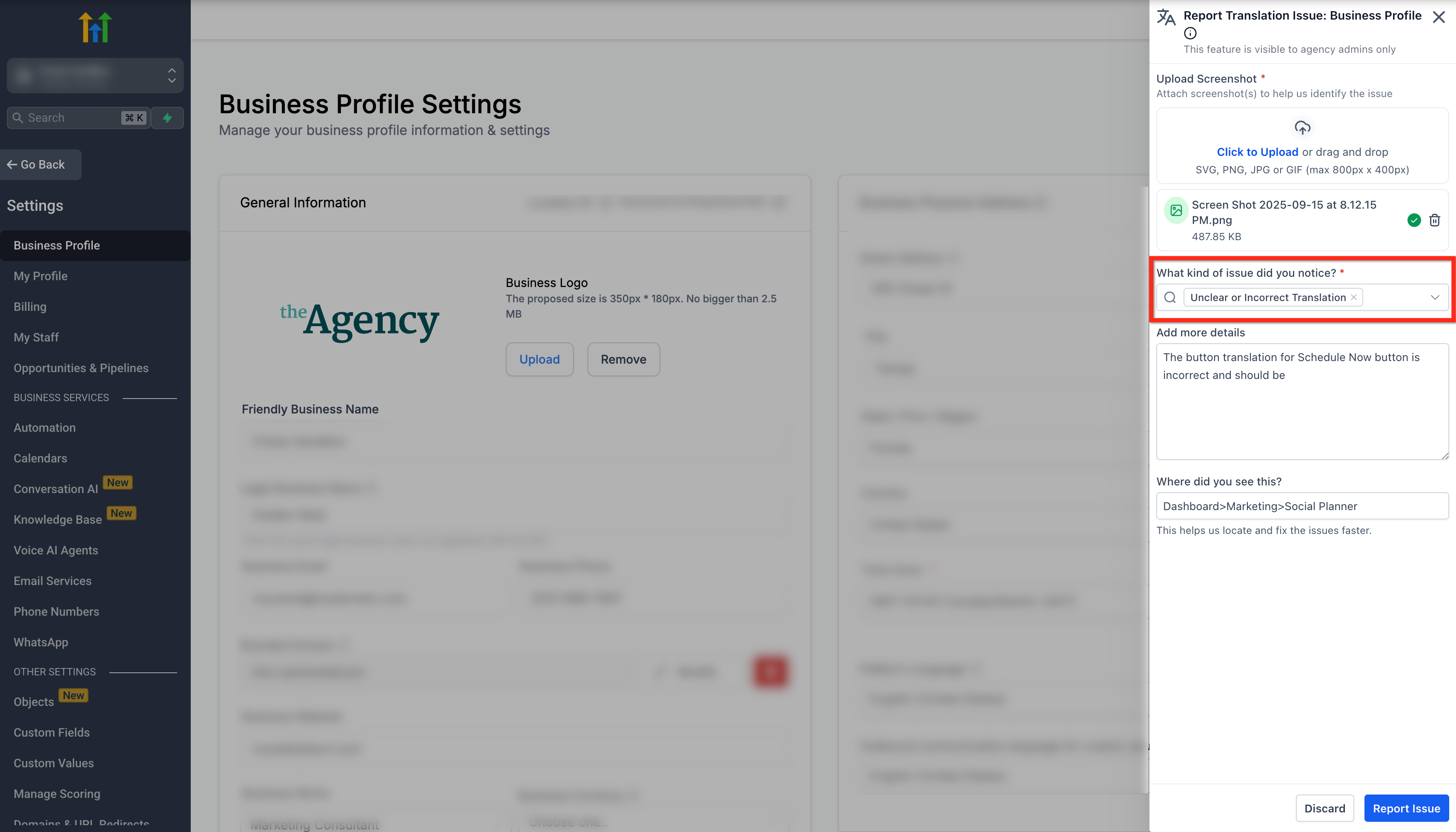
- Choose the issue type that best describes the problem, such as incorrect translation, grammar, or formatting.
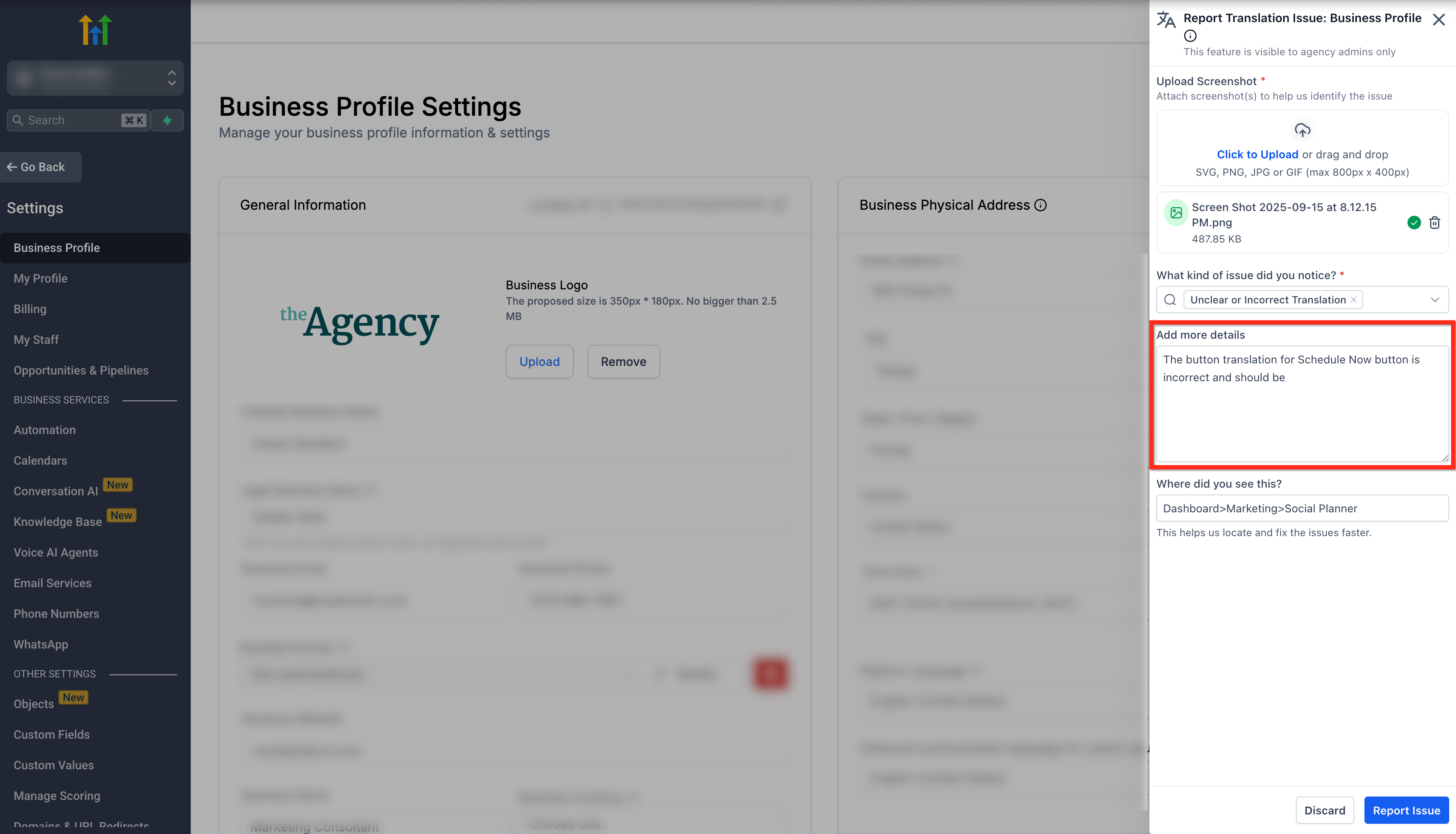
- Enter a brief description of the issue.
- In the ‘Where Did You See This?’ field, type the navigation path, for example Dashboard>Funnel>Step Builder.
- Press the Report Issue button to submit the feedback.
- Watch for a notification that the translation has been fixed.
06What it looks like in HighLevel
07Settings that matter
- Platform language. Determines the language of the user interface; the translation feedback icon is hidden when this setting is English.
08Things to know before you rely on it
- The report icon does not appear when the platform language is set to English.
- Only users with Agency Owner or Agency Admin roles can see and use the feature.
- A screenshot must be attached; submissions without an image are not accepted.
09If something goes wrong
- The Report Translation Issue icon is missing.. Confirm the platform language is not English and that you are logged in as an Agency Owner or Admin.
10How it connects to the rest of HighLevel
- Configure platform language in HighLevel Platform language settings
- Set language options for the client portal Client portal language
- All Internationalization features Internationalization overview
Michael's take

If you skip using the translation feedback feature, errors remain visible to non English users.
When you use it, you can capture the exact issue with a screenshot, the report is routed for review, and you’ll be notified when the fix is applied.