
01Who this is for
- Agency owners can keep email configurations consistent across client accounts.
- Marketing agencies that run multiple subaccounts benefit from a single point of control.
- Resellers managing several client portals can quickly enable or disable email service additions.
02Agency level email controls, explained
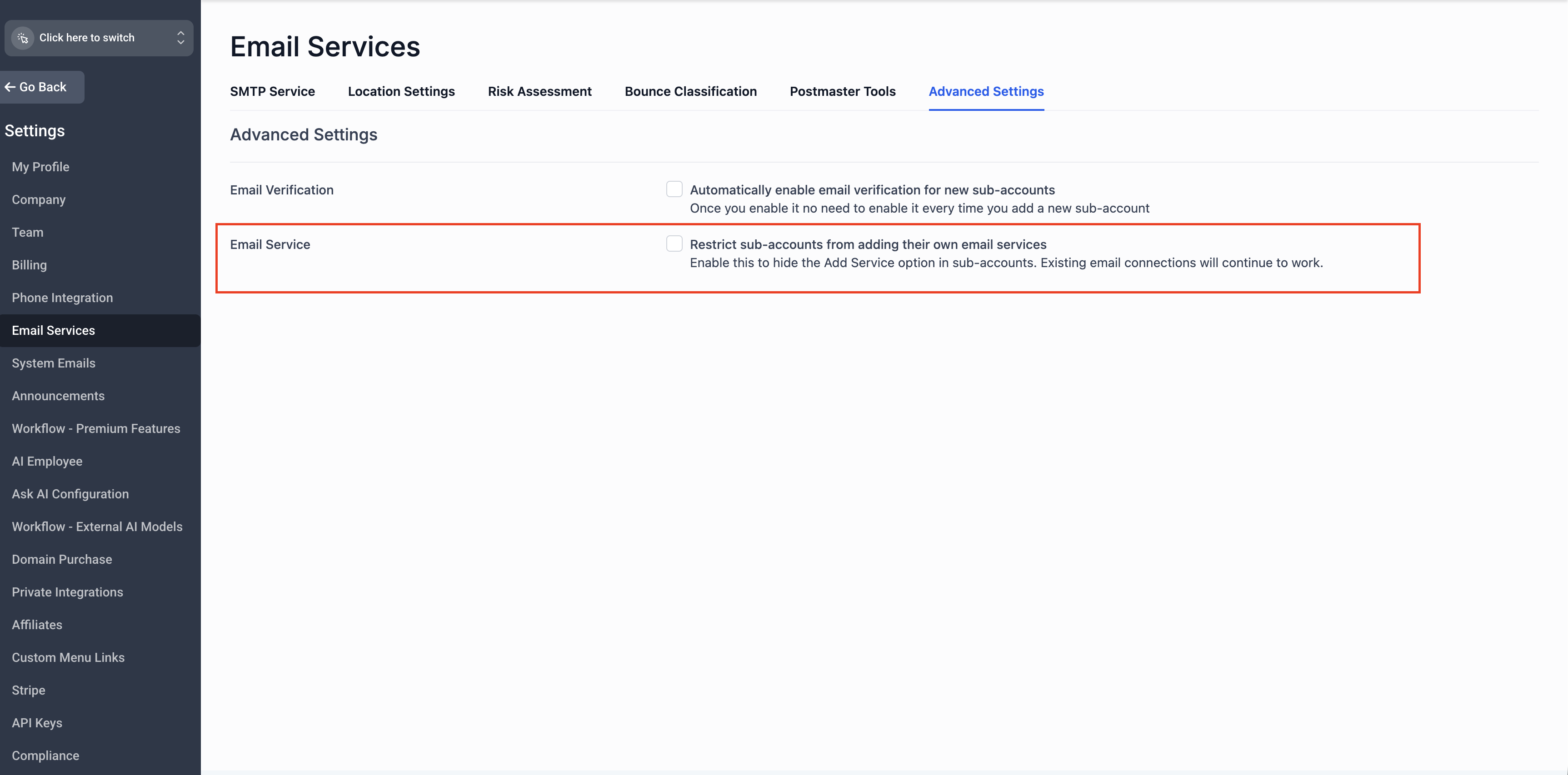
The feature adds a toggle under Agency View > Settings > Email Services > Advanced Settings. When the toggle is on, the Add Email Service button disappears for subaccounts, preventing them from adding their own SMTP providers. When off, the button remains visible, allowing subaccount owners to manage email services themselves.
For new agencies the toggle starts enabled, hiding the button by default. Existing agencies see the toggle disabled, so their current workflow stays unchanged. The setting only affects the button’s visibility; any email services already configured continue to operate.
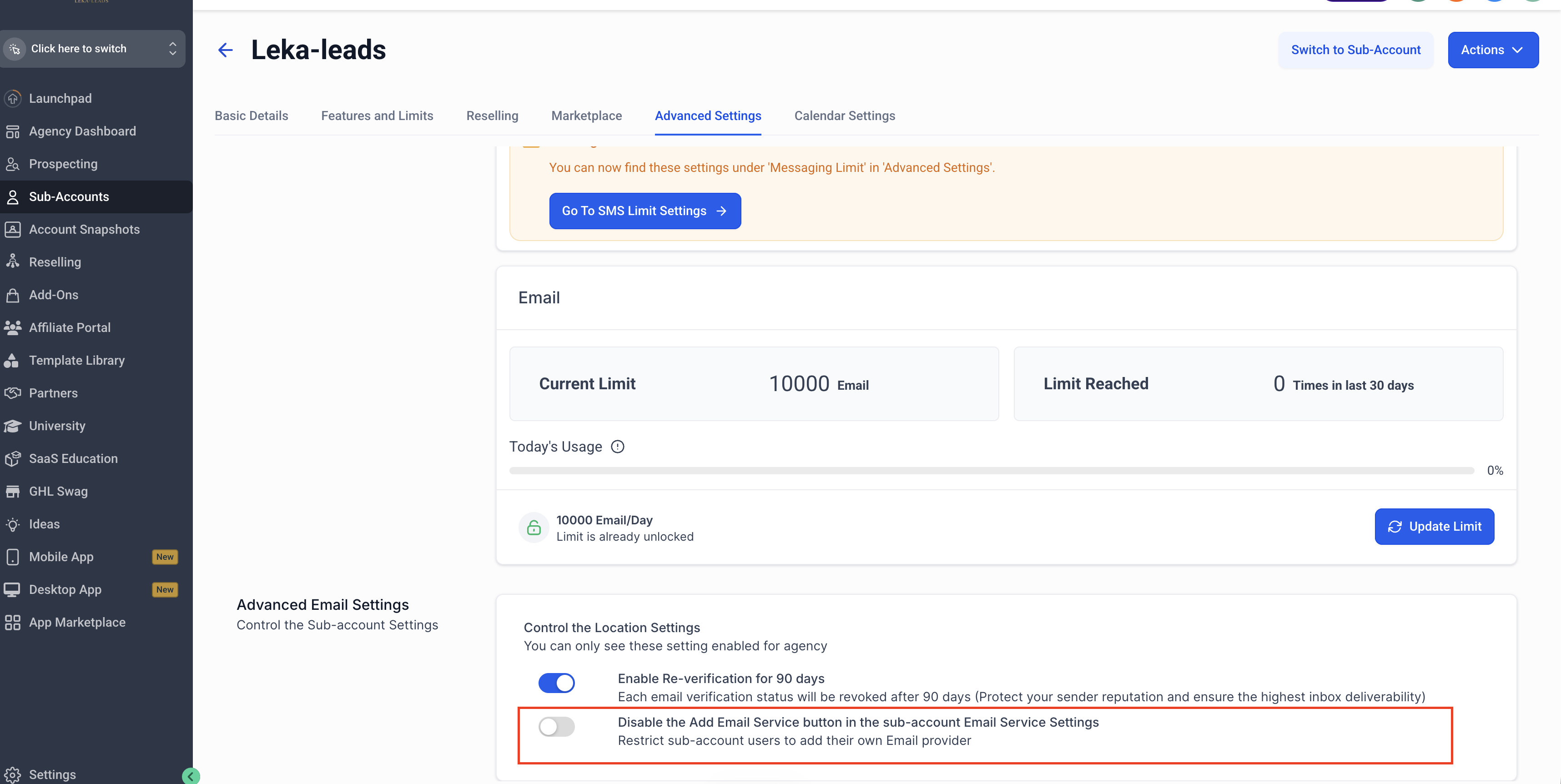
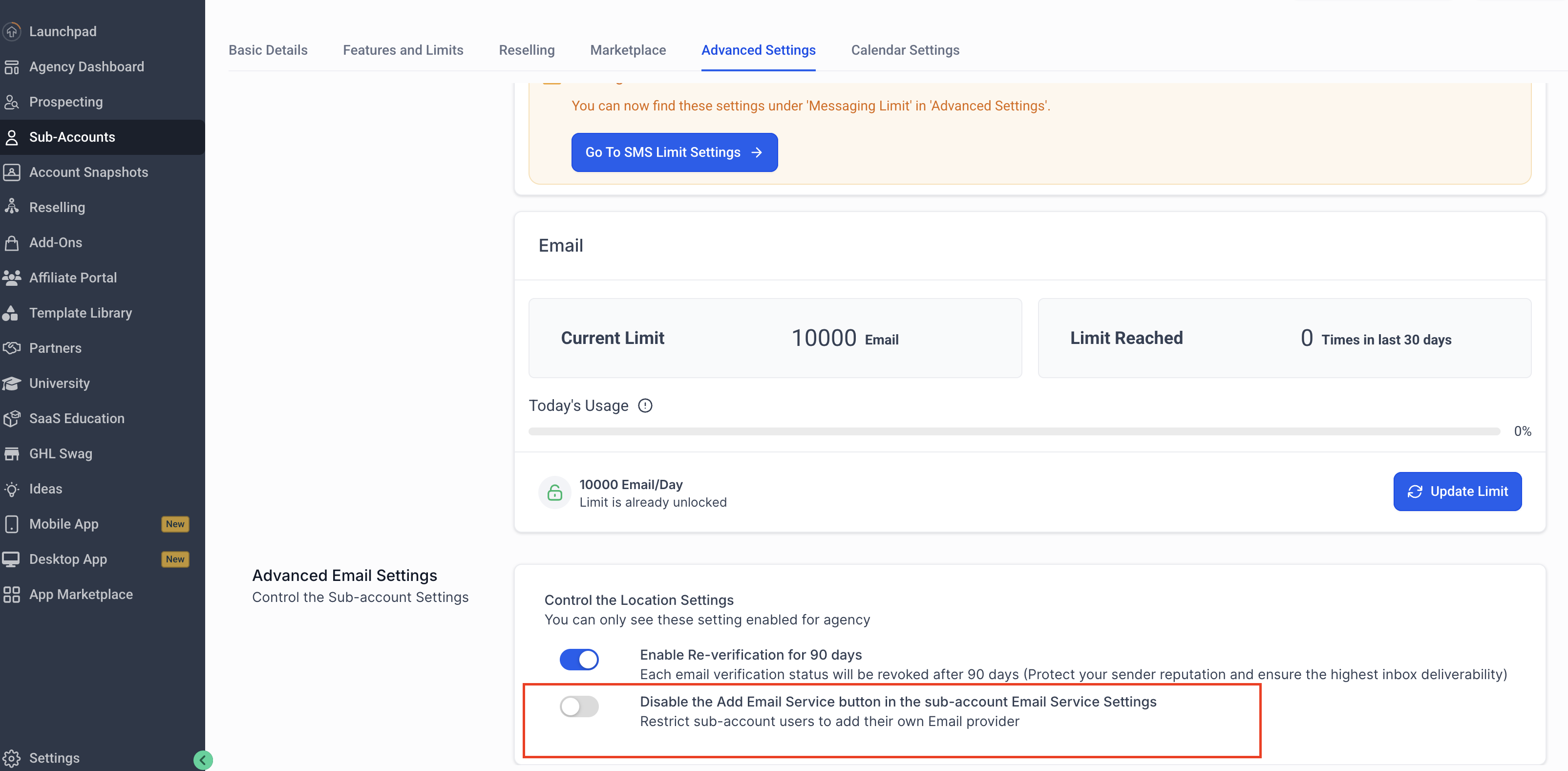
The same control can be applied per subaccount. In Agency View > Subaccounts, select a subaccount, go to its Advanced Settings, and toggle the option to hide or show the Add Email Service button. This overrides the agency wide setting for that specific subaccount.
03How businesses use agency level email controls
- Digital marketing agency. The agency turns the global toggle on to hide the Add Email Service button for all client subaccounts, ensuring that only the agency configures SMTP providers. If a client needs a custom provider, the agency enables the button just for that subaccount.
- Consulting firm with multiple client portals. The firm disables the global toggle so each client can add their own email service. For a client that must use a specific provider, the firm re enables the button only for that subaccount.
- Managed service provider. The provider keeps the button hidden globally to maintain standardized email delivery. When a new client requires a bespoke setup, the provider overrides the setting for that client’s subaccount and allows them to add the required SMTP service.
04How to set up and use agency level email controls in HighLevel
Enable or disable the Add Email Service button for a specific subaccount
- Open Agency View and choose Subaccounts.
- Pick the subaccount you wish to modify.
- Enter Advanced Settings and locate the option that disables the Add Email Service button.
- Flip the toggle on or off according to your preference.
05What it looks like in HighLevel
06Settings that matter
- Email Services control toggle. Determines whether the Add Email Service button is shown to all subaccounts from the agency level.
- Disable Add Email Service button in sub, account Email Service settings. Overrides the agency wide toggle for an individual subaccount, hiding or showing the button just for that account.
07Things to know before you rely on it
- For new agencies the toggle is enabled by default, hiding the button; for existing agencies it is disabled, keeping the button visible.
- Existing subaccounts that already have Email Services set up are not affected by the toggle.
- The toggle only controls button visibility; it does not remove or alter already configured email services.
08How it connects to the rest of HighLevel
- Set up SMTP providers in HighLevel SMTP setup guide
- Why HighLevel requires a domain email address Domain email requirement
- HighLevel pricing and plans Pricing page
Michael's take

In my experience, having a single toggle to control email service access can be convenient.
If an agency only has a few subaccounts, the toggle might not be used often.