
01Who this is for
- Founders who already own a sending domain can preserve their reputation by using their own SMTP service.
- Agency owners managing many client subaccounts benefit from the ability to select a different provider for each account.
02Custom SMTP services, explained
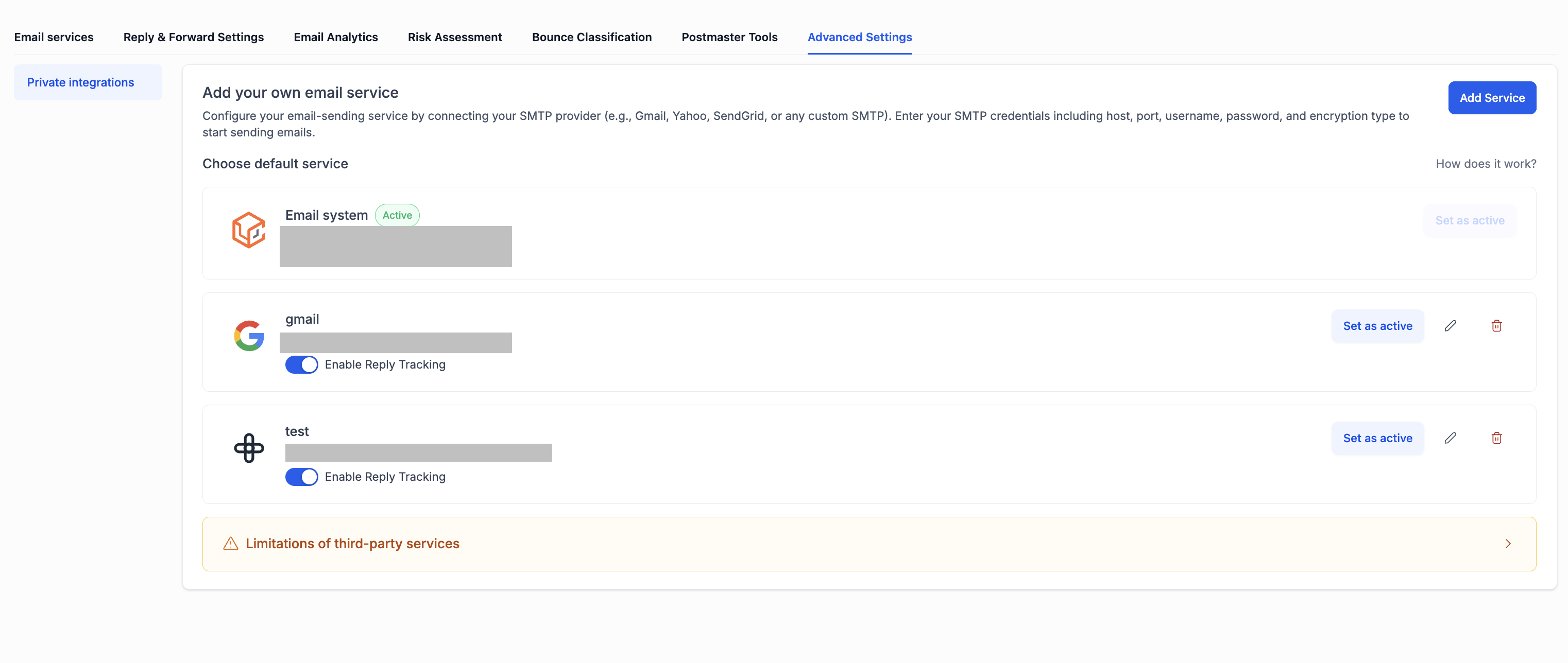
The feature replaces the built in LeadConnector email system with any SMTP compatible service. It lives under Settings > Email Services > SMTP Service tab, where you add, edit, and activate a provider.
Only one SMTP connection can be active at a time, but you may keep several saved for later use. When active, the system sends messages through the chosen host and logs replies if the Enable reply option is turned on.
03How businesses use custom SMTP services
- Ecommerce store. The owner adds their Amazon SES credentials, sets the service as active, and sends order confirmations through SES. Reply handling is enabled so customer responses appear in HighLevel conversations.
- Digital marketing agency. An agency creates a separate SMTP entry for each client using SendGrid, activates the appropriate one while working on that client’s campaign, and toggles back when switching projects.
- Consulting firm. The firm connects its corporate Gmail accounts via the custom SMTP option, configures the From Name and From Email, and uses the platform to deliver client reports while keeping reply tracking.
04The numbers and rules that matter
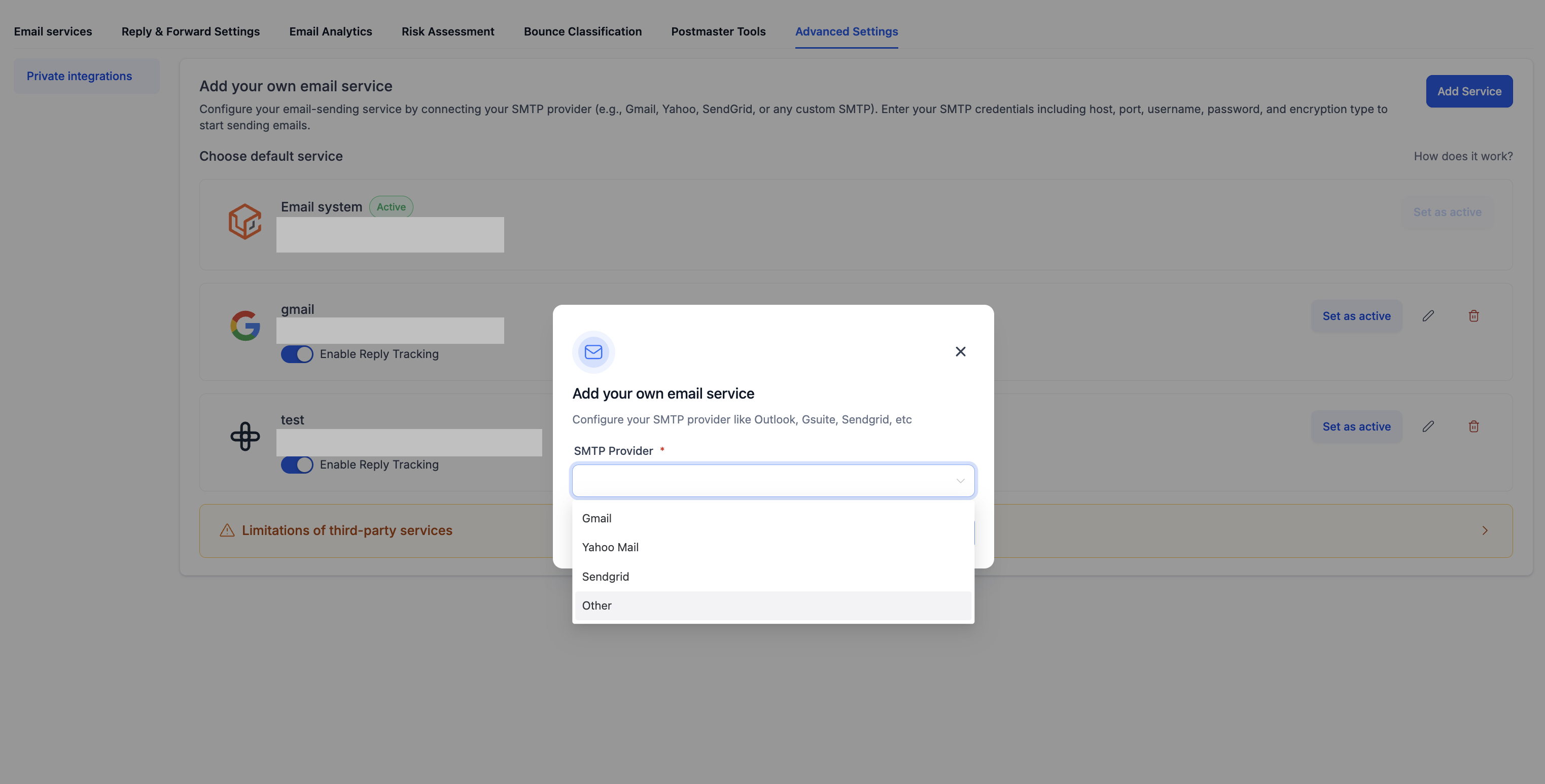
- Supported providers: Gmail, Yahoo Mail, SendGrid, Other (covers Mailgun, Amazon SES, Postmark, Zoho, any SMTP compatible service).
- Port options: Usually 587 (TLS) or 465 (SSL).
- Features NOT available with third party SMTP: Dedicated sending domain, Google Postmaster tools, Microsoft Postmaster tools, Risk Assessment, Bounce Classification, Inbox Placement Testing, Spam Score Checker, Blacklist Monitor, Managed Domains & IPs.
05How to set up and use custom SMTP services in HighLevel
Add custom SMTP service
- Open Settings, choose Email Services, then go to the SMTP Service tab.
- Press the + Add Service button in the upper right corner to open the popup.
- Pick the provider from the SMTP Provider dropdown list.
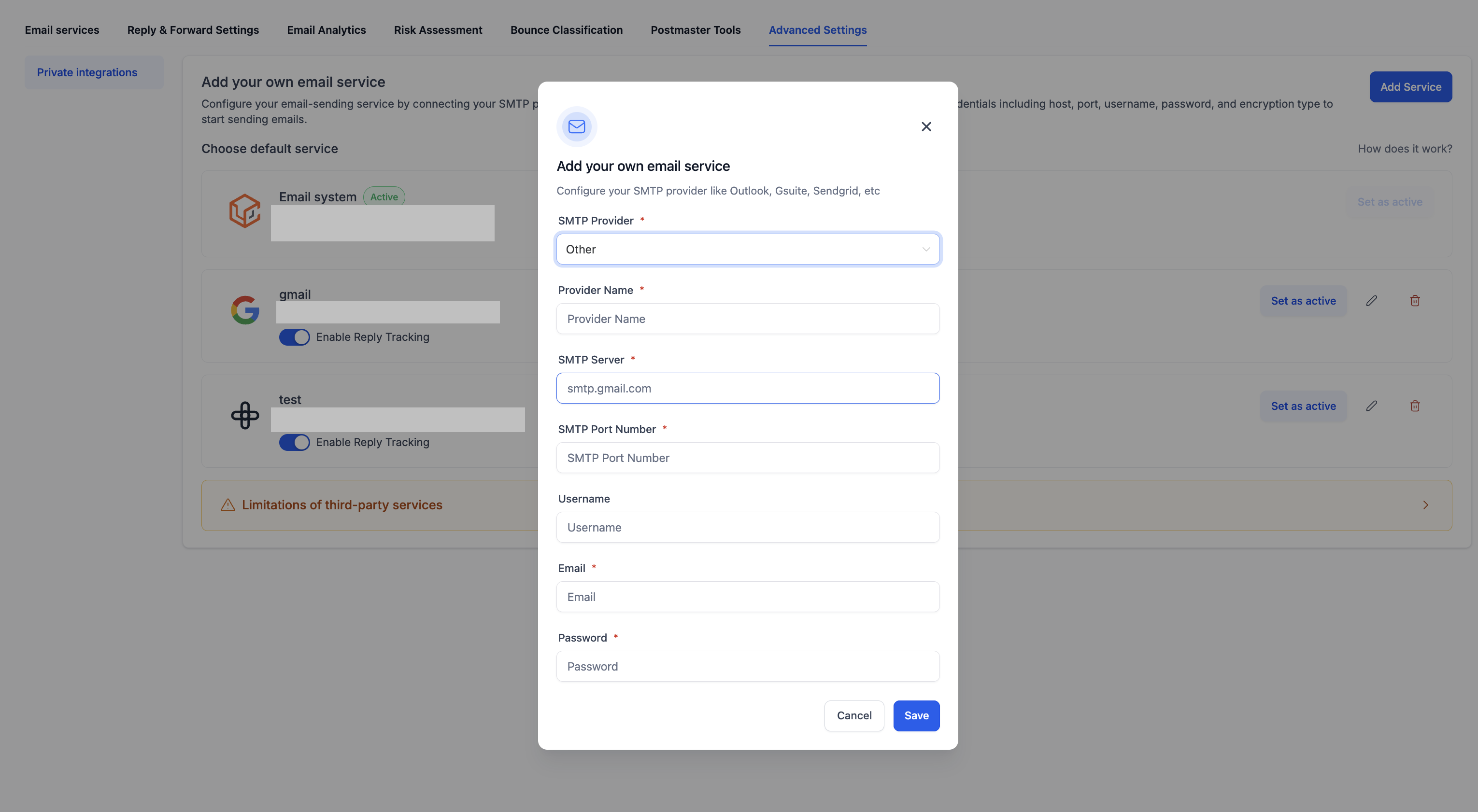
- Fill in the host, port, username, password or API key, and the desired From Name and From Email.
- Save the entry and click Set as active to start sending through the new service.
- Note that only one SMTP service can be active at a time; additional services remain saved but idle.
06What it looks like in HighLevel
07Settings that matter
- SMTP Host. Specifies the outgoing mail server address supplied by the provider.
- Port. Defines the network port used for the connection, typically 587 for TLS or 465 for SSL.
- Username. Provides the login identifier or API key name required by the SMTP server.
- Password / API Key. Contains the secret credential that authenticates the connection.
- From Name. Sets the display name that recipients will see on incoming messages.
- From Email. Determines the email address shown as the sender.
- Enable reply. When checked, inbound replies are captured and linked to platform conversations.
08Things to know before you rely on it
- Only one SMTP service can be active at any moment; others remain stored but idle.
- Switching to a third party SMTP disables built in deliverability tools such as dedicated sending domains, postmaster integrations, risk assessment, bounce classification, inbox placement testing, spam score checking, blacklist monitoring, and managed domains/IPs.
09If something goes wrong
- SMTP connection fails. Confirm the host, port, username and password are correct; ensure port 587 or 465 is not blocked; for Gmail use an App Password if two step verification is on; for SendGrid verify the sending domain; make sure the sending address is authorized in the provider account.
10How it connects to the rest of HighLevel
- Set up SMTP providers in HighLevel SMTP provider setup
- Connect SendGrid as your SMTP provider SendGrid SMTP guide
- Why HighLevel requires a domain email, not a free address Domain email requirement
Michael's take

Michael ReimerFounder of CRM Pros, HighLevel Commander and Certified Admin
I’ve found that checking the provider’s dashboard for the exact host, port and credential format, and making sure any required app passwords or API keys are set up, usually solves connection problems before I switch any campaigns over.
Get More InformationOpens on HighLevelPublished November 2, 2026 · Updated November 17, 2026