
Home/HighLevel/Integrations/HubSpot
Integrations · HubSpot
Does GoHighLevel integrate with HubSpot? Yes, four ways.
GoHighLevel connects to HubSpot through a HubSpot app inside workflows, a direct HubSpot importer, Zapier, and webhooks or the API. Here is what each route does, how to set it up and what to check when records stop moving.
The short answer
Yes, GoHighLevel integrates with HubSpot. A HubSpot app inside HighLevel workflows starts a workflow when a HubSpot contact is created and can create or look up HubSpot contacts. A direct HubSpot importer moves your records in. Zapier, webhooks and the API cover the rest. It is not a constant two way sync.
Michael is a sponsored HighLevel affiliate. Links to HighLevel use his partner link at no extra cost to you. HighLevel prices and product facts on this page come from HighLevel's own pricing page and help center, checked on the date above.
Routes
How does GoHighLevel connect to HubSpot?
There are four routes, and each does a different job. Two are built into HighLevel, or GoHighLevel as most people still search for it. The other two use tools that sit between the two systems.
| Route | What it does | Direction | Use it when |
|---|---|---|---|
| HubSpot app in workflows | Starts a HighLevel workflow from a new HubSpot contact, and creates or looks up HubSpot contacts from a workflow | Both, one automation each | Both systems stay in use and records need to pass between them |
| HubSpot importer | Connects to your HubSpot account and imports contacts, companies, deals, pipelines, notes, emails and tasks | HubSpot to HighLevel | You are moving in, or want your HubSpot history in HighLevel |
| Zapier | Links the HubSpot app and the LeadConnector app with Zaps you build | Both, one Zap each | You need a HubSpot event the workflow app does not offer, such as a deal or form event |
| Webhooks and the API | Sends or receives JSON between the two systems, or reads and writes records with a token | Both | You use Make or another automation tool, or need full control |
Sources: HighLevel's release notes for HubSpot Workflow Actions and Trigger, Import Data Directly from HubSpot into HighLevel and Filter HubSpot Records Before You Import, checked November 12, 2026.
The HighLevel integrations hub lists every other tool covered on this site.
Connect
How do you connect HubSpot inside a HighLevel workflow?
You connect HubSpot from the workflow builder itself. HubSpot sits in the Apps tab when you add a trigger or an action, and the first time you pick it HighLevel asks you to authorize your HubSpot account.
- In HighLevel, go to Automation, then Workflows, and open or create a workflow.
- Add a trigger or an action, open the Apps tab and search for HubSpot.
- Select the HubSpot trigger or action you want.
- Click Connect Now on the step and sign in to your HubSpot account.
- Review the permissions and finish the authorization.
- Save the step, then test it before you publish the workflow.
You can also connect the account ahead of time from Settings, then Integrations.
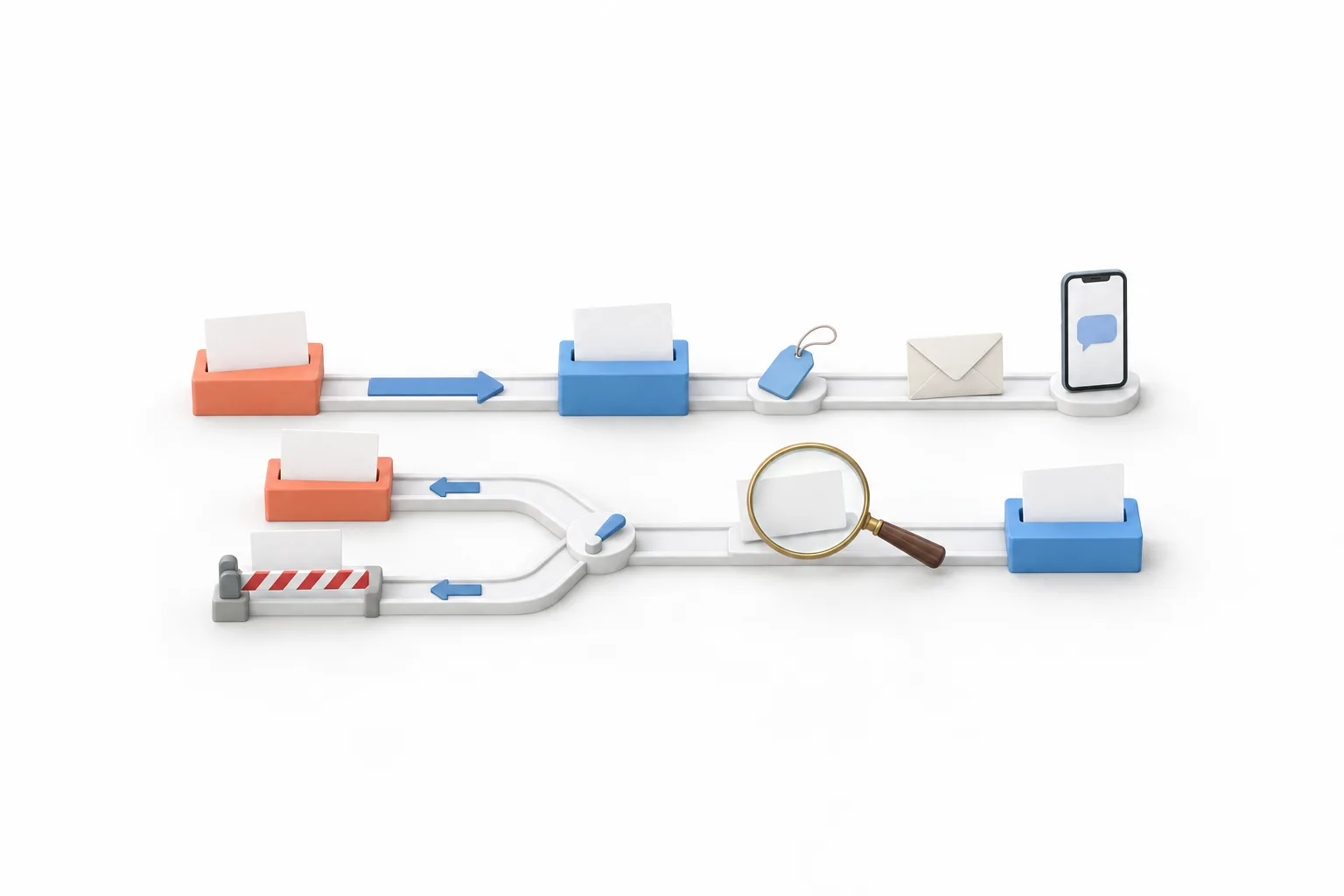
The trigger is New Contact Created. It starts the workflow whenever a contact is created in the connected HubSpot account. HighLevel says that includes contacts other integrations create, so use the optional filters, such as lifecycle stage or source, to narrow it. From there the workflow can create the contact in HighLevel, add a tag and start follow up by text and email.
The actions work in the other direction. Create Contact adds a contact in HubSpot from the data in the workflow, with email, name, phone and custom properties. Find Contact looks up an existing HubSpot contact by record ID, email or a filter. HighLevel recommends searching by email before Create Contact, so the workflow does not create a second copy of someone HubSpot already has.
Data
What data moves between HubSpot and HighLevel?
Only what you tell it to move. Nothing here runs as a background sync that keeps every field matched in both systems. Each route carries specific records in a specific direction.
| Direction | Route | What moves |
|---|---|---|
| HubSpot to HighLevel, ongoing | New Contact Created trigger | Each new HubSpot contact starts a workflow with that contact's data |
| HighLevel to HubSpot, ongoing | HubSpot workflow actions | Contact fields you map, including HubSpot custom properties that already exist |
| HubSpot to HighLevel, per import run | HubSpot importer | Contacts, companies, deals as opportunities, properties as custom fields, pipelines and stages, emails, notes and tasks |
| Either way, per Zap | Zapier with LeadConnector | The fields you map in each Zap, such as a contact or an opportunity |
| Either way, per event | Webhooks and the API | The JSON fields you choose to send |
Custom properties need one step of care. Create the property in HubSpot first, then map the workflow value to it. HighLevel says property names HubSpot does not recognize are dropped, so a typo fails quietly. Email is the key that matches a person across the two systems, which is why a clean email field matters more than any other.
Import
How do you import HubSpot data into HighLevel?
Use the HubSpot importer. It signs in to your HubSpot account and pulls records across directly, so there are no CSV files to export and map by hand.
- Open Contacts, Companies or Opportunities in HighLevel.
- Click Import and choose Import from HubSpot.
- Connect and sign in to your HubSpot account.
- Select what to import. A deal only comes in as an opportunity with its associated contact, so bring contacts in with deals.
- Review the record counts. For a partial import, use the pencil icon on a row to filter by date, or pick specific properties.
- Click Confirm and start import. It runs in the background, so you can leave the page.
- Open Import History to see what succeeded, what was skipped and what failed.
Deals arrive as opportunities, and HubSpot properties arrive as custom fields. Existing matching records are not overwritten. HighLevel recommends testing the import in a new or non production subaccount first, then repeating it in the live one.

Workflows, forms and landing pages are not on the importer's list. Those are rebuilt by hand. The switch from HubSpot to HighLevel guide covers the order to do it in, and import contacts covers the CSV route if you only need a list.
Other tools
Can you connect HubSpot and GoHighLevel with Zapier or Make?
Yes. In Zapier, HighLevel appears as the LeadConnector app, and Zapier lists it alongside its HubSpot app. A Zap can watch HubSpot for an event, such as a new deal or a form submission, and add or update a contact or an opportunity in HighLevel. Zapier maintains both app listings, so confirm the events there before you build. In the other direction, LeadConnector's Pipeline Stage Changed trigger can update HubSpot when a deal moves. The HighLevel and Zapier page covers the connection itself.
Make and similar tools connect through webhooks. An Inbound Webhook trigger starts a HighLevel workflow when the other tool posts data to it, and the Custom Webhook action sends data out. Both are premium workflow features. For reading and writing records on demand, use the HighLevel API with a private integration token.
Try the built in HubSpot app first. Zapier is a separate subscription that counts tasks, so it earns its place only when you need an event the workflow app does not cover.
Limits
What are the limits to know about?
Most of the limits come from one fact: this is event based, not a mirror. Plan around these before you build.
- One HubSpot trigger. The workflow app starts from New Contact Created. Deal, company and form events need Zapier or a webhook.
- Premium features. HighLevel lists the HubSpot trigger and actions as premium workflow features, which can carry a small charge per execution. Check your workflow premium settings.
- HubSpot plan limits apply. HighLevel says the connection works with HubSpot's free CRM, though some HubSpot features need a paid HubSpot plan.
- Imports run when you start them. The importer is a migration tool, and HighLevel does not describe it as an ongoing sync.
- Imported emails are read only. They show the history. You cannot edit them.
- Deals need contacts. A HubSpot deal comes in as an opportunity only with its associated contact.
- Import filters are basic. You can filter by HubSpot created date and last modified date only.
Usage in HighLevel is billed on top of the plan, and that includes premium workflow actions. GoHighLevel pricing shows what each plan costs before usage.
Fix it
What should you check when HubSpot stops syncing?
Work from the HighLevel side outward. Most failures are a workflow that is not published, a connection that needs to be authorized again, or a field HubSpot does not recognize.
- Confirm the workflow is published and the HubSpot trigger or action is saved.
- Open the workflow execution log for a contact that failed and read the error on the HubSpot step.
- Test the HubSpot trigger in the workflow builder to confirm HighLevel can still reach the account.
- If the test fails, connect the HubSpot account again and review the permissions.
- Check that every custom property you mapped exists in HubSpot with the same name.
- Look for a second automation doing the same job. A Zap plus a workflow is the usual cause of duplicates.
- For an import, open Import History, check the skipped and failed totals and download the CSV.
HighLevel also suggests adding a fallback branch when later steps depend on the HubSpot contact being created, so one failed action does not stall the rest. If duplicates are already in the account, fix duplicate contacts appearing covers the cleanup. For the webhook route, see fix a webhook not firing.
Decide
Should you connect HubSpot and HighLevel or switch?
Connect them when there is a clear reason for both to exist. A common one is a sales team that lives in HubSpot while marketing, texting and booking run in HighLevel. In that case, name one system as the place new leads land and let the other receive a copy.
If you are comparing the two because you want one platform, treat the connection as temporary. Keeping both long term means two versions of every contact. HighLevel vs HubSpot sets the two side by side, and the HubSpot switch guide covers the move. To test the HubSpot connection and the importer in your own account while HubSpot keeps running, use the 30 day trial through Michael's link. The standard HighLevel trial is 14 days. Usage fees for phone, texting, email and AI can apply during any trial.

Two CRMs means two versions of every contact. Connect them for the move, then settle on one.
Questions
Common questions.
Does GoHighLevel integrate with HubSpot?
Yes. GoHighLevel has a HubSpot app inside its workflow builder, with a New Contact Created trigger and actions that create and look up HubSpot contacts. There is also a direct HubSpot importer for moving records in, and Zapier, webhooks and the API cover anything else. None of these is a constant two way sync.
Is there a native HubSpot integration in HighLevel?
Yes, in two places. In a workflow, add a trigger or an action, open the Apps tab, pick HubSpot and authorize your HubSpot account. For moving data, open Contacts, Companies or Opportunities, click Import and choose Import from HubSpot. HighLevel announced both in its release notes.
Does HubSpot sync with HighLevel in both directions?
Not as an automatic background sync. Data moves when a workflow, a Zap or a webhook you built tells it to. A HubSpot trigger brings new HubSpot contacts into a HighLevel workflow, and HubSpot actions push data the other way. Two directions means two automations, and you decide which system owns each field.
Do the HubSpot workflow actions cost extra in HighLevel?
They can. HighLevel lists the HubSpot trigger and actions as premium workflow features, which can carry a small charge per execution. Check your account's workflow premium settings before you connect a busy event. HubSpot's own plan limits still apply on the HubSpot side.
Should I connect HubSpot to HighLevel or switch completely?
Connect them when another team still depends on HubSpot or while you are moving. Long term, keeping both means two versions of every contact, so it pays to settle on one. The 30 day trial through Michael's link gives you time to import, test and decide while HubSpot keeps running.
Next step
See it in your own account. Thirty days, every feature.
Start a trial, build the first system and test it before the first invoice. Usage fees for phone, SMS, email and AI can apply during the trial.
HighLevel has three plans at a flat monthly price, each with unlimited users and contacts. See what each one includes and what it costs.
Compare the PlansStarter, Unlimited and Founder