
Home/HighLevel/How to/Hand off Conversation AI to a human
How to · Conversation AI
Chatbot human handoff in GoHighLevel. Hand a Conversation AI chat to a person.
A GoHighLevel Conversation AI bot should know when to stop. This page shows how to set the handoff triggers, notify your team, pause the bot on one contact and hand the conversation back when the person is done.
The short answer
To set up a chatbot human handoff in GoHighLevel, open AI Agents, Conversation AI, edit the bot, go to Bot Goals and add Human Handover. Pick the triggers, assign the conversation to a user, write a final message, set how long the bot pauses and add a task and tag so your team sees it.
Michael is a sponsored HighLevel affiliate. Links to HighLevel use his partner link at no extra cost to you. HighLevel prices and product facts on this page come from HighLevel's own pricing page and help center, checked on the date above.
The idea
What is a chatbot human handoff in GoHighLevel?
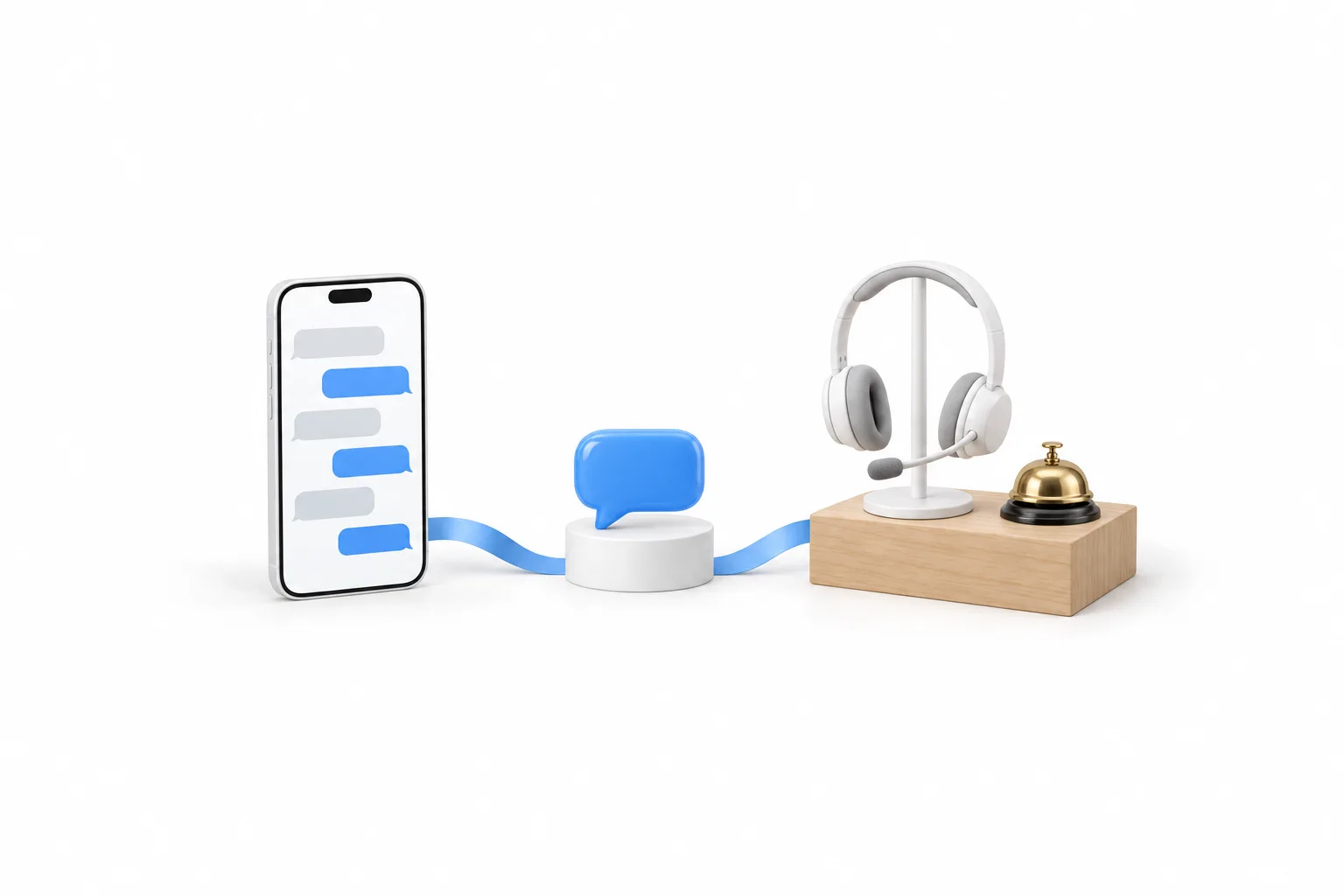
A chatbot human handoff is the moment an AI bot stops replying and a person takes over the same conversation. In HighLevel, which many people search for as GoHighLevel, the Conversation AI bot and your team work from one inbox. The customer stays in the same thread, and the person who picks it up can read everything the bot already said.
HighLevel gives you three routes from the bot to a person.
| Route | What starts it | What happens |
|---|---|---|
| Human Handover action | A scenario you switch on in Bot Goals | The bot sends a final message and pauses. The conversation is assigned, with a task and a tag |
| AutoEscalation | The bot reaches its message limit or detects frustration | The conversation is assigned to a human agent |
| Bot status on one contact | A team member changes it inside the conversation | The bot goes Inactive for that contact only |
If you have not built a bot yet, start with how to set up a Conversation AI bot and come back. The Conversation AI complete guide explains modes, training and goals.
Triggers
When should a Conversation AI bot hand off to a person?
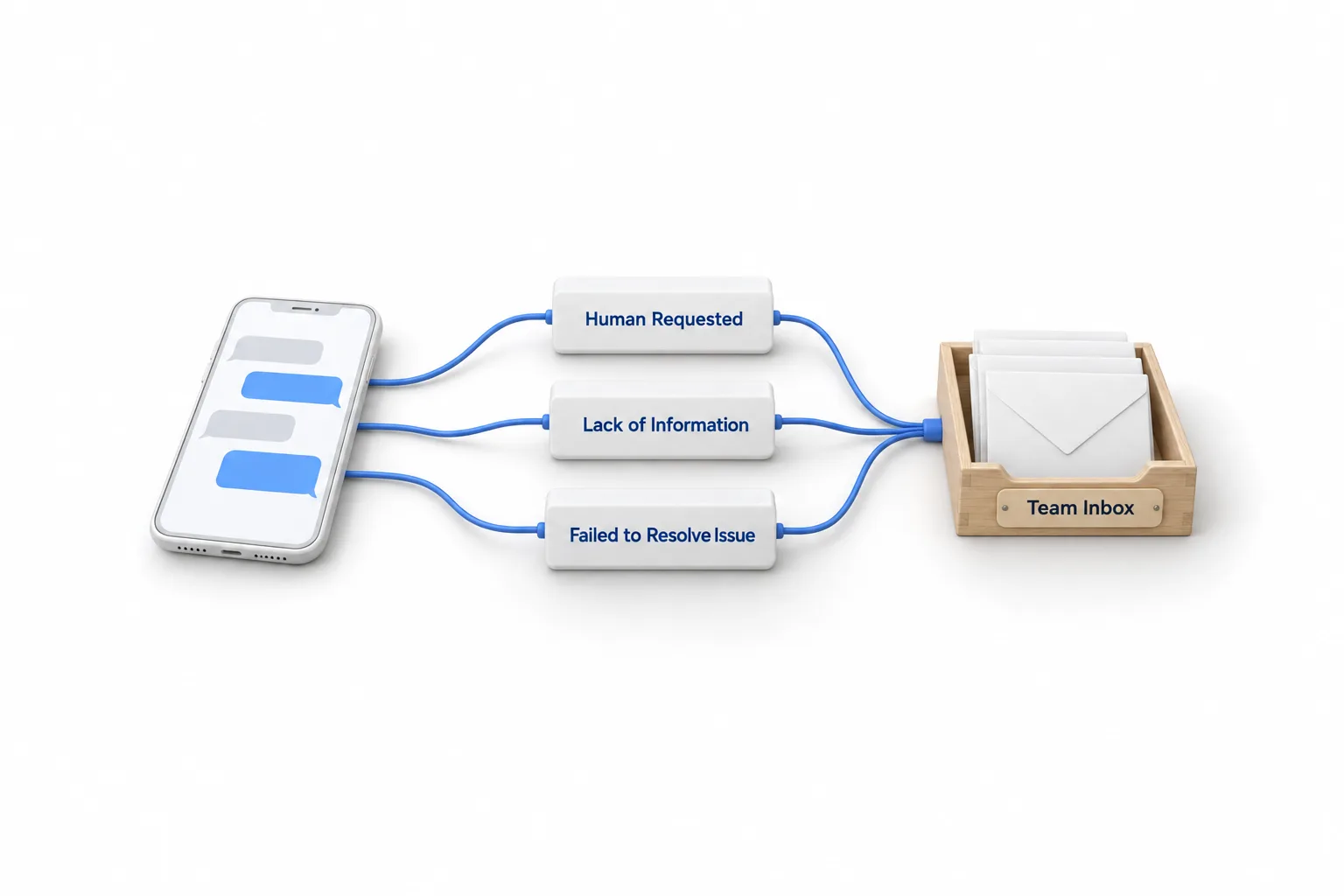
Hand off when a person asks for one, when the bot does not have the answer, and when the bot has tried and failed. Those are the three prebuilt scenarios inside the Human Handover action. Each one has its own Enable Scenario switch.
| Scenario | Fires when | What you can adjust |
|---|---|---|
| Human Requested | The contact asks to speak with a person | Add your own example phrases |
| Lack of Information | The bot cannot find relevant information for the question | No examples needed |
| Failed to Resolve Issue | Several attempts have not resolved the issue | A maximum of 2 retries |
Set it up
How do you set up Human Handover in Conversation AI?
You set up Human Handover as an action on the bot's Bot Goals tab. HighLevel releases it through Labs, so if you do not see it, turn it on under Settings, Labs first.
- In the subaccount, open AI Agents, then the Conversation AI tab.
- Click the bot's name, or click the three dots and choose Edit.
- Open the Bot Goals tab, scroll to Setup Your Actions and click Human Handover.
- Switch on the scenarios you want: Human Requested, Lack of Information and Failed to Resolve Issue. For Human Requested, click Add Example Phrase and add the words your customers use.
- Under Assign Conversation to a User, choose who receives the conversation. You can skip assignment when the contact already has an assigned user.
- Write the Final Message the bot sends before it steps back, for example "Thank you. Someone from the team will get back to you."
- Set Bot Pause Behaviour in days, hours and minutes. The bot stays quiet on that contact until the timer ends.
- Turn on Create a Task, which adds a task to the contact due 24 hours from the trigger, and Create Tags, which adds the human_handover tag by default.
- Save the bot, then test it from a real phone.
Notify
How do you notify the team when a chat is handed off?
The assigned user is notified only when their own notification settings allow it. Check this for every person who can receive a handoff.
- In the subaccount, open Settings, then My Staff.
- Click Edit next to the team member.
- Open the Notification Settings tab.
- Turn on When a conversation gets assigned to me and When a task gets assigned to me for the channels that person watches.
- Click Save.
The handoff also leaves two markers behind. The task sits on the contact with a due time, and the human_handover tag lets you filter the conversations that were handed over. A tag can start a workflow through the Contact Tag trigger, so you can build on that tag for anything extra your team needs.
Pause
How do you pause the Conversation AI bot on one contact?
You can switch the bot off for a single contact from the conversation itself. The control is available when the bot runs in Suggestive or Auto Pilot mode, and it changes nothing for other contacts.
- Go to Conversations and open the contact's conversation.
- Find the Conversation AI status icon in the message composer.
- Click the icon and choose Inactive.
- To pause for a set time, tick the option to reactivate the bot after a duration and enter minutes, hours or days. Leave it unticked to keep the bot off until someone turns it back on.
- Click outside the box to apply the change, then confirm the icon has updated.
For rules that should run without a person, use a workflow. The Update Conversation AI Bot and Status workflow action changes the bot status for the contact, so the pause does not depend on someone remembering to click.
Hand back
How do you hand the conversation back to the bot?
The bot comes back on its own when a pause timer ends. If there is no timer, a person or a workflow has to switch it back on. The table shows which applies.
| How the bot stopped | How it comes back |
|---|---|
| Human Handover action | On its own, when the Bot Pause Behaviour timer ends |
| Set to Inactive with a timer | On its own, at the wake time |
| Set to Inactive with no timer | Click the status icon in the conversation and choose Active |
| Reached its message limit | Mark the conversation as Read, or run the Update Conversation AI Bot and Status workflow action |
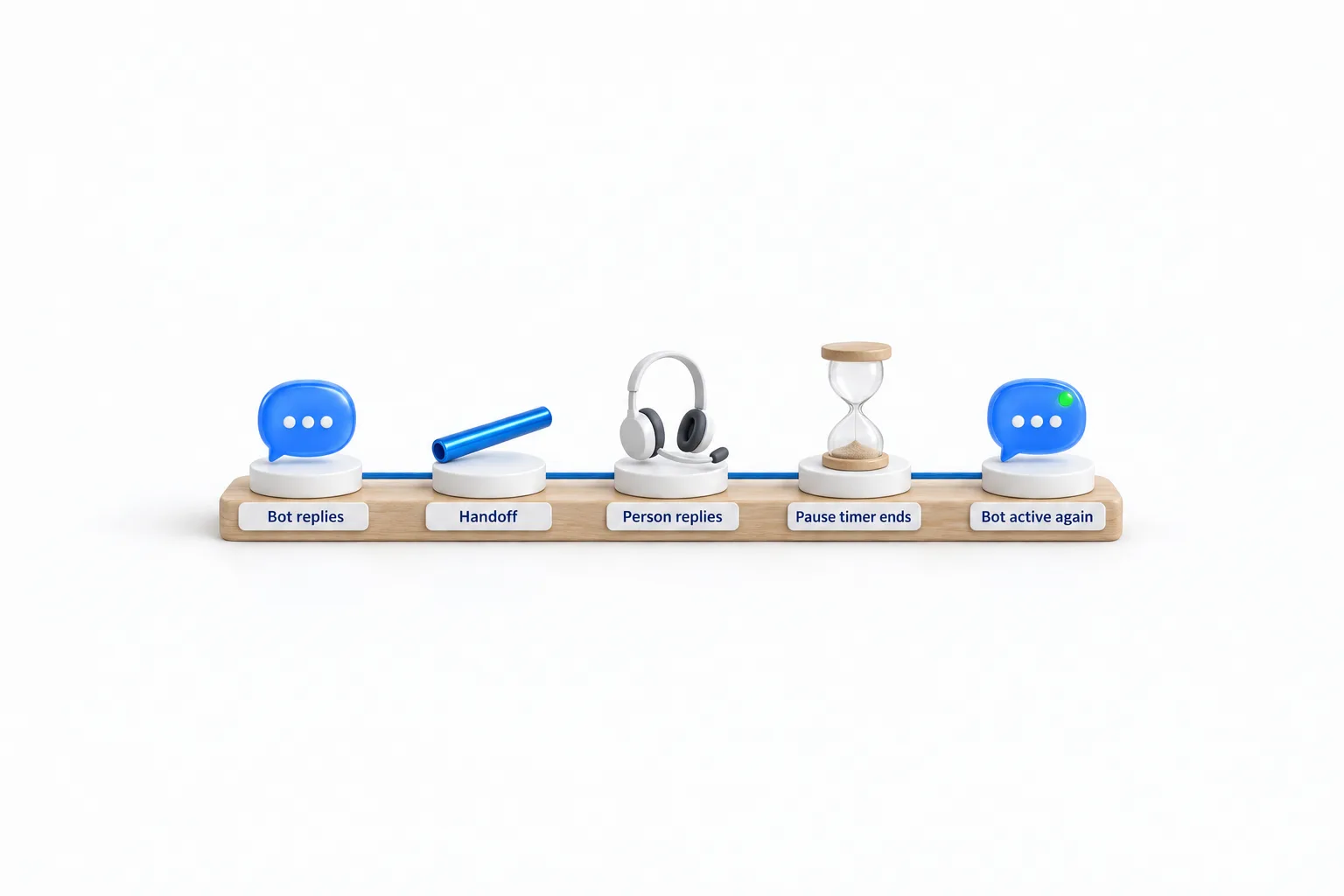
Messages still arrive while the bot sleeps, so nothing is lost. Set a pause long enough for a person to finish the conversation. If the bot stays silent after you expected it back, work through fix Conversation AI not responding.
Example
What does a handoff look like in a real conversation?
Take a dental office that runs a booking bot on text and web chat. A patient writes that a crown fitted last week has come loose and asks to talk to someone.
- Human Requested fires, because the patient asked for a person.
- The bot sends the final message: "Thank you. Someone from the team will get back to you."
- The conversation is assigned to the office manager. A task appears on the contact and the human_handover tag is added.
- The office manager gets the assignment notification, because it is switched on in her settings. She reads the thread and replies in the same conversation.
- The bot stays paused for the time the office set, then becomes active again for that patient.
The patient never repeats the story. If the office closes at night, working hours for Conversation AI covers what the bot does with messages that arrive after closing.
Common mistakes
What mistakes leave a customer talking to nobody?
A customer ends up talking to nobody when the bot steps back and no person owns the conversation or hears about it. These five mistakes cause most of it.
- No assigned user. If nobody is chosen, nobody owns the conversation. Choose a default person.
- Notifications switched off. The assignment happens and nobody hears about it. Check Notification Settings for each team member.
- A pause that is too short. The bot wakes up and replies in the middle of a person's conversation.
- A high message limit and no AutoEscalation. The limit can be set from 1 to 100 bot messages per conversation. Left high, a stuck chat goes on for a long time before anyone sees it. Part four of the Conversation AI build guide sets both, along with the fallback message the bot sends when it cannot answer or reaches its limit.
- Testing only the easy path. Ask for a person from a real phone and confirm the assignment, the task, the tag and the notification all arrive.
Conversation AI is a usage based feature, so check GoHighLevel pricing before you switch it on for every channel. You can build the bot and test the whole handoff with two phones during a 30 day GoHighLevel trial through Michael's link. More builds are in the HighLevel how to guides.

Keep the message cap tight, keep the fallback honest, and let AutoEscalation hand the hard ones to a person.
Questions
Common questions.
How do I set up a human handover in GoHighLevel Conversation AI?
Open AI Agents, Conversation AI, edit the bot and open Bot Goals. Under Setup Your Actions, click Human Handover. Switch on the scenarios, choose who receives the conversation, write the final message, set the pause timer and turn on the task and tag.
Does the Conversation AI bot stop replying after a human handover?
Yes. After a handover the bot does not respond to that contact for the pause time you set in Bot Pause Behaviour, in days, hours and minutes. When the timer ends, the bot resumes for that contact.
When should an AI bot hand off to a person?
When the contact asks for a person, when the bot lacks the information to answer, and when it has failed to resolve the issue after retries. HighLevel has a prebuilt scenario for each. The page on what AI can and cannot do shows where to draw that line.
How does my team know a conversation was handed off?
The conversation is assigned to the user you chose, a task is created on the contact and the human_handover tag is added. Staff get a notification when the assignment and task notifications are switched on in their Notification Settings under Settings, My Staff.
Can I turn the bot off for just one contact?
Yes. Open the conversation, click the Conversation AI status icon in the message composer and choose Inactive. You can set a time for the bot to reactivate, or leave it off until you switch it back to Active. Other contacts are not affected.
How do I turn the bot back on after a handoff?
If the pause has a timer, the bot resumes on its own. If you set the contact to Inactive with no timer, click the status icon and choose Active. If the bot reached its message limit, mark the conversation as Read. You can test all of it during a 30 day GoHighLevel trial through Michael's link.
Next step
See it in your own account. Thirty days, every feature.
Start a 30 day trial through Michael's link, build the first system and test it before the first invoice. Usage fees for phone, SMS, email and AI can apply during the trial.
HighLevel has three plans at a flat monthly price, each with unlimited users and contacts. See what each one includes and what it costs.
Compare the PlansStarter, Unlimited and Founder