
01Referral tabs, explained
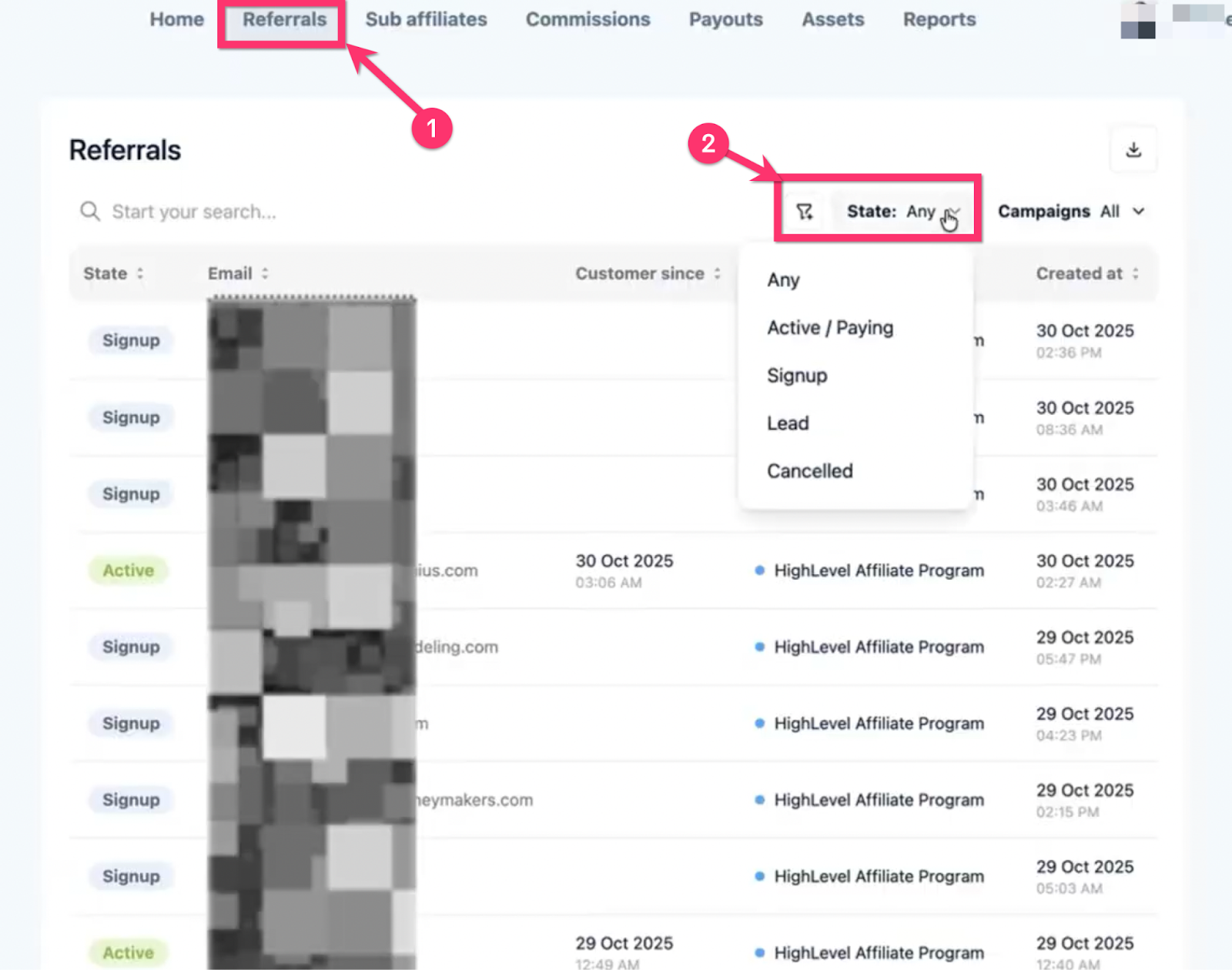
Referral tabs are part of the Affiliate Dashboard. They sort the people you sent a link to into categories such as Any, Active / Paying, Signup, Lead, and Canceled. Each tab shows only the customers that match that status.
The tabs are also available in the Super Charged software Campaign. That campaign displays the same categories so you can find customers who upgraded to the $497 per month plan.
02How businesses use referral tabs
- Track active paying customers. Open the Affiliate Dashboard, click Referrals, then select the Active / Paying tab. You will see every customer who is currently paying a subscription and earning you a renewal commission.
- Identify trial sign ups. Choose the Signup tab to view people who have completed the free trial sign up but have not yet paid. Their status will read Not A customer yet.
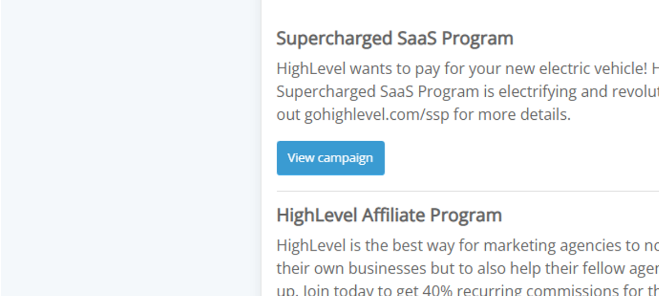
- Find upgraded SaaS customers. In the Super Charged software Campaign, click View Campaign then Referrals. The same tabs appear, letting you locate customers who moved to the $497 Pro plan.
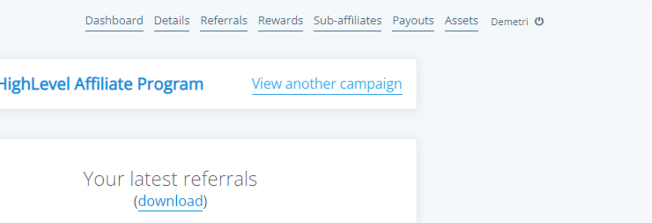
- Check earned commissions. Select the Rewards tab in either campaign to see the commissions you have earned for each customer, including those on the Pro plan.
03Before you start
- Log into HighLevel to view your Affiliate Dashboard.
- If you do not have an Active HighLevel Agency, log into first promoter at gohighlevel.firstpromoter.com/login.
04How to set up and use referral tabs in HighLevel
View referral categories
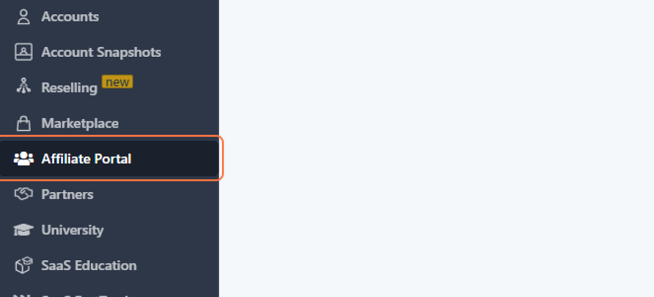
- Log into HighLevel and open the Affiliate Portal.
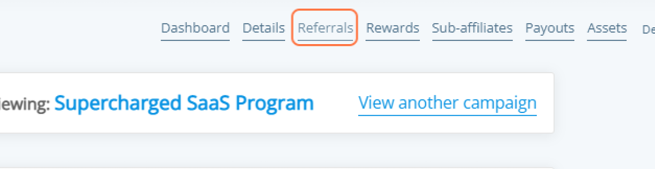
- From the Affiliate Dashboard click on Referrals.
- Select one of the tabs: Any, Active / Paying, Signup, Lead, or Canceled.
Check commissions in Super Charged software Campaign
- Click "View Campaign" under Supercharged software Program.
- Click on Referrals.
- Use the same tabs to locate the customer.
- Click Rewards to see earned commissions.
05What it looks like in HighLevel

06Things to know before you rely on it
- You will only earn a commission on customers who pay their subscriptions.
- If a customer is a split affiliate, they will not appear in your referral list.
- Updates to the Affiliate Portal are being rolled out, so the interface may not match this page exactly.
07If something goes wrong
- Referral does not appear after the customer upgrades. Check the Super Charged software Campaign by clicking "View another Campaign" and look under its Referrals tabs.
- Referral shows as Lead but not as Signed up. Remember that Lead and Subscribed are interchangeable; the customer may still be in the trial stage.
Michael's take

Michael ReimerFounder of CRM Pros, HighLevel Commander and Certified Admin
The referral tabs give a quick visual of where each referred prospect stands in the funnel.
For consultants who bring clients onto HighLevel, the Active / Paying tab helps verify which clients are generating ongoing affiliate payouts.
Get More InformationOpens on HighLevelPublished November 2, 2026 · Updated November 3, 2026