
01Who this is for
- Agency owners who manage many client subaccounts and need a consistent way to share metrics.
- Subaccount administrators who require regular updates without logging into the dashboard.
- Marketing teams that rely on timely data from contacts, outreach, SMS and other dashboards.
02Report Scheduler, explained
The Report Scheduler lives in the Agency view of HighLevel. From the Agency dashboard you open a specific subaccount and configure a schedule that determines when a compiled email report is sent. The report gathers metrics from Users, Contacts, Outreach, Submissions, SMS, Appointments, Deal Overview, Email, Tasks Overdue and Conversations.
When a schedule is active, HighLevel builds the report at the defined time, formats the selected dashboards into one email, and sends it to the recipients listed. The delivery follows the subaccount’s timezone and respects the frequency you set, daily, weekly or monthly. A test email can be sent before the schedule goes live, and the schedule can be paused or resumed at any moment.
Only agencies on plans that include Agency View scheduling (starting at $497/month (per HighLevel's help center, checked November 2026)) can create these schedules. Subaccount users without Agency View can still manage local schedules, but the central schedule controls remain in the Agency interface.
03How businesses use Report Scheduler
- Digital marketing agency. The agency opens the Agency view, selects a client subaccount, and creates a weekly report that includes Contacts, Outreach and SMS dashboards. Recipients such as the client’s account manager receive the email every Monday, keeping them aware of campaign performance without manual exports.
- SaaS startup. The startup’s Founder accesses the subaccount’s Report Scheduler, picks the daily frequency, adds the Email and Deal Overview dashboards, and lists the sales team’s email addresses. The team gets a daily snapshot of deals and email engagement directly in their inbox.
- Real estate brokerage. The brokerage selects the monthly option, includes the Appointments and Tasks Overdue dashboards, and adds the office manager’s email. A single email arrives each month summarizing scheduled showings and overdue tasks, helping the manager plan next steps.
04The numbers and rules that matter
- Agency View scheduling controls are available on $497/month and above plans (per HighLevel's help center, checked November 2026).
- Reports include data from Users, Contacts, Outreach, Submissions, SMS, Appointments, Deal Overview, Email, Tasks Overdue, Conversations (Unread + Missed).
- When scheduling these reports, at least 4 of the cards/insights on the report must have nonzero values in order for the report to be sent.
05Before you start
- The agency must be on a $497/month or higher plan that provides Agency View scheduling controls (per HighLevel's help center, checked November 2026).
- At least four of the selected dashboard cards must contain non zero values for a scheduled report to be sent.
- The user must be in Agency view to create or edit a central schedule.
06How to set up and use Report Scheduler in HighLevel
Schedule report for a subaccount
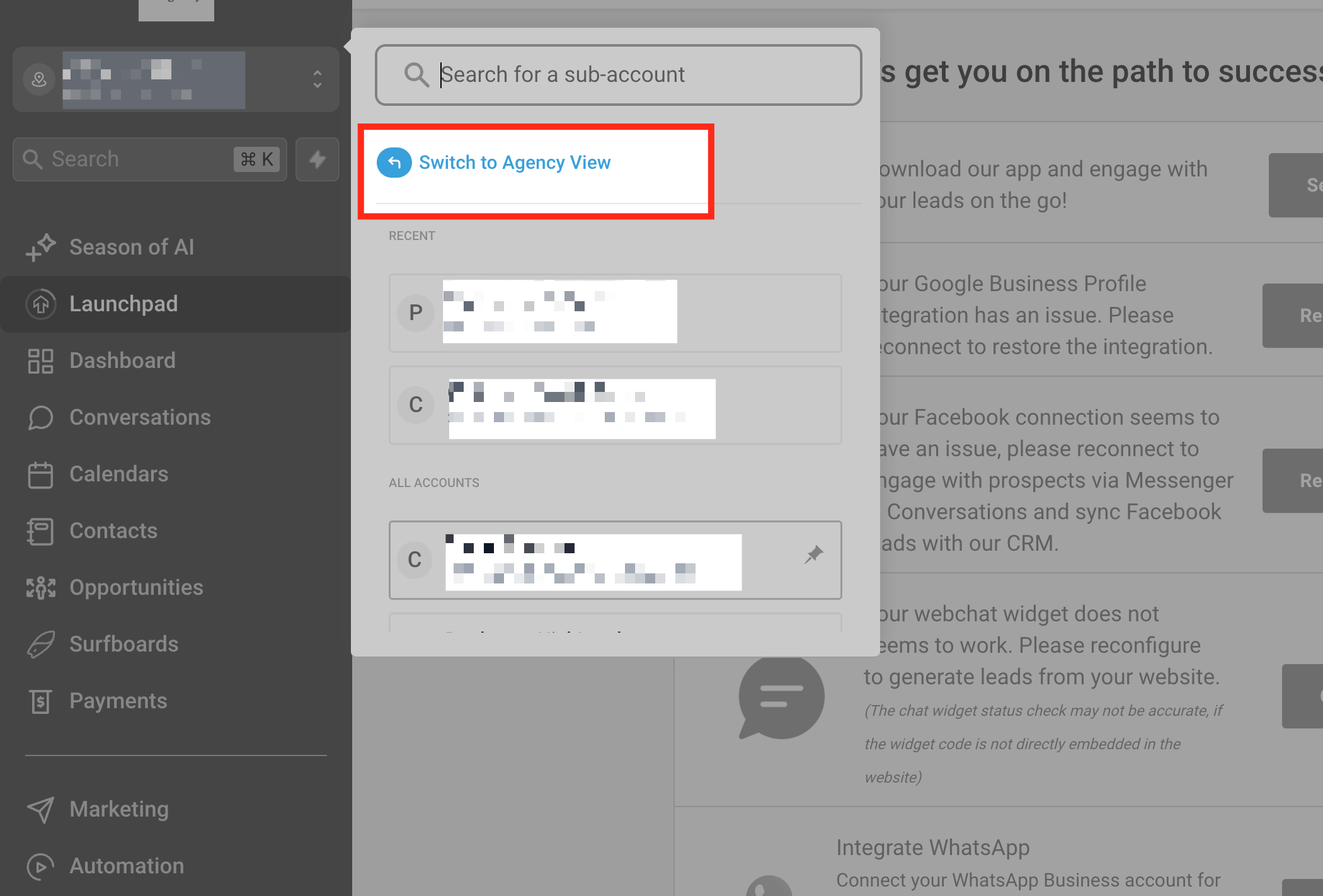
- Select Switch to Agency View from the account switcher to enter the Agency interface.
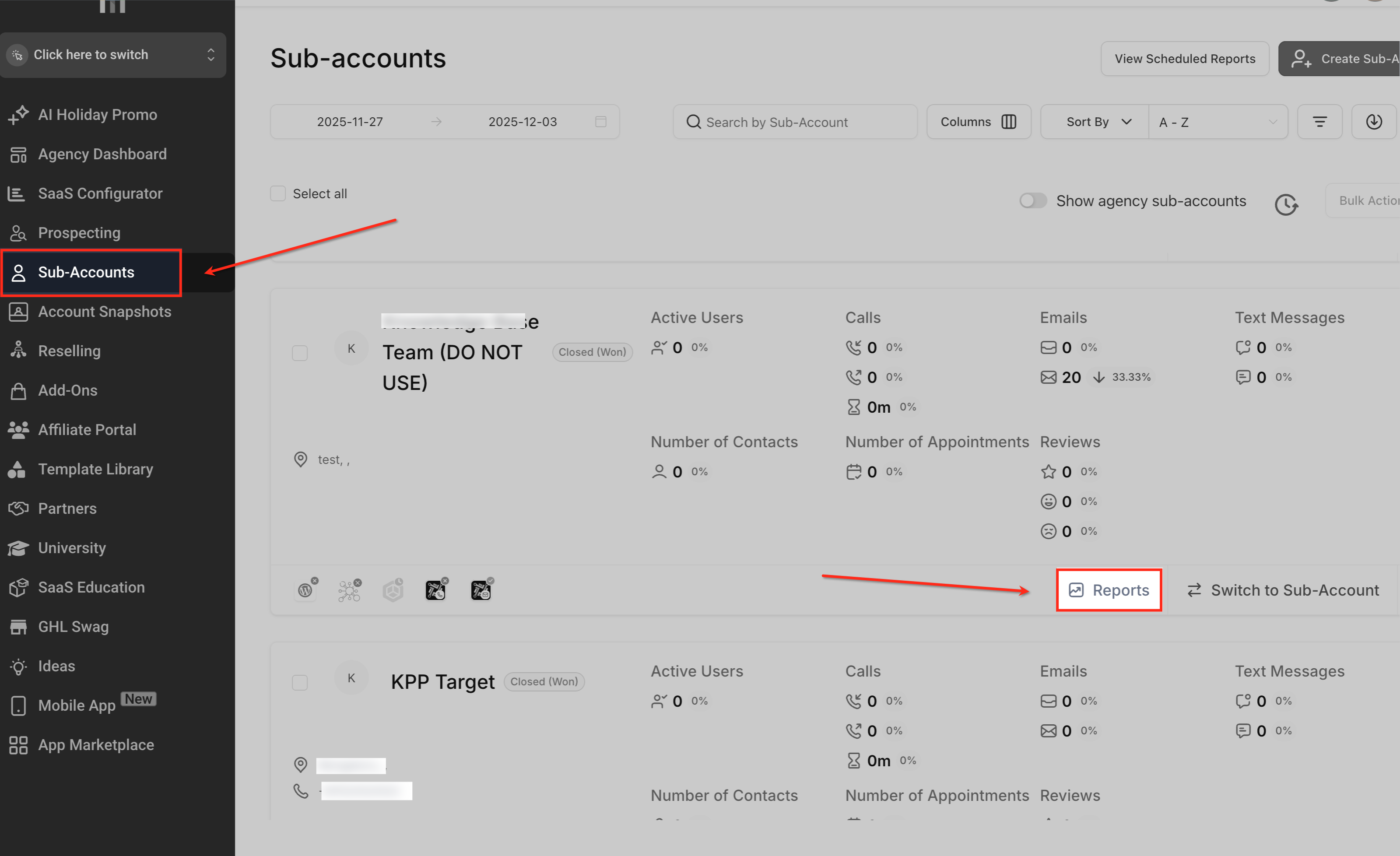
- In the left sidebar, click Subaccounts to list all client locations.
- Find the desired subaccount and click its Reports button.
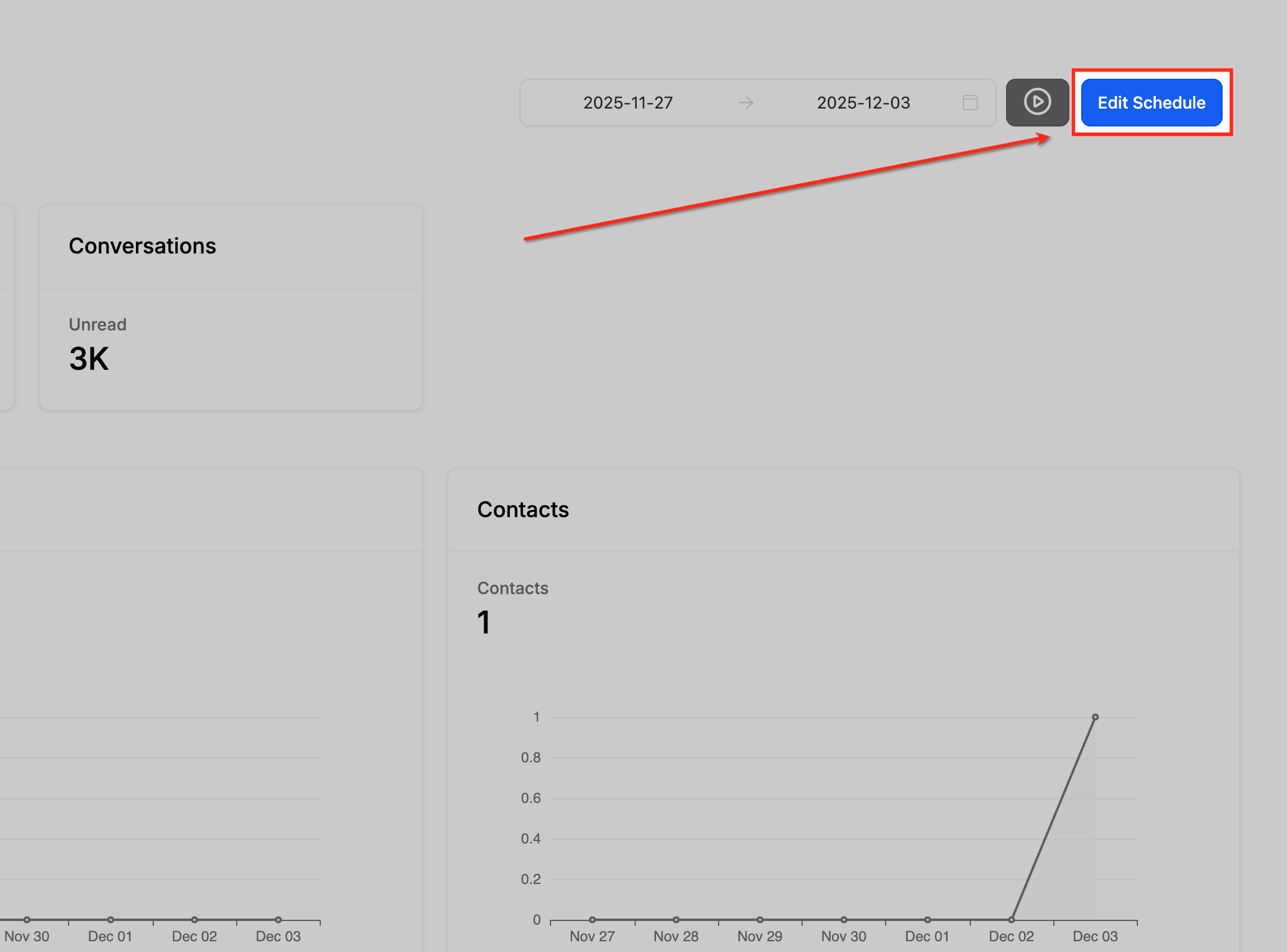
- Press Edit Schedule to open the existing schedule or start a new one.
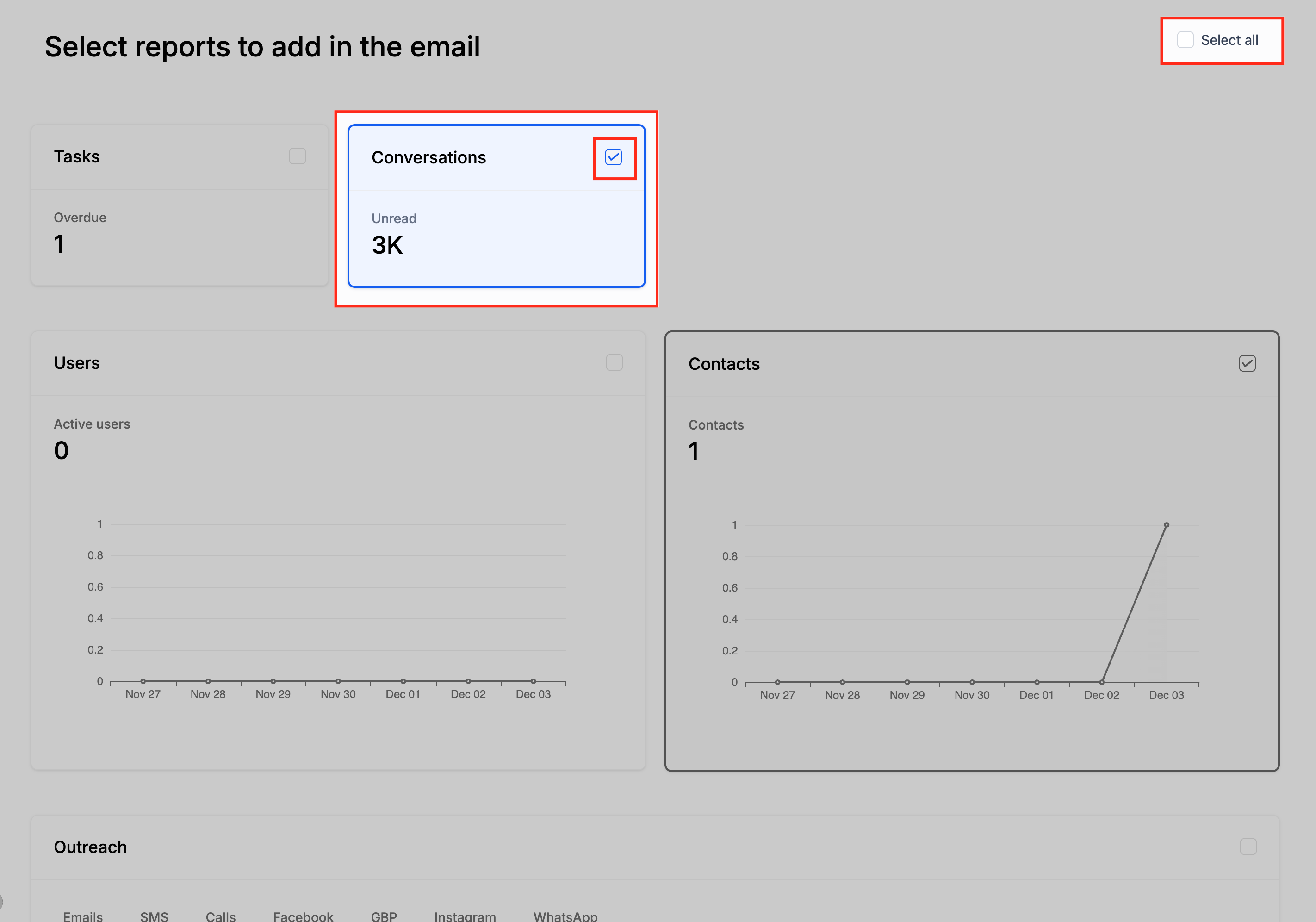
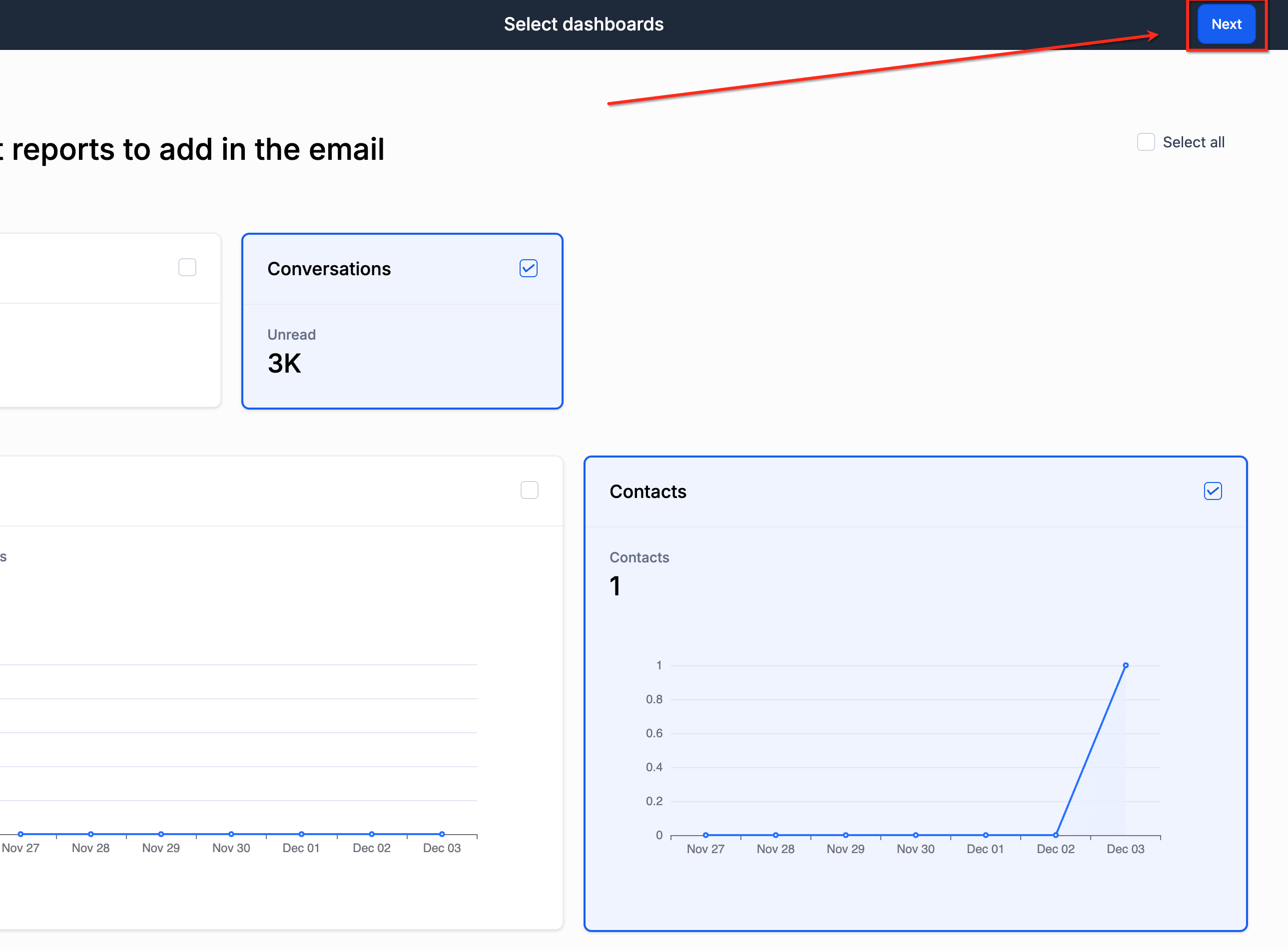
- Check the boxes for the dashboards you want in the report or use Select all.
- Click the Next button in the upper right corner to continue.
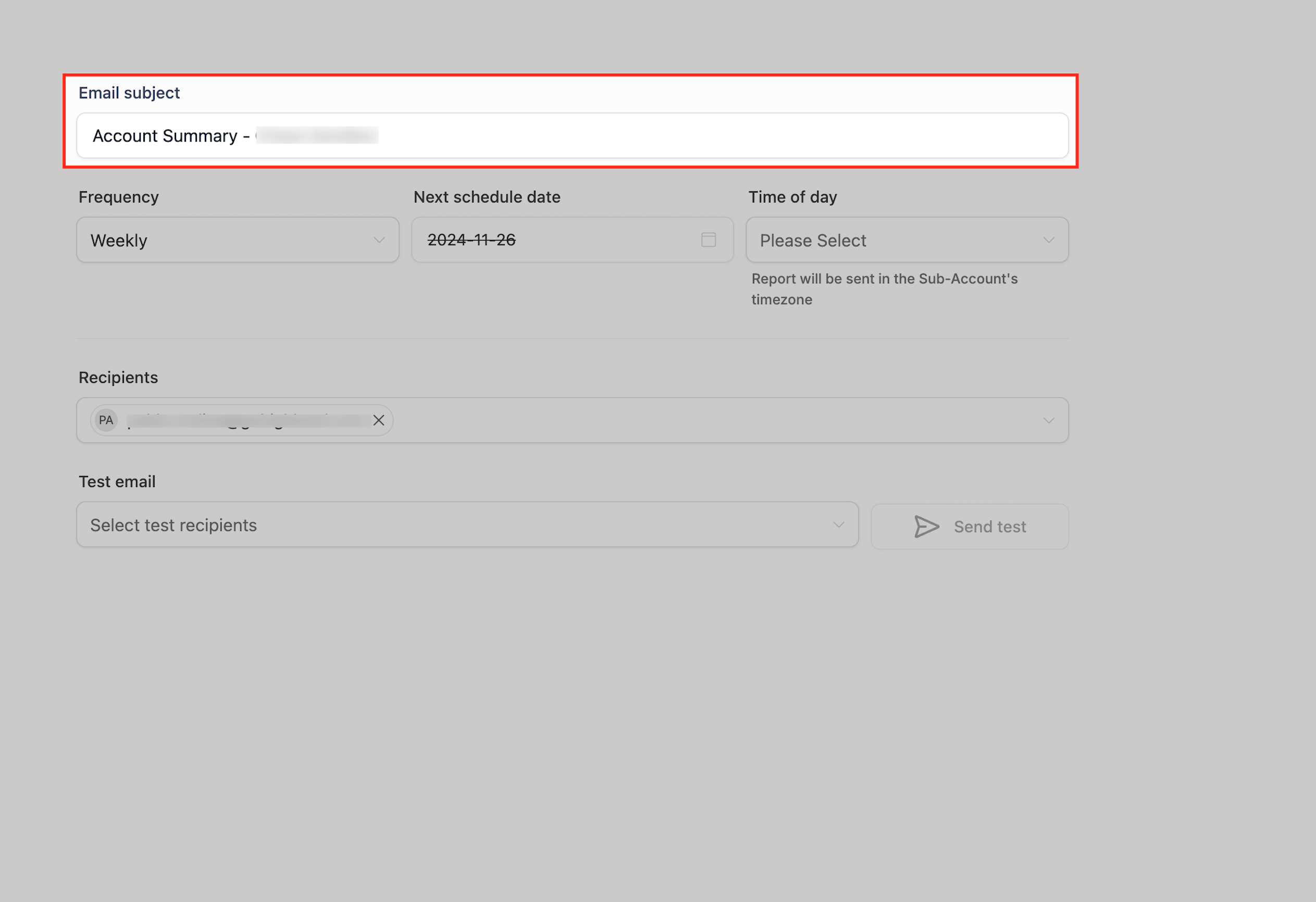
- Enter a clear subject line for the report email.
- Choose Daily, Weekly or Monthly from the Frequency dropdown menu.
- Set the first delivery date in the Next schedule date field.
- Select the time of day for delivery from the Time dropdown.
- Add one or more email addresses in the Recipients field.
- Enter test email addresses in the Test email field and click Send test.
- Use the Pause/Resume button to activate or temporarily stop the schedule.
07What it looks like in HighLevel
08Settings that matter
- Frequency. Determines whether the report is sent daily, weekly or monthly.
- Next schedule date. Sets the date of the first report and defines the recurring day for weekly or monthly schedules.
- Time. Specifies the time of day the email is delivered, based on the subaccount’s timezone.
- Recipients. Lists the email addresses that will receive the automated report.
- Test email. Provides addresses to receive a preview of the report before activation.
09Things to know before you rely on it
- Scheduling controls are only available on $497/month and higher plans (per HighLevel's help center, checked November 2026).
- A scheduled report is sent only if at least four of the selected dashboard cards have non zero values.
- The set of dashboards included in the report is predefined and cannot be modified.
- Subaccount users without Agency View can manage schedules locally, but cannot access Agency level scheduling.
10How it connects to the rest of HighLevel
- Agency rolled up reporting and scheduled reports Agency rolled up reporting
- Export a list of subaccounts Export subaccounts
- All Agency Reporting features Agency reporting overview
- HighLevel pricing and plans Pricing
Michael's take

Report Scheduler is useful for agencies that want to keep clients in the loop without daily manual work. If you don’t need automated data delivery to subaccounts, you can skip it.
Skip it if your agency runs on a lower tier plan that doesn’t include Agency View scheduling controls.