
01Who this is for
- Agency owners who need a consistent brand experience across web and desktop interfaces.
- Marketing firms that deliver client portals and require a dedicated, branded desktop presence.
02White Label Desktop Apps, explained
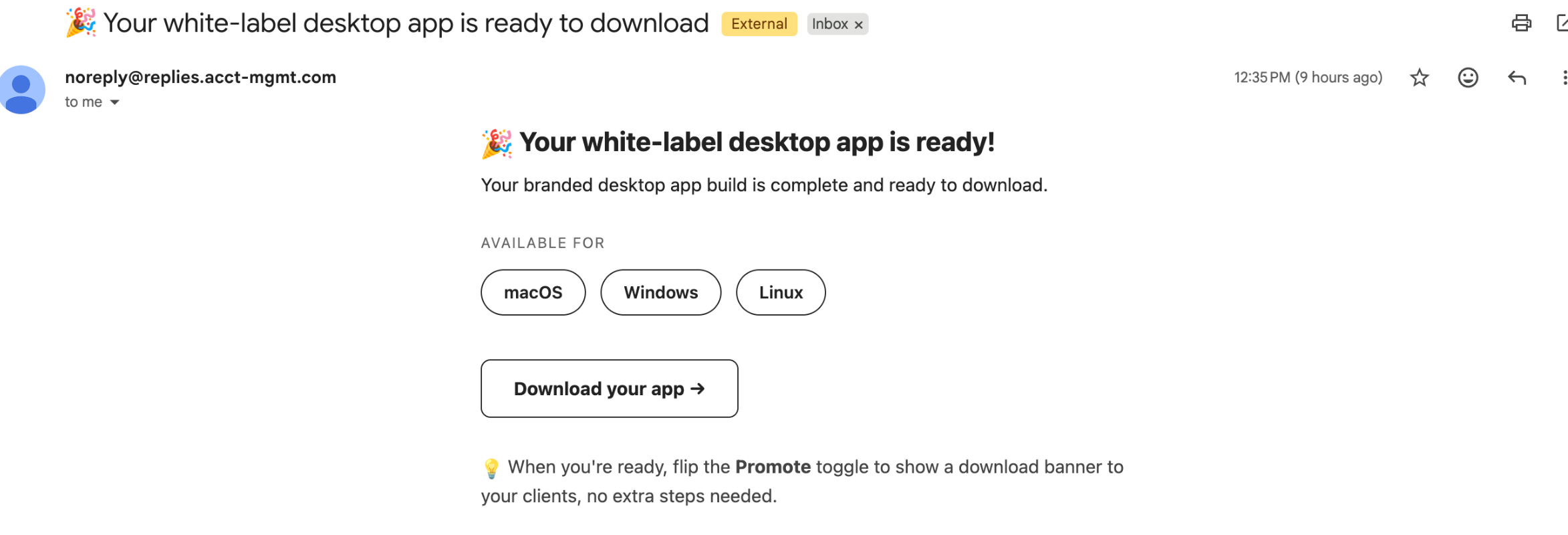
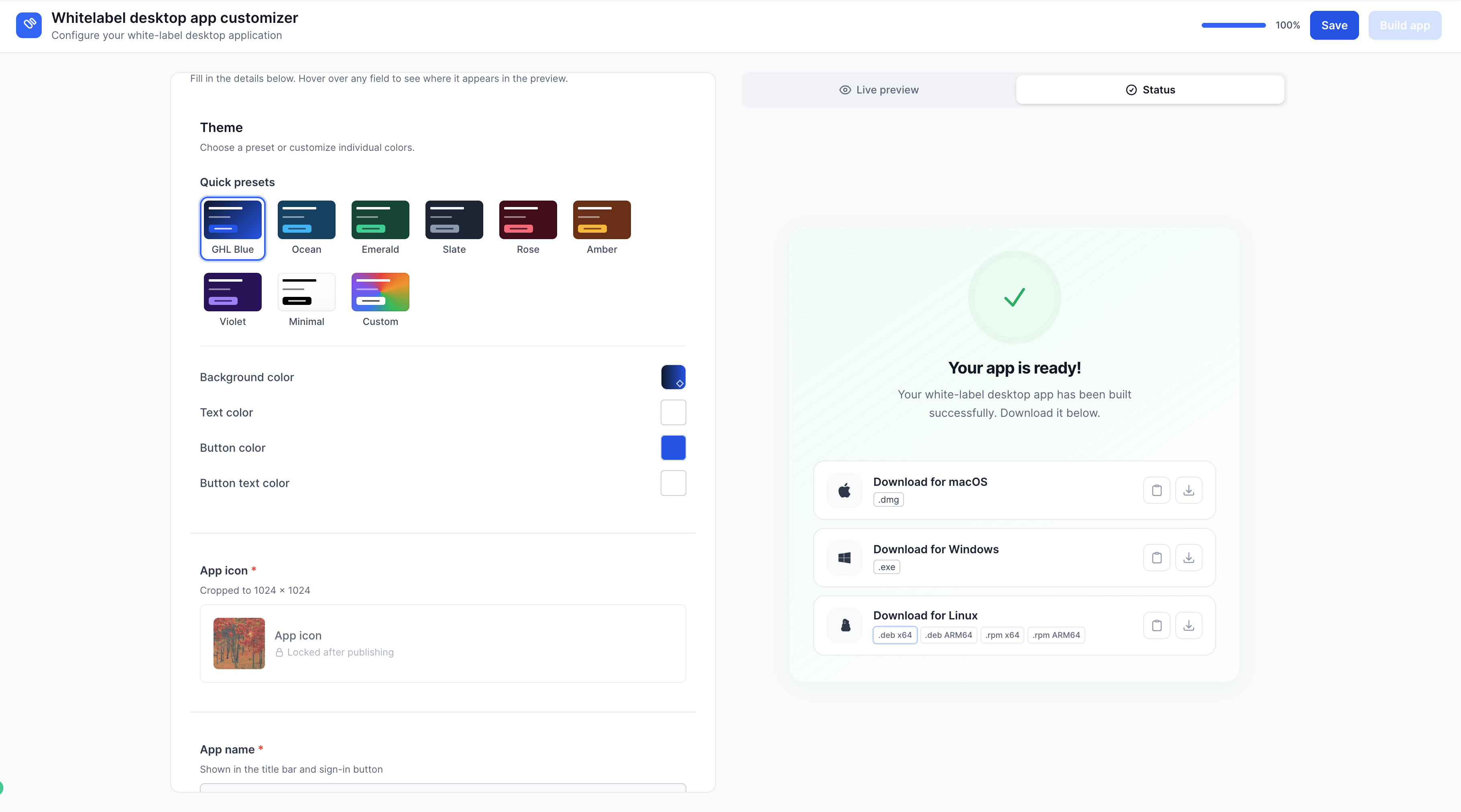
The feature adds a Desktop App Customizer tab in the Agency Dashboard. From there agencies select visual elements such as theme, app icon, app name, title, subtitle, full logo, background image and optional placeholder images. A live preview shows changes right away so the agency can verify the look before building. When the configuration is saved and the Build App button is pressed, HighLevel automatically creates installers for macOS, Windows and Linux. After the build finishes, HighLevel sends an in app notification and an email containing download links and access URLs. The app can be downloaded directly or the links shared via onboarding material, client portals or support responses. A Promote toggle allows agencies to surface a download banner inside subaccount dashboards once the app is published.
03How businesses use the White Label Desktop App
- Marketing agency. The agency opens the Desktop App Customizer, sets the theme, icon and logo to match its brand, builds the app and then downloads the installers to include the links in client onboarding emails.
- Consulting firm. The firm configures the app name and login screen text for each client, submits the build and uses the generated access links to add a download banner in each client’s subaccount.
- Software reseller. The reseller selects a custom background image and placeholder graphics, builds the app and copies the access URLs to embed in its customer support knowledge base.
04The numbers and rules that matter
- Supported platforms: MacOS, Windows, Linux.
- App Full Logo image is scaled to 512 x 128.
05How to set up and use the White Label Desktop App in HighLevel
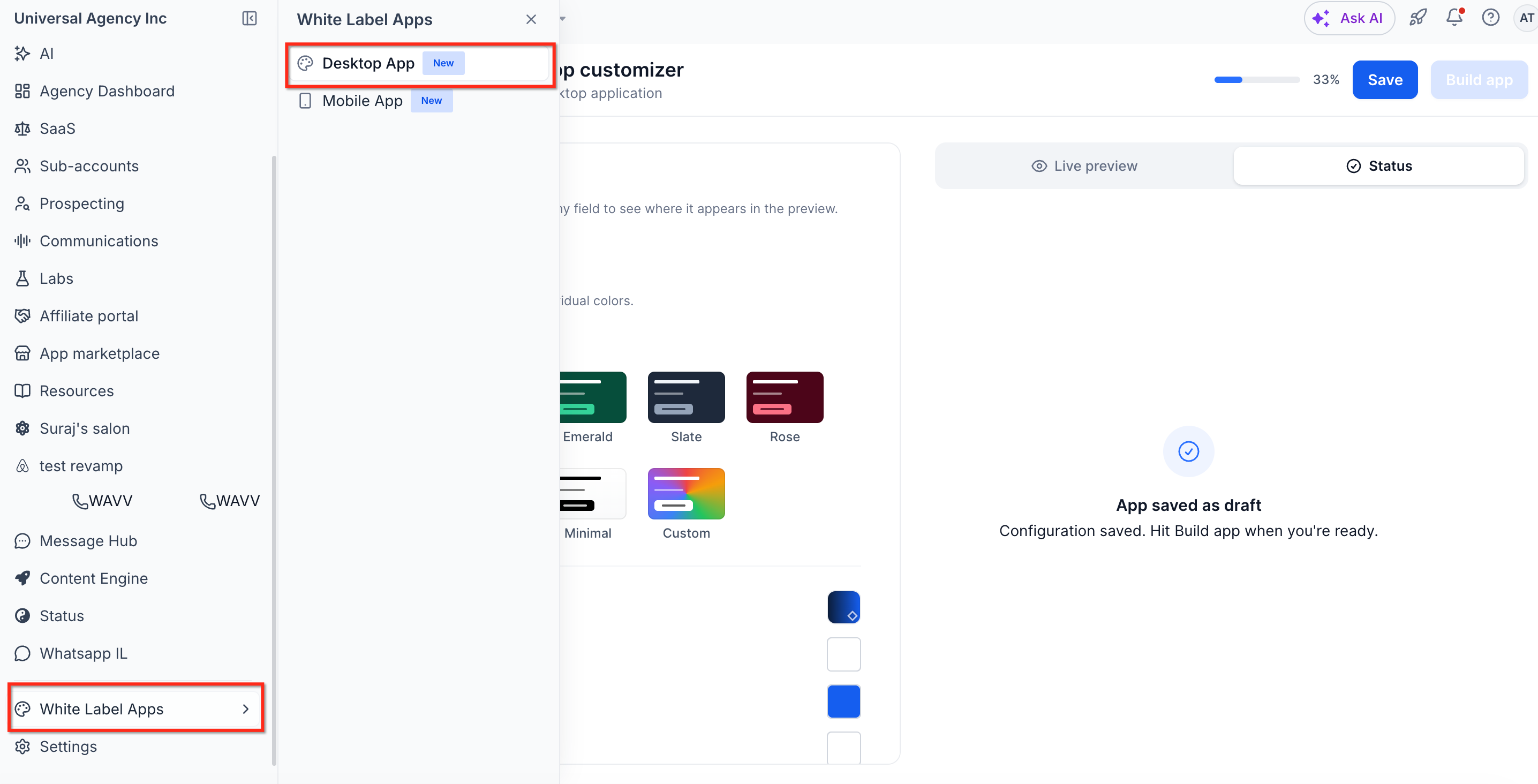
Open the Desktop App Customizer
- Sign in to the Agency Dashboard.
- Click the Desktop App tab in the main navigation.
- If a setup banner appears, click its button to launch the Desktop App Customizer.
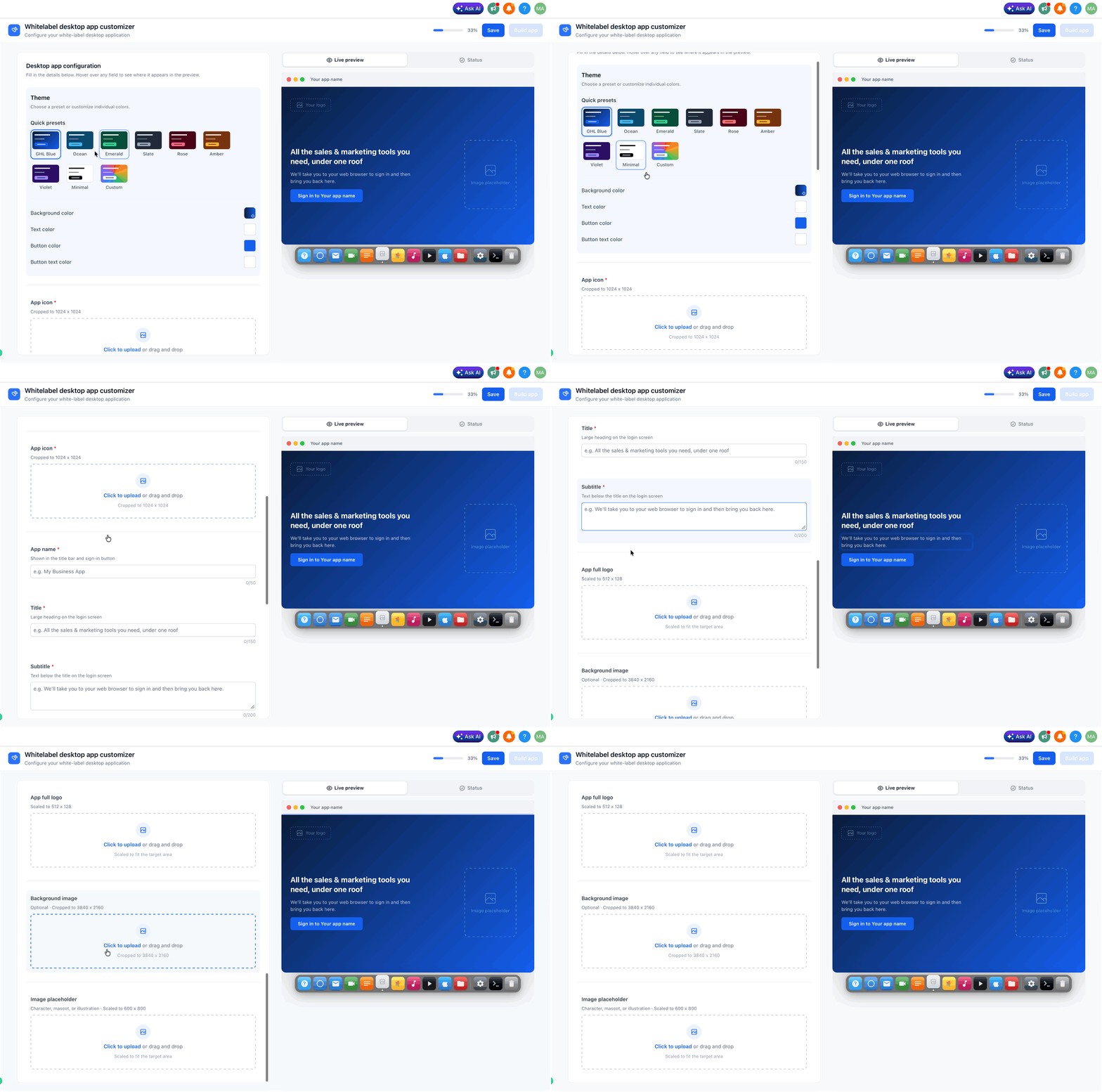
Configure the Desktop App
- Select a preset theme or create a custom theme.
- Upload the desired app icon file.
- Enter the app name that will appear in the title bar and sign in button (the name cannot be changed while the app is building).
- Enter the title text for the login screen.
- Enter the subtitle text that appears beneath the title.
- Upload the full size logo (scaled to 512 × 128).
- Upload the background image for the login experience.
- Upload optional placeholder images.
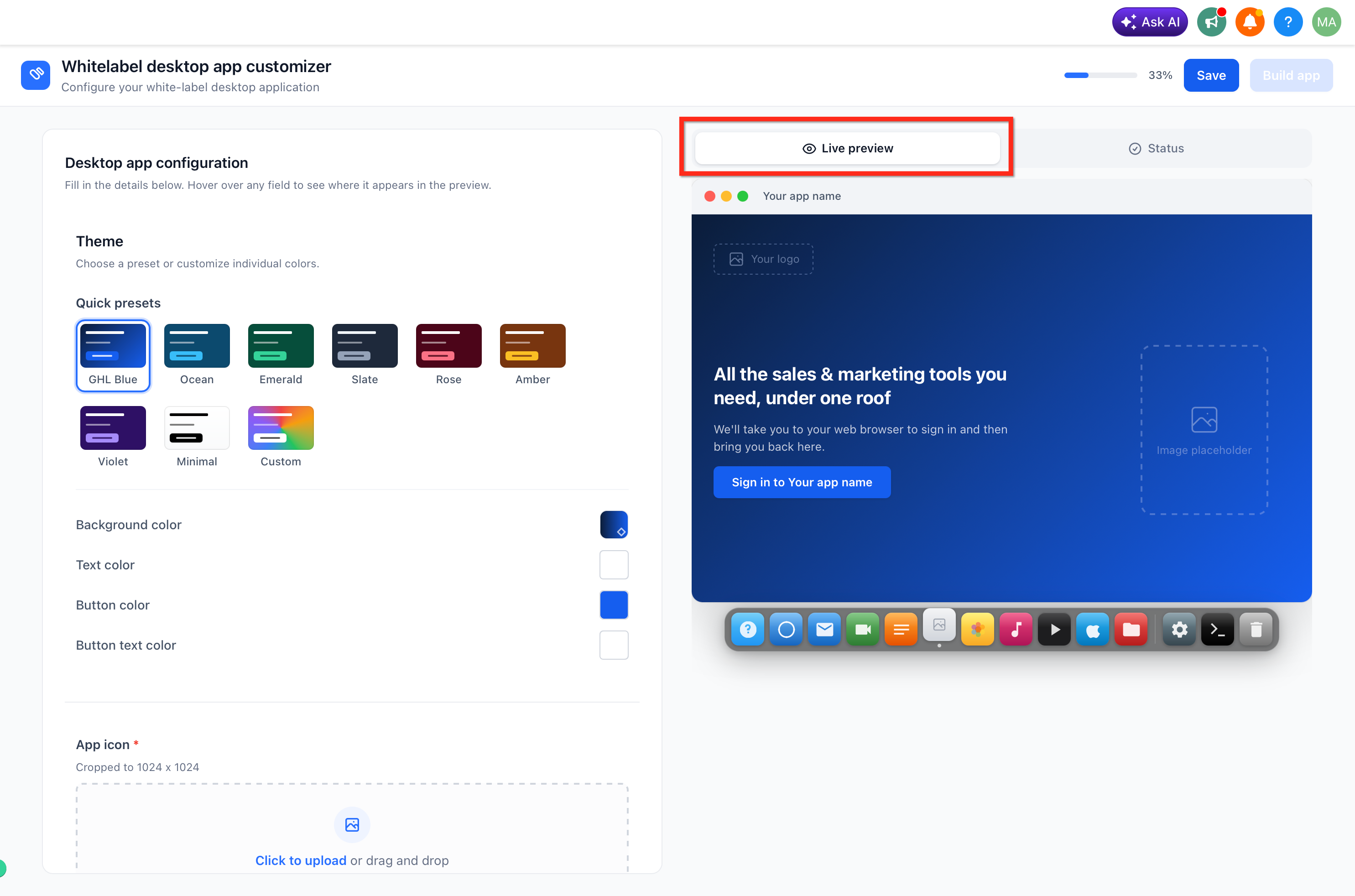
Review the Live Preview
- Watch the live preview update as you modify branding settings.
- Confirm that the app looks as intended before proceeding.
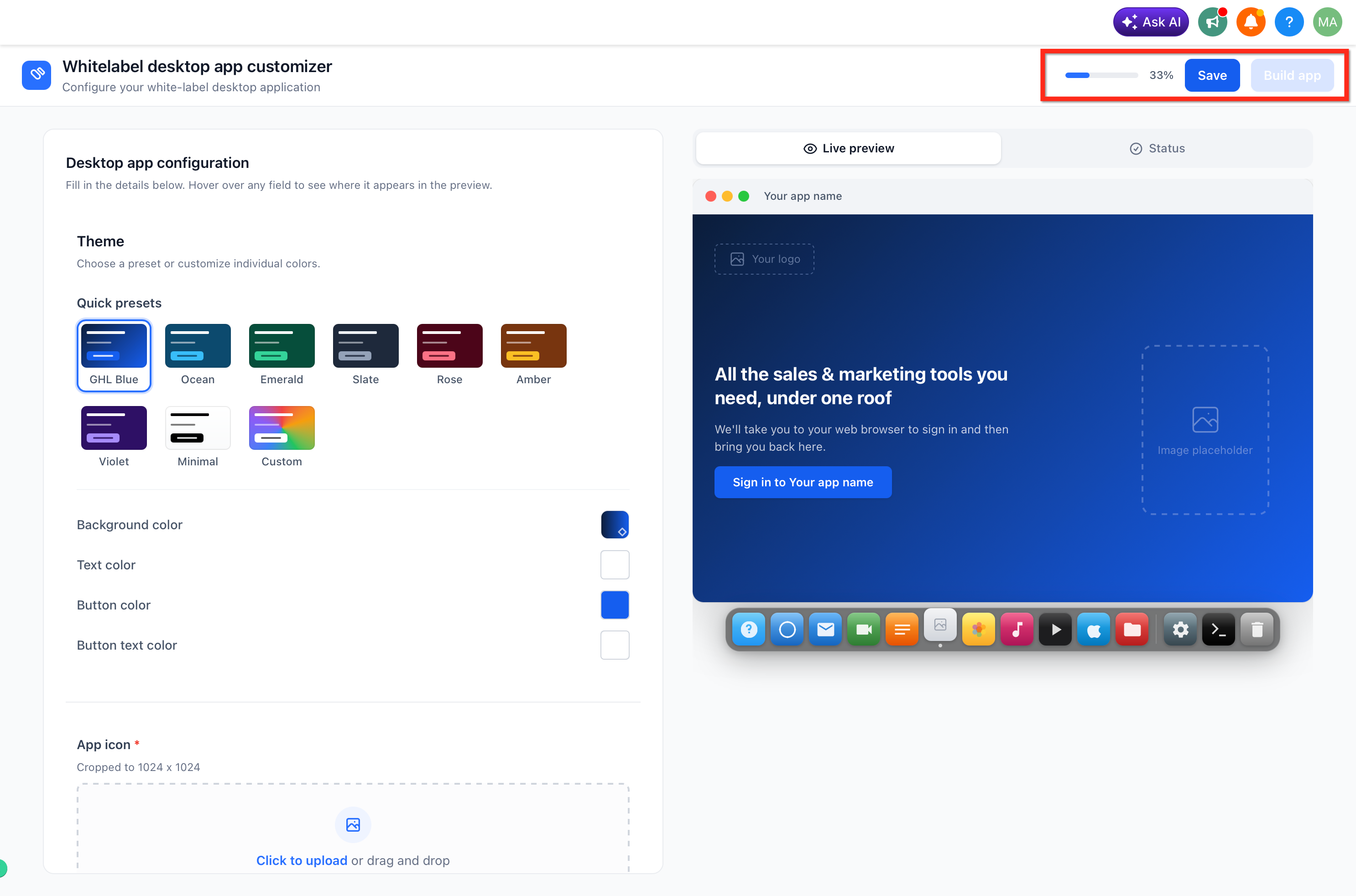
Save the Configuration
- Click Save to store all branding choices and prepare them for the build process.
Submit the App for Build
- Click Build App.
- HighLevel automatically starts building the app for macOS, Windows and Linux.
Monitor Build Complete Notifications
- When the build finishes, look for an in app notification in the notification drawer.
- Open the notification to go to the Desktop App page.
- Also check the build completion email, which contains the same download links.
Download, Copy and Share Access Links
- From the Desktop App page, click the download button for the required operating system.
- Copy the generated access link.
- Distribute the installer or link via onboarding material, client portals or support responses.
Promote the Published App to Subaccounts
- After the app reaches the Published state, turn on the Promote toggle in the Desktop App Customizer.
- Subaccount users will then see a download banner that highlights the installer matching their operating system.
06What it looks like in HighLevel
07Settings that matter
- Theme. Selects a preset visual style or allows creation of a custom color scheme for the app.
- App Icon. Specifies the icon file shown on the desktop and in the taskbar.
- App Name. Defines the text displayed in the title bar and on the sign in button; it cannot be changed while the app is building.
- Title. Sets the large heading on the login screen.
- Subtitle. Provides supporting text beneath the login screen title.
- App Full Logo. Uploads the full size logo, which HighLevel scales to 512 × 128.
- Background Image. Adds a background picture for the desktop app’s login experience.
- Placeholder Images. Uploads optional images that appear where content is not yet loaded.
08Things to know before you rely on it
- The setup banner that opens the Customizer rolls out progressively and may not appear for every agency.
- The app name cannot be edited while the build process is running.
- Mac App Store and Microsoft Store listings are planned for a future release; currently only generated download links are available.
- The Enable Promotion Banner appears only when the app is in the Published state and promotion has not yet been turned on.
09How it connects to the rest of HighLevel
- Set up a whitelabel domain for the desktop web app Whitelabel domain guide
- Browse the Add ons quick reference guide Add ons guide
- Review HighLevel pricing and plan options Pricing page
Michael's take

Many agencies overlook the branding impact of a desktop client and end up sending users to a generic HighLevel window. That can dilute the professional look you work hard to build elsewhere.
When you do invest in the White Label Desktop App, you give clients a cohesive, on brand experience that matches your login pages, onboarding guides and marketing material. It also creates a dedicated workspace that reduces browser distractions and can boost day to day efficiency.