
01Who this is for
- Agencies that manage multiple client accounts benefit from a single branded login that reflects the agency’s identity.
- Coaching or consulting firms gain trust by showing clients a login URL that matches their own domain.
- SaaS product providers can present a unified brand experience from marketing site to the HighLevel dashboard.
02Whitelabel domain, explained
The whitelabel domain feature replaces the standard app.gohighlevel.com address with a subdomain you own, such as app.yourdomain.com. When a user visits that address, HighLevel serves the desktop web app while keeping the URL, logo and legal links under your control. SSL certificates are automatically issued by HighLevel once the DNS CNAME points correctly.
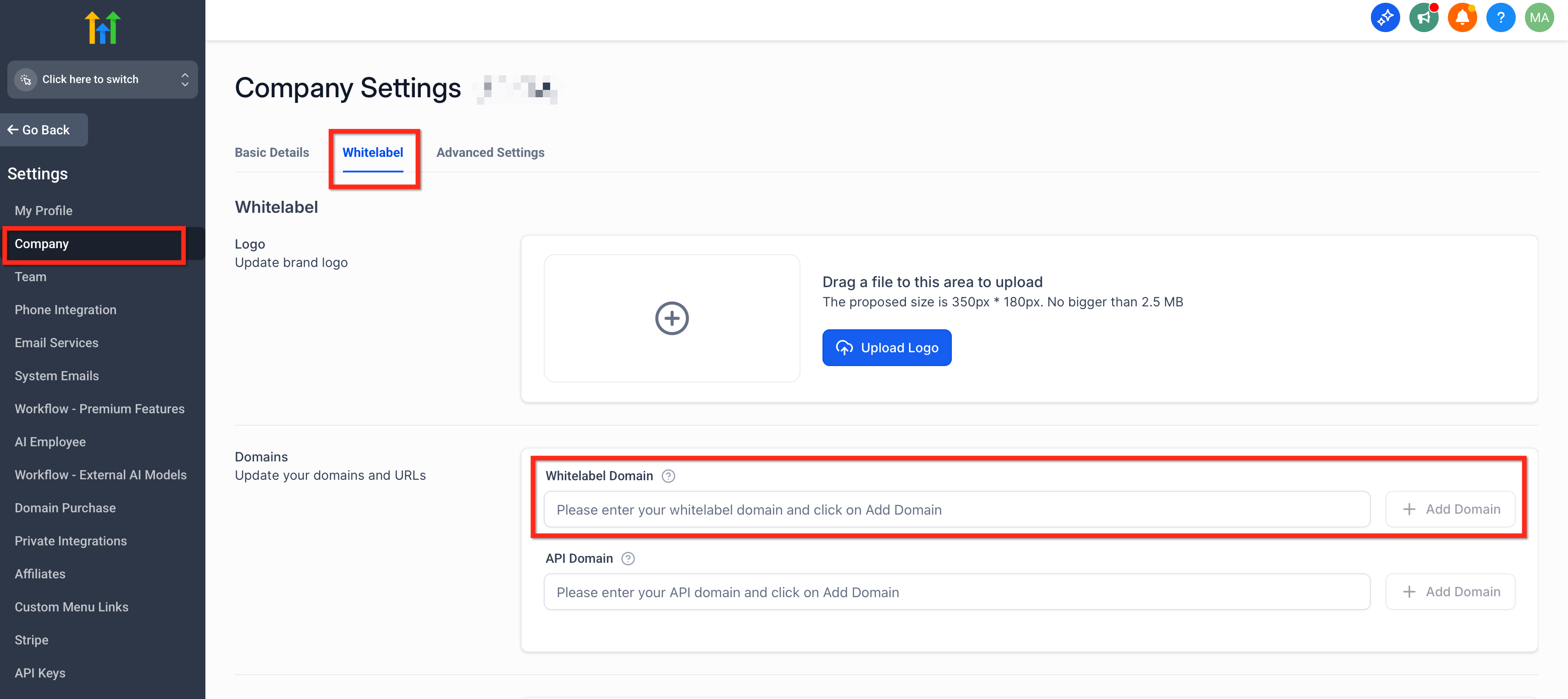
The configuration lives in Agency View under Settings > Company. There you enter the full subdomain, upload a logo, and add URLs for your Terms & Conditions and Privacy Policy. After DNS propagation, the branded login page appears and HTTPS is handled by HighLevel. The feature works independently of the API Domain, which brands system generated links.
Because the domain is a CNAME to whitelabel.ludicrous.cloud, HighLevel can issue a Let’s Encrypt certificate for the subdomain. The login URL remains separate from marketing sites or email sending domains, keeping branding distinct across channels.
03How businesses use whitelabel domain
- Digital marketing agency. The agency creates a CNAME like app.agency.com pointing to whitelabel.ludicrous.cloud, adds the subdomain in Agency Settings, uploads its logo and legal URLs, and then shares the branded login with all client accounts.
- SaaS startup. The startup configures app.startup.com as a CNAME, enters that address in the Whitelabel Domain field, uploads its product logo, and provides its privacy policy URL, so customers log in via a familiar URL.
- Coaching business. The coach sets up a CNAME such as app.coachname.com, adds the address in HighLevel, uploads a personal logo and terms link, then directs clients to that address for a consistent brand experience.
04The numbers and rules that matter
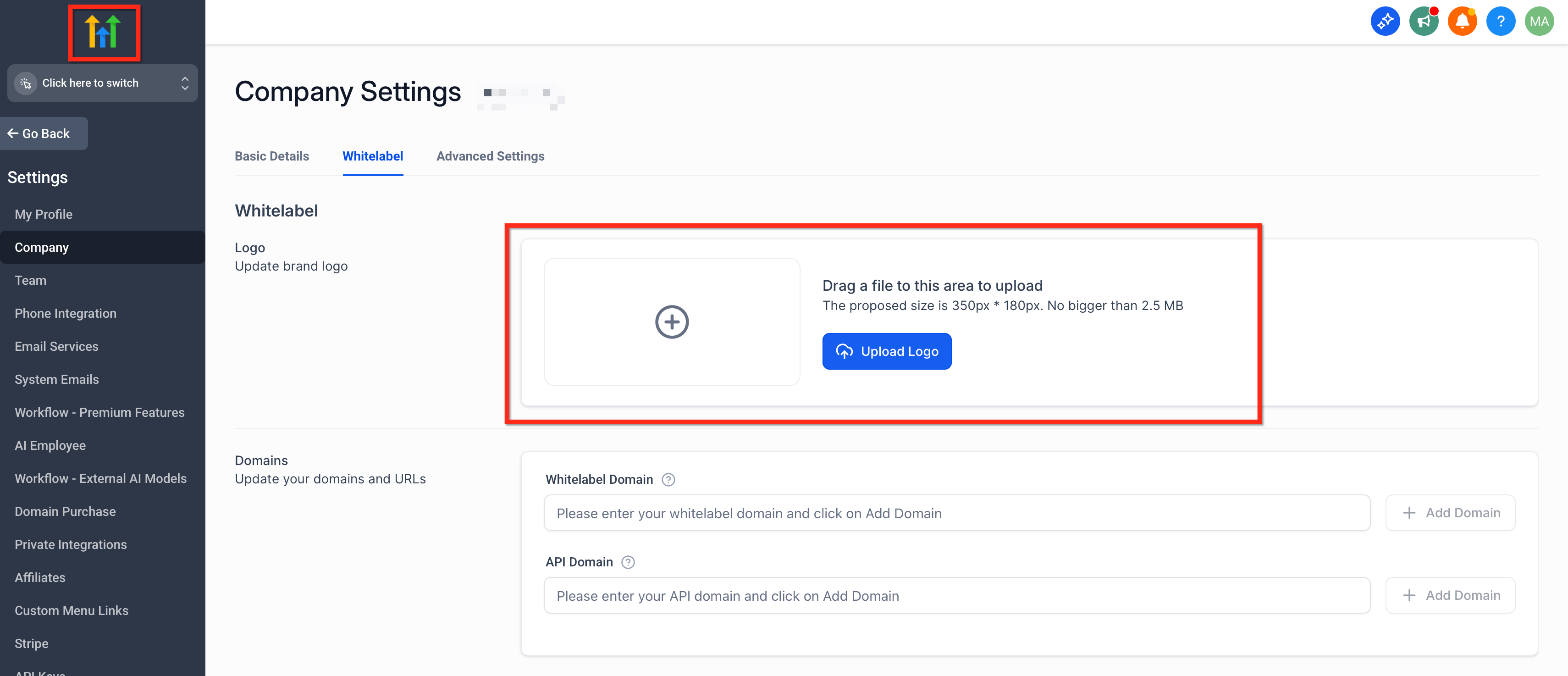
- Recommended logo size up to ~350×180 px, under 2.5 MB.
- TLS 1.2 and 1.3 are supported.
- Propagation may take up to 30 minutes globally.
05Before you start
- Own a domain and have access to its DNS records.
- Be logged into Agency View in HighLevel.
06How to set up and use whitelabel domain in HighLevel
Set up whitelabel domain for the desktop web app
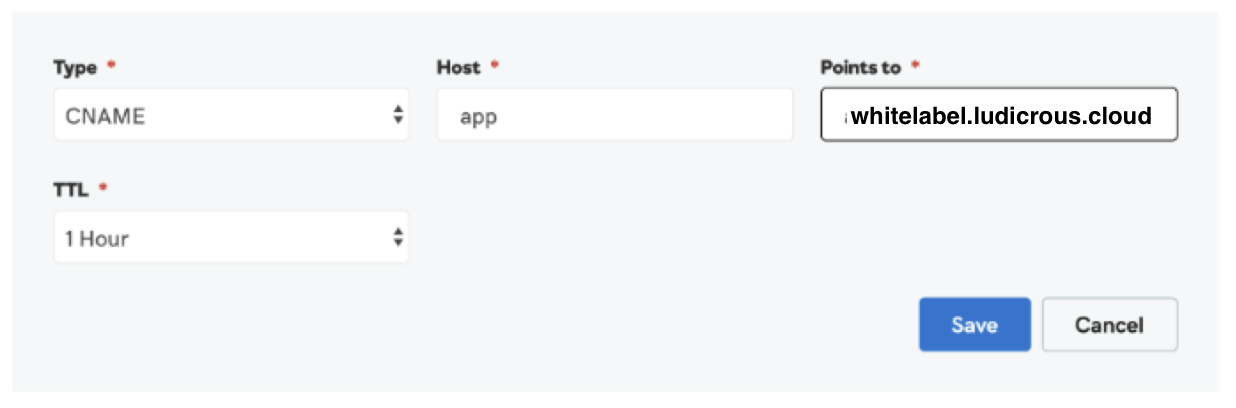
- Create a CNAME record at your DNS provider for the desired subdomain.
- Enter the subdomain (host/name) you want to use, such as app.
- Set the CNAME target value to whitelabel.ludicrous.cloud.
- Leave the TTL at its default setting unless your provider requires a specific value.
- In HighLevel, go to Agency View > Settings > Company > Whitelabel > Whitelabel Domain, type the full subdomain and click Update.
- Upload your agency logo and paste the URLs for your Terms & Conditions and Privacy Policy in Agency View > Settings > Company.
- Open the subdomain URL in a browser to confirm the branded login loads; SSL/TLS is issued automatically once DNS points correctly.
Update existing whitelabel domain
- Delete the current value in the Whitelabel Domain field using the trash icon.
- Click the Update Company button to save the removal.
- Enter the new subdomain into the Whitelabel Domain field.
- Save the changes to apply the updated domain.
07What it looks like in HighLevel

08Settings that matter
- Whitelabel Domain. Specifies the full subdomain that users will use to access the desktop app.
- Terms & Conditions URL. Provides the link displayed on the login page for the Terms & Conditions.
- Privacy Policy URL. Provides the link displayed on the login page for the privacy policy.
09Things to know before you rely on it
- You must use a subdomain (e.g., app.yourdomain.com); root domains are not supported.
- The CNAME must point exclusively to whitelabel.ludicrous.cloud; any additional A or CNAME records for the same subdomain will block SSL provisioning.
- SSL certificates are issued only for TLS 1.2 and TLS 1.3; older protocols are not supported.
- If you use Cloudflare, the proxy must be set to DNS only; the orange proxy will prevent SSL from issuing.
- SSL issuance occurs automatically after DNS propagation, which can take up to 30 minutes.
- When updating a domain, you must clear the existing value before entering the new subdomain.
10If something goes wrong
- The client and server don't support a common SSL protocol version or cipher suite. Update the browser to support TLS 1.2 or 1.3 and ensure no conflicting DNS records (e.g., both A and CNAME) exist for the subdomain.
- Domain not loading. Verify the CNAME points to whitelabel.ludicrous.cloud and allow up to 30 minutes for DNS propagation.
- Your Connection Is Not Private or HTTPS not working. Confirm DNS is fully propagated and points only to the required CNAME; SSL will be issued automatically once the DNS is correct.
11How it connects to the rest of HighLevel
- Step by step guide for the HighLevel white label desktop app White label desktop app guide
- Explore HighLevel pricing and plan options Pricing
- Start a 30 day HighLevel trial to test the feature 30 day trial
Michael's take

In my experience, a whitelabel domain gives clients a consistent brand experience from the moment they log in, which can reinforce trust.
If the effort of DNS configuration and logo upload feels like too much for a small internal team, the default HighLevel domain often works fine.