
01Who this is for
- SEO agencies that need to rotate client sites quickly to stay within the four project limit.
- Marketing consultants managing multiple domains and wanting to remove outdated audits.
- Small business owners who have reached the site quota and must free space for a new property.
02SEO site projects, explained
The delete function removes a Site Project from the SEO section of HighLevel. When a project is removed, all audits associated with it disappear and any automatic SEO fixes applied through the project are reverted. The platform then restores one quota slot, so a new site can be added.
The feature lives under the Sites > SEO navigation area. Users who have Admin rights or Sites/SEO access can see the project list, open the actions menu for a project, and trigger the deletion workflow. A confirmation modal explains the impact before the final step.
After deletion, only the fixes that originated from the removed project are rolled back. Manual changes unrelated to those fixes stay intact, but you may want to verify redirects, sitemaps, and Search Console coverage afterwards.
03How businesses use deleting SEO site projects
- Digital marketing agency. When a client’s website is no longer under management, the agency opens the SEO project list, selects the three dot menu for that site, and deletes the project. This frees a quota slot for a new client and automatically rolls back any auto applied SEO fixes.
- Local SEO consultant. After completing an audit for a local business, the consultant removes the project to keep the SEO workspace tidy. The deletion restores the quota and ensures that any automated path fixes are undone, preventing leftover changes on live pages.
- Ecommerce brand. If the brand phases out a discontinued online store, it deletes the corresponding SEO Site Project. The action clears the audit data, reverts project specific fixes, and opens a slot to start a fresh audit for a new store domain.
04Before you start
- User must have sufficient permissions, typically Admin or Sites/SEO access.
05How to set up and use deleting SEO site projects in HighLevel
Delete a SEO site project
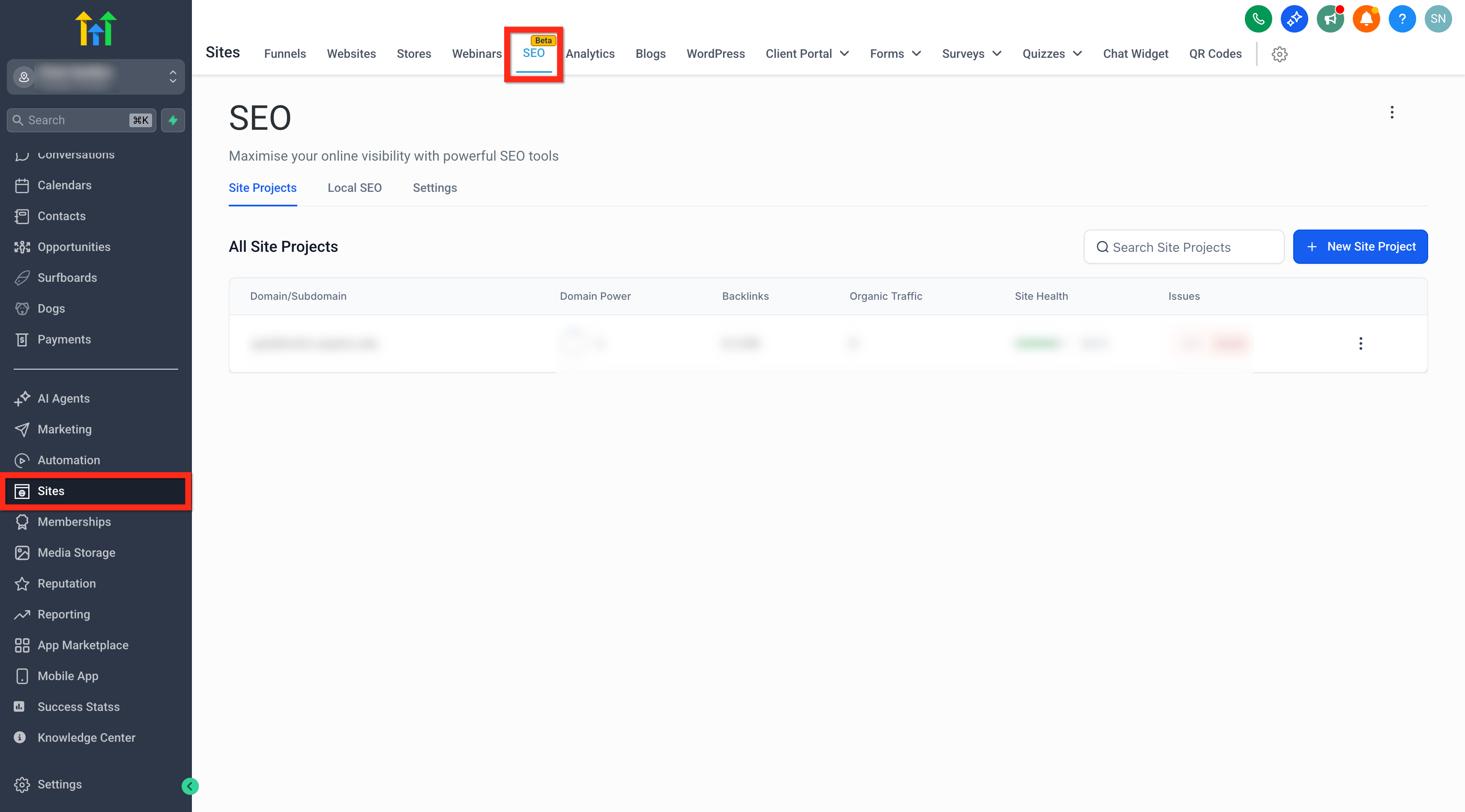
- Navigate to Sites > SEO.
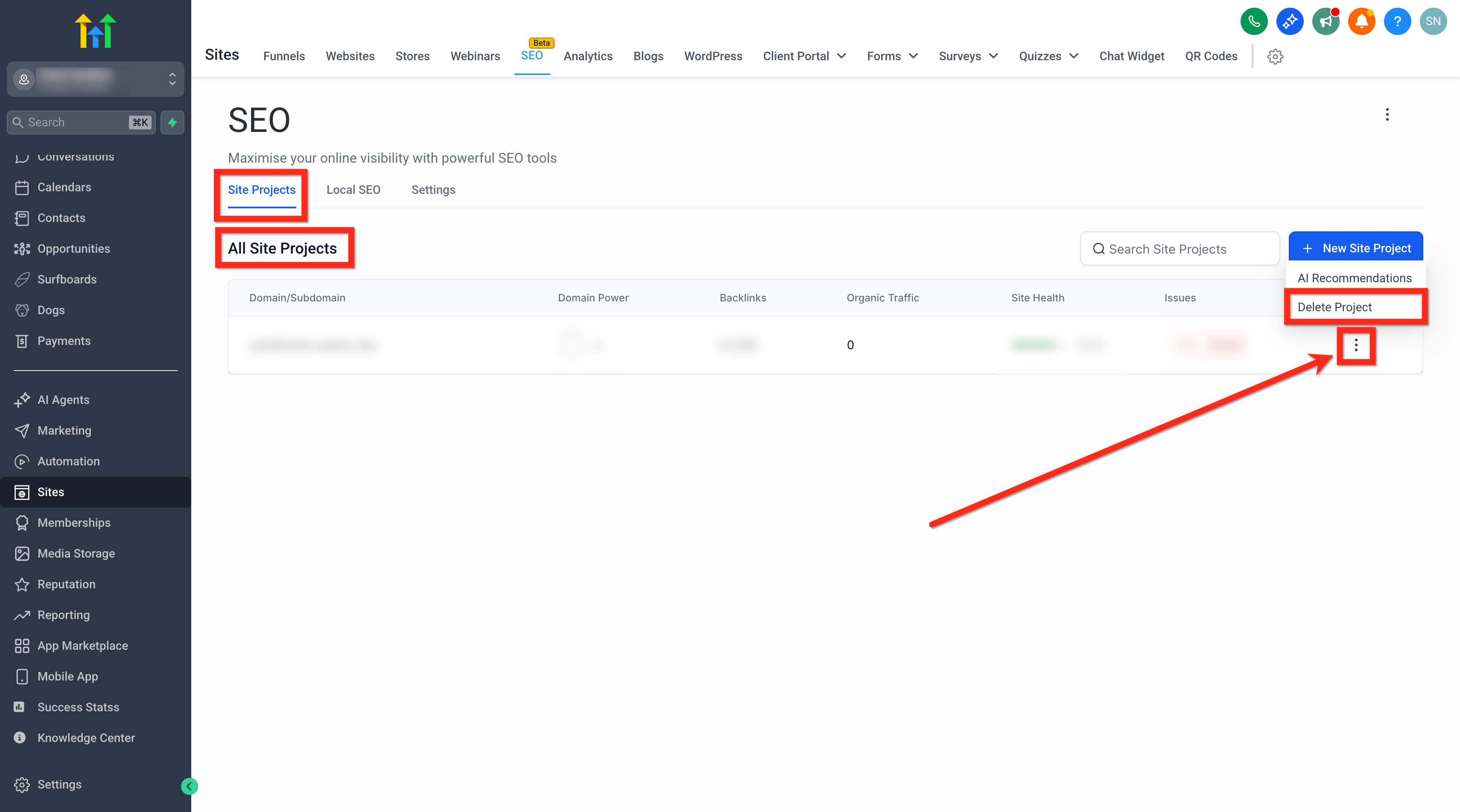
- Open the Site Projects list and locate the project you want to remove.
- Click the three dots (⋯) next to the project name and choose Delete Project.
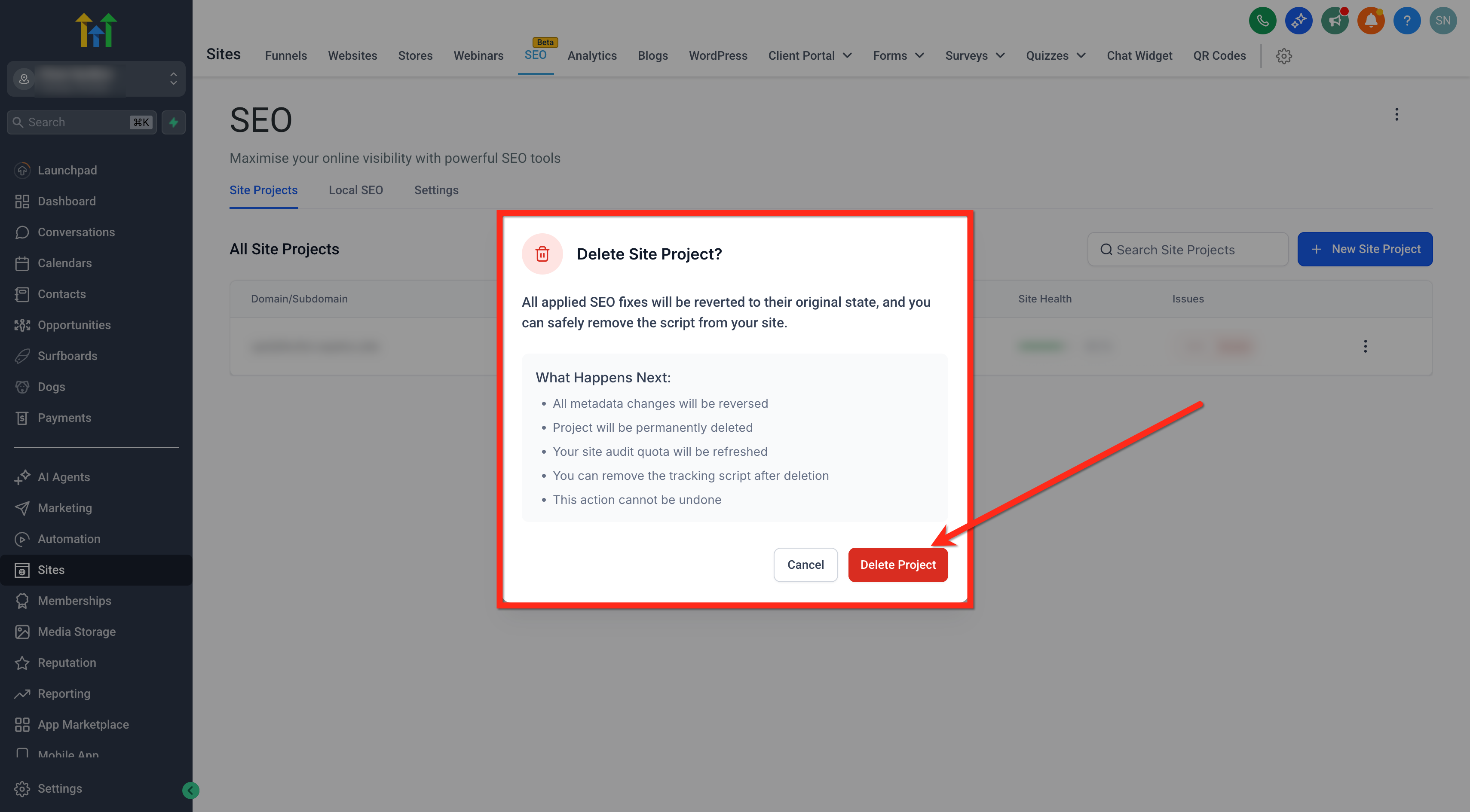
- Read the impact details shown in the confirmation modal.
- Note that deletion is permanent and cannot be undone.
- Confirm by clicking the Delete Project button.
06What it looks like in HighLevel
07Settings that matter
- Quota Usage. Shows the number of SEO Site Project slots currently in use and how many remain available.
08Things to know before you rely on it
- A maximum of four SEO Site Projects can exist at any time.
- Deletion is permanent; the platform cannot restore a deleted project.
- Only fixes applied through the deleted project are rolled back; manual edits remain unchanged.
09How it connects to the rest of HighLevel
- Use the SEO dashboard to view overall project health and quota usage. SEO dashboard
- Manage all site projects, add new domains, and monitor audits from the Site Projects area. Site Projects
- Review plan limits and pricing for SEO features, including the four site quota. Pricing
Michael's take

When you’re juggling multiple client sites, the four site limit can feel tight. Deleting a project you no longer need is a small convenience that fast frees space for a higher priority property, and it also rolls back any automated SEO tweaks that might otherwise linger on live pages.
An agency that runs audits for small local businesses will find this handy. If a client’s site is retired or moves to a different platform, I’d delete the old project, double check the rollback of funnel and blog fixes, and then add the new domain to keep the audit pipeline flowing.