
01Who this is for
- Agencies that manage multiple client websites benefit from centralized monitoring and white label reporting.
- Marketing teams can run on page audits and apply AI driven fixes without leaving the platform.
- Local businesses can view Google Maps ranking heatmaps to improve geo targeted visibility.
02SEO, explained
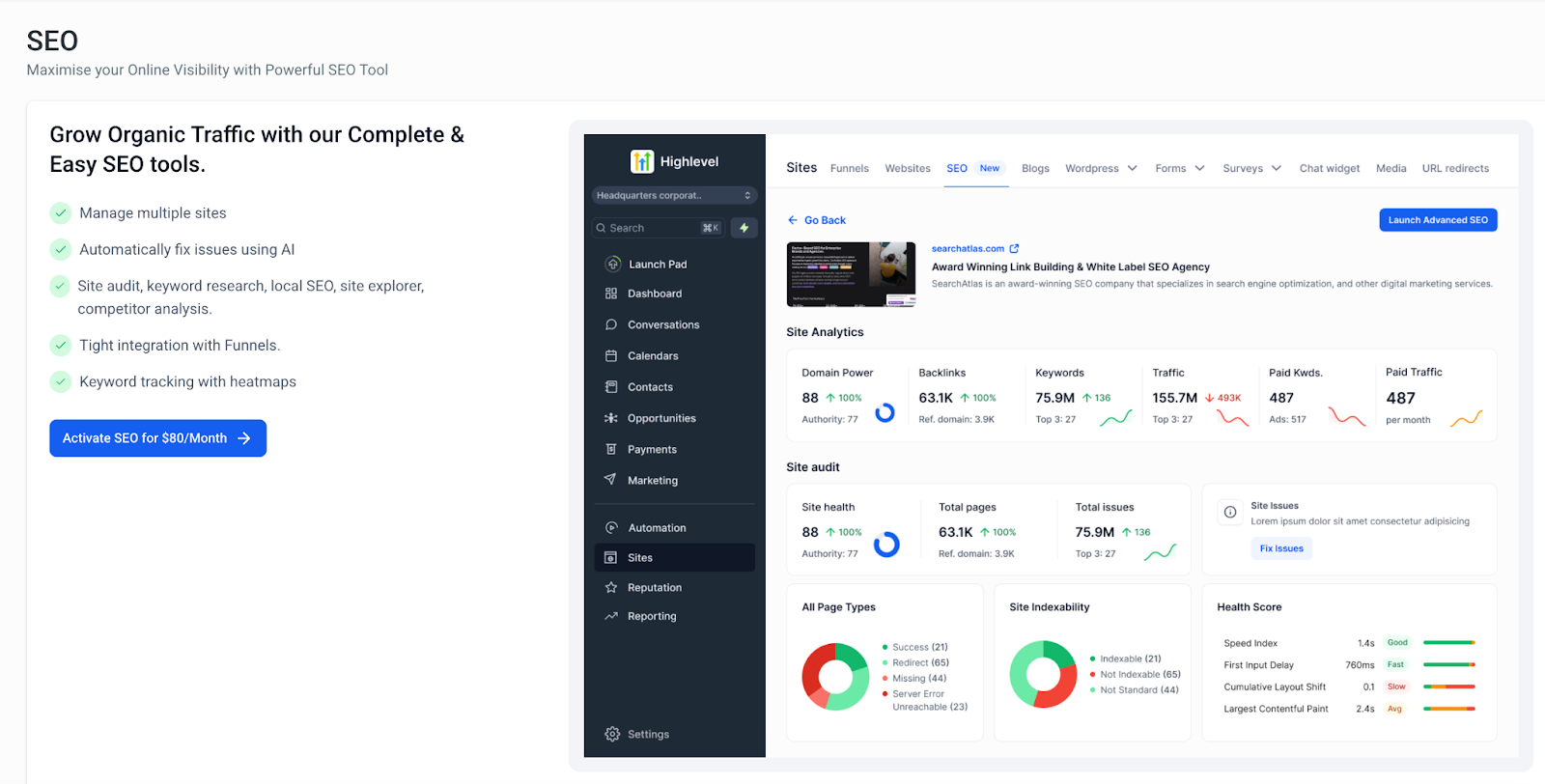
The SEO feature offers a full set of tools for keyword research, site audits, backlink analysis, content optimization, and reporting. AI recommendations automatically suggest fixes for meta descriptions, title tags, missing image alt text, and keyword issues. All data and actions are visible inside the Sites > SEO area of HighLevel.
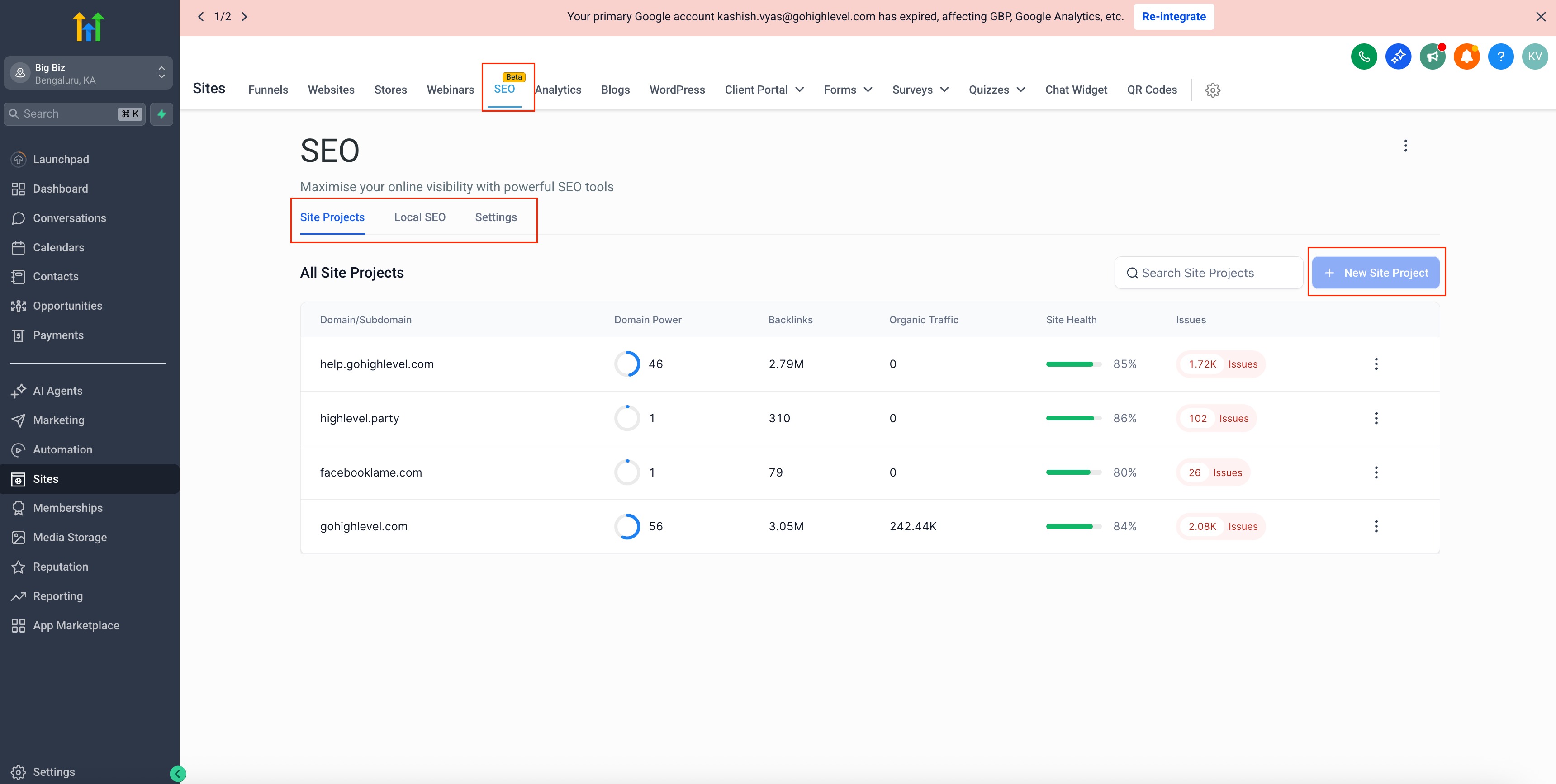
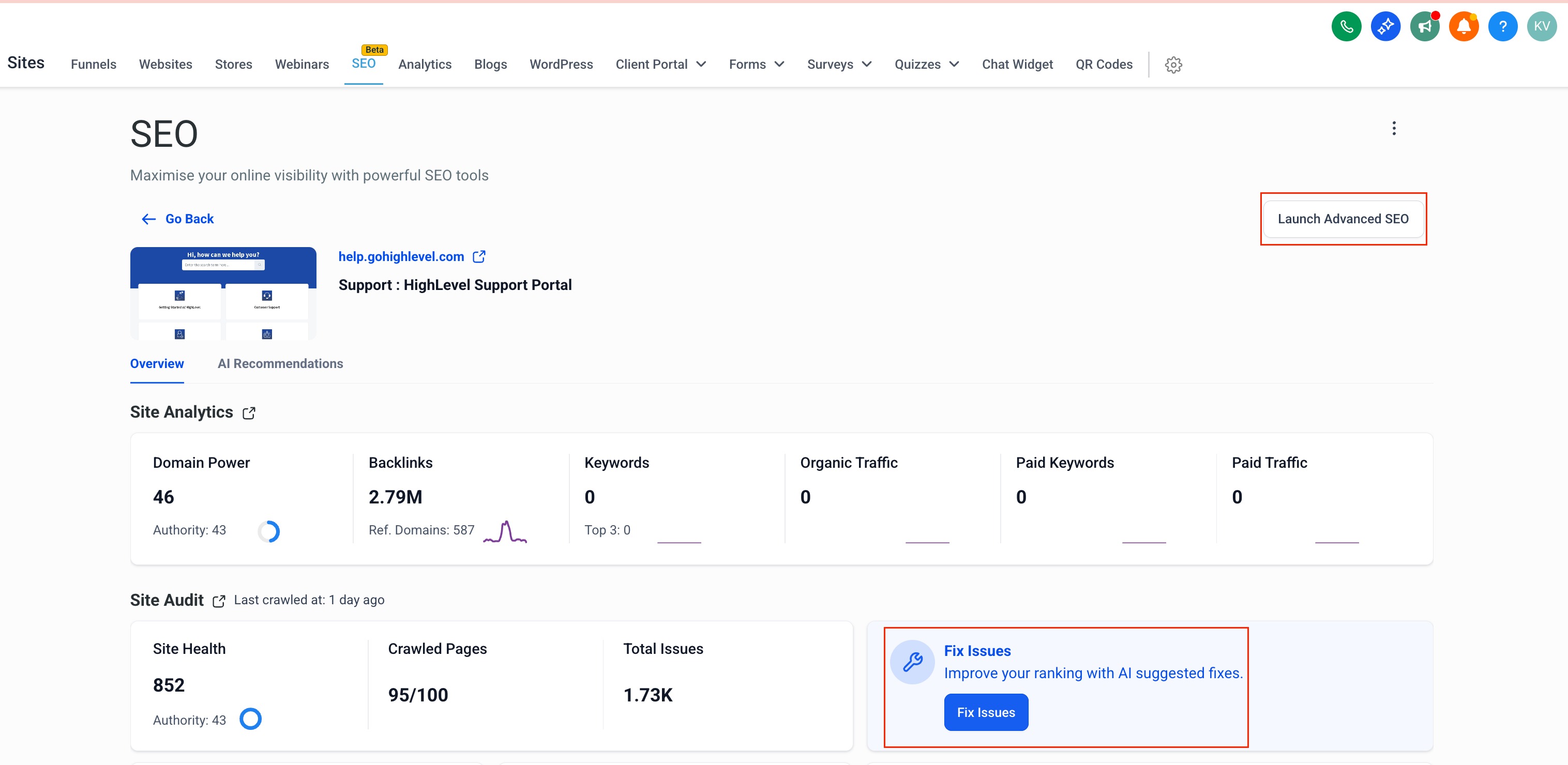
A dashboard presents three primary tabs: Site Projects for overall site health and metrics, Local SEO for map based ranking heatmaps, and Settings for quota monitoring. Clicking the Launch Advanced SEO button opens a larger workspace with deeper analysis, content creation, and reporting capabilities.
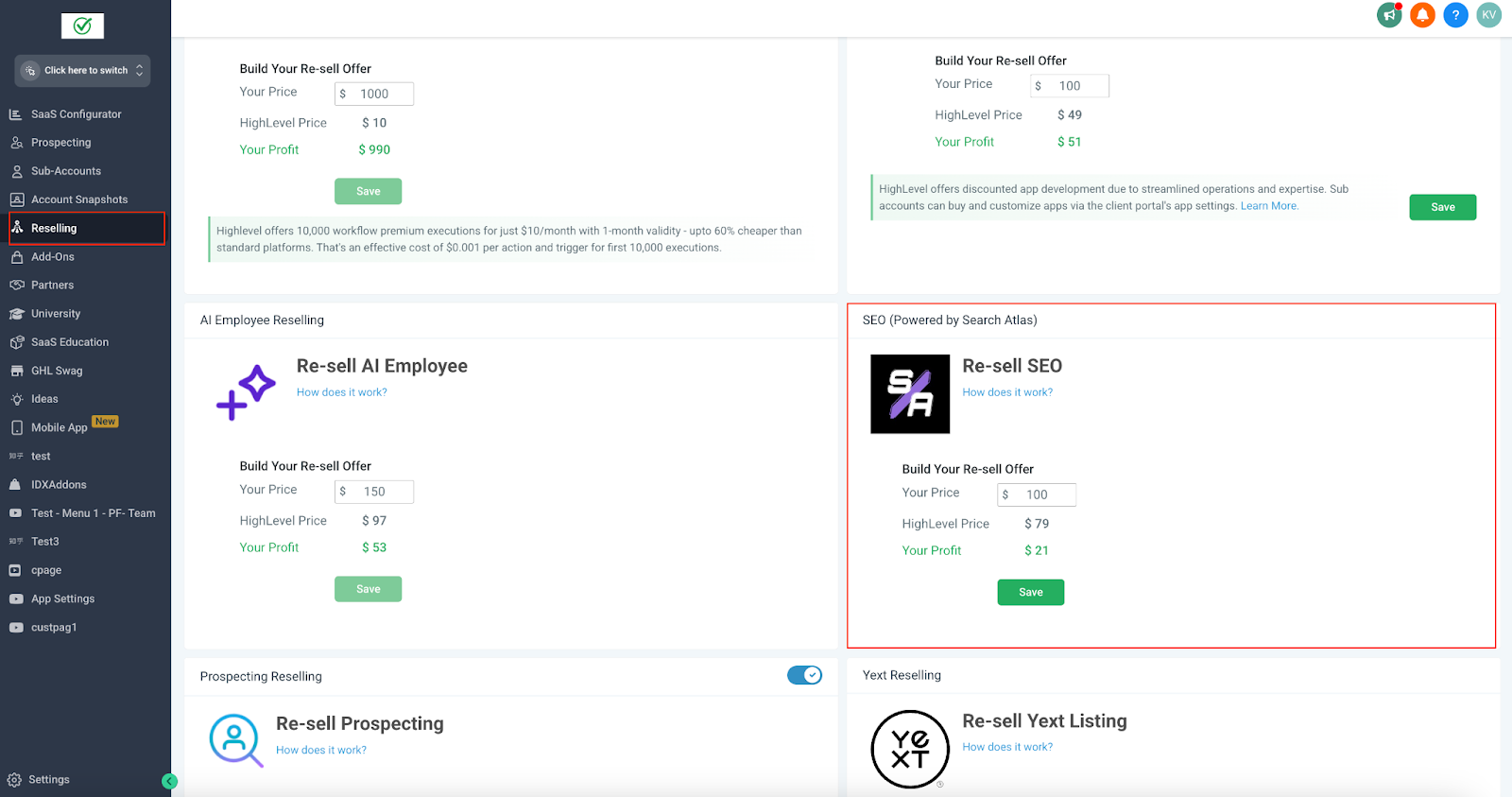
The module appears only after an agency enables SEO Reselling for a specific subaccount, ensuring that only authorized accounts can access the tools.
03How businesses use SEO
- Digital marketing agency. The agency enables SEO Reselling, adds each client’s domain under Site Projects, runs AI driven audits, and delivers white label SEO reports from the Settings tab. All actions stay within HighLevel’s SEO suite.
- Local restaurant chain. The chain monitors its Google Maps presence in the Local SEO tab, using heatmaps to see keyword position changes. Adjustments to title tags or alt text are applied via the AI fix feature.
- SaaS startup. The startup uses Keyword Research to discover high traffic terms, tracks up to 1,000 keywords in the Rank Tracker, and reviews performance trends directly in the SEO dashboard.
04The numbers and rules that matter
- $79 per subaccount per month for agencies (per HighLevel's help center, checked November 2026).
- Track up to 1,000 keywords.
- Premium AI quota: 10 credits per month, 3 credits per article.
- Sites quota: 4 sites (total 20 pages), 1 credit per site.
- AI Fixes Generation quota: 500 suggestions per month, 1 credit per suggestion.
- Site Explorer quota: 10, 1 credit per site.
- Total pages crawled per month: 50,000.
05Before you start
- SEO Reselling must be enabled for the subaccount before the SEO tab appears.
06How to set up and use SEO in HighLevel
Getting started with HighLevel SEO
- Verify that the agency has turned on SEO Reselling for the target subaccount.
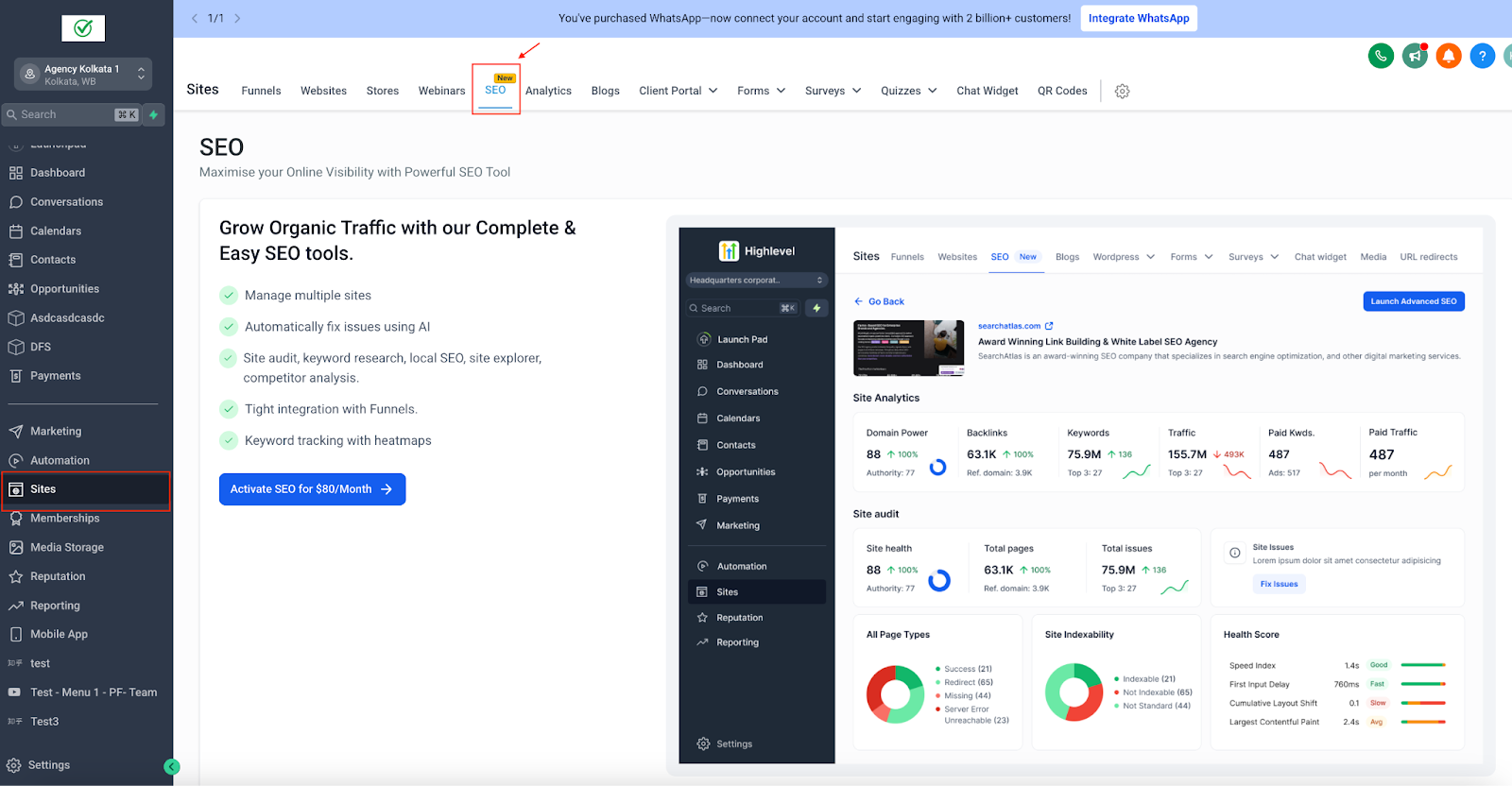
- Log in to the subaccount and navigate to Sites > SEO.
- Review the three main tabs: Site Projects, Local SEO, and Settings.
- Click the “Launch Advanced SEO” button to open the full suite of tools in a new window.
07What it looks like in HighLevel
08Settings that matter
- SEO Reselling. Controls whether the SEO tab is visible for a given subaccount.
09Things to know before you rely on it
- A maximum of 1,000 keywords can be tracked in the Rank Tracker.
- Up to four site projects can be added, each consuming site audit and site explorer quota.
- AI fixes generation is limited to 500 suggestions per month.
- Premium AI article generation uses 3 credits per article and refreshes monthly.
- Local SEO heatmap points are consumed each time Search Atlas runs; point usage varies by map layer and grid size.
10If something goes wrong
- SEO tab does not appear under Sites. Enable SEO Reselling for the subaccount; the tab will become visible.
- Quota exhaustion indicator shows red. Check the Settings tab; red highlights any exhausted quota while other quotas remain normal.
11How it connects to the rest of HighLevel
- Learn how to monitor, analyze, and optimize technical SEO for each site Site Projects
- Explore keyword research and rank tracking capabilities Keyword Research
- Use Content Genius for AI powered content optimization Content Genius
Michael's take

I find the SEO module handy for agencies that handle several client sites because it centralizes audits, keyword tracking and reporting in one place.