
01Who this is for
- Founders who rely on automated lead handling can let agents update HighLevel contacts in HubSpot without manual effort.
- Marketing teams that need fresh content can have agents generate new Notion pages or pull analytics from Fathom.
- Operations managers can schedule meetings automatically by connecting Calendly or manage files through Google Drive.
02MCP app connectors, explained
MCP app connectors are integrations that use OAuth or secure login to give a Managed Agent permission to act inside an external application. The connection is established inside Agent Studio and the agent receives only the tools you enable.
When a workflow trigger fires, the agent calls the selected tools, for example, creating a HubSpot deal or adding a row in Google Sheets. The actions run in real time as part of the agent’s automated process.
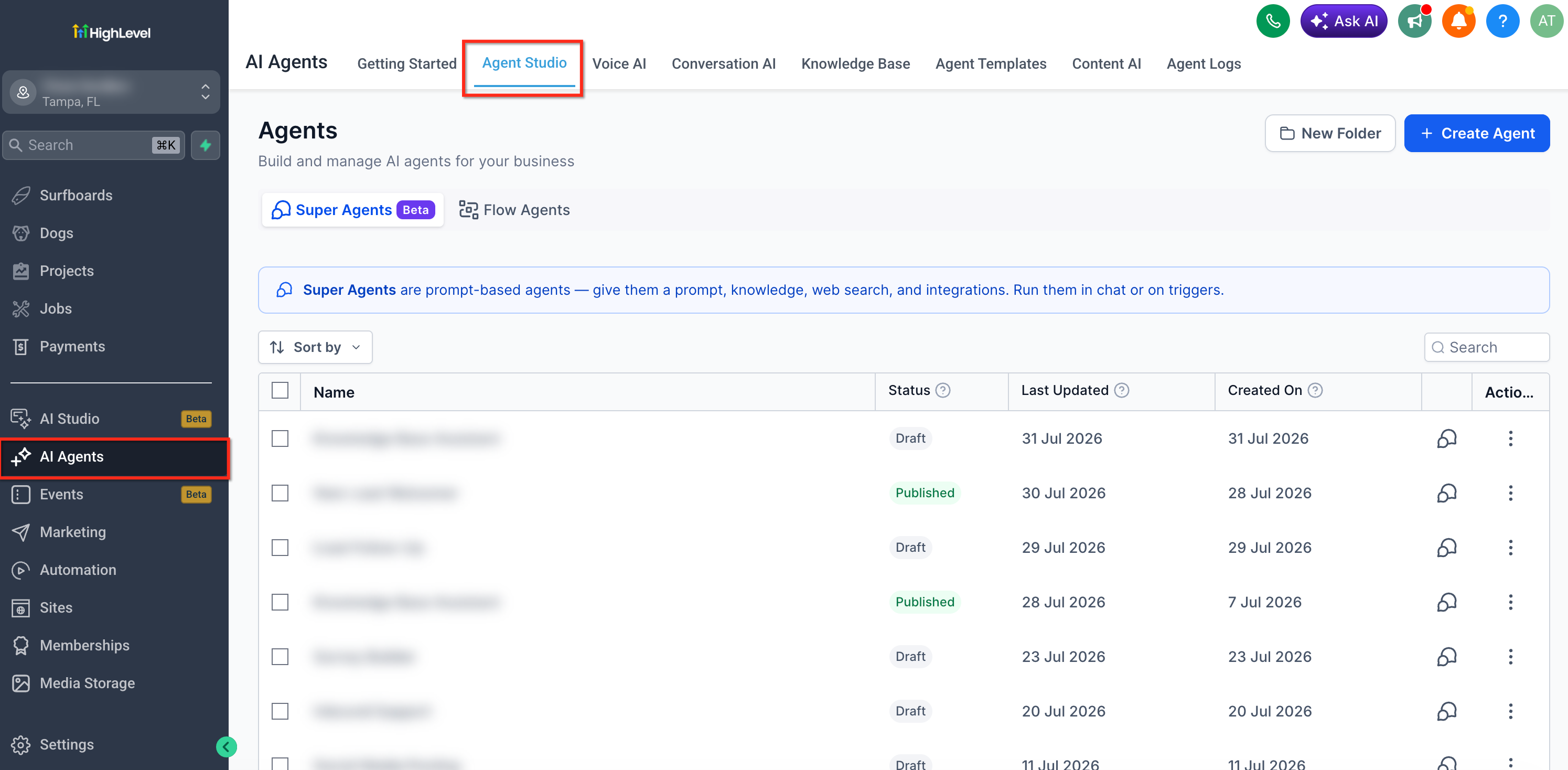
All connectors are managed from the Apps section of a Managed Agent’s configuration in Agent Studio. You can add, edit or remove apps and tool selections at any time.
03How businesses use MCP app connectors
- SaaS startup. The startup adds the HubSpot MCP connector in Agent Studio, authenticates the HubSpot account, selects contact creation tools, and lets the agent add new leads automatically when a signup form is submitted.
- Content agency. The agency connects the Notion MCP connector, selects page creation and search tools, and instructs the agent to draft briefing pages whenever a new project request arrives.
- Consulting firm. The firm links the Google Calendar MCP connector, picks event creation tools, and configures the agent to schedule discovery calls after a prospect fills a qualification questionnaire.
04The numbers and rules that matter
- Supported MCP apps include HubSpot, Notion, Apify, Make, Fathom, Calendly, Canva, OpenArt, Monday.com, Cal.com, Higgsfield, GitHub, Shippo, Windsor.AI, Vapi, Google Drive, Google Docs, Google Sheets, Google Slides, Google Calendar, Atlassian, Apollo, Fal, Zapier, Magnific, DataForSEO, Trello, Asana, ClickUp, Fireflies, Kling, Stripe, Firecrawl, Nekt.
05How to set up and use MCP app connectors in HighLevel
Connect an MCP app to a Managed Agent
- Open Agent Studio in your HighLevel account.
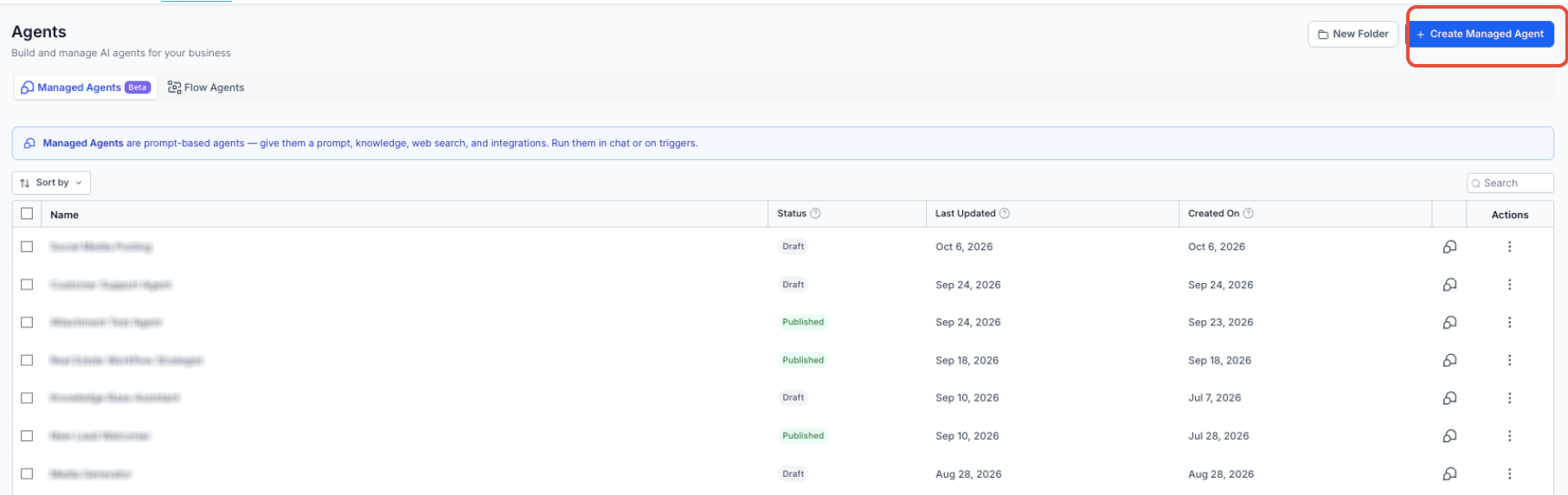
- Create a new Managed Agent or open an existing one.
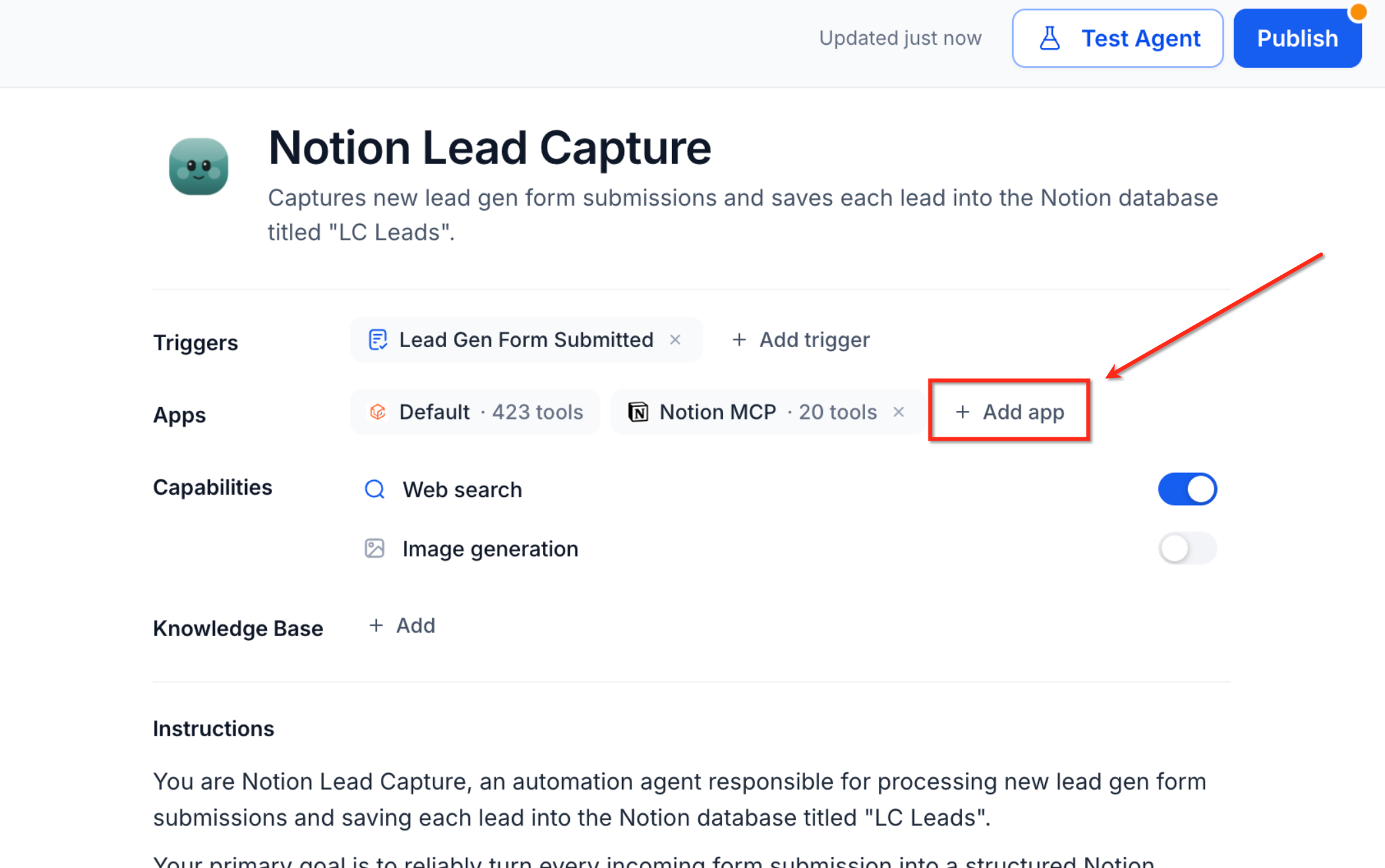
- In the Apps section, click "+ Add app" and choose the desired MCP connector.
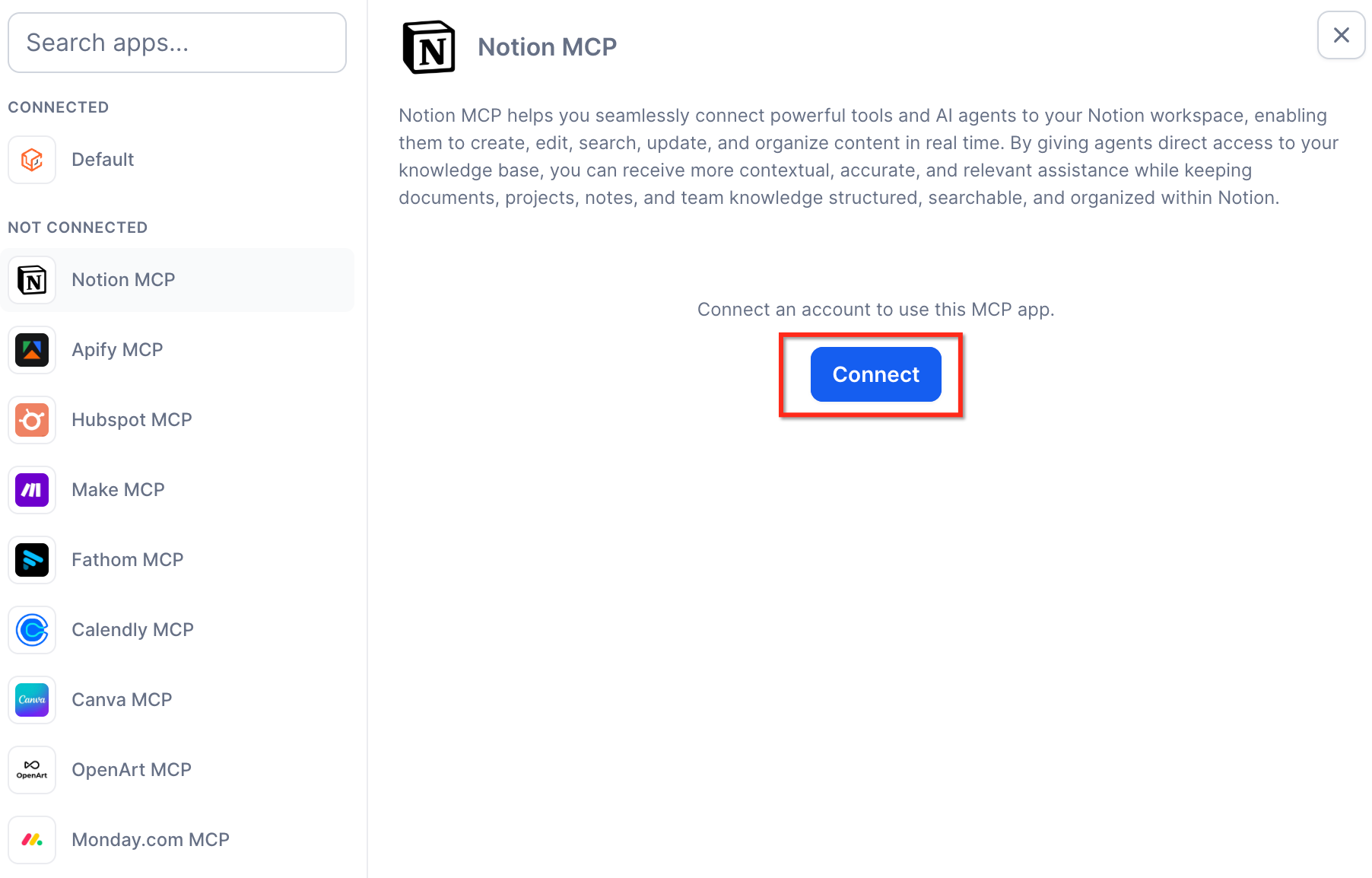
- Click "+ Connect" next to the app and complete the OAuth or secure login flow.
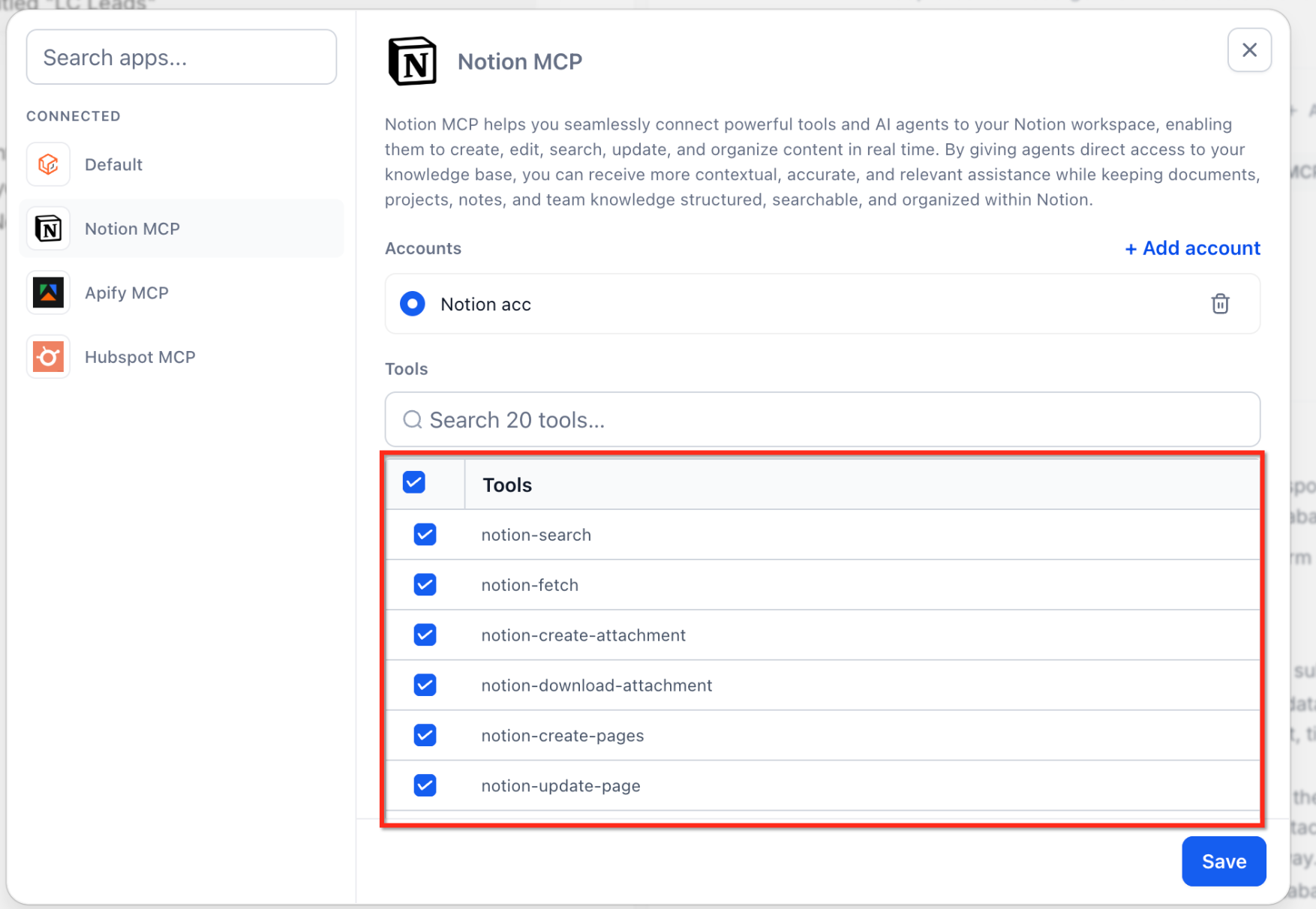
- After authentication, check the boxes for the tools you want the agent to use.
- Click "Save" to store the MCP app connection and tool selections.
- Activate the agent with a workflow trigger so it can run actions in the connected app.
- Tip: You can connect multiple MCP apps to a single Managed Agent; the agent will use the appropriate tools based on context.
06What it looks like in HighLevel
07Settings that matter
- Apps section. The area in Agent Studio where you add and manage MCP connectors for a Managed Agent.
- + Add app. Button that opens a list of available MCP app connectors to integrate with the agent.
- + Connect. Initiates the OAuth or secure login process to authenticate the selected third party app.
- Tools selection. Checkbox list that lets you enable specific actions the agent can perform within the connected app.
08Things to know before you rely on it
- MCP connectors are currently supported only for Managed Agents in Agent Studio and Ask AI; Voice AI and Conversations AI support will arrive in a future release.
09If something goes wrong
- Authentication fails or permissions are revoked. Re authenticate the account by clicking "+ Connect" again in the Apps section of Agent Studio.
10How it connects to the rest of HighLevel
- Set up your own MCP server to host custom connectors. MCP server setup
- Use multi account support to connect Claude with multiple MCP apps. Claude multi account
- Review pricing and plan access for AI Employee features. Pricing
Michael's take

MCP app connectors let a small business let their AI Agents talk to the tools they already pay for, turning a lead form into a HubSpot contact or a calendar booking without a developer writing code.
The mistake to avoid is forgetting to regrant permissions when an app revokes access, which leaves the agent stuck.