
01Who this is for
- Marketing agencies benefit because they can grant AI assistants controlled access to client subaccounts without exposing private tokens.
- Developers using Codex can connect to LeadConnector MCP to automate record updates while keeping permissions scoped to the authorized subaccount.
02LeadConnector MCP connections, explained
LeadConnector MCP provides a secure OAuth based bridge between compatible OpenAI clients and HighLevel operations. The connection uses a dedicated OpenAI endpoint (https://services.leadconnectorhq.com/mcp/openai/v2/) and allows the AI to list locations, search operations, describe operations, and execute operations. Permissions granted during the OAuth flow determine which of the 550+ active operations across 38 domains the client can call.
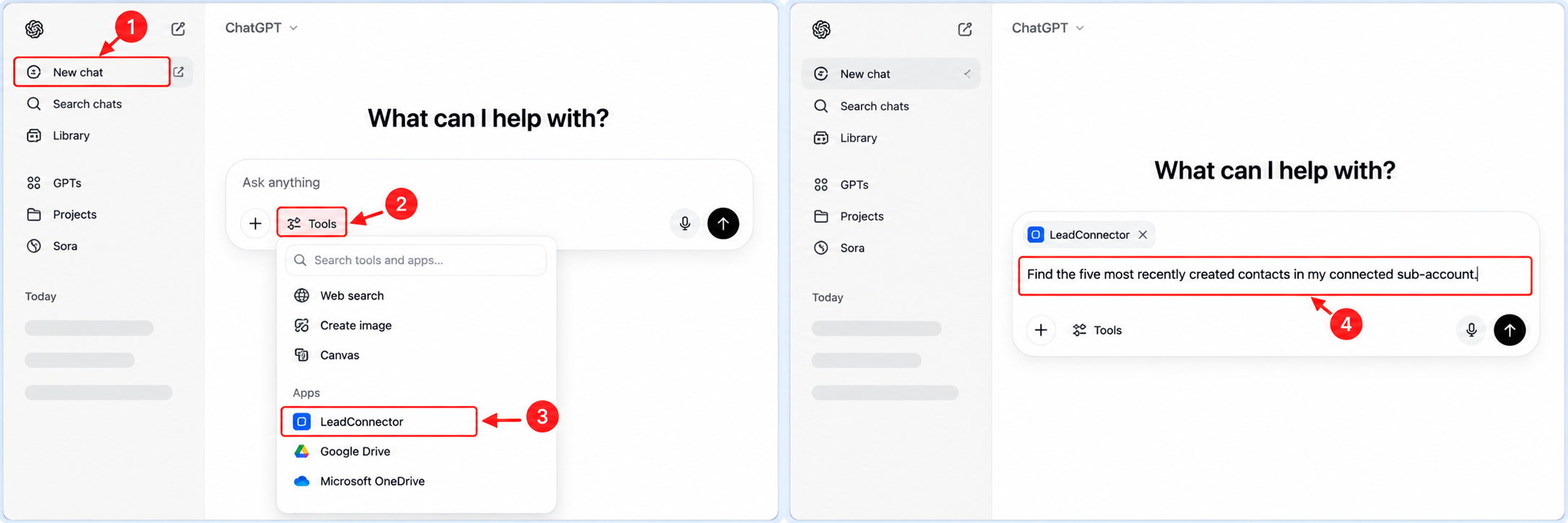
The MCP tools live inside the AI client’s tool or app menu. After the custom LeadConnector app is created, the client can scan for MCP tools, complete the OAuth flow, and then send natural language requests such as “find the five most recently created contacts in my connected subaccount.” Each request runs against one authorized subaccount at a time.
03How businesses use LeadConnector MCP connections
- Digital marketing agency. The agency creates a LeadConnector app in ChatGPT, authorizes the client’s subaccount, and then asks ChatGPT to pull recent contact records for campaign targeting. The process uses the list_locations and execute_operation tools provided by MCP.
- Bookkeeping firm. A bookkeeper adds the LeadConnector MCP server to Codex via the CLI, runs the login command, approves OAuth permissions, and then uses Codex to update invoice entries in HighLevel through natural language prompts.
- Property management company. The company configures the MCP endpoint in the Codex IDE extension, authenticates with OAuth, and then searches for tenant related operations. It executes the appropriate operation to retrieve lease details directly from the AI interface.
04The numbers and rules that matter
- Endpoint: Https://services.leadconnectorhq.com/MCP/openai/v2/.
- More than 550 active operations.
- 38 CRM domains.
05Before you start
- Use an OpenAI client that supports remote Streamable HTTP MCP servers.
- Be able to sign in to the LeadConnector account that contains the target subaccount(s).
- Have access rights to HighLevel subaccount(s) you intend to authorize.
- Ensure your ChatGPT plan and workspace permissions allow creating a custom MCP app.
06How to set up and use LeadConnector MCP connections in HighLevel
Connect ChatGPT to LeadConnector MCP (11 steps)
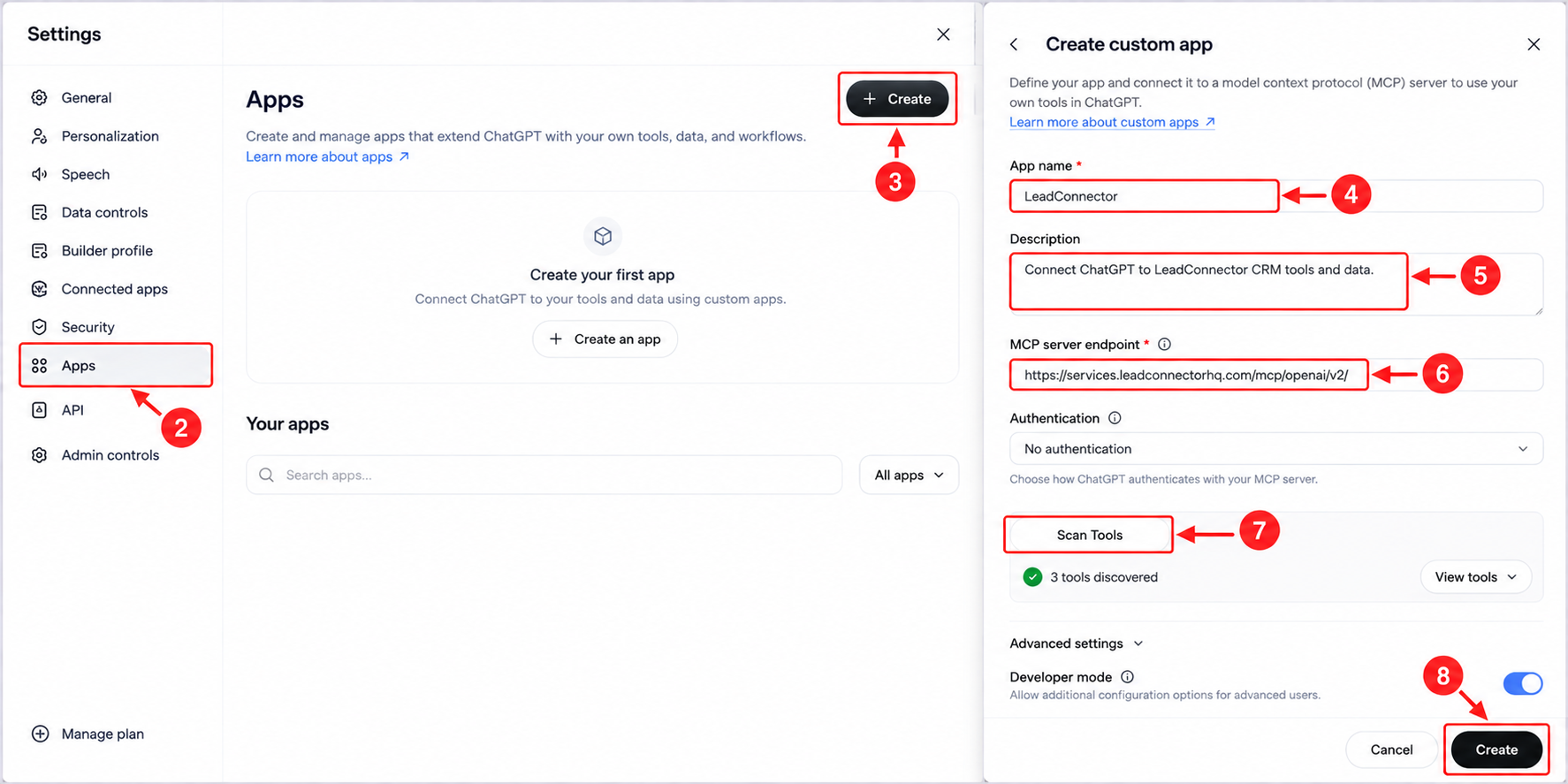
- Verify that your ChatGPT account and workspace permit creating a custom MCP app.
- Enable Developer mode in the ChatGPT Apps settings if required.
- Open Settings in ChatGPT on the web.
- Select Apps from the Settings menu.
- Click Create to start a new app.
- Enter a name such as LeadConnector for the app.
- Add a description that identifies the app as a HighLevel connection.
- Paste the MCP server endpoint https://services.leadconnectorhq.com/mcp/openai/v2/ into the endpoint field.
- Continue with the MCP app configuration.
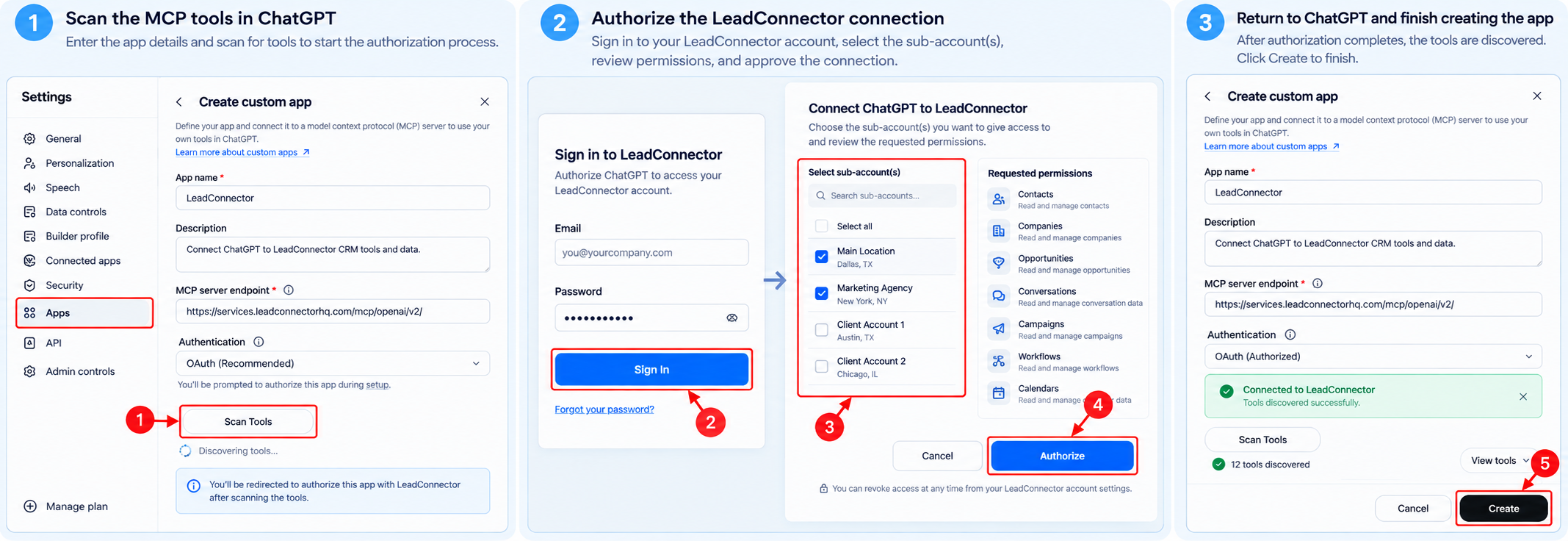
- Scan or discover the MCP tools to initiate the OAuth flow.
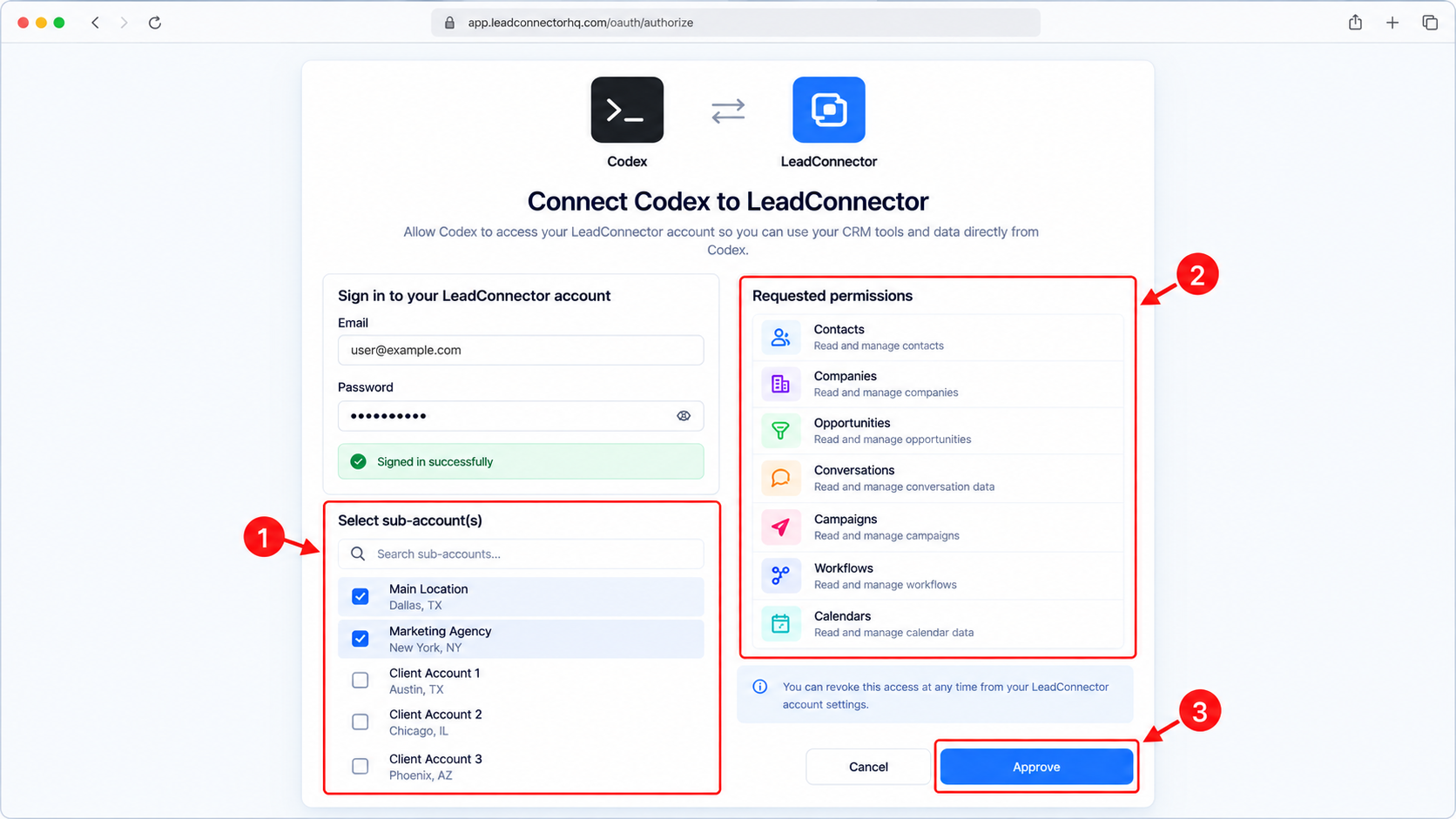
- Complete the OAuth flow by signing in, choosing subaccount(s), reviewing and approving permissions, then finish creating the app.
Connect Codex to LeadConnector MCP via CLI (3 steps)
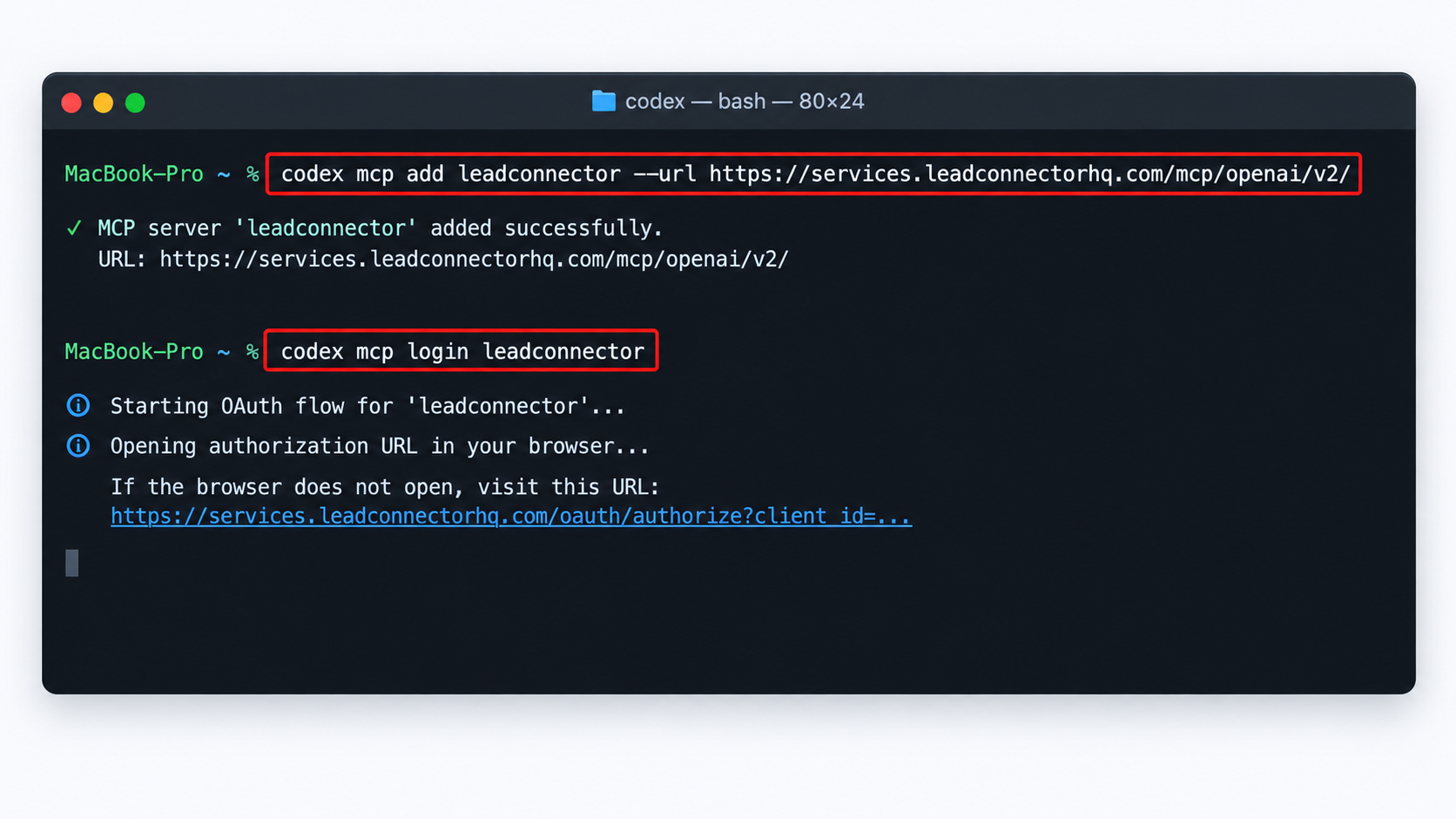
- Add the LeadConnector MCP server with the provided URL using the codex mcp add command.
- Start the LeadConnector OAuth flow by running codex mcp login leadconnector.
- Complete the sign in, select the subaccount(s), and approve the requested permissions when prompted.
Connect Codex to LeadConnector MCP via IDE (4 steps)
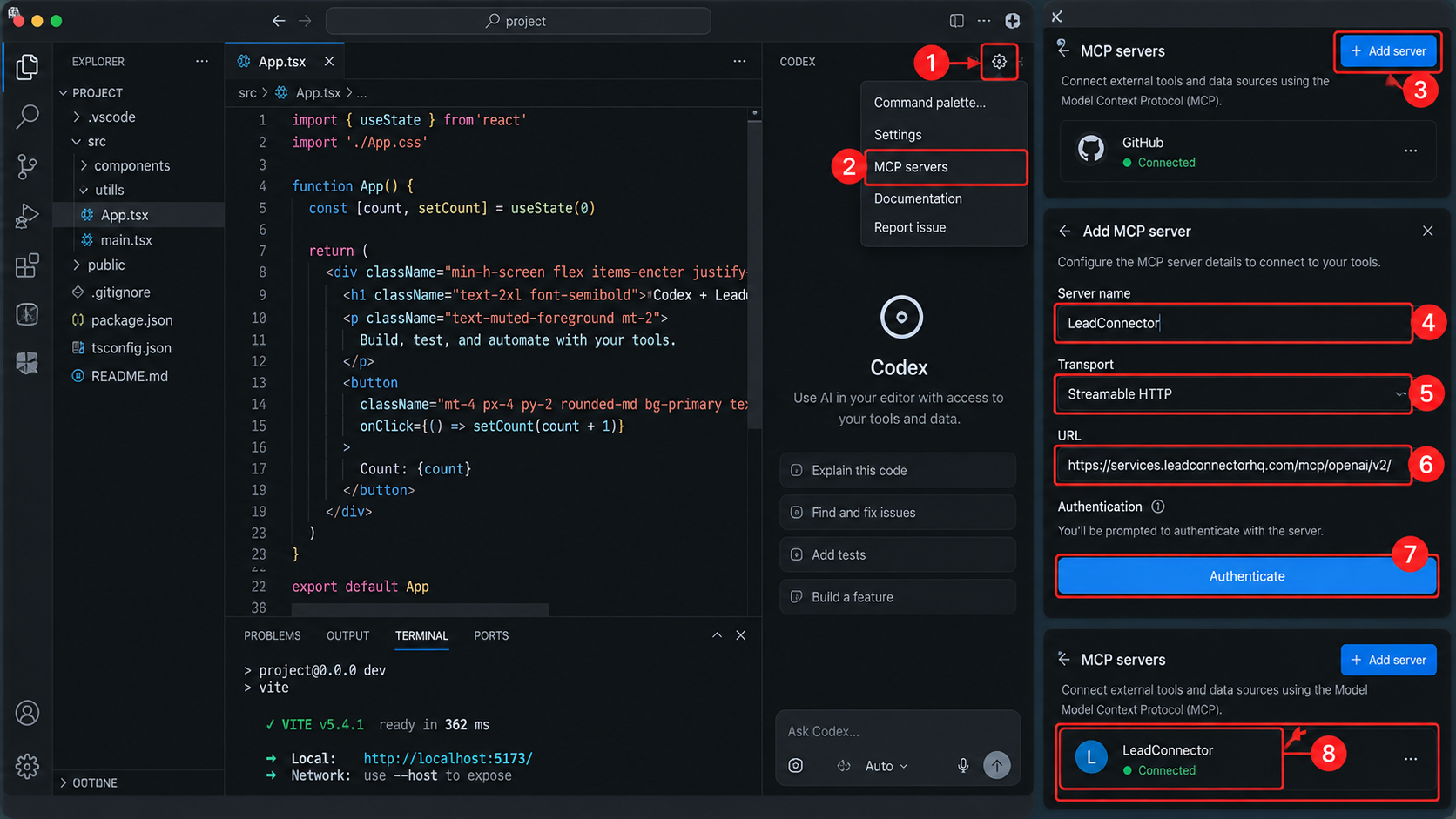
- Open the Codex IDE extension and access the gear menu.
- Choose MCP servers, then Add server, and pick Streamable HTTP.
- Enter the MCP endpoint URL and select Authenticate to begin the OAuth flow.
- Finish the OAuth flow by selecting the appropriate subaccount access and approving permissions.
07What it looks like in HighLevel
08Settings that matter
- Developer mode. Enables the creation of custom MCP apps within ChatGPT when the account requires it.
09Things to know before you rely on it
- Each MCP connection operates against a single subaccount at a time.
- Individual connections support only one subaccount; multi subaccount support is rolling out and appears only when the installation option is available.
- A connection cannot access any subaccount that was not authorized during the OAuth flow.
- Available CRM operations may change as the LeadConnector MCP catalog evolves.
- Sensitive or irreversible operations may require additional confirmation or safety checks.
10How it connects to the rest of HighLevel
- Guide to set up and use the HighLevel MCP server MCP server setup
- Details on multi account support for MCP connections Multi account support
- Related article: How to Setup and Use the HighLevel MCP Server Related MCP article
Michael's take

The OAuth flow lets you decide exactly which subaccounts an AI can see, keeping access controlled.
Testing a simple read request first helps confirm the connection before trying write actions.